

Why Does My Tapo Camera Keep Disconnecting From WiFi Every Day
- Router auto channel-switching disconnecting the camera
- Too many devices on the 2.4GHz network
- Router DHCP pool exhausted or the lease too short
Problem Description
Your Tapo camera keeps disconnecting from WiFi daily requiring you to restart it or re-add it to the app to get it back online. The camera may have worked perfectly for weeks then started dropping every day. Tapo support says check your WiFi but the real issue is usually a conflict between the camera and your router specific WiFi settings that Tapo cameras are sensitive to.
Why This Happens in Real Homes
A Tapo camera that drops once a day like clockwork is usually colliding with something on your router, not failing on its own. The classic triggers are a router that auto-switches its 2.4GHz channel (the camera briefly loses the network when the channel moves), a short DHCP lease that renews and hands out a different IP, or an IP conflict with another device grabbing the same address. The daily timing is the clue: if it goes offline at the same hour, look for a scheduled router reboot or an ISP re-sync rather than the camera. The durable fixes are to pin the router to a fixed 2.4GHz channel, reserve a static IP for the camera by its MAC, and extend the DHCP lease so the address stops churning. Splitting the 2.4GHz and 5GHz SSIDs keeps band-steering from bouncing the camera onto a radio it cannot use, and a firmware update clears the WiFi-module freeze that some units hit after days of uptime.
Symptoms
- Camera goes offline daily, requiring a restart
- Camera works for hours then disconnects
- App shows the camera offline but other devices are fine
- Camera reconnects on its own then drops again hours later
- Red and green status light alternating on the camera
- Camera disconnects when other devices join the WiFi
- Drops happen at roughly the same time each day
- Live view and notifications both die during the offline window
Recognize these? Here's what usually causes it.
Common Causes
- Router auto channel-switching disconnecting the camera
- Too many devices on the 2.4GHz network
- Router DHCP pool exhausted or the lease too short
- Camera IP conflict with another device
- Router MAC-address filtering blocking the camera after a lease renewal
- Camera firmware bug freezing the WiFi module
- Band-steering bouncing the camera between 2.4GHz and 5GHz
- Scheduled nightly router reboot or ISP re-sync
Most fixes happen in the first 3 steps.
Do not factory reset the Tapo camera to fix WiFi drops. Factory reset erases all settings recordings and requires full re-setup. The issue is almost always router configuration not the camera. Fix the router settings first.
Tools & Requirements
Step-by-Step Solution
Set Fixed WiFi Channel
Tapo cameras only use 2.4GHz WiFi. Log into your router and set the 2.4GHz channel to 1 6 or 11 instead of auto. When set to auto the router scans for the best channel periodically and switches. Each switch causes a brief disconnection that most devices handle transparently but Tapo cameras often fail to reconnect after a channel change requiring a restart.
Assign Static IP
In your router DHCP settings find the Tapo camera by its MAC address and assign a reserved IP. Short DHCP leases of 1 or 2 hours cause the camera to renegotiate its IP frequently. Some Tapo firmware versions handle this poorly and disconnect during renewal. A static reservation with a long lease eliminates this issue. Set the lease to 24 hours or permanent.
Separate WiFi Bands
If your router broadcasts one SSID for both 2.4GHz and 5GHz create separate SSIDs. Connect the Tapo camera to the 2.4GHz-only SSID. Band steering on combined networks can confuse the camera. It tries to connect to 5GHz fails then falls back to 2.4GHz creating a disconnect cycle. A dedicated 2.4GHz SSID prevents this entirely.
Update Camera Firmware
In the Tapo app tap the camera then Settings then Device Info then Firmware Update. TP-Link regularly releases firmware patches fixing WiFi connectivity bugs. Allow the update to complete without interrupting. After updating the camera will restart. Check daily for the next few days to confirm the disconnection issue is resolved.
Check Device Limit
Many consumer routers limit simultaneous 2.4GHz connections to 20 or 32 devices. If you have many smart home devices on 2.4GHz the camera may get kicked when the limit is reached. Check your router connected devices list. If approaching the limit move some devices to 5GHz or upgrade to a router with higher device capacity. Mesh routers handle many devices better than single-unit routers.
Quick Solutions
Still having issues? This is usually the deeper cause below.
This usually happens right after a router reboot or ISP change — the device rejoins the network but drops its cloud session silently.
After making router changes restart the Tapo camera by unplugging for 10 seconds and replugging. This forces the camera to connect with the new settings rather than trying to use cached WiFi parameters from the old configuration.
Most WiFi drop-offs happen right after a router reboot or ISP swap — the device reconnects to the network but silently loses its cloud registration.
- Router auto channel-switching disconnecting the camera
- Too many devices on the 2.4GHz network
- Router DHCP pool exhausted or the lease too short
- Camera IP conflict with another device
- Router MAC-address filtering blocking the camera
Before you go — try one of these (they fix most cases).
Most popular upgrades chosen by Tapo Smart Camera owners.
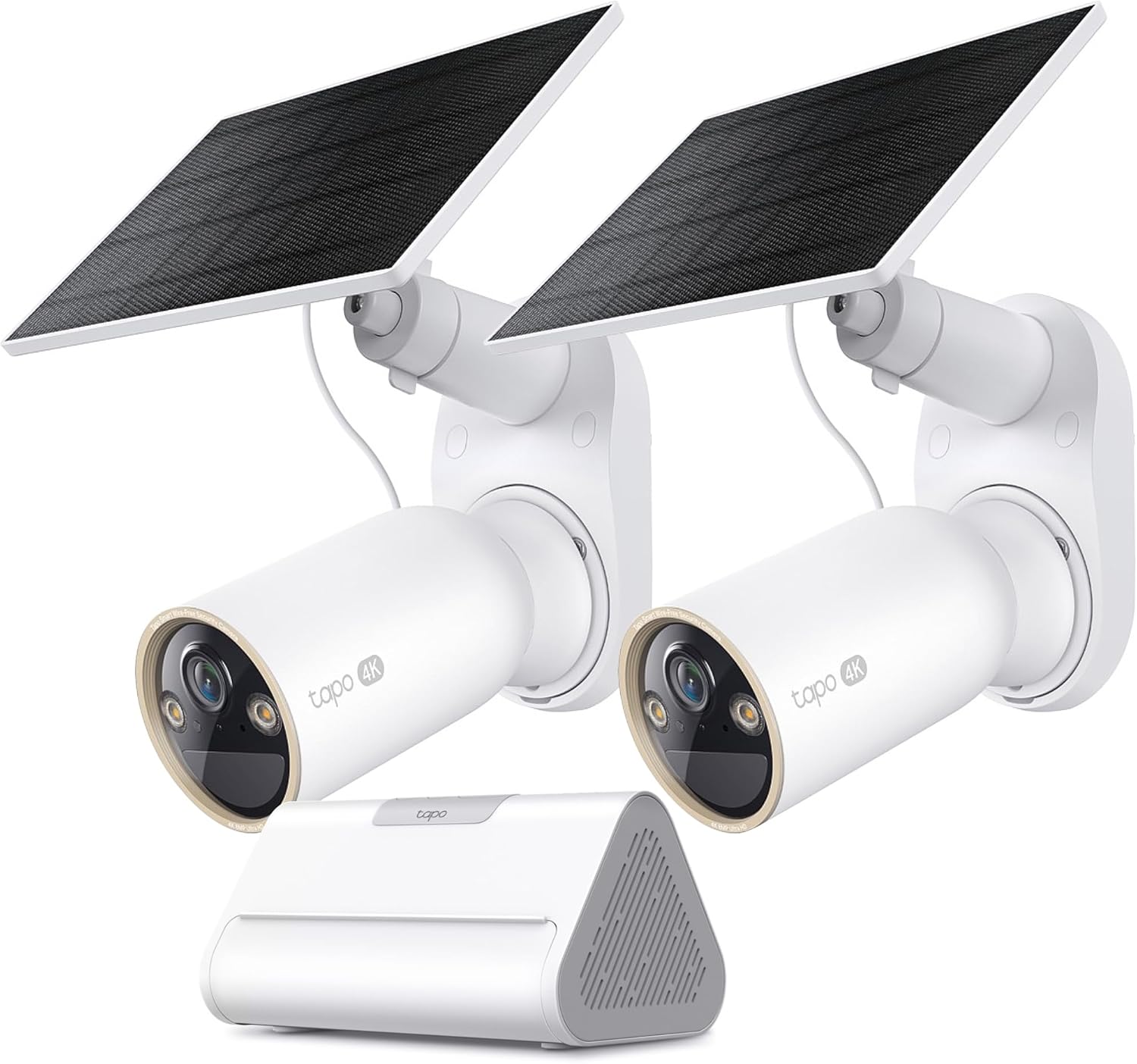
Tapo 4K Outdoor Solar-Powered Cameras C460 KIT x 2-Camera...

Tapo TP-Link 2K Pan/Tilt Security Camera for Baby Monitor...
As an Amazon Associate we earn from qualifying purchases.
Official Manufacturer Manual
Tapo provides official product documentation through their online manual rather than downloadable PDF. Access setup guides, troubleshooting steps, and product specifications for your Tapo Smart Camera.
Source: tapo.com
Need More Help? Tapo Support
Note: The contact information below connects you directly to Tapo's official customer support team, not Trunetto. They can help with warranty claims, device replacements, and advanced technical issues.


