

Why Did My eufy Smart Lock Fingerprint Sensor Stop Recognising Fingerprints After the 2.0.9.6 Firmware Update?
- Firmware 2.0.9.6 disrupted fingerprint recognition
- Enrolled prints corrupted by the update
- Reader needs re-enrollment after the update
Problem Description
After the firmware 2.0.9.6 update through the eufy Security app your eufy smart lock fingerprint sensor has stopped recognising registered fingerprints. The sensor either does not activate when you place your finger on it or it activates but always shows access denied even for previously working fingerprints. The lock still works with pin codes and the eufy app but the fingerprint reader is essentially dead. This has been reported on Reddit for the eufy C220 and C210 models where the firmware update appears to wipe or corrupt the stored fingerprint templates. The sensor hardware itself is not damaged but the firmware change has broken the biometric matching process.
Why This Happens in Real Homes
eufy's 2.0.9.6 firmware broke fingerprint recognition on affected smart locks — the update disrupted the stored prints or the reader's handling of them, so enrolled fingers stop being recognized even though the keypad and key still work. It's a known post-update regression tied to that version.
The usual recovery is to install the latest firmware (eufy typically issues a follow-up fix), then delete and re-enroll your fingerprints so the reader rebuilds its templates, capturing each finger at multiple angles. Power-cycle the lock by reseating the batteries, and use your code or key in the meantime. If prints still fail after re-enrolling on current firmware, a factory reset and re-setup, or eufy support, is the next step.
Symptoms
- Fingerprint stopped after firmware 2.0.9.6
- Prints not recognized post-update
- Fingerprint reader dead since the update
- Enrolled prints fail
- Worked before the update
- Have to use code/key
- Reader unresponsive
- Recognition broke after updating
Recognize these? Here's what usually causes it.
Common Causes
- Firmware 2.0.9.6 disrupted fingerprint recognition
- Enrolled prints corrupted by the update
- Reader needs re-enrollment after the update
- Settings reset by the update
- Follow-up firmware needed
- Sensor calibration lost
- Update left the lock in a partial state
- Bug in that firmware version
Most fixes happen in the first 3 steps.
Do not attempt to disassemble the eufy lock to access the fingerprint sensor hardware. The sensor is calibrated at the factory and physical tampering voids the warranty. If the sensor is dead after a firmware update it is a software issue that eufy support handles through replacement.
Tools & Requirements
Step-by-Step Solution
Delete and Re-Register All Fingerprints
The firmware update likely corrupted the stored biometric templates. Open the eufy Security app and go to your lock device. Tap Fingerprint Management. Delete every registered fingerprint for all users. After deleting all fingerprints restart the lock by removing batteries for 30 seconds and reinserting. This forces the fingerprint sensor coprocessor to reinitialise with a clean template database. Now re-register each fingerprint. Place your finger flat on the sensor and follow the app prompts. Register each finger at least 3 times with slightly different angles and pressure to create reliable templates that work in various conditions.
Clean the Fingerprint Sensor
Before re-registering fingerprints clean the sensor surface thoroughly. Use a dry microfibre cloth to remove any oils, dirt, or moisture from the fingerprint sensor pad on the exterior keypad face (the smooth rectangular area below the number buttons). Do not use alcohol or cleaning solutions on the fingerprint sensor as this can damage the optical coating on eufy lock sensors. A dirty sensor produces poor quality biometric captures during registration which leads to failed matches later. After cleaning immediately register fingerprints while the sensor is completely clean and dry.
Register Fingers With Multiple Angles
The new firmware may have a stricter matching algorithm that requires more biometric data per finger. For each finger you register place it on the sensor from multiple angles during the registration process. Start with your finger flat and centred. Then tilt slightly left, right, up, and down during subsequent capture prompts. This gives the matching algorithm more surface area data to work with. Register your primary entry finger on both hands so you always have a backup if one hand is wet or dirty.
Restart Lock to Reinitialise Sensor
If the sensor physically does not activate when you touch it the fingerprint coprocessor may be hung from the firmware update. Remove all batteries from the lock. Wait 30 full seconds. Reinsert batteries and wait for the lock to boot which takes about 15 seconds. Try touching the fingerprint sensor. If the green LED now illuminates the sensor hardware is working and you just need to re-register fingerprints. If the sensor still shows no LED response the firmware update may have damaged the sensor driver requiring a further firmware patch or hardware replacement.
Contact eufy Support for Sensor Replacement
If the fingerprint sensor physically does not activate after battery removal and reinsertion and the eufy app shows no pending firmware updates the sensor hardware driver may be permanently corrupted. Contact eufy support at eufy.com/support or through the eufy Security app help section. Provide your lock model number and firmware version. eufy has provided replacement locks for units where firmware updates permanently disabled the fingerprint sensor. Have your proof of purchase ready for the warranty claim.
Quick Solutions
Still having issues? This is usually the deeper cause below.
If the keypad rejects valid codes, a lockout timer may be running — five failed entries locks most keypads silently for 5–10 minutes.
After any eufy lock firmware update immediately test your fingerprint before closing the door. If fingerprints fail you can still enter with your pin code or the eufy app. Never rely solely on fingerprint access on the day of a firmware update.
Firmware updates that wipe settings are more common than brands admit — many devices silently reset to factory defaults on an OTA push with no warning.
- Firmware 2.0.9.6 disrupted fingerprint recognition
- Enrolled prints corrupted by the update
- Reader needs re-enrollment after the update
- Settings reset by the update
- Follow-up firmware needed
Before you go — try one of these (they fix most cases).
Most popular upgrades chosen by eufy Smart Lock owners.

eufy Security Video Smart Lock E330 Pack with Square Door...
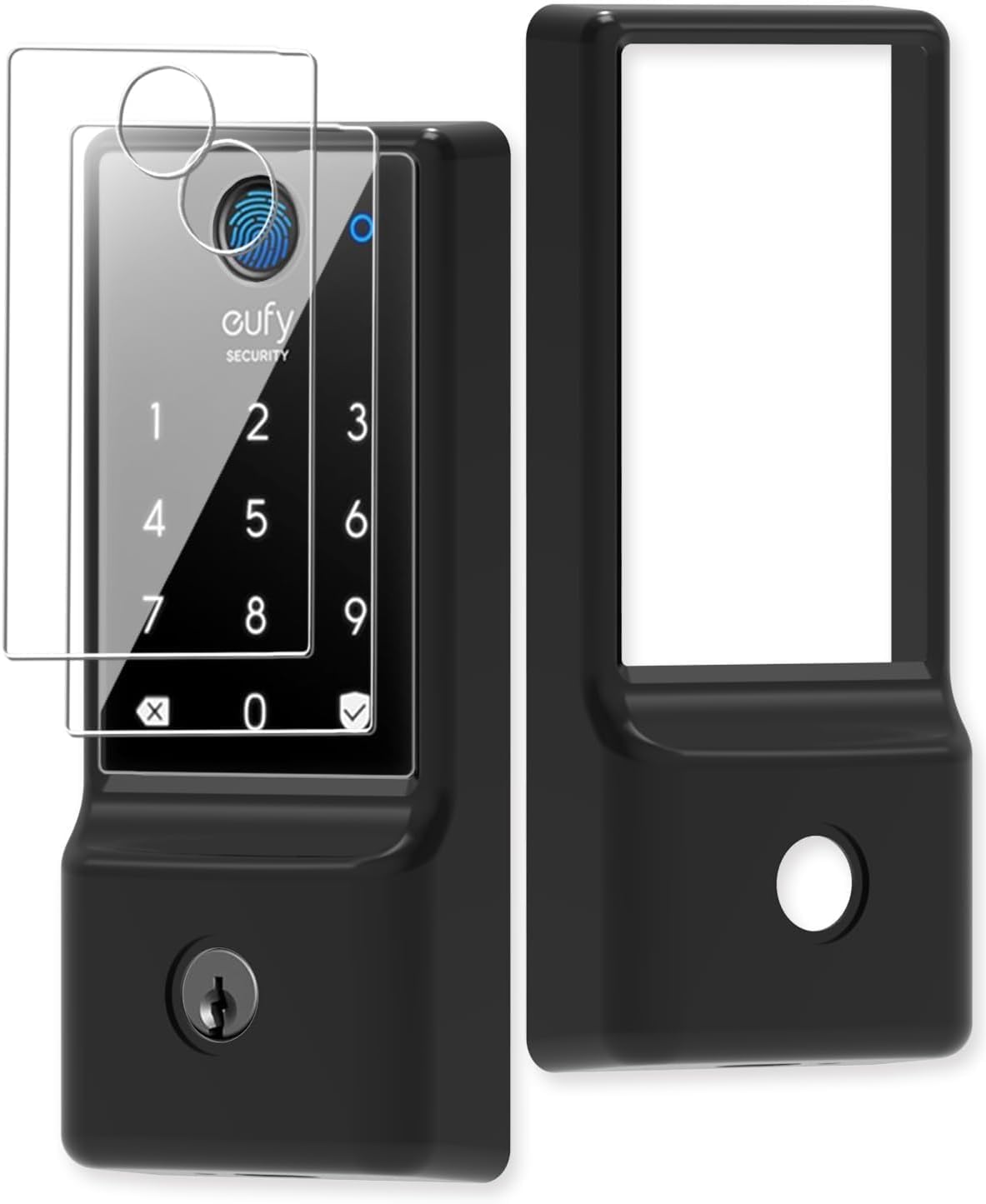
Silicone case for eufy Security Smart Lock C220 Electroni...

eufy Security Smart Lock FamiLock C32, Fingerprint Keyles...
As an Amazon Associate we earn from qualifying purchases.
Official Manufacturer Manual
eufy Security provides official product documentation through their online manual rather than downloadable PDF. Access setup guides, troubleshooting steps, and product specifications for your eufy Smart Lock.
Source: eufy.com
Need More Help? eufy Security Support
Note: The contact information below connects you directly to eufy Security's official customer support team, not Trunetto. They can help with warranty claims, device replacements, and advanced technical issues.
How Does eufy Security Compare?
Before replacing your eufy Security device, see how it stacks up against alternatives in our full comparison guides.
Accessories owners commonly pair with eufy Smart Lock.

eufy Security Battery Video Doorbell C210 Kit, 1080p, No ...

eufy Security Video Doorbell Camera E340 (Wired/Battery P...
eufy Security Video Doorbell Dual Camera, 2K HD, Wireless...
As an Amazon Associate we earn from qualifying purchases.


