

How Do I Set Up the eufy Video Smart Lock?
- Connecting to 5GHz not 2.4GHz
- Weak 2.4GHz at the door
- Deadbolt/alignment issue
Problem Description
You are installing the eufy Video Smart Lock on your front door. The lock combines a smart deadbolt with a built-in camera and fingerprint reader on the exterior keypad. Check that your door fits the lock requirements (door thickness 1-3/8" to 2", standard bore hole). This guide covers compatibility, installation, and app setup.
Why This Happens in Real Homes
The eufy Video Smart Lock combines a deadbolt, a fingerprint reader, and a built-in doorbell camera in one unit, so setup covers three things: a solid mechanical install with the deadbolt calibrated, fingerprint enrollment, and a 2.4GHz WiFi connection for the camera and app. The camera side makes strong door-side WiFi more important than on a plain lock.
Install the lock so the deadbolt throws freely and run its calibration, enroll fingerprints capturing each finger at several angles, and connect it to a 2.4GHz network (not 5GHz) with good signal at the door. Enable the doorbell and camera features in the eufy Security app, keep the battery charged, and install any firmware. A clean mechanical install plus strong 2.4GHz coverage is what makes both the lock and its camera reliable.
Symptoms
- Installing/using the Video Smart Lock
- Camera + lock setup
- Won't connect to WiFi
- Fingerprint enrollment issues
- Doorbell/camera not working
- Lock won't calibrate
- Offline in the app
- Battery questions
Recognize these? Here's what usually causes it.
Common Causes
- Connecting to 5GHz not 2.4GHz
- Weak 2.4GHz at the door
- Deadbolt/alignment issue
- Fingerprint enrollment poor
- Not calibrated
- Camera/doorbell not enabled
- Low battery
- Firmware update pending
Most fixes happen in the first 3 steps.
Always keep a physical backup key accessible outside your home in case of total lock failure. Never perform a factory reset while locked out as this may disable all electronic access. Ensure battery level is above 50 percent before firmware updates to prevent corruption.
Tools & Requirements
These tools will help you complete this fix.

Door alignment tool
Door Latch Strike Plate, Stainless Steel Door Lock P...

Replacement batteries
Duracell Coppertop Double AA Batteries with Power Bo...

Screwdriver
STREBITO 155 in 1 Electric Screwdriver Set, Small El...
As an Amazon Associate we earn from qualifying purchases.
Step-by-Step Solution
Check compatibility before installation
The eufy Video Smart Lock (model E330) replaces your existing deadbolt. It requires a standard door thickness (1-3/8 to 2 inches) and a standard US deadbolt bore (2-1/8 inch diameter hole, 1-inch edge bore). The lock includes a built-in 2K camera and fingerprint reader on the front, and a keypad on the inside. Remove your existing deadbolt and check the door prep dimensions before purchasing.
Needed for this step
Door Latch Strike Plate, Stainless Steel Door L...
This helps complete the fix you are currently reading.
$7.49Install the lock hardware
Remove the existing deadbolt (inside and outside pieces). Install the eufy lock mounting plate on the inside using the existing bolt hole. Thread the lock cable through the door hole. Attach the exterior assembly (camera + fingerprint reader + keypad) to the front of the door. Secure the interior assembly onto the mounting plate. The lock auto-adjusts to your door thickness. Test the deadbolt operation by extending and retracting it manually using the interior thumb turn before powering on.
Set up in the eufy Security app
Open the eufy Security app. Tap + > Add Device > Video Smart Lock. The app connects to the lock via Bluetooth. Follow the prompts to connect the lock to your 2.4GHz WiFi (required for remote access and video features). Set up your admin PIN code on the keypad. The lock also supports fingerprint unlock — register up to 20 fingerprints. The built-in camera connects to the app for remote video monitoring of your door.
Configure auto-lock and unlock features
In the eufy app, go to the lock settings. Enable Auto-Lock to automatically lock the deadbolt after a configurable delay (15 seconds to 5 minutes) when the door closes. Enable Auto-Unlock to unlock the door when your phone approaches (uses Bluetooth proximity). Set up unique PIN codes for family members and guests — you can create temporary PINs that expire after a set time, useful for house cleaners, dog walkers, or Airbnb guests.
Use the built-in camera features
The front-facing 2K camera works like a video doorbell. In the eufy app, you can view a live feed, get motion alerts when someone approaches, and use two-way audio to speak with visitors. The camera records motion events to local storage (HomeBase or built-in). Unlike a separate doorbell camera, this camera is integrated into the lock — so you see who is at the door and can unlock remotely from the same app view.
Quick Solutions
Still having issues? This is usually the deeper cause below.
Camera issues that start suddenly almost always trace back to an upload bandwidth drop — run a speed test before assuming hardware failure.
Set up auto-lock to engage 30 seconds after the door closes so you never accidentally leave it unlocked. Create temporary access codes for guests and service workers that automatically expire after a set time period.
Most smart lock failures people label as hardware issues turn out to be a code wiped during a sync, or a setting reset nobody remembers triggering.
- Connecting to 5GHz not 2.4GHz
- Weak 2.4GHz at the door
- Deadbolt/alignment issue
- Fingerprint enrollment poor
- Not calibrated
Before you go — try one of these (they fix most cases).
Most popular upgrades chosen by eufy Video Smart Lock owners.

eufy Security Video Smart Lock E330 Pack with Square Door...
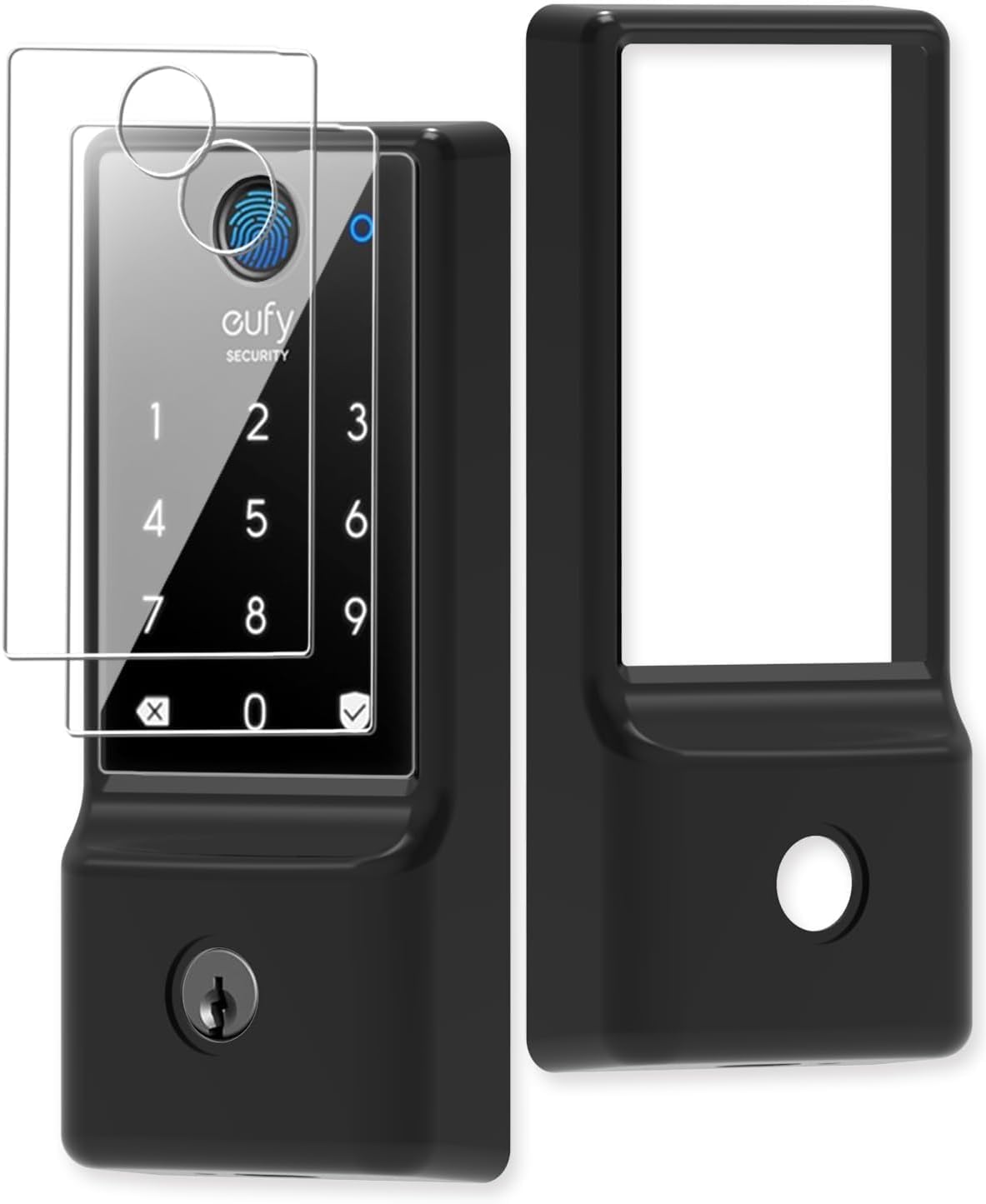
Silicone case for eufy Security Smart Lock C220 Electroni...

eufy Security Smart Lock FamiLock C32, Fingerprint Keyles...
As an Amazon Associate we earn from qualifying purchases.
Official Manufacturer Manual
eufy Security provides official product documentation through their online manual rather than downloadable PDF. Access setup guides, troubleshooting steps, and product specifications for your eufy Video Smart Lock.
Source: eufy.com
Need More Help? eufy Security Support
Note: The contact information below connects you directly to eufy Security's official customer support team, not Trunetto. They can help with warranty claims, device replacements, and advanced technical issues.
How Does eufy Security Compare?
Before replacing your eufy Security device, see how it stacks up against alternatives in our full comparison guides.
Accessories owners commonly pair with eufy Video Smart Lock.

Amazon Basics 20-Pack AA Alkaline High-Performance Batter...

Amazon Basics CR2032 3V Lithium Coin Cell Batteries for K...

Duracell Coppertop Double AA Batteries with Power Boost I...
As an Amazon Associate we earn from qualifying purchases.


