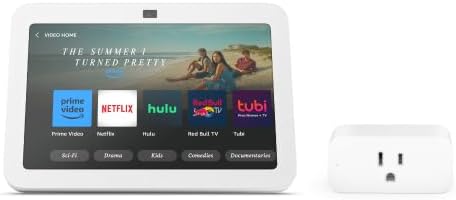
Why Can't Alexa Find My Amazon Smart Plug?
- WiFi connection unstable or device too far from router
- Device firmware or app needs updating
- Device not properly set up during initial pairing
Problem Description
Alexa cannot find or discover your Amazon Smart Plug during initial setup, or the plug shows as Unresponsive in the Alexa app after previously working. The Amazon Smart Plug connects directly to your 2.4GHz WiFi network and is controlled through the Alexa app. During setup, the plug enters discovery mode (indicated by an orange/red blinking LED) and the Alexa app searches for it. Discovery failures are usually caused by the plug not being in setup mode, the phone being on 5GHz WiFi, or Bluetooth permissions not granted to the Alexa app. The "unknown failure" error during setup means the Alexa app found the plug but could not complete WiFi configuration.
Why This Happens in Real Homes
The Amazon Smart Plug unknown failure error is almost always a WiFi credential issue — either the password was mistyped (the setup screen does not offer password visibility) or the plug is connecting to 5GHz instead of 2.4GHz. Amazon simplified the setup process in recent Alexa app versions, but the 2.4GHz requirement still catches users with combined-band routers. After successful initial setup, the plug is very reliable — ongoing offline issues are typically caused by WiFi password changes or router replacements that break the saved credentials.
Symptoms
- Device shows as offline in the app
- Device does not respond to commands
- App cannot connect to device
- Features not working as expected
- Device disconnects frequently
- Automations fail to trigger
- Voice commands not recognized
Recognize these? Here's what usually causes it.
Common Causes
- WiFi connection unstable or device too far from router
- Device firmware or app needs updating
- Device not properly set up during initial pairing
- Power supply issue or loose connection
- Account not linked correctly
- Too many devices causing network congestion
- Interference from other wireless devices
Most fixes happen in the first 3 steps.
Voice commands go through cloud - plug needs constant internet connection.
Step-by-Step Solution
Put the plug in setup mode correctly
The Amazon Smart Plug must be in setup mode for the Alexa app to discover it. Plug it into an outlet and look at the LED on the side. If it blinks orange/red, it is in setup mode and ready to be discovered. If the LED is solid blue, the plug is already set up on a WiFi network. If the LED is off, the plug is not receiving power or has failed. To force setup mode: press and hold the button on the side of the plug for 12 seconds until the LED blinks orange. This resets the WiFi settings and puts it back in discovery mode.
Grant the Alexa app Bluetooth and location permissions
The Alexa app uses Bluetooth to communicate with the plug during initial setup. On iPhone: go to Settings, Alexa, and enable Bluetooth and Local Network. On Android: go to Settings, Apps, Alexa, Permissions, and enable Bluetooth, Location, and Nearby Devices. Location must be turned on globally for Bluetooth scanning to work on Android. Without these permissions, the Alexa app physically cannot detect the plug even if it is 1 foot away in setup mode.
Connect your phone to 2.4GHz WiFi before setup
The Amazon Smart Plug only supports 2.4GHz WiFi. During setup, the Alexa app transfers your WiFi credentials to the plug. If your phone is on 5GHz, the credentials may not work for the plug. Connect your phone to your 2.4GHz network before starting setup. If your router uses a combined network name (same SSID for both bands), the plug will negotiate 2.4GHz automatically, but to avoid issues, temporarily disable 5GHz on your router during setup or create a separate 2.4GHz SSID.
Fix the unknown failure error
If the Alexa app finds the plug but shows Unknown Failure or Setup Failed during WiFi configuration, the WiFi credentials were not accepted. Common causes: the WiFi password was entered incorrectly (the setup screen does not show the password for verification), the plug is too far from the router, or the router rejected the connection. Move the plug to an outlet within 15 feet of the router for setup. Double-check your WiFi password by connecting another device to the same network. After fixing the cause, press and hold the plug button for 12 seconds to re-enter setup mode and try again.
Re-register the plug if it was previously set up
If the plug was working before and now shows Offline or Unresponsive: in the Alexa app, go to Devices, select the Smart Plug, and tap the gear icon. Tap Deregister or Remove Device. Then hold the plug button for 12 seconds until the LED blinks orange. In the Alexa app, go to Devices, tap +, Add Device, Plug, Amazon Smart Plug. The app will discover the plug and walk you through WiFi setup again. This is the cleanest fix when a plug stops responding after a router change or Alexa account change.
Test the outlet and try a different location
If the plug LED never lights up at all, the outlet may not have power or the plug hardware has failed. Test the outlet with a phone charger. Try the plug in a different outlet. If the LED never illuminates in any outlet, the plug has an electrical fault — the Amazon Smart Plug has a 1-year warranty. If the LED works but setup repeatedly fails, try setting up in a different room closer to the router. Once setup is complete, you can move the plug to its intended outlet — the WiFi credentials are saved.
Quick Solutions
Still having issues? This is usually the deeper cause below.
If voice commands stopped working after relinking the account, check that the skill or action is still enabled — relinking sometimes disables it silently.
Use smart plugs with energy monitoring to track exactly how much electricity each appliance uses. Set up Away Mode schedules that randomly toggle lamps on and off to make your home look occupied when you are traveling.
This issue almost always looks more complex than it is — the majority of cases trace back to a single setting, a stale credential, or a default that shipped wrong.
- WiFi connection unstable or device too far from router
- Device firmware or app needs updating
- Device not properly set up during initial pairing
- Power supply issue or loose connection
- Account not linked correctly
Before you go — try one of these (they fix most cases).
Most popular upgrades chosen by Amazon Smart Plug owners.

Amazon Echo Hub bundle with Amazon Smart Plug, Designed f...

Amazon Smart Plug, Works with Alexa, Simple Setup, Endles...

Amazon Basics Smart Plug Power Strip with 6 Individually ...
As an Amazon Associate we earn from qualifying purchases.
Official Manufacturer Manual
Amazon provides official product documentation through their online manual rather than downloadable PDF. Access setup guides, troubleshooting steps, and product specifications for your Amazon Smart Plug.
Source: amazon.com
Need More Help? Amazon Support
Note: The contact information below connects you directly to Amazon's official customer support team, not Trunetto. They can help with warranty claims, device replacements, and advanced technical issues.
How Does Amazon Compare?
Before replacing your Amazon device, see how it stacks up against alternatives in our full comparison guides.
Accessories owners commonly pair with Amazon Smart Plug.

Amazon eero 6 mesh wifi add-on extender - Add up to 1,500...

Amazon eero 6 mesh wifi system - Supports internet plans ...

Amazon eero 6+ mesh wifi system - Supports internet plans...
As an Amazon Associate we earn from qualifying purchases.
Guide Improvements
- Updated June 18, 2026
Rewrote to focus on initial setup and discovery failures: Bluetooth permissions, 2.4GHz WiFi, unknown failure error
Source: SEO cannibalization fix