

How to Set Up Your Meross Smart Plug
- Plug In and Open Meross App
- Select Your Device
- Connect to Plug's Wi-Fi
- Connect to Home Wi-Fi
Most users complete this in under 10 minutes
Overview
This guide explains the simple process of setting up a Meross Smart WiFi Plug. It covers plugging in the device, connecting it to its temporary setup network, and then using the Meross app to connect it to your home's 2.4GHz Wi-Fi for smart control.
Why This Happens in Real Homes
Setting up a Meross smart plug is quick: reset it into pairing mode, add it in the Meross app, and connect it to your 2.4GHz WiFi. Like most smart-home gear it's 2.4GHz-only, so the number-one setup snag is a phone or router steering it toward 5GHz.
Hold the plug's button until it enters pairing mode (the LED blinks the pairing pattern), then add it in the Meross app on a 2.4GHz network with the correct password and your phone nearby. Grant the app Bluetooth and location permissions if it uses BLE-assisted setup. Ensure the outlet has decent 2.4GHz coverage, and install any firmware. Once paired, you get app, voice, and schedule control.
What's Included
- Setting up the smart plug
- Won't connect to WiFi
- App can't find the plug
- Not in pairing mode
- Won't pair
- Offline after setup
- 5GHz vs 2.4GHz
- Plugged device won't switch
Got your materials ready? Here's what to check first.
Before You Start
- Connecting to 5GHz not 2.4GHz
- Plug not in pairing mode
- Weak 2.4GHz at the outlet
- Wrong WiFi password
- Phone too far during setup
- Firmware update pending
- Router blocking the device
- Bluetooth/permissions off (BLE setup)
Don't skip this step — it breaks everything if you do
Meross Smart Plugs only connect to 2.4GHz Wi-Fi networks. They will not work with 5GHz networks.
Tools & Requirements
Installation Steps
Plug In and Open Meross App
Plug the Meross Smart Plug into a desired power outlet. The LED indicator on the plug should start blinking, indicating it is in setup mode. Open the Meross app on your smartphone and tap the '+' icon in the top-right corner to begin adding a new device.
Select Your Device
From the list of available devices in the Meross app, select 'Smart Plug' and then choose your specific model number (e.g., MSS110). The app will then provide instructions for connecting to the plug's temporary Wi-Fi network for initial setup.
Connect to Plug's Wi-Fi
Go to your smartphone's Wi-Fi settings and connect to the network being broadcast by the Meross plug itself (e.g., 'Meross_Smart_Plug_XXXX'). This is a temporary connection that allows your phone to communicate directly with the plug to configure it.
Connect to Home Wi-Fi
Return to the Meross app. It will now guide you to select your home's 2.4GHz Wi-Fi network from a list and enter your password. The smart plug will then disconnect from its temporary network and connect to your home network, allowing for smart control.
Installation Tips
Still stuck? This is usually the deeper cause below.
If the LED is not blinking, press and hold the button on the plug for 5 seconds to put it into setup mode.
Before you go — these Meross guides fix most remaining issues.
Most popular upgrades chosen by Meross MSS110 / MSS210 Smart WiFi Plug owners.

meross Smart Plug Mini Support Apple HomeKit, Siri, Alexa...

Meross Smart Plug Mini Support Apple HomeKit, Siri, Alexa...
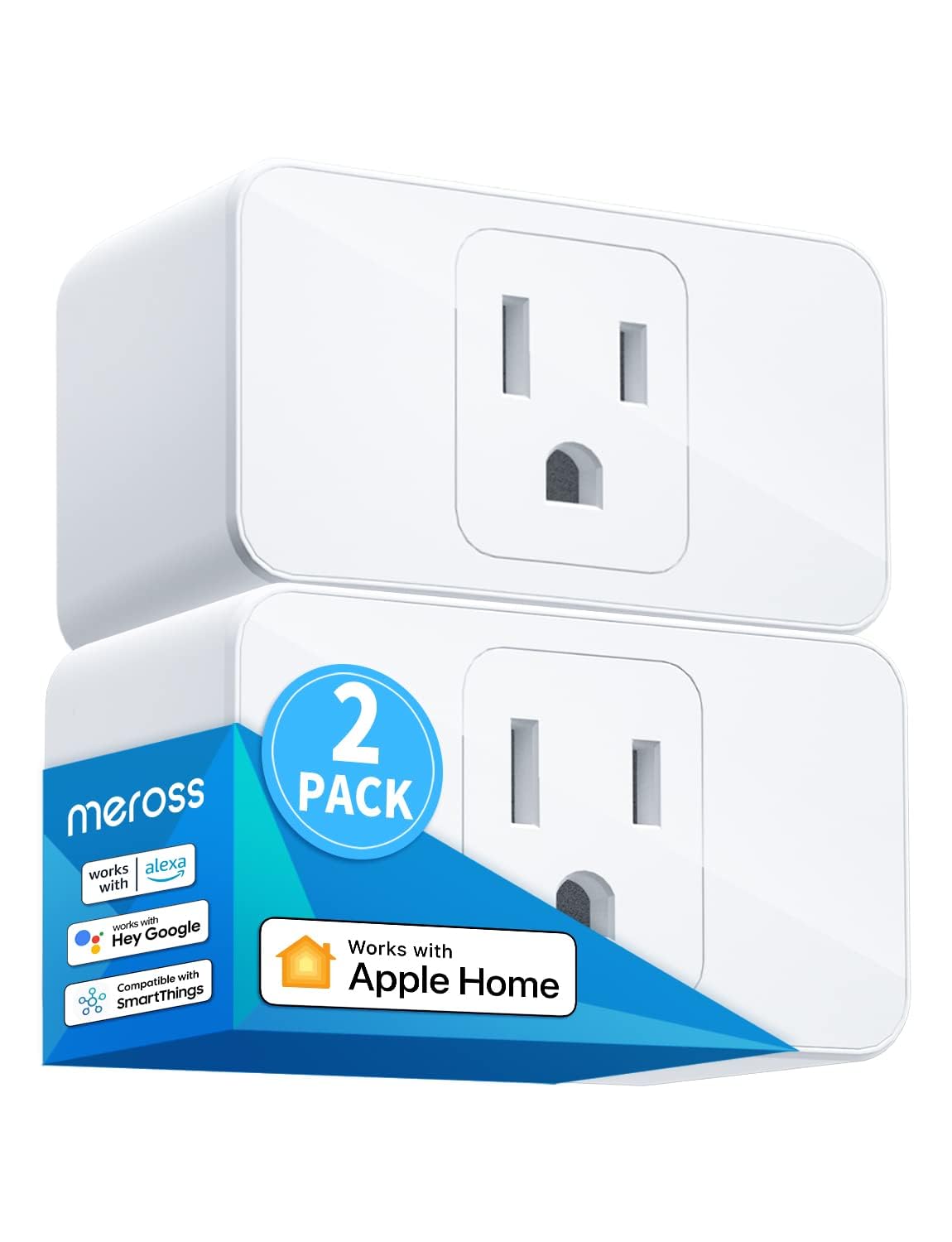
meross Smart Plug Mini, 15A & Reliable Wi-Fi, Support App...
As an Amazon Associate we earn from qualifying purchases.
Official Manufacturer Manual
Meross provides official product documentation through their online manual rather than downloadable PDF. Access setup guides, troubleshooting steps, and product specifications for your Meross MSS110 / MSS210 Smart WiFi Plug.
Source: meross.com
Need More Help? Meross Support
Note: The contact information below connects you directly to Meross's official customer support team, not Trunetto. They can help with warranty claims, device replacements, and advanced technical issues.
Accessories owners commonly pair with Meross MSS110 / MSS210 Smart WiFi Plug.

meross Smart Garage Door Opener Remote with External Ante...

meross Smart Garage Door Opener Remote, Compatible with A...

meross Smart WiFi Garage Door Opener Remote, App Control,...
As an Amazon Associate we earn from qualifying purchases.


