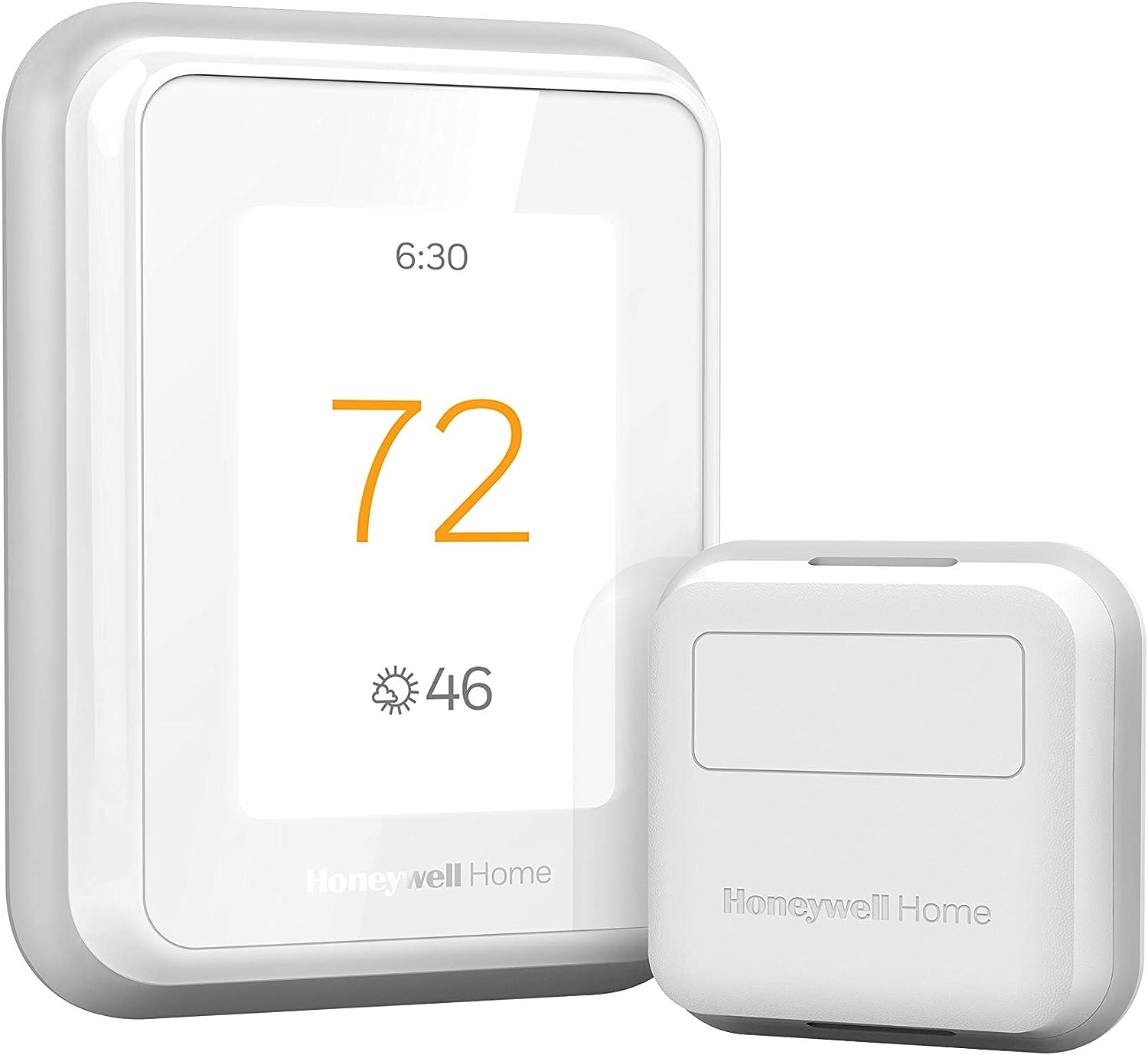
Why Will My Honeywell T10 Indoor Sensor Not Pair
- Battery not fully seated
- Sensor out of range
- Metal or radiator interference
Problem Description
Indoor sensors on the T10 Pro occasionally refuse to pair. Causes range from battery seating to radio interference. This guide restores pairing reliably.
Why This Happens in Real Homes
Indoor sensors on the T10 Pro occasionally refuse to pair. Causes range from battery seating to radio interference. This guide restores pairing reliably. In day-to-day use, this usually looks like Sensor will not join thermostat; Thermostat search times out; Sensor LED blinks faint.
Most cases trace back to Battery not fully seated; Sensor out of range; Metal or radiator interference. The fix works best when you go step by step instead of changing multiple settings at once.
A practical order for this issue is: Reseat Battery -> Move Closer -> Avoid Interference -> Enter Pair Mode. After each step, test the exact behavior that was failing so you can confirm what actually solved it.
Symptoms
- Sensor will not join thermostat
- Thermostat search times out
- Sensor LED blinks faint
- Sensor placed far away
- Firmware recently updated
- Metal furniture nearby
Recognize these? Here's what usually causes it.
Common Causes
- Battery not fully seated
- Sensor out of range
- Metal or radiator interference
- Firmware mismatch
- Thermostat not in pair mode
- Sensor already paired elsewhere
Most fixes happen in the first 3 steps.
Do not leave the sensor in pair mode for hours. Extended pair mode shortens battery life noticeably.
Tools & Requirements
These tools will help you complete this fix.

As an Amazon Associate we earn from qualifying purchases.
Step-by-Step Solution
Reseat Battery
Open the sensor, remove the battery, and reinsert firmly. Confirm orientation per the diagram. Weak battery seating causes most pairing failures.
Move Closer
Pair the sensor while it sits right next to the thermostat. Move it to its final location only after pairing succeeds. Range trouble is a common cause.
Avoid Interference
Keep sensor away from large metal surfaces and radiators during pairing. Reflections and absorption reduce radio reach and block pairing acknowledgements.
Enter Pair Mode
On the T10, go to accessories and start a new pair. Press the button on the sensor when prompted. The T10 should find the sensor within 60 seconds.
Factory Reset
If pairing fails, reset the sensor per the manual. This clears any old bindings left by prior pairing attempts. Retry pairing near the T10.
Quick Solutions
Still having issues? This is usually the deeper cause below.
If pairing fails after multiple attempts, the device may still be registered to a previous account — factory-reset it before trying to add it to a new one.
Label each sensor with its room before placing. Clean labels speed re-pairing after firmware updates.
Pairing failures almost always come down to distance during the initial handshake — manufacturers seriously understate how close you actually need to be.
- Battery not fully seated
- Sensor out of range
- Metal or radiator interference
- Firmware mismatch
- Thermostat not in pair mode
Before you go — try one of these (they fix most cases).
Most popular upgrades chosen by Honeywell Home T10 Pro owners.

Honeywell Home RCHT9510WF T9 Smart Thermostat + Wall Plate

Honeywell Home X7B Smart Thermostat with Humidity Monitor...

Honeywell Home X7S Smart Thermostat with Advanced Occupan...
As an Amazon Associate we earn from qualifying purchases.
Official Manufacturer Manual
Honeywell Home provides official product documentation through their online manual rather than downloadable PDF. Access setup guides, troubleshooting steps, and product specifications for your Honeywell Home T10 Pro.
Source: honeywellhome.com
Need More Help? Honeywell Home Support
Note: The contact information below connects you directly to Honeywell Home's official customer support team, not Trunetto. They can help with warranty claims, device replacements, and advanced technical issues.
How Does Honeywell Home Compare?
Before replacing your Honeywell Home device, see how it stacks up against alternatives in our full comparison guides.
Accessories owners commonly pair with Honeywell Home T10 Pro.

As an Amazon Associate we earn from qualifying purchases.