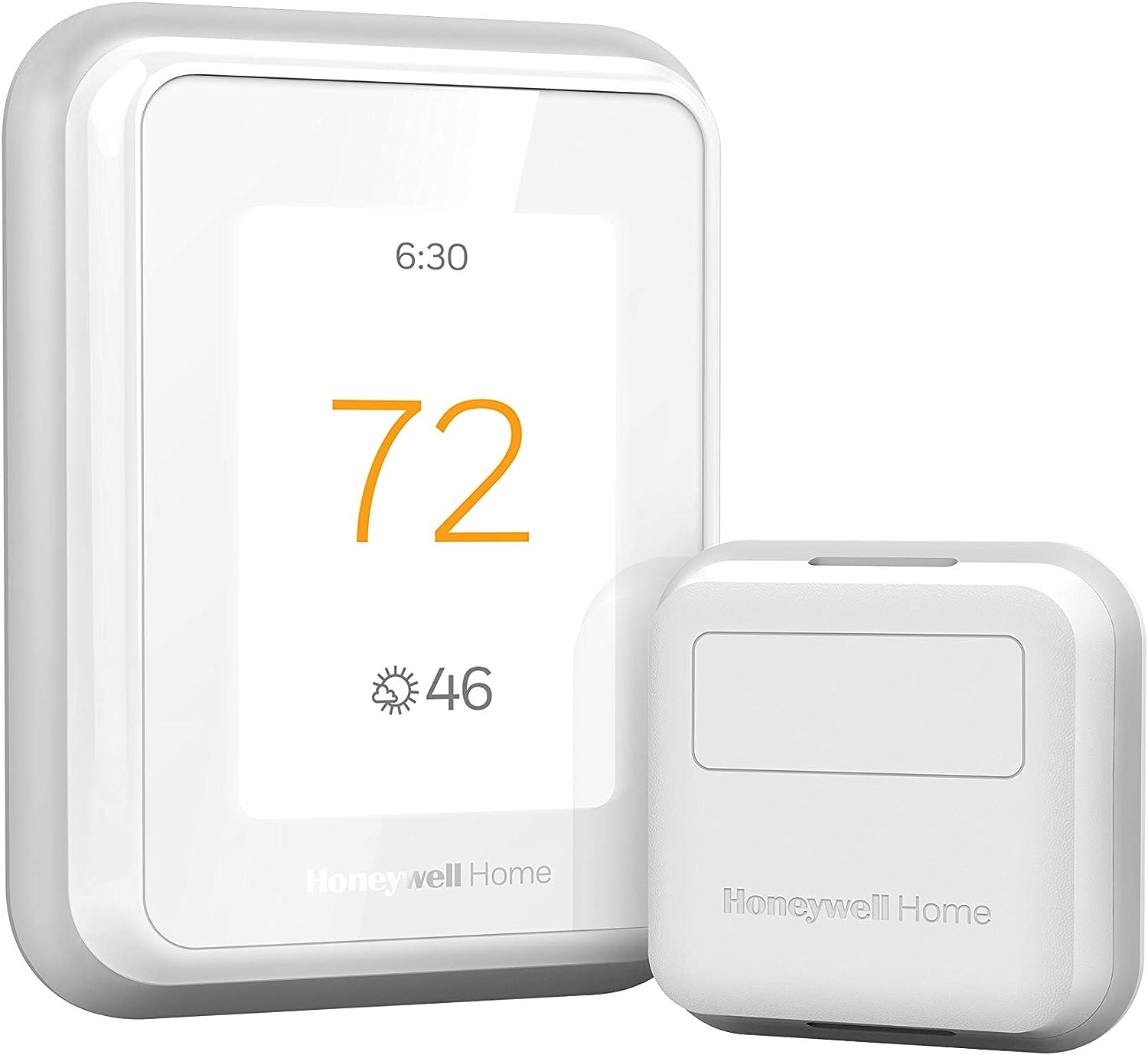
Why Is My Honeywell T6 Pro Touchscreen Unresponsive?
- Firmware freeze/glitch
- Insufficient power (no C-wire brownout)
- Dirty or damp screen surface
Problem Description
Your Honeywell T6 Pro touchscreen is unresponsive — the display is lit but taps do nothing, so you can't change the temperature or settings from the thermostat itself. It may have frozen after a firmware update or power event, or it responds erratically. In most cases this is a software freeze or a power/screen issue rather than a failed unit, and a power-cycle or cleaning the screen restores it. This guide diagnoses the cause and restores touch control.
Why This Happens in Real Homes
An unresponsive Honeywell T6 Pro touchscreen — lit but ignoring taps — is usually a software freeze or a power issue, not a broken screen. Firmware can hang after an update or power event, and on the T6 Pro a missing C-wire is a frequent hidden cause: power-stealing leaves the unit under-powered, so the display lights but the touch layer misbehaves, especially when the HVAC calls for heat or cool and draws more power.
The fastest fix is a power-cycle: gently pull the faceplate off the wallplate for about 30 seconds and re-seat it (or flip the HVAC breaker) to force a clean reboot, which clears a frozen screen most of the time. Then rule out the simple stuff — wipe the screen free of grease or moisture and remove any film, since a dirty or damp surface makes a capacitive touchscreen unresponsive. If it keeps freezing, add a C-wire for steady power; a reboot that doesn't hold points to power starvation rather than a one-off glitch.
Symptoms
- Touchscreen unresponsive
- Display lit but taps do nothing
- Screen frozen
- Responds erratically or laggy
- Froze after an update
- No response to touch
- Can't change settings on the unit
- Buttons work sometimes
Recognize these? Here's what usually causes it.
Common Causes
- Firmware freeze/glitch
- Insufficient power (no C-wire brownout)
- Dirty or damp screen surface
- Screen protector/film interfering
- Temporary software hang after an update
- Loose faceplate/wiring reducing power
- Extreme temperature affecting the display
- Hardware fault (rare)
Most fixes happen in the first 3 steps.
Always turn off your HVAC system at the breaker before removing the thermostat or touching wires. Incorrect wiring can damage both the thermostat and your HVAC equipment resulting in expensive repairs. If unsure about wiring consult an HVAC technician.
Tools & Requirements
These tools will help you complete this fix.

Power adapter
JcBlaon Outlet Extender Surge Protector - 6 Outlet S...
As an Amazon Associate we earn from qualifying purchases.
Step-by-Step Solution
Restart the T6 Pro if the touchscreen is unresponsive
Pull the T6 Pro (model TH6320WF2003 or TH6220WF2006) off its wallplate. Wait 30 seconds. Press it back onto the wallplate. The thermostat reboots and the touchscreen reinitializes. If the screen was frozen mid-operation, this clears the issue. The T6 Pro touchscreen is resistive (not capacitive like a phone), so it responds to firm presses, not light taps. Press with your fingertip directly, not your fingernail.
Fix a blank or dark screen
If the screen shows nothing at all: check that the thermostat has power. Pull it off the wallplate and look at the wiring — the R and C terminals must both have wires firmly seated. A loose C-wire causes intermittent power loss. If wires are connected, check the breaker. If the breaker is on and wires are connected, use a multimeter across R and C on the wallplate (thermostat removed) — you should read 24-28V AC. If you read 0V, the transformer or wiring has failed.
Needed for this step
JcBlaon Outlet Extender Surge Protector - 6 Out...
This helps complete the fix you are currently reading.
$9.99Fix touchscreen registering wrong areas
If pressing one area of the screen activates a button in a different area, the touchscreen calibration is off. This can happen after a firmware update or power interruption. On the T6 Pro, there is no manual calibration option — the fix is a factory reset. Go to Menu > Installer Settings (code 1234) > Reset > Factory Reset. The thermostat restarts and you need to reconfigure WiFi, schedule, and system settings. Take photos of your settings before resetting.
Fix screen flickering or showing artifacts
Screen flickering or garbled display typically indicates a power supply issue. Check the C-wire connection — a high-resistance connection causes voltage drops that affect the display. Also check if the HVAC system is short-cycling (turning on and off rapidly), which causes power fluctuations. If the screen shows colored lines or dead pixels that persist after a reboot, the LCD panel may be physically damaged — the T6 Pro has a 5-year warranty through Honeywell/Resideo.
Fix ghost touches or random button presses
If the thermostat changes settings by itself or the screen shows phantom touches, moisture may have entered the housing. This happens if the thermostat is installed near a bathroom or kitchen with high humidity, or if condensation forms inside the unit. Remove the thermostat from the wallplate and let it dry in a warm area for several hours. If ghost touches continue after drying, the touchscreen digitizer is likely damaged and the unit needs replacement under warranty.
Quick Solutions
Still having issues? This is usually the deeper cause below.
If this comes back after following these steps, check whether a recent app or firmware update reset a default setting — the fix works, but the setting gets reverted silently.
Use the thermostat energy reports to find patterns in your heating and cooling usage. Setting back the temperature just 3 degrees when you leave for work can save 5 to 10 percent on your annual energy bill without any comfort sacrifice.
Battery-related failures are almost always flagged too late — the device degrades silently for days before the app catches up to what's actually happening.
- Firmware freeze/glitch
- Insufficient power (no C-wire brownout)
- Dirty or damp screen surface
- Screen protector/film interfering
- Temporary software hang after an update
Before you go — try one of these (they fix most cases).
Most popular upgrades chosen by Honeywell T6 Pro owners.

Honeywell Home RCHT9510WF T9 Smart Thermostat + Wall Plate

Honeywell Home X7B Smart Thermostat with Humidity Monitor...

Honeywell Home X7S Smart Thermostat with Advanced Occupan...
As an Amazon Associate we earn from qualifying purchases.
Official Manufacturer Manual
Honeywell Home provides official product documentation through their online manual rather than downloadable PDF. Access setup guides, troubleshooting steps, and product specifications for your Honeywell T6 Pro.
Source: honeywellhome.com
Need More Help? Honeywell Home Support
Note: The contact information below connects you directly to Honeywell Home's official customer support team, not Trunetto. They can help with warranty claims, device replacements, and advanced technical issues.
How Does Honeywell Home Compare?
Before replacing your Honeywell Home device, see how it stacks up against alternatives in our full comparison guides.
Accessories owners commonly pair with Honeywell T6 Pro.

As an Amazon Associate we earn from qualifying purchases.