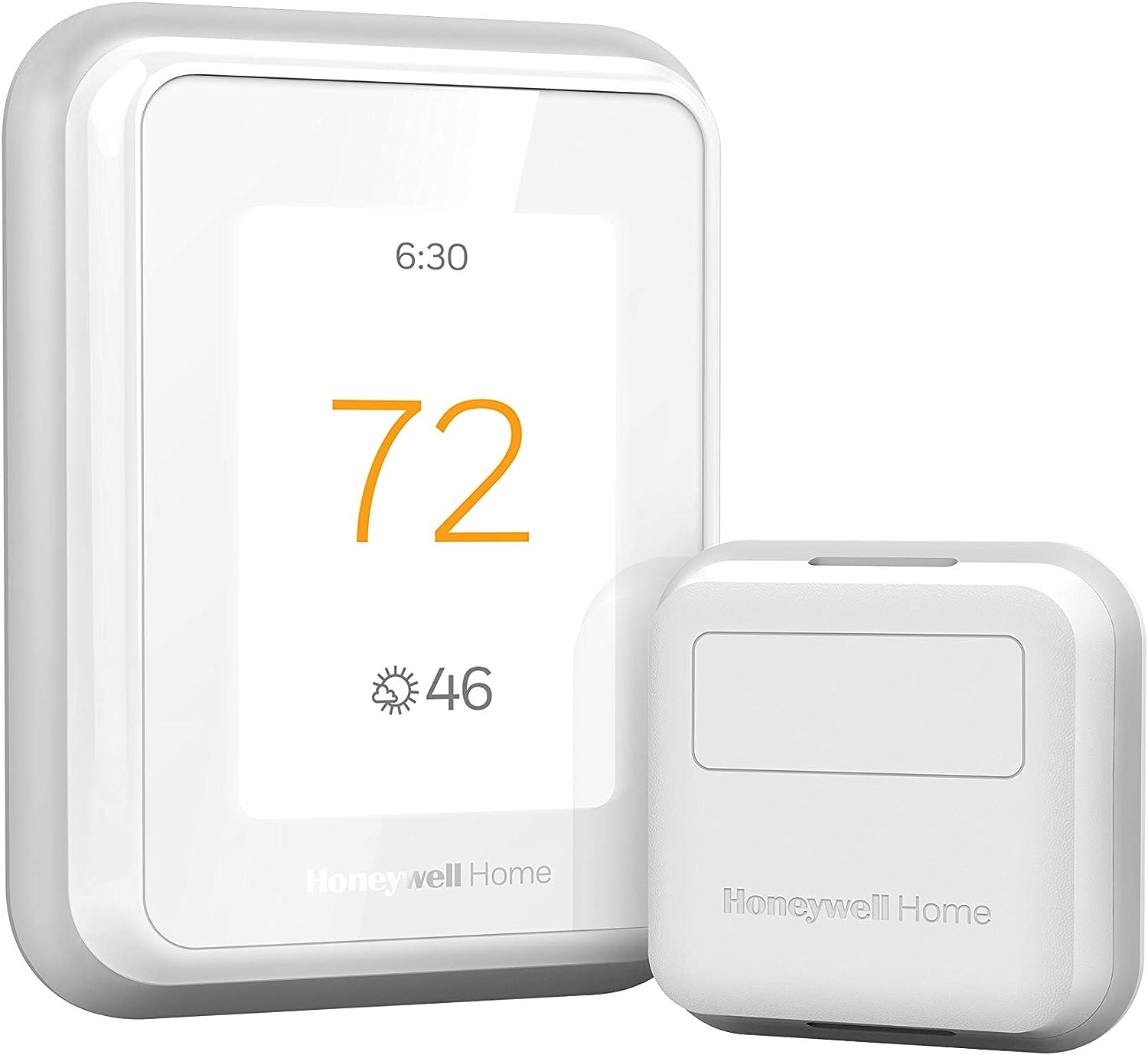
Why Did My Honeywell T9 Smart Thermostat Go Offline After the 01.03.02 Firmware Update?
- Firmware update not fully completed
- Thermostat hasn't re-registered with the Resideo cloud
- Update stalled with no on-screen progress
Problem Description
Your Honeywell Home T9 thermostat went offline in the Resideo app after receiving firmware update 01.03.02.00 and will not reconnect. The thermostat still controls your HVAC locally from the screen but the app shows it as offline, you cannot change settings remotely, and Smart Room Sensors show as disconnected. Users on Reddit r/smarthome report that the T9 drops offline after firmware updates with no status message or progress indicator during the update process. The Resideo app does not show any notification that a firmware update is happening, so the offline state appears sudden and unexplained. Reconnection requires the thermostat to fully complete the firmware update and re-register with the Resideo cloud.
Why This Happens in Real Homes
The T9 going offline after firmware update 01.03.02 is a known pattern: the Resideo app shows no progress indicator during the update, so when the thermostat reboots and drops offline it looks sudden and broken — but the HVAC keeps running from the screen, which tells you it's a cloud-registration issue, not a dead thermostat. Reconnection only completes once the thermostat finishes the update and re-registers with the Resideo cloud, and the Smart Room Sensors show disconnected until that happens.
Give it time first — re-registration can lag, especially on a weak signal. If it stays offline, confirm strong 2.4GHz at the wall plate, restart the router so the thermostat pulls a clean IP, and re-log into the app to refresh the session. When it's genuinely stuck, a power-cycle at the breaker forces the reboot to complete, and removing then re-adding the thermostat in the app re-establishes registration. The room sensors come back on their own once the T9 is online again.
Symptoms
- T9 offline after firmware update
- Won't reconnect post-update
- App shows T9 offline, screen works
- Room sensors disconnected after update
- No progress shown during update
- Offline appeared suddenly
- Stuck offline for hours
- Remote control lost after 01.03.02
Recognize these? Here's what usually causes it.
Common Causes
- Firmware update not fully completed
- Thermostat hasn't re-registered with the Resideo cloud
- Update stalled with no on-screen progress
- Weak 2.4GHz signal slowing re-registration
- Router/DHCP hiccup after the reboot
- Cloud-side registration backlog
- Room sensors waiting on the thermostat to reconnect
- App session stale after the update
Most fixes happen in the first 3 steps.
If you factory reset the T9 to fix the offline issue you will lose your HVAC equipment configuration and schedule. Write down your current equipment settings from the thermostat screen before resetting. You will need to re-enter all equipment type, staging, and fan settings during fresh setup.
Step-by-Step Solution
Wait for Firmware Update to Complete
The Honeywell T9 does not show any on-screen indicator during firmware updates. The thermostat may appear to be offline when it is actually in the middle of applying the update. Firmware updates on the T9 can take 15 to 30 minutes during which the WiFi and cloud connection are unavailable. Do not restart the thermostat during this period. Wait a full 30 minutes after first noticing the offline state. Check the Resideo app again. If the T9 has come back online the firmware update completed successfully. If still offline proceed to the next steps.
Restart the T9 Thermostat
If the T9 is still offline after 30 minutes restart it from the thermostat screen. Go to the T9 menu by tapping the gear icon on the touchscreen. Go to Equipment then Reset then Restart. The thermostat will power cycle and reconnect to your WiFi network. This forces a fresh connection to the Resideo cloud servers. After restart wait 5 minutes then check the Resideo app. If the T9 shows online verify that you can change the temperature remotely and that Smart Room Sensors show connected.
Restart Your WiFi Router
The T9 firmware update may have caused the thermostat WiFi module to request a new DHCP lease from your router. If the router assigned a different IP address or has stale DNS cache entries the T9 may connect to WiFi but fail to reach Resideo cloud servers. Restart your router by unplugging for 30 seconds then plugging back in. Wait for WiFi to fully restore. The T9 will automatically reconnect and attempt to register with Resideo. This resolves network-level issues that prevent the thermostat from reaching the cloud after a firmware-triggered WiFi reboot.
Remove and Re-Add T9 in Resideo App
If the T9 WiFi is connected but the Resideo app still shows offline the cloud registration token may have expired during the firmware update. Open the Resideo app and go to your T9 device. Tap Remove Device and confirm. Wait 2 minutes. Tap Add Device and follow the T9 setup process. The thermostat will appear on the app during WiFi scan. Select it and the app will register it with Resideo cloud using a fresh token. This process does not erase your HVAC equipment settings or schedule on the thermostat itself. It only refreshes the cloud connection.
Re-Pair Smart Room Sensors
After the T9 comes back online in the Resideo app your Smart Room Sensors may still show as disconnected. The sensors communicate with the T9 via Bluetooth and the firmware update may have cleared the pairing table. In the Resideo app go to your T9 then Room Sensors. If sensors show offline tap each one and select Remove then re-add them. Press the small button on each Smart Room Sensor to put it in pairing mode. The T9 will discover it and reconnect. Verify that each room sensor is reporting temperature and occupancy correctly after re-pairing.
Quick Solutions
Still having issues? This is usually the deeper cause below.
This usually happens right after a router reboot or ISP change — the device rejoins the network but drops its cloud session silently.
The Honeywell T9 gives zero visual indication when a firmware update is in progress. If your T9 suddenly goes offline in the Resideo app do not immediately restart it. Wait 30 minutes first as interrupting a silent firmware update can corrupt the thermostat software.
Firmware updates that wipe settings are more common than brands admit — many devices silently reset to factory defaults on an OTA push with no warning.
- Firmware update not fully completed
- Thermostat hasn't re-registered with the Resideo cloud
- Update stalled with no on-screen progress
- Weak 2.4GHz signal slowing re-registration
- Router/DHCP hiccup after the reboot
Before you go — try one of these (they fix most cases).
Most popular upgrades chosen by Honeywell Home T9 Smart Thermostat owners.

Honeywell Home RCHT9510WF T9 Smart Thermostat + Wall Plate

Honeywell Home RCHT9610WF T9 Smart Thermostat with 1 Smar...
As an Amazon Associate we earn from qualifying purchases.
Official Manufacturer Manual
Honeywell Home provides official product documentation through their online manual rather than downloadable PDF. Access setup guides, troubleshooting steps, and product specifications for your Honeywell Home T9 Smart Thermostat.
Source: honeywellhome.com
Need More Help? Honeywell Home Support
Note: The contact information below connects you directly to Honeywell Home's official customer support team, not Trunetto. They can help with warranty claims, device replacements, and advanced technical issues.
How Does Honeywell Home Compare?
Before replacing your Honeywell Home device, see how it stacks up against alternatives in our full comparison guides.
Accessories owners commonly pair with Honeywell Home T9 Smart Thermostat.

As an Amazon Associate we earn from qualifying purchases.