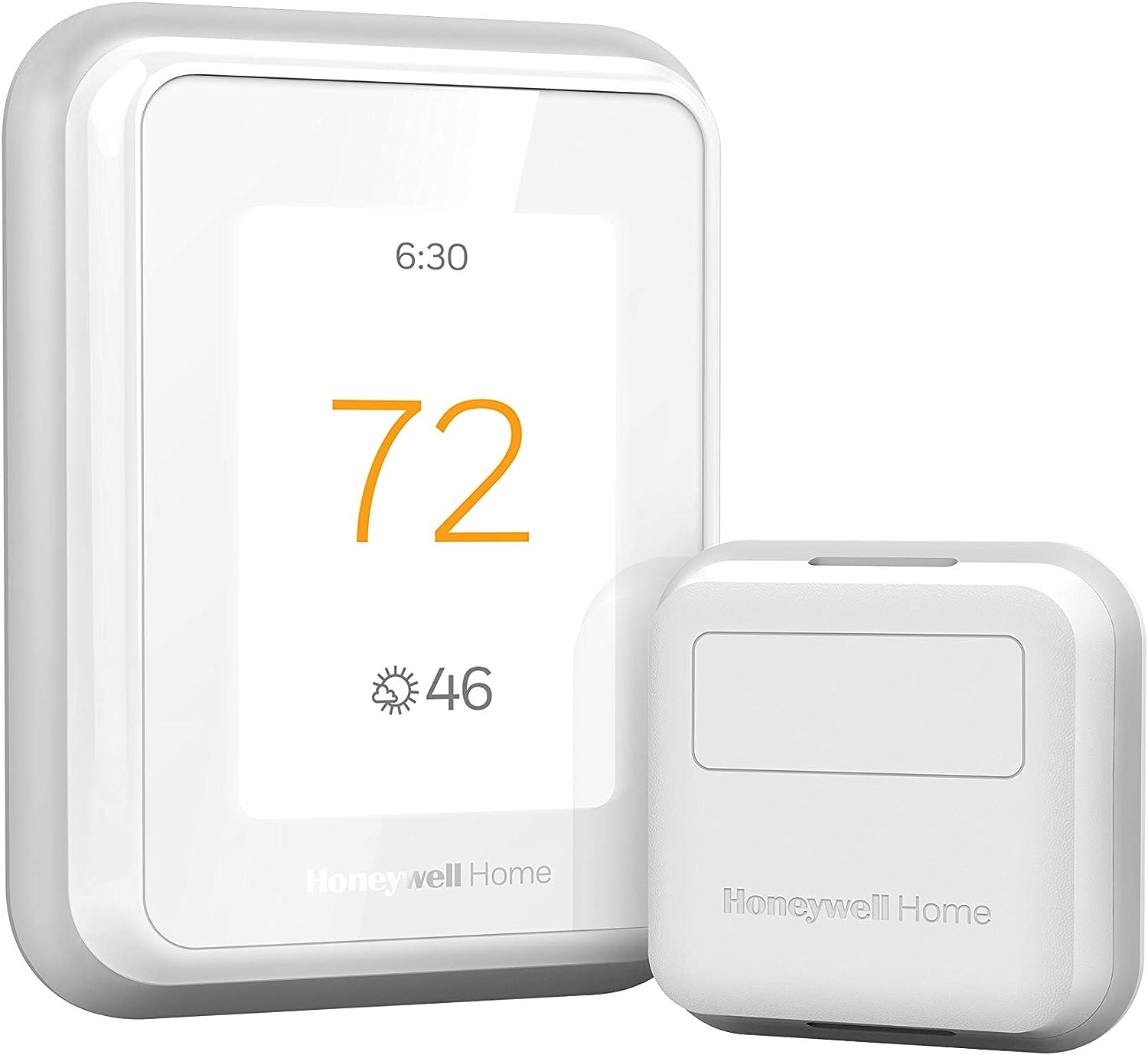
Why Is My Honeywell T9 Room Sensor Not Working?
- Dead CR2032 battery (most common)
- Sensor out of RF range of the thermostat
- Sensor lost its pairing
Problem Description
Your Honeywell T9 room sensor is not reporting temperature or showing offline in the Resideo app. The most common cause is a dead battery. The sensor uses a CR2032 coin cell battery accessed by opening the back cover. Battery life is typically 2+ years. If the battery is fine, the sensor may need to be re-paired with the thermostat.
Why This Happens in Real Homes
A Honeywell T9 room sensor that stops reporting is, more often than not, a dead battery — the sensor runs on a single CR2032 coin cell that lasts around two years, and when it dies the sensor simply drops offline in the Resideo app and stops feeding temperature and occupancy to the thermostat. That's the first thing to check.
If a fresh CR2032 doesn't bring it back, the issue is the RF link: the sensor communicates wirelessly with the T9 over a range of roughly 200 feet that walls and interference eat into, so move it closer or clear the path, then re-pair it through the app if it lost its connection. Also confirm the room is prioritized in the app — an unprioritized sensor can be reporting fine but simply not influencing when the system runs, which reads as "not working" even though it's connected.
Symptoms
- Room sensor not reporting temperature
- Sensor shows offline in the app
- Occupancy not detected
- Sensor stopped affecting the schedule
- Sensor unresponsive
- Dropped off after working fine
- Won't re-pair
- Intermittent sensor readings
Recognize these? Here's what usually causes it.
Common Causes
- Dead CR2032 battery (most common)
- Sensor out of RF range of the thermostat
- Sensor lost its pairing
- Interference/walls weakening the RF link
- Sensor not prioritized so its data is ignored
- Firmware/app out of date
- Battery not seated properly
- Sensor placed where it can't detect occupancy
Most fixes happen in the first 3 steps.
Place sensors in rooms you occupy - bedroom at night, living room during day.
Tools & Requirements
These tools will help you complete this fix.

Power adapter
JcBlaon Outlet Extender Surge Protector - 6 Outlet S...
As an Amazon Associate we earn from qualifying purchases.
Step-by-Step Solution
Check sensor battery level
In the Resideo app, go to your T9 thermostat > Room Sensors. Each sensor shows its battery level. The room sensor uses a CR2032 coin cell battery. If the battery is low (below 10%) or dead, the sensor stops reporting temperature and occupancy. Pop the sensor off its base, replace the CR2032 battery (available at any electronics store), and snap it back on. The sensor should reconnect within 2 minutes.
Fix sensor showing offline or disconnected
The T9 room sensor communicates wirelessly with the T9 thermostat using a 915MHz radio signal — not WiFi. Range is approximately 200 feet in open air, but walls, floors, and metal objects reduce this. If the sensor is Offline, move it closer to the thermostat. One floor or 3-4 walls is typically the practical limit. If it was working before and went offline without being moved, check for new interference sources — metal shelving, large appliances, or other 915MHz devices placed between the sensor and thermostat.
Fix inaccurate temperature readings
If the sensor reports a temperature that is noticeably wrong compared to a separate thermometer: check placement. Is it near a heating vent, window, or appliance generating heat? Direct sunlight on the sensor can add 5-10°F to the reading. Move it to an interior wall away from heat sources. If the temperature is consistently off by a fixed amount (always 2°F too high), use the temperature offset in the Resideo app to calibrate it rather than moving the sensor.
Fix occupancy detection not working
The room sensor uses a passive infrared (PIR) motion detector for occupancy. It detects heat signatures of people moving in its 120-degree field of view. If occupancy is not detected: make sure the sensor is not blocked by furniture or curtains. The PIR sensor works best when people move perpendicular to it (walking across its field of view), not directly toward or away from it. Pets under 40 pounds typically do not trigger it. If occupancy detection seems delayed, this is normal — the sensor waits for sustained motion before reporting occupied to avoid false triggers.
Re-pair the sensor if it stopped working completely
If the sensor shows no data and does not respond to a battery change: remove it from the Resideo app (T9 thermostat > Room Sensors > select the sensor > Remove). Reset the sensor by removing the battery, waiting 10 seconds, and reinserting it. Then add it again through the Resideo app. This re-establishes the wireless link between the sensor and thermostat. After re-pairing, rename it and reassign the room.
Quick Solutions
Still having issues? This is usually the deeper cause below.
If this comes back after following these steps, check whether a recent app or firmware update reset a default setting — the fix works, but the setting gets reverted silently.
Use the thermostat energy reports to find patterns in your heating and cooling usage. Setting back the temperature just 3 degrees when you leave for work can save 5 to 10 percent on your annual energy bill without any comfort sacrifice.
Battery-related failures are almost always flagged too late — the device degrades silently for days before the app catches up to what's actually happening.
- Dead CR2032 battery (most common)
- Sensor out of RF range of the thermostat
- Sensor lost its pairing
- Interference/walls weakening the RF link
- Sensor not prioritized so its data is ignored
Before you go — try one of these (they fix most cases).
Most popular upgrades chosen by Honeywell T9 owners.

Honeywell Home RCHT9510WF T9 Smart Thermostat + Wall Plate

Honeywell Home X7B Smart Thermostat with Humidity Monitor...

Honeywell Home X7S Smart Thermostat with Advanced Occupan...
As an Amazon Associate we earn from qualifying purchases.
Official Manufacturer Manual
Honeywell Home provides official product documentation through their online manual rather than downloadable PDF. Access setup guides, troubleshooting steps, and product specifications for your Honeywell T9.
Source: honeywellhome.com
Need More Help? Honeywell Home Support
Note: The contact information below connects you directly to Honeywell Home's official customer support team, not Trunetto. They can help with warranty claims, device replacements, and advanced technical issues.
How Does Honeywell Home Compare?
Before replacing your Honeywell Home device, see how it stacks up against alternatives in our full comparison guides.
Accessories owners commonly pair with Honeywell T9.

As an Amazon Associate we earn from qualifying purchases.