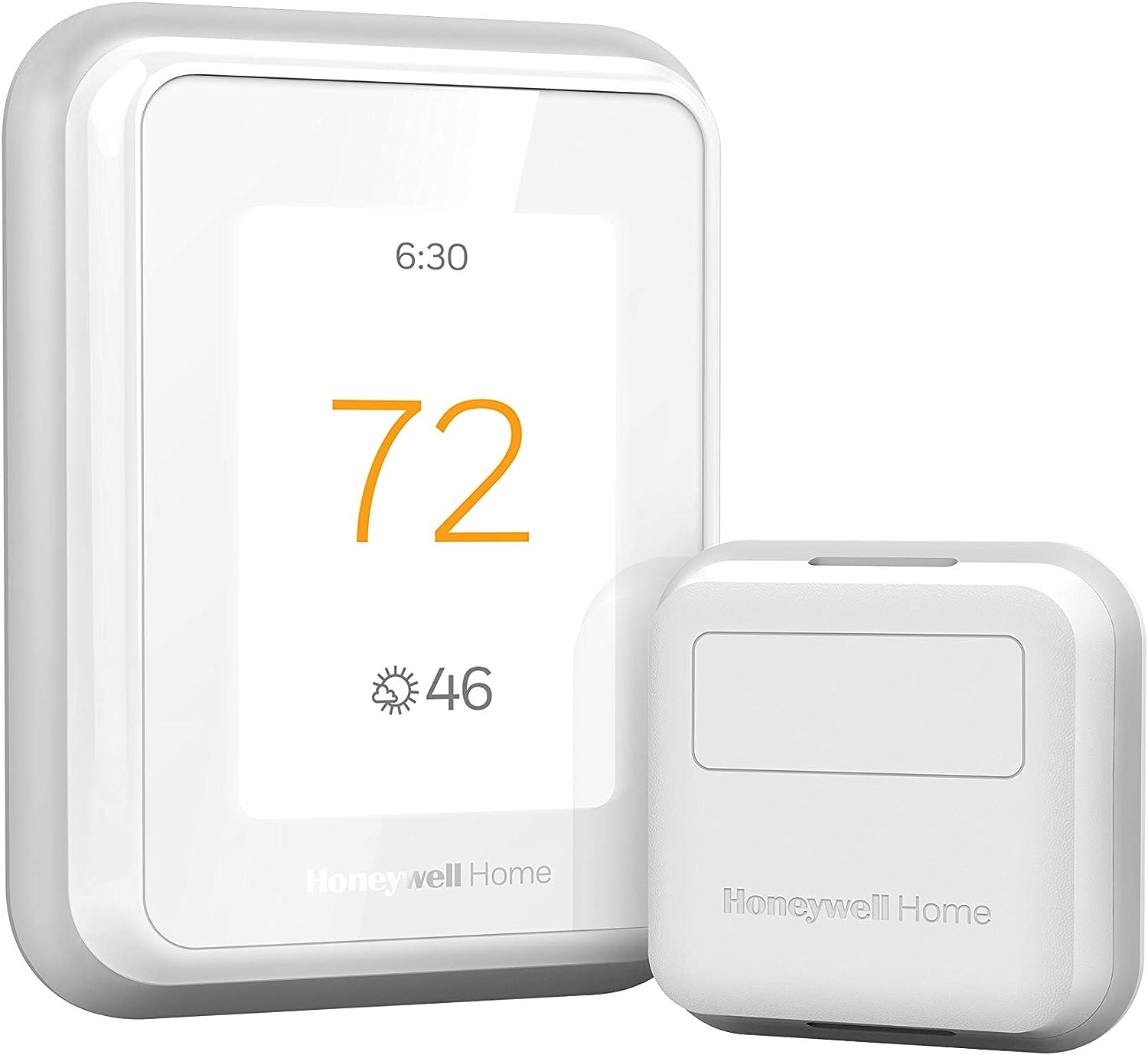
Why Won't My Honeywell Thermostat Geofencing Work?
- Location permission not set to Always Allow
- Background app refresh disabled
- Phone location services off
Problem Description
Your Honeywell thermostat geofencing is not adjusting temperature when you leave or arrive home. The Resideo app needs location permissions set to "Always Allow" on your phone. If permissions are restricted, the app can't track your location in the background. This guide covers checking location permissions, setting the geofence radius, and testing.
Why This Happens in Real Homes
Geofencing on a Honeywell thermostat depends entirely on your phone reliably reporting its location to the Resideo app in the background — so nearly every geofencing failure is a phone permission or power setting, not the thermostat. If location permission isn't set to "Always Allow," or background app refresh is off, or the phone's battery optimizer is suspending the app, the geofence never gets the location updates it needs to switch between Home and Away.
Fix the phone side first: set the Resideo app's location to "Always Allow," enable background app refresh, turn on location services, and exclude the app from battery optimization so the OS doesn't kill it. Then widen the geofence radius — a radius that's too tight triggers the temperature change only as you pull into the driveway, too late to be useful, so a larger radius gives the system time to react. In multi-person homes, every household member's phone has to be set up, or the system thinks someone's still home.
Symptoms
- Geofencing not adjusting temperature
- No change when leaving/arriving
- Away/Home not triggering
- Geofence fires late or not at all
- Only works for one household member
- Stopped working after a phone update
- Location-based control unreliable
- Never switches to Away
Recognize these? Here's what usually causes it.
Common Causes
- Location permission not set to Always Allow
- Background app refresh disabled
- Phone location services off
- Geofence radius too small (late triggers)
- Phone battery optimization killing the app
- Multiple users confusing Home/Away logic
- Resideo app or phone OS out of date
- Not signed in / app closed in the background
Most fixes happen in the first 3 steps.
Each person needs the app installed for multi-user geofencing.
Tools & Requirements
These tools will help you complete this fix.

As an Amazon Associate we earn from qualifying purchases.
Step-by-Step Solution
Check location permissions for the Resideo app
Geofencing requires the Resideo app to have Always Allow location access on your phone. On iPhone: Settings > Privacy > Location Services > Resideo > Always. On Android: Settings > Apps > Resideo > Permissions > Location > Allow all the time. If set to Only While Using or Ask Every Time, geofencing does not work when the app is closed. Also check that Background App Refresh is enabled for Resideo.
Make sure all household members have the app installed
Geofencing triggers Away mode only when ALL registered users leave the geofence area. If one family member does not have the Resideo app installed or their location is not being tracked, the system never switches to Away because it thinks someone is home. In the Resideo app, go to your thermostat > Geofencing > Members. Check that all household members are listed and showing Active status. Remove members who no longer live at the home.
Adjust the geofence radius
In the Resideo app, go to your thermostat > Geofencing > Geofence Settings. The default geofence radius is usually 500 meters. In dense urban areas or areas with poor GPS accuracy (tall buildings, tree cover), increase the radius to 1000 meters. A too-small radius causes the system to rapidly switch between Home and Away as your phone GPS drifts. A larger radius means a slight delay in switching but much more reliable triggers.
Fix geofencing not switching to Away
If the thermostat stays in Home mode even when everyone has left: check each member status in the Resideo app. One member may show as At Home due to GPS drift or a phone that has location services turned off. On that person phone, force-close the Resideo app and reopen it to refresh the GPS fix. Also check for WiFi-based location — if their phone is connected to a home WiFi extender with the same network name that reaches beyond the geofence radius, the phone may think it is still at home.
Use scheduled modes as a backup
If geofencing is unreliable, set up a scheduled Away period instead. In the Resideo app, go to the thermostat schedule and set Away temperatures during typical work hours (e.g., 8 AM to 5 PM weekdays). You can use geofencing and scheduling together — the schedule provides a baseline, and geofencing overrides if you come home early. This saves energy even when geofencing misfires.
Quick Solutions
Still having issues? This is usually the deeper cause below.
Schedules that skip randomly are usually a daylight-saving holdover — delete and recreate the schedule to clear the corrupted entry.
Use the thermostat energy reports to find patterns in your heating and cooling usage. Setting back the temperature just 3 degrees when you leave for work can save 5 to 10 percent on your annual energy bill without any comfort sacrifice.
Thermostat issues that keep returning are often caused by stale backup-battery memory holding old settings across power cycles without the user realising.
- Location permission not set to Always Allow
- Background app refresh disabled
- Phone location services off
- Geofence radius too small (late triggers)
- Phone battery optimization killing the app
Before you go — try one of these (they fix most cases).
Most popular upgrades chosen by Honeywell Home Thermostat owners.

Honeywell Home RCHT9510WF T9 Smart Thermostat + Wall Plate

Honeywell Home X7S Smart Thermostat with Advanced Occupan...

Honeywell Home X7B Smart Thermostat with Humidity Monitor...
As an Amazon Associate we earn from qualifying purchases.
Official Manufacturer Manual
Honeywell Home provides official product documentation through their online manual rather than downloadable PDF. Access setup guides, troubleshooting steps, and product specifications for your Honeywell Home Thermostat.
Source: honeywellhome.com
Need More Help? Honeywell Home Support
Note: The contact information below connects you directly to Honeywell Home's official customer support team, not Trunetto. They can help with warranty claims, device replacements, and advanced technical issues.
How Does Honeywell Home Compare?
Before replacing your Honeywell Home device, see how it stacks up against alternatives in our full comparison guides.
Accessories owners commonly pair with Honeywell Home Thermostat.

As an Amazon Associate we earn from qualifying purchases.