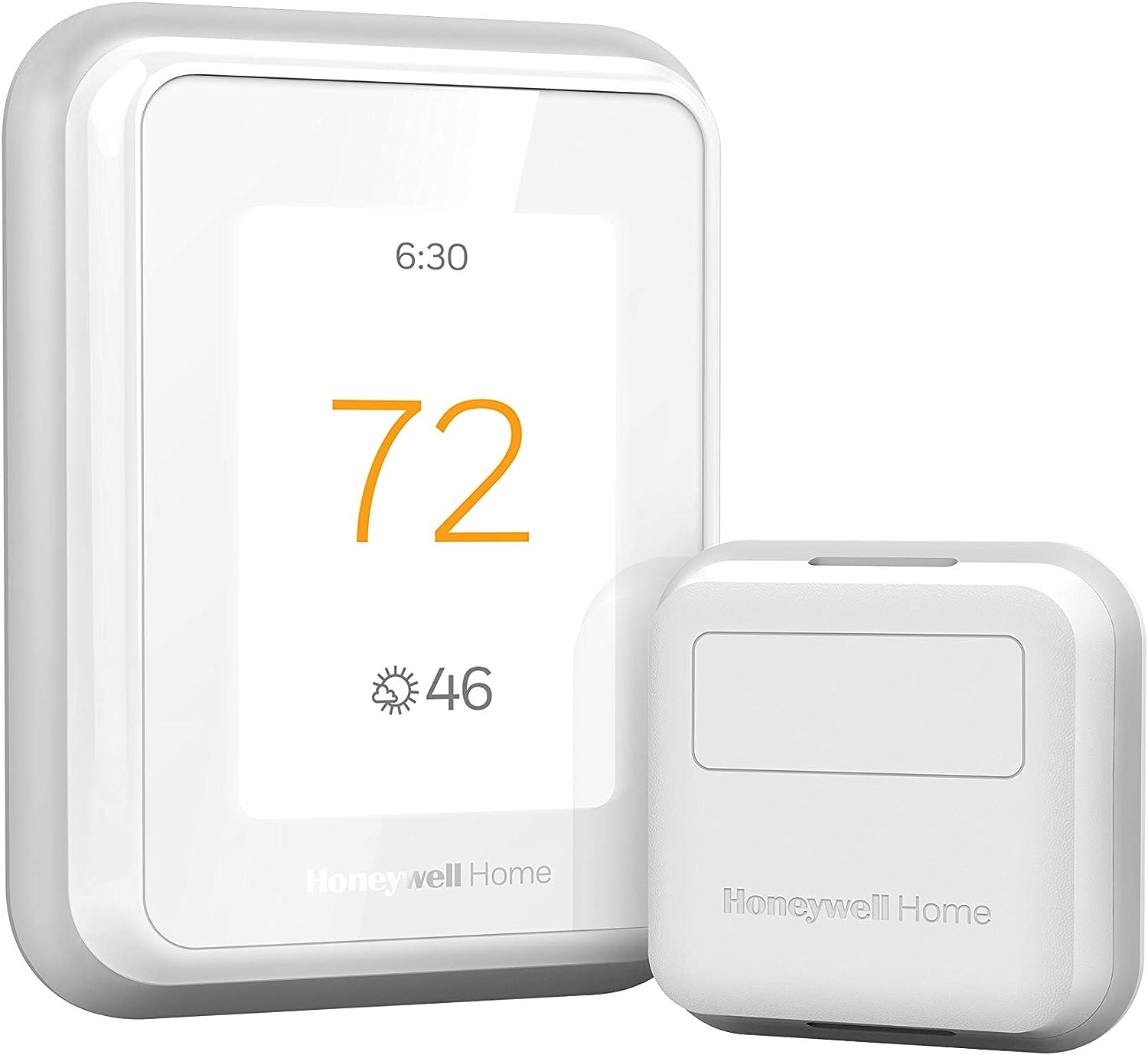
Why Won't My Honeywell Thermostat Follow Its Schedule?
- Thermostat in Hold mode
- Scheduling turned off
- Temporary hold not clearing
Problem Description
Your Honeywell thermostat is not following its programmed schedule — it's running at the wrong temperature or not switching modes at the scheduled times. Check that scheduling is turned on in the thermostat menu. If the thermostat is in "Hold" mode, it ignores the schedule. This guide covers verifying schedule is active, clearing holds, and reprogramming.
Why This Happens in Real Homes
When a Honeywell thermostat stops following its schedule, the usual culprit is a Hold: putting the thermostat on Hold (temporary or permanent) tells it to keep the current temperature and ignore the program, so the schedule is intact but suppressed. The second most common cause is scheduling simply being turned off, or a manual change that the thermostat interpreted as a hold.
Clear the hold and confirm scheduling is enabled in the menu — that fixes most cases immediately. Then verify the day, time, and timezone are correct so periods trigger at the right hours, and re-save the schedule if you recently edited it. On connected models, check that geofencing or an app-side schedule isn't overriding the thermostat, since two schedules fighting looks exactly like the thermostat "ignoring" its program. Once holds are cleared and one schedule is in charge, it follows reliably.
Symptoms
- Thermostat won't follow its schedule
- Wrong temperature at scheduled times
- Doesn't switch modes on schedule
- Schedule appears set but ignored
- Holds instead of following program
- Skips scheduled periods
- Manual change sticks all day
- Schedule stopped working
Recognize these? Here's what usually causes it.
Common Causes
- Thermostat in Hold mode
- Scheduling turned off
- Temporary hold not clearing
- Wrong day/time/timezone
- Schedule not saved after editing
- Geofencing overriding the schedule
- App and thermostat schedules conflict
- Non-programmable mode selected
Most fixes happen in the first 3 steps.
Geofencing uses phone location - if you leave phone at home, system thinks you're still there.
Tools & Requirements
These tools will help you complete this fix.

As an Amazon Associate we earn from qualifying purchases.
Step-by-Step Solution
Check that scheduling is turned on
On the thermostat, look for the Schedule icon or the current schedule period label (Wake, Away, Home, Sleep). If it shows Hold or Permanent Hold, the thermostat is overriding the schedule with a manual temperature setting. Press Cancel or Run Schedule (varies by model) to return to the programmed schedule. On the Resideo app, tap the thermostat and check the mode — if it says Hold, tap Follow Schedule to resume.
Verify the schedule periods are set correctly
In the Resideo app, go to your thermostat > Schedule. Check each day for the correct temperature settings in each period. Common mistakes: AM/PM swapped (setting Wake at 6 PM instead of 6 AM), weekend schedule copied incorrectly, or temperature for Away set the same as Home (so you cannot tell if the schedule is working). Also check that all 7 days have schedules — the T6 Pro allows different schedules for each day of the week.
Fix the thermostat clock if the schedule is offset
If the schedule starts at the wrong time (e.g., heating kicks on 2 hours late), the thermostat clock may be wrong. On T-series models: go to Menu > Date/Time and verify the time and time zone. WiFi-connected thermostats sync time automatically from the internet — if the time is wrong, the WiFi connection may have been lost. Reconnect to WiFi and the clock should correct itself within an hour. For non-WiFi models, manually set the time.
Reset and reprogram the schedule
If the schedule seems corrupted (random temperatures, periods at wrong times, or the thermostat ignoring the schedule entirely): clear the schedule and start over. In the Resideo app: go to Schedule > Reset Schedule. On the thermostat: go to Menu > Schedule > Default Schedule, then customize each period. The Resideo app makes scheduling easier than the thermostat touchscreen — set all periods and temperatures in the app, and they sync to the thermostat within a minute.
Use Away and Home modes with geofencing instead of a rigid schedule
If your daily routine varies (different work hours, remote work days), a fixed schedule wastes energy on unpredictable days. Enable Geofencing in the Resideo app and set simple Home and Away temperatures instead of a complex schedule. The thermostat switches based on your phone location. You can combine both — the schedule provides a baseline, and geofencing overrides when your actual movements differ from the scheduled pattern.
Quick Solutions
Still having issues? This is usually the deeper cause below.
Schedules that skip randomly are usually a daylight-saving holdover — delete and recreate the schedule to clear the corrupted entry.
Hold mode overrides all schedules. This is useful for vacations but easy to forget you enabled it.
Thermostat issues that keep returning are often caused by stale backup-battery memory holding old settings across power cycles without the user realising.
- Thermostat in Hold mode
- Scheduling turned off
- Temporary hold not clearing
- Wrong day/time/timezone
- Schedule not saved after editing
Before you go — try one of these (they fix most cases).
Most popular upgrades chosen by Honeywell Home Thermostat owners.

Honeywell Home RCHT9510WF T9 Smart Thermostat + Wall Plate

Honeywell Home X7S Smart Thermostat with Advanced Occupan...

Honeywell Home X7B Smart Thermostat with Humidity Monitor...
As an Amazon Associate we earn from qualifying purchases.
Official Manufacturer Manual
Honeywell Home provides official product documentation through their online manual rather than downloadable PDF. Access setup guides, troubleshooting steps, and product specifications for your Honeywell Home Thermostat.
Source: honeywellhome.com
Need More Help? Honeywell Home Support
Note: The contact information below connects you directly to Honeywell Home's official customer support team, not Trunetto. They can help with warranty claims, device replacements, and advanced technical issues.
How Does Honeywell Home Compare?
Before replacing your Honeywell Home device, see how it stacks up against alternatives in our full comparison guides.
Accessories owners commonly pair with Honeywell Home Thermostat.

Ring Rechargeable Quick Release Battery Pack
Ring Chime Pro

SwitchBot Hub Mini Smart Remote - IR Universal Remote, Wi...
As an Amazon Associate we earn from qualifying purchases.