

What Does Roborock Error 10 Mean and How Do I Fix Filter or Airflow Issues
- Filter clogged with fine dust buildup
- Filter reinstalled while still damp
- Dust channel blocked by compacted debris
Problem Description
Roborock Error 10 usually appears when the robot cannot pull enough airflow through the dust path. Cleaning performance drops and the vacuum may stop mid-run. Users commonly see this after heavy dust loads, wet filters, or blocked internal channels that trigger fan protection behavior.
Why This Happens in Real Homes
Roborock Error 10 is an airflow fault - the robot can't pull enough air through the dust path, so its fan-protection logic stops the run to avoid overworking the motor. The overwhelming cause is the main filter: either clogged with fine dust after heavy cleaning, or - very commonly - reinstalled while still damp after washing. A wet filter chokes airflow and reliably triggers Error 10, which is why the fix is to clean the filter and then let it air-dry completely (Roborock recommends about 24 hours) before putting it back. Never reinstall a damp filter.
If a clean, dry filter doesn't clear it, the blockage is elsewhere in the dust path. Compacted debris in the dust channel, lint restricting the fan intake, or a full dustbin with dirty seals all restrict airflow the same way - so empty and wash the dustbin, clear the channels and intake, and confirm the bin seats properly. Aftermarket filters are a frequent culprit too, since they often don't match the airflow spec of genuine filters, so switch back to a genuine filter if you've been using a third-party one. Reboot and run a short cycle to confirm the fix. If Error 10 keeps returning with a clean, dry, genuine filter and clear channels, the fan or a sensor may need service.
Symptoms
- Error 10 appears during or after cleaning
- Suction suddenly drops to weak levels
- Robot stops and requests filter attention
- Dustbin fills faster than normal
- Unit sounds strained near the fan section
- Cleaning map ends early with a fault
- Weak pickup before the error
- Error returns after a quick restart
Recognize these? Here's what usually causes it.
Common Causes
- Filter clogged with fine dust buildup
- Filter reinstalled while still damp
- Dust channel blocked by compacted debris
- Fan intake path restricted by lint
- Aftermarket filter causing poor airflow
- Fan protection triggering under sustained load
- Dustbin full or seals dirty
- Wet filter after washing not fully dried
Most fixes happen in the first 3 steps.
Never reinstall a wet filter. Moisture can restrict airflow, damage dust accumulation patterns, and repeatedly trigger Error 10 even after a full reset.
Step-by-Step Solution
Power Down and Access Dust Path
Turn the robot off and remove the dustbin and filter assembly before cleaning. This gives full access to the airflow path where Error 10 usually originates. Do not start with software resets alone, since most recurring Error 10 cases are mechanical airflow restrictions that need physical cleaning first.
Clean Filter and Dustbin Correctly
Tap out packed dust, rinse the filter if your model supports it, and allow complete drying before reinstalling. A damp filter dramatically reduces airflow and often re-triggers Error 10 immediately. Clean the dustbin corners and inlet grille, since compacted debris in these areas can starve the fan inlet.
Inspect Internal Air Channels
Check the route from brush intake to dustbin and fan for lint clumps, hair mats, or paper fragments. Remove obstructions carefully with a soft brush or dry cloth. Even partial blockage can keep suction below the threshold Roborock expects, causing repeated fault alerts after only a few minutes of cleaning.
Reassemble with Verified Components
Reinstall a fully dry, correctly seated filter and make sure the dustbin latch closes securely. If you recently switched to a third-party filter, test with a known-good genuine filter to rule out airflow mismatch. Confirm the main brush and side channels spin freely before restarting a short cleaning cycle.
Run a Controlled Test Session
Start a 10-minute test in a moderate-dust area and monitor for airflow warnings or Error 10 recurrence. If the error persists despite clean pathways and proper filter seating, collect logs and contact Roborock support, since fan motor degradation or sensor issues may require service-level diagnostics.
Quick Solutions
Still having issues? This is usually the deeper cause below.
If this comes back after following these steps, check whether a recent app or firmware update reset a default setting — the fix works, but the setting gets reverted silently.
Keep a second dry filter on hand so you can rotate immediately after washing and avoid running the robot with a damp filter that triggers airflow faults.
This issue almost always looks more complex than it is — the majority of cases trace back to a single setting, a stale credential, or a default that shipped wrong.
- Filter clogged with fine dust buildup
- Filter reinstalled while still damp
- Dust channel blocked by compacted debris
- Fan intake path restricted by lint
- Aftermarket filter causing poor airflow
Before you go — try one of these (they fix most cases).
Most popular upgrades chosen by Roborock Robot Vacuum owners.

roborock 2 Pack Microfiber Mop Cloths for Q7 M5, Q7 M5+, ...
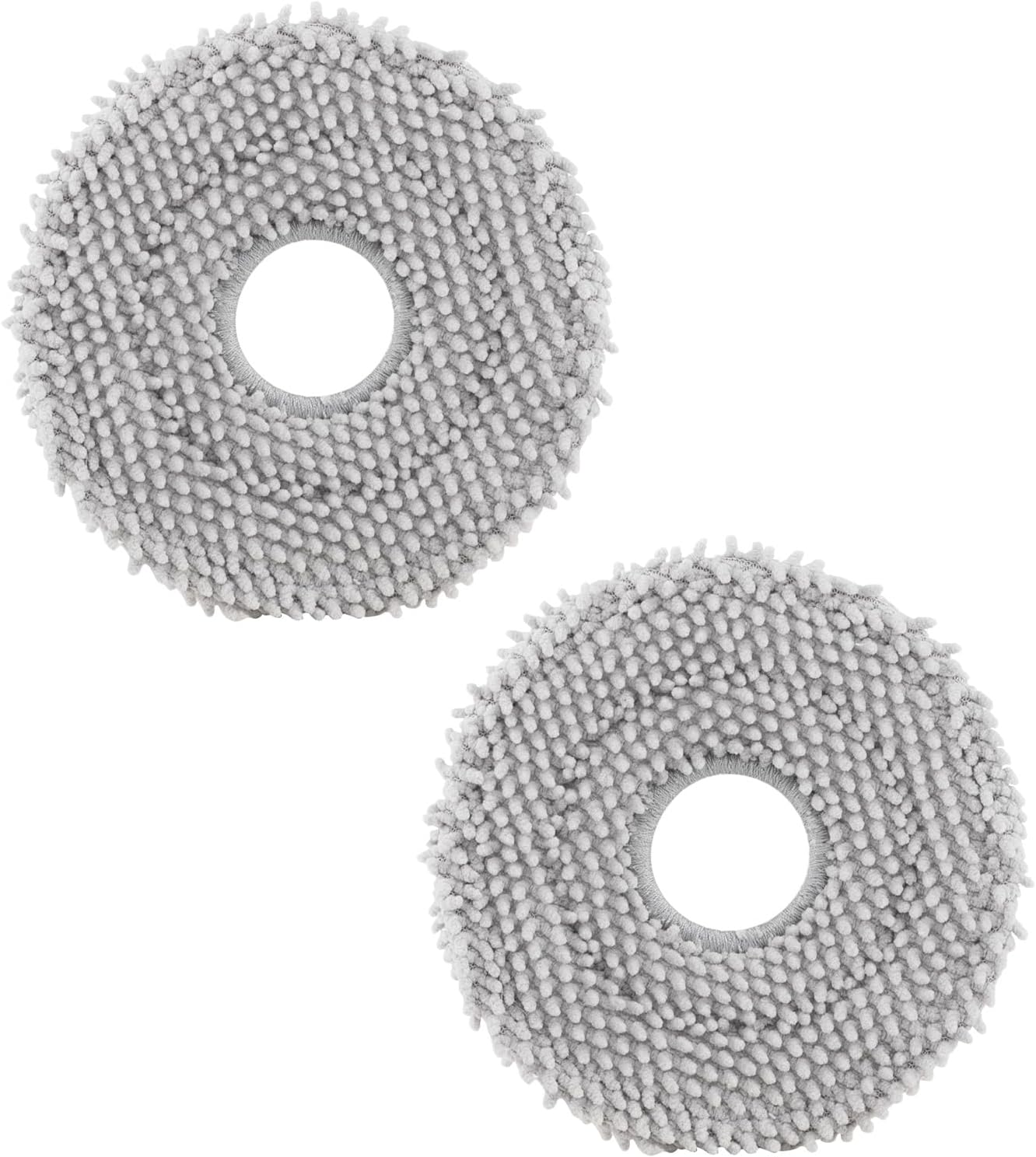
roborock 4 Pack Microfiber Mop Cloths for Q Revo, Qrevo M...

roborock 4 Pack Microfiber Mop Cloths for QV 35A/QV 35S/Q...
As an Amazon Associate we earn from qualifying purchases.
Official Manufacturer Manual
Roborock provides official product documentation through their online manual rather than downloadable PDF. Access setup guides, troubleshooting steps, and product specifications for your Roborock Robot Vacuum.
Source: support.roborock.com
Need More Help? Roborock Support
Note: The contact information below connects you directly to Roborock's official customer support team, not Trunetto. They can help with warranty claims, device replacements, and advanced technical issues.
How Does Roborock Compare?
Before replacing your Roborock device, see how it stacks up against alternatives in our full comparison guides.


