

Why Does My Roborock Keep Saying Laser Sensor Error or LiDAR Blocked
- Dust, smudge, or film on the LiDAR sensor window
- LiDAR turret physically jammed by debris
- Hair wrapped around the turret base/shaft
Problem Description
Your Roborock displays a Laser Distance Sensor Error or LiDAR Cover Blocked message and either spins in circles, stops mid-clean, or refuses to start. The LiDAR turret — the small spinning dome on top of the robot — powers the entire navigation system. When it cannot spin freely or its laser window is obstructed, the robot loses its ability to build or follow a map and throws this error. In the majority of cases the cause is dust or a thin film on the turret window, hair wrapped around the turret shaft, or direct sunlight shining into the room. A physical obstruction blocking the turret from rotating is less common but also possible.
Why This Happens in Real Homes
This usually happens when fine dust, pet hair, or residue slows the LiDAR turret, or when direct sunlight washes out the laser read in one part of the room. The robot still powers on and may move, but navigation confidence collapses, which is why it spins, stalls, or maps badly.
Start with a physical turret clean and free-spin check before changing deeper settings. In most homes, clearing the obstruction and rebooting immediately removes the error.
Symptoms
- 'Error 1 laser distance sensor' on screen
- Robot spins in circles then stops
- LiDAR turret not spinning
- Robot bumps into furniture it normally avoids
- Map looks distorted or wrong after cleaning
- Red error light on the power button
- Refuses to start a clean
- Error returns after each run
Recognize these? Here's what usually causes it.
Common Causes
- Dust, smudge, or film on the LiDAR sensor window
- LiDAR turret physically jammed by debris
- Hair wrapped around the turret base/shaft
- Direct sunlight interfering with the laser sensor
- Shipping film or tape still on the turret
- Firmware glitch after an update
- Robot tilted or stuck when it started
- LiDAR motor failing on older units
Most fixes happen in the first 3 steps.
Do not use water or cleaning solution on the LiDAR sensor. Liquid can seep into the turret mechanism and damage the motor.
Tools & Requirements
These tools will help you complete this fix.

Door alignment tool
Door Latch Strike Plate, Stainless Steel Door Lock P...

Replacement batteries
Duracell Coppertop Double AA Batteries with Power Bo...

Screwdriver
STREBITO 155 in 1 Electric Screwdriver Set, Small El...
As an Amazon Associate we earn from qualifying purchases.
Step-by-Step Solution
Clear the lidar housing
Remove dust, hair, stickers, or shipping film around the LiDAR turret and top sensor window. Even partial obstruction can trigger immediate laser sensor errors.
Clean sensor surfaces correctly
Use a dry microfiber cloth on the top window and surrounding optical area. Avoid wet cleaners that leave residue and reduce laser reflectivity.
Check turret rotation
Gently confirm the LiDAR turret spins freely without scraping or resistance. Binding from hair wrap or debris at the base can cause blocked or stalled scan readings.
Reboot and retest navigation
Power-cycle the robot and run a short clean in an open room. This isolates whether the error is transient or repeats under normal scan conditions.
Update firmware before hardware escalation
Install current firmware in the Roborock app and test again. If the LiDAR error persists after cleaning and rebooting, the sensor module likely needs repair.
Roborock S7 LiDAR Error During Mapping or Cleaning
For S7-specific LiDAR errors, confirm turret freedom of movement, clear dust/hair around the turret base, and retest mapping from dock start. This section targets S7 navigation-failed and map issue reports tied to LiDAR read instability.
Quick Solutions
Still having issues? This is usually the deeper cause below.
If the keypad rejects valid codes, a lockout timer may be running — five failed entries locks most keypads silently for 5–10 minutes.
Wipe the lidar window weekly and keep the top of the robot clear of dust for accurate navigation.
Most smart lock failures people label as hardware issues turn out to be a code wiped during a sync, or a setting reset nobody remembers triggering.
- Dust, smudge, or film on the LiDAR sensor window
- LiDAR turret physically jammed by debris
- Hair wrapped around the turret base/shaft
- Direct sunlight interfering with the laser sensor
- Shipping film or tape still on the turret
Before you go — try one of these (they fix most cases).
Most popular upgrades chosen by Roborock Robot Vacuum owners.

roborock 2 Pack Microfiber Mop Cloths for Q7 M5, Q7 M5+, ...
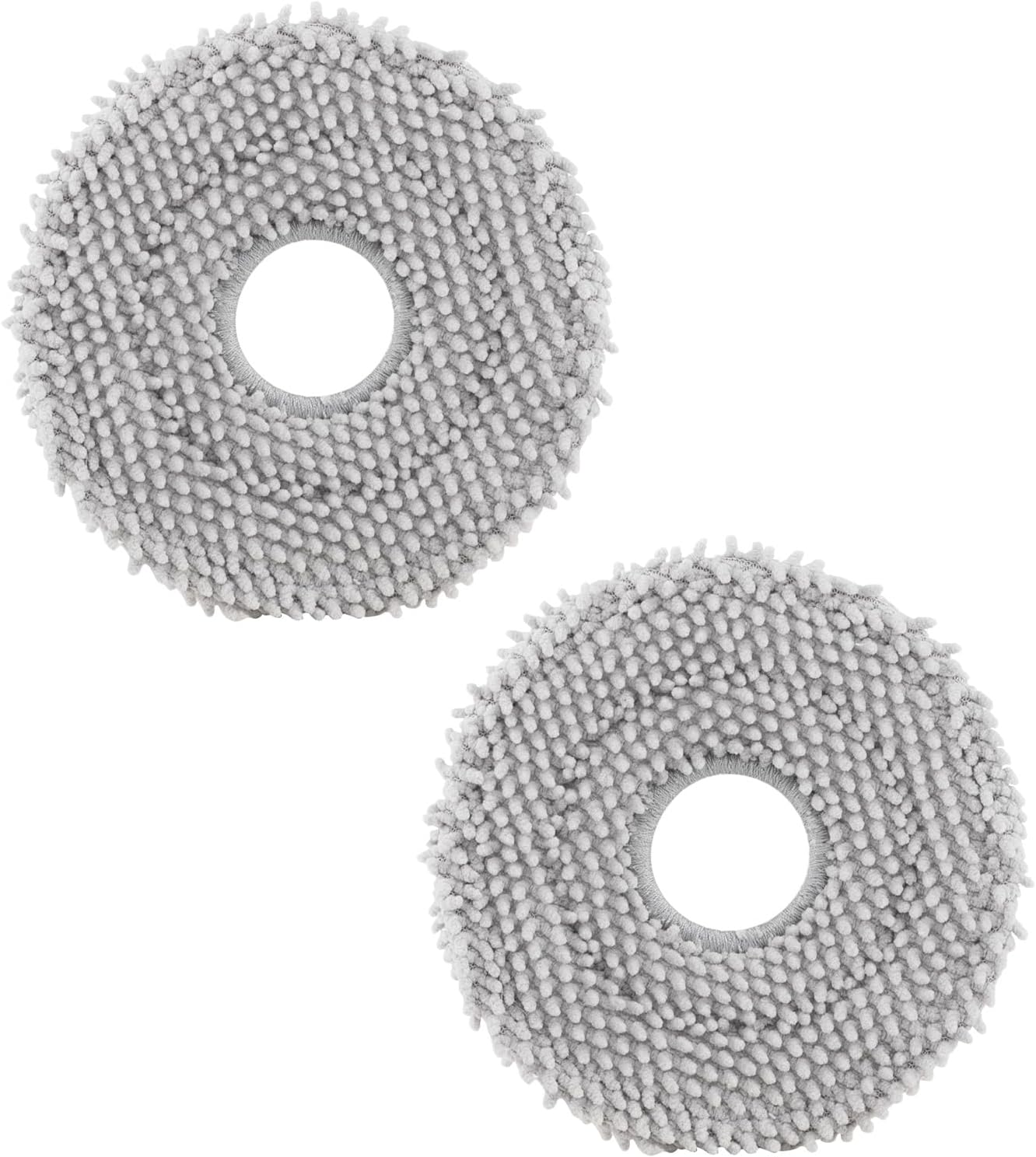
roborock 4 Pack Microfiber Mop Cloths for Q Revo, Qrevo M...

roborock 4 Pack Microfiber Mop Cloths for QV 35A/QV 35S/Q...
As an Amazon Associate we earn from qualifying purchases.
Official Manufacturer Manual
Roborock provides official product documentation through their online manual rather than downloadable PDF. Access setup guides, troubleshooting steps, and product specifications for your Roborock Robot Vacuum.
Source: support.roborock.com
Need More Help? Roborock Support
Note: The contact information below connects you directly to Roborock's official customer support team, not Trunetto. They can help with warranty claims, device replacements, and advanced technical issues.
How Does Roborock Compare?
Before replacing your Roborock device, see how it stacks up against alternatives in our full comparison guides.


