

Why Is My Roborock Not Connecting to WiFi During Setup?
- Router broadcasting 5GHz only (robot needs 2.4GHz)
- WiFi password has special characters
- Phone connected to a different network than the robot
Problem Description
Your Roborock can see Wi-Fi but fails during setup handoff in the app, usually at 20-99% or right after password submission. The root causes are usually not just signal strength: 2.4GHz/5GHz steering, WPA3-only security, blocked local-network discovery, wrong app region, or stale robot pairing state. This guide walks a strict order that fixes the most common setup loops without factory-resetting maps.
Why This Happens in Real Homes
This usually shows up when modern router defaults (WPA3-only, band steering, mixed SSIDs) conflict with older onboarding expectations. The robot appears discoverable, but auth or handoff fails during setup, so pairing loops.
Start with temporary 2.4 GHz + WPA2 onboarding close to the router, then harden settings after pairing. In most homes, that gets setup done on the first retry.
Symptoms
- Setup times out at 'connecting to WiFi'
- App shows a connection-failed error
- Robot announces 'connection failed'
- Indicator light keeps blinking white
- Setup worked on the old router, not the new one
- Multiple setup attempts all fail
- Fails right after submitting the password
- Fails at 20-99% during handoff
Recognize these? Here's what usually causes it.
Common Causes
- Router broadcasting 5GHz only (robot needs 2.4GHz)
- WiFi password has special characters
- Phone connected to a different network than the robot
- Router using WPA3-only security
- Too far from the router during setup
- IoT device limit reached on the router
- VPN/Private Relay or blocked local discovery
- App region doesn't match the device region
Most fixes happen in the first 3 steps.
Avoid full factory reset unless support explicitly requires it. Factory reset clears maps, rooms, schedules, and automations. Use Wi-Fi reset only for connectivity issues.
Tools & Requirements
Step-by-Step Solution
Force a clean 2.4GHz onboarding path
Temporarily create or use a dedicated 2.4GHz SSID with simple settings: 20MHz channel width, WPA2-PSK (AES), and no WPA3-only mode. Keep SSID visible (not hidden). Connect your phone to this 2.4GHz network before opening Roborock app setup.
Reset only Wi-Fi pairing on the robot
Put the robot into Wi-Fi reset/pair mode (do not run a full factory reset). Wait for the voice prompt that Wi-Fi has been reset and confirm the Wi-Fi indicator is blinking before starting pairing.
Disable blockers on your phone for discovery
Turn off VPN, iCloud Private Relay/private DNS, and ad-blocking DNS profiles temporarily. Grant the Roborock app Local Network, Bluetooth, and Location permissions. Keep mobile data on if the app requires cloud login, but stay connected to the 2.4GHz SSID.
Retry setup near router in the correct app region
Place robot and phone within a few feet of the router for first join. Confirm Roborock app region matches the robot's sales region. If you use Mi Home, remove old device entries first so pairing does not attach to stale tokens.
If pairing still fails, remove advanced router restrictions
Temporarily disable AP/client isolation, MAC filtering, and strict IoT firewall rules for onboarding. Make sure DHCP has free leases and router device-limit controls are not reached. Then retry onboarding from step 2.
Finalize and harden after successful join
After connection succeeds, run a quick map sync/test clean in-app. You can re-enable normal router security features one by one, but keep the vacuum on 2.4GHz and avoid WPA3-only settings for this device.
Quick Solutions
Still having issues? This is usually the deeper cause below.
This usually happens right after a router reboot or ISP change — the device rejoins the network but drops its cloud session silently.
Most failed Roborock onboarding attempts happen when the phone silently switches bands or the router is in WPA3/mixed mode. Keep phone and robot close to router and complete first pairing on a clean 2.4GHz profile, then adjust settings gradually.
Most WiFi drop-offs happen right after a router reboot or ISP swap — the device reconnects to the network but silently loses its cloud registration.
- Router broadcasting 5GHz only (robot needs 2.4GHz)
- WiFi password has special characters
- Phone connected to a different network than the robot
- Router using WPA3-only security
- Too far from the router during setup
Before you go — try one of these (they fix most cases).
Most popular upgrades chosen by Roborock Robot Vacuum owners.

roborock 2 Pack Microfiber Mop Cloths for Q7 M5, Q7 M5+, ...
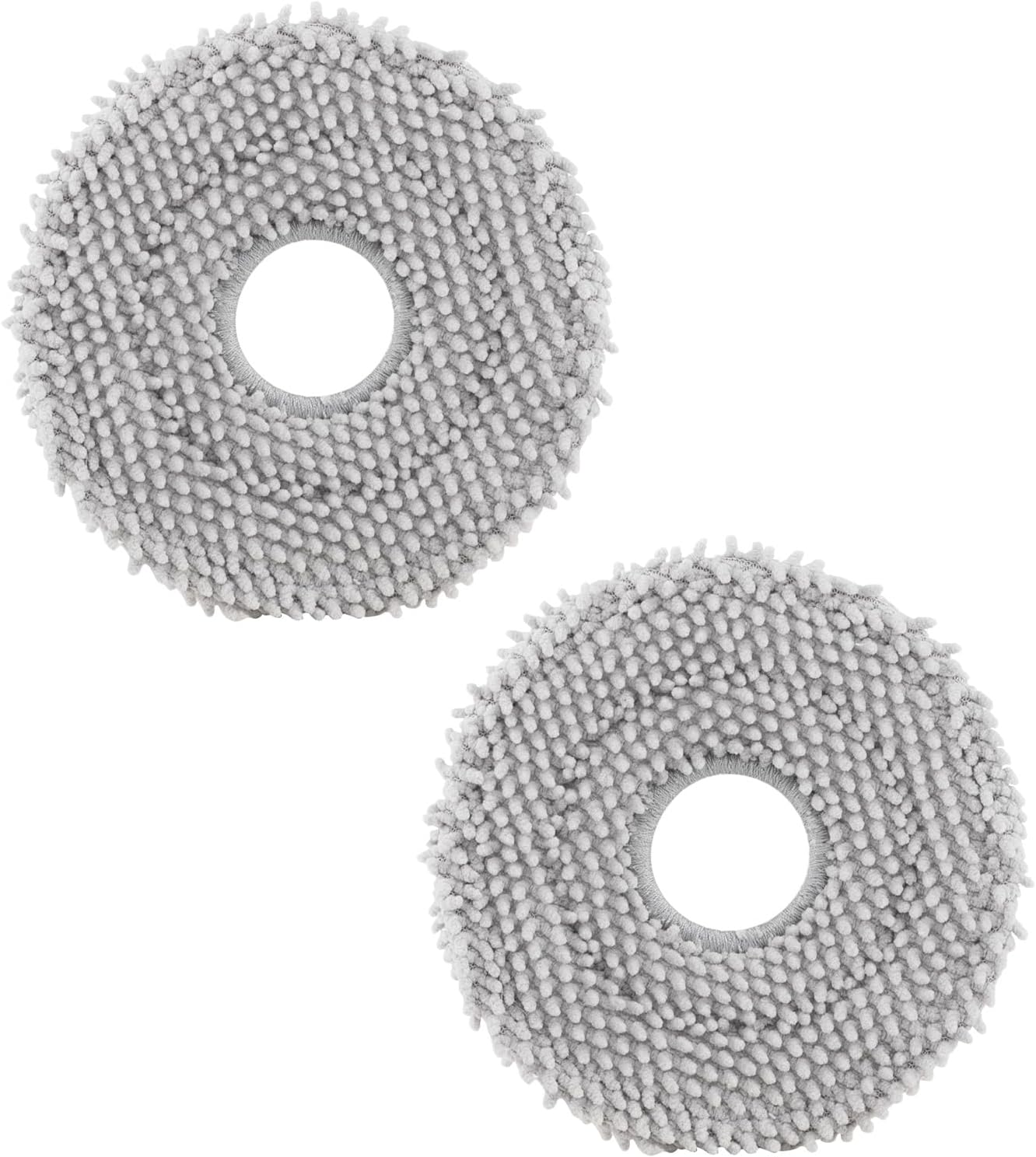
roborock 4 Pack Microfiber Mop Cloths for Q Revo, Qrevo M...

roborock 4 Pack Microfiber Mop Cloths for QV 35A/QV 35S/Q...
As an Amazon Associate we earn from qualifying purchases.
Official Manufacturer Manual
Roborock provides official product documentation through their online manual rather than downloadable PDF. Access setup guides, troubleshooting steps, and product specifications for your Roborock Robot Vacuum.
Source: support.roborock.com
Need More Help? Roborock Support
Note: The contact information below connects you directly to Roborock's official customer support team, not Trunetto. They can help with warranty claims, device replacements, and advanced technical issues.
How Does Roborock Compare?
Before replacing your Roborock device, see how it stacks up against alternatives in our full comparison guides.
Accessories owners commonly pair with Roborock Robot Vacuum.

Amazon Basics 20-Pack AA Alkaline High-Performance Batter...

Amazon Basics CR2032 3V Lithium Coin Cell Batteries for K...

Duracell Coppertop Double AA Batteries with Power Boost I...
As an Amazon Associate we earn from qualifying purchases.


