

Why Does My Roborock Show a LiDAR Error and Spin in Circles?
- Hair, pet fur, or thread wrapped around the base of the LiDAR turret preventing rotation
- Dust film or fingerprint smudge on the laser sensor window reducing scan clarity
- LiDAR turret physically stuck due to debris wedged in the gap between turret and body
Based on real troubleshooting feedback from Trunetto users.
Most users start with the recommended first fix below.
Problem Description
Your Roborock robot vacuum displays a LiDAR sensor error, spins in circles, or bumps into furniture randomly instead of navigating in straight lines. The LiDAR turret on top of the robot spins at approximately 300 RPM to create a 360-degree map of the room. When the turret is blocked, dirty, or mechanically stuck, the robot loses its ability to navigate and falls back to bump-and-go behavior. This affects all Roborock models with LiDAR navigation including the S5, S5 Max, S6, S6 Pure, S6 MaxV, S7, S7 MaxV, S7 Max Ultra, S8, S8 Pro Ultra, S8 MaxV Ultra, Q5, Q7, Q7 Max, and Q Revo. The error message varies by model — common messages include "Laser distance sensor error", "LiDAR sensor blocked", "Please check if the LiDAR sensor is stuck", and error code 1.
Why This Happens in Real Homes
This usually appears when the turret motor is physically restricted or when sensor readings become unstable after dust buildup and heat cycles. The robot still drives, but orientation confidence collapses, which is why it loops and re-tries the same area.
Start with a full top-turret clean and a cold reboot before any factory reset. In most homes, freeing the turret and restarting clears the spin-in-circle pattern.
Symptoms
- Error message: Laser distance sensor error or LiDAR sensor blocked
- Robot spins in circles in the middle of a room
- Robot bumps into furniture repeatedly instead of navigating around it
- LiDAR turret on top of robot is not spinning — visually stationary during cleaning
- Map in the Roborock app shows garbled or distorted room outlines
- Robot gets lost after being picked up and moved during cleaning
- Error code 1 displayed in the Roborock or Mi Home app
- Robot navigates correctly for a few minutes then suddenly loses its position and hits walls
Recognize these? Here's what usually causes it.
Common Causes
- Hair, pet fur, or thread wrapped around the base of the LiDAR turret preventing rotation
- Dust film or fingerprint smudge on the laser sensor window reducing scan clarity
- LiDAR turret physically stuck due to debris wedged in the gap between turret and body
- Robot placed directly in bright sunlight — IR interference disrupts the laser sensor
- LiDAR motor bearing worn out after extended use (common on units over 2 years old)
- Firmware bug causing false LiDAR errors — common on S7 after certain OTA updates
- Robot started cleaning from a different position than where the map was created
- Turret cover or protective film left on during initial setup (new units only)
Most fixes happen in the first 3 steps.
Do not attempt to disassemble the LiDAR turret to clean internally — the laser calibration is factory-set and opening the turret voids the warranty. The turret gap is designed to be cleaned externally. If compressed air does not dislodge debris from the gap, contact support rather than prying the turret apart. On S5 models, the turret sits higher and is more exposed to impacts — avoid running the robot under furniture that is exactly turret-height as repeated collisions can damage the bearing.
Tools & Requirements
These tools will help you complete this fix.

Clean microfiber cloth
MR.SIGA Microfiber Cleaning Cloth,Pack of 12,Size:12...

Compressed air
WOLFBOX MegaFlow 50 Compressed Air Duster-110000RPM ...

Tweezers
Pefei Tweezers Set - Professional Stainless Steel Tw...
As an Amazon Associate we earn from qualifying purchases.
Step-by-Step Solution
Check if the LiDAR turret is physically spinning
Start a cleaning cycle and look at the raised circular turret on top of the robot. It should spin continuously and smoothly — you can see it rotating if you watch closely. On the S7 and S8 series, the turret is the raised disc behind the bumper. On the S5 and S6 series, it is the taller cylindrical bump on top. If the turret is not spinning at all, power off the robot and try to rotate it by hand. It should spin freely with no resistance. If it grinds, catches, or does not rotate, debris is jammed in the turret gap. If it spins freely by hand but not during operation, the turret motor is likely failing.
Remove hair and debris from the turret base
Power off the robot. Look at the narrow gap where the turret meets the robot body — hair, string, and pet fur collect here and wrap around the turret shaft. Use fine-tipped tweezers or a seam ripper to carefully pull out wrapped fibers. On the S7 and S8 models, you can use a can of compressed air to blow debris out of the gap — aim at the base of the turret at a 45-degree angle. On older S5 and S6 models, the gap is tighter and tweezers work better than air. After cleaning, spin the turret by hand to confirm smooth rotation. This single step resolves the majority of LiDAR errors.
Needed for this step
WOLFBOX MegaFlow 50 Compressed Air Duster-11000...
This helps complete the fix you are currently reading.
$39.99Clean the laser sensor window
The laser sensor window is a small clear strip on the side of the LiDAR turret. On the S7 and S8 series, it is a narrow horizontal band around the upper portion of the turret. On the S5 and S6, it is a vertical strip. Use a dry microfiber cloth to gently wipe the entire window surface. Do not use glass cleaner, alcohol, or any liquid — the sensor is calibrated and solvents can leave a residue that refracts the laser. Fingerprints from handling the robot are a common cause of gradual navigation degradation. After cleaning, the robot should create sharper, more accurate maps.
Needed for this step
MR.SIGA Microfiber Cleaning Cloth,Pack of 12,Si...
This helps complete the fix you are currently reading.
$13.99Check the environment for LiDAR interference
LiDAR sensors use infrared laser light which can be disrupted by direct sunlight, mirrors, and highly reflective surfaces. If the charging dock is positioned in front of a floor-to-ceiling window with direct sun, the robot may get confused when it starts cleaning from the dock. Move the dock to a wall without direct sunlight. Also check for large mirrors at the robot height level — the LiDAR sees reflections as false walls and creates distorted maps. Black furniture and very dark walls can absorb the laser and create dead zones in the map. If your room has these, the robot may lose track of its position near those surfaces.
Delete the map and rebuild from the dock
If the robot navigates poorly even after cleaning the turret and sensor, the saved map may be corrupted. In the Roborock app, go to Map Management and delete the current map. Place the robot on the charging dock and start a full-house cleaning. The robot will create a new map from scratch. For multi-floor homes, delete only the affected floor. On S7 MaxV and S8 MaxV models, the front camera assists LiDAR — make sure the camera lens is also clean. During the mapping run, keep doors open and remove temporary obstacles so the robot can map the full layout. The first mapping run may take longer than normal as the robot explores.
Update firmware to fix known LiDAR bugs
Open the Roborock app, go to the robot settings, and check for firmware updates. The S7 had a notorious firmware issue in late 2022 where a specific OTA update caused intermittent false LiDAR errors — this was fixed in subsequent updates. The S8 Pro Ultra had a similar issue in early 2024 with the LiDAR initialization sequence after dock undocking. Always keep firmware current. After updating, the robot will reboot — start a test clean in an open room to verify navigation. If the error persists after the latest firmware, it points to a hardware issue rather than software.
Diagnose turret motor failure
If you have cleaned all debris, wiped the sensor, updated firmware, and the turret still does not spin during operation (but does spin freely by hand), the turret motor is failing. This is a known wear item on Roborock robots after 2-3 years of daily use. Check your warranty status — Roborock provides a 2-year warranty and the LiDAR assembly is a covered component. Contact Roborock support through the app or at global.roborock.com/pages/support with your serial number and a video showing the error. If out of warranty, replacement LiDAR modules are available from third-party parts sellers and the replacement is a 10-minute job with a Phillips screwdriver — multiple teardown guides exist on YouTube for each model.
Quick Solutions
Still having issues? This is usually the deeper cause below.
If this comes back after following these steps, check whether a recent app or firmware update reset a default setting — the fix works, but the setting gets reverted silently.
The LiDAR turret is the most maintenance-sensitive component on any Roborock vacuum. A monthly 30-second check — spin the turret by hand and wipe the sensor window — prevents the vast majority of navigation errors. If you have long-haired pets, check the turret base weekly. The S7 MaxV, S8 MaxV, and newer models have a dual-navigation system (LiDAR plus front camera) that can partially compensate for LiDAR degradation, but they still need a working turret for accurate mapping.
This issue almost always looks more complex than it is — the majority of cases trace back to a single setting, a stale credential, or a default that shipped wrong.
- Hair, pet fur, or thread wrapped around the base
- Dust film or fingerprint smudge on the laser sensor
- LiDAR turret physically stuck
- Robot placed directly in bright sunlight — IR interference
- LiDAR motor bearing worn out
Before you go — try one of these (they fix most cases).
Most popular upgrades chosen by Roborock Robot Vacuum owners.

roborock 2 Pack Microfiber Mop Cloths for Q7 M5, Q7 M5+, ...
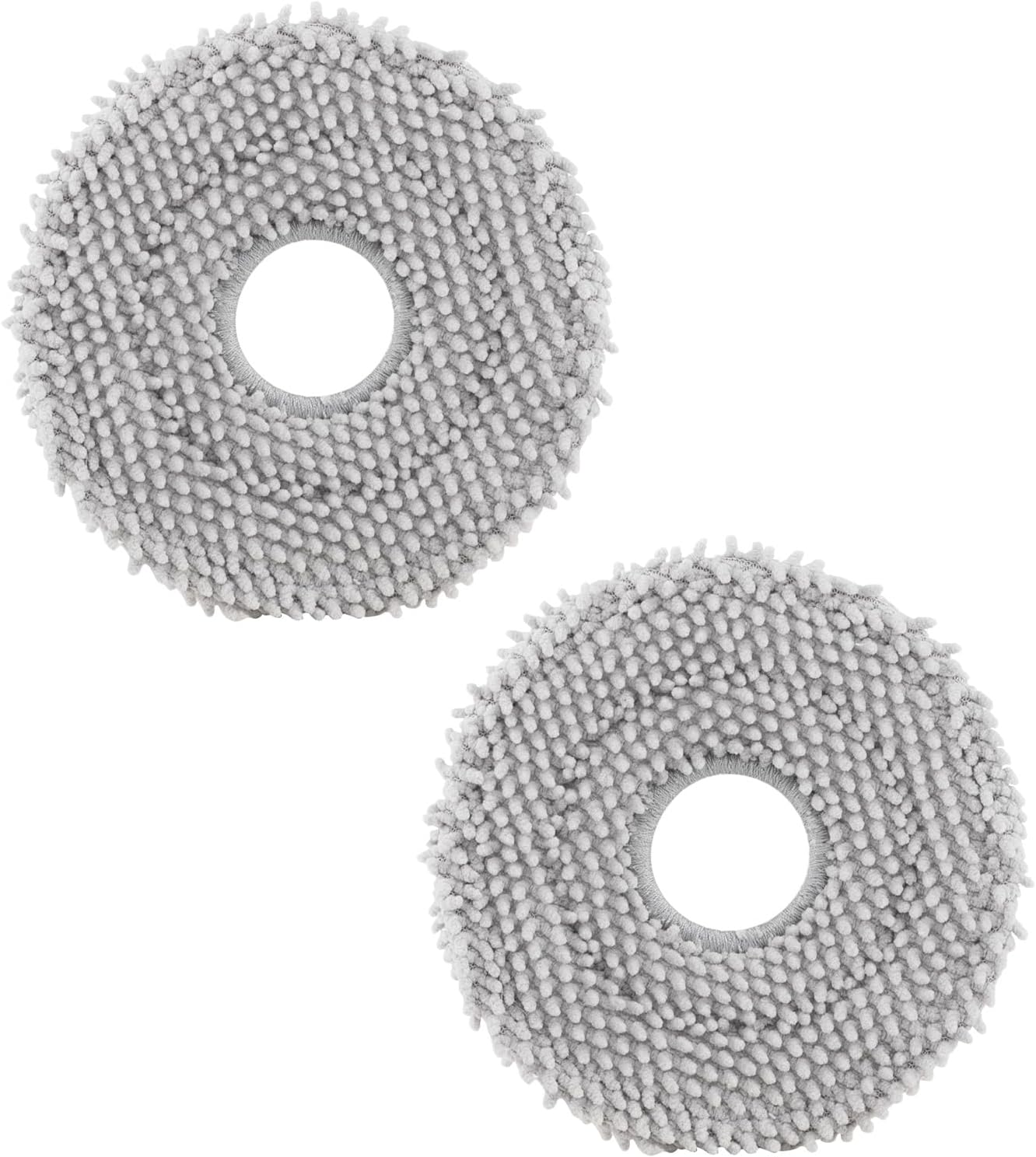
roborock 4 Pack Microfiber Mop Cloths for Q Revo, Qrevo M...

roborock 4 Pack Microfiber Mop Cloths for QV 35A/QV 35S/Q...
As an Amazon Associate we earn from qualifying purchases.
Official Manufacturer Manual
Roborock provides official product documentation through their online manual rather than downloadable PDF. Access setup guides, troubleshooting steps, and product specifications for your Roborock Robot Vacuum.
Source: support.roborock.com
Need More Help? Roborock Support
Note: The contact information below connects you directly to Roborock's official customer support team, not Trunetto. They can help with warranty claims, device replacements, and advanced technical issues.
How Does Roborock Compare?
Before replacing your Roborock device, see how it stacks up against alternatives in our full comparison guides.
Accessories owners commonly pair with Roborock Robot Vacuum.

Amazon Basics 20-Pack AA Alkaline High-Performance Batter...

Amazon Basics CR2032 3V Lithium Coin Cell Batteries for K...

Duracell Coppertop Double AA Batteries with Power Boost I...
As an Amazon Associate we earn from qualifying purchases.
Guide Improvements
- Updated June 18, 2026
Expanded from 6 generic steps to 7 model-specific steps covering all Roborock LiDAR models (S5 through S8 MaxV Ultra), turret motor diagnosis, and environmental interference troubleshooting
Source: SEO content depth improvement


