

Why Won't My Roborock Return to the Dock?
- Objects blocking the IR signal window on the front of the dock
- Dock moved to a new location without updating the map in the app
- Dirty or oxidized charging contacts on the dock or the robot underside
Based on real troubleshooting feedback from Trunetto users.
Most users start with the recommended first fix below.
Problem Description
Your Roborock robot vacuum finishes cleaning but fails to return to its charging dock. The robot wanders aimlessly, stops in the middle of a room, or drives near the dock but cannot align with the charging contacts. Roborock vacuums use a combination of LiDAR mapping and infrared dock signals to navigate home. The dock emits an IR beam that guides the robot for the final approach and alignment. Models with auto-empty or auto-mop docks (S7 MaxV Ultra, S8 Pro Ultra, S8 MaxV Ultra, Q Revo) have additional alignment requirements because the robot must connect to the dock dust port and water system precisely. Dock return failures trace to IR signal blockage, dirty charging contacts, dock position issues, or map corruption.
Why This Happens in Real Homes
This usually happens after dock movement, clutter near the dock approach lane, or dirty IR/contact points. The robot can finish cleaning but fails the final alignment logic, so it circles or times out instead of parking.
Start by clearing dock-side space, cleaning dock sensors/contacts, and re-docking manually once before the next run. In most homes, that restores reliable return behavior without replacing hardware.
Symptoms
- Robot finishes cleaning but stops in the middle of a room instead of returning to dock
- Robot drives near the dock but circles around it without docking
- Robot docks but immediately undocks and tries again repeatedly
- Robot says Cannot find charging dock or Charging dock not found
- Robot returns to where the dock used to be after the dock was moved
- Robot docks at an angle — misaligned with the charging contacts
- Battery dies before the robot can reach the dock from a distant room
- Robot docks successfully but does not start charging — charging contacts not touching
Recognize these? Here's what usually causes it.
Common Causes
- Objects blocking the IR signal window on the front of the dock
- Dock moved to a new location without updating the map in the app
- Dirty or oxidized charging contacts on the dock or the robot underside
- Dock placed against a wall with no clear approach lane — Roborock needs 0.5m on each side and 1.5m in front
- Cliff sensors on the robot detecting the dock platform edge and stopping approach
- LiDAR map corrupted after furniture rearrangement causing position miscalculation
- Dark or reflective flooring near the dock confusing the IR return sensor
- Robot started cleaning from a location other than the dock
Most fixes happen in the first 3 steps.
Do not manually push the robot onto the dock contacts — let it dock itself. Forcing the robot onto the contacts at the wrong angle can bend the charging rails over time. If the robot repeatedly fails to dock after all troubleshooting, the IR sensor on the dock front may have failed. This is covered under Roborock 2-year warranty.
Step-by-Step Solution
Clear the dock approach area
Roborock requires a specific clear zone around the dock for reliable return. Remove any objects, shoes, cables, or rugs from the area: 0.5 meters (about 20 inches) of clear space on both sides of the dock and 1.5 meters (about 5 feet) of clear floor in front. The dock should sit flat against a wall on hard flooring. Do not place the dock on a thick rug or carpet — the height change at the carpet edge can trigger the robot cliff sensors and stop the approach. For multi-dock setups (S7 MaxV Ultra, S8 Pro Ultra), the dock is larger and needs even more clearance due to the auto-empty and water tank connections. Check that no furniture legs are within the approach lane — the robot needs a straight-line path to the dock for the final IR-guided alignment.
Clean the dock IR windows and charging contacts
The dock has small IR transmitter windows on the front face that send a homing signal to the robot. Dust, pet hair, or cobwebs covering these windows weaken the signal. Wipe the front face of the dock with a dry microfiber cloth. Then look at the two metal charging rails on the dock base (where the robot sits) — these should be shiny metal. If they are dull, oxidized, or have residue, clean them with a dry cloth. On the robot, flip it over and clean the two metal contact plates on the underside near the front wheels. For auto-empty docks, also clean around the dust port opening — debris buildup there prevents the robot from seating fully flush against the dock.
Verify and update dock position on the map
In the Roborock app, open the map and check where the dock icon appears. It should match the dock physical location exactly. If you moved the dock since the map was created, the robot will go to the old position and not find it. To fix this: place the robot manually on the dock, open the app, and use the Relocate or Reset Dock Position option. On some firmware versions, you may need to delete the map and let the robot remap from the new dock position. Start a full cleaning run from the dock and the robot will update the dock location in the new map automatically.
Clean the cliff sensors on the robot
Roborock robots have cliff sensors on the underside — small infrared windows near the front bumper that detect ledges and stairs. If these sensors are dirty, they may falsely detect a cliff right at the dock platform edge and stop the robot from approaching. Flip the robot over and locate the 3-4 small clear windows along the front underside. Wipe each one with a dry cotton swab. Also check the bumper sensor — push the front bumper in and release. It should spring back smoothly without sticking. A stuck bumper can prevent the robot from making final contact with the dock.
Start cleaning from the dock for reliable return navigation
Roborock navigation works best when the robot starts and ends at the dock. If you pick up the robot, carry it to another room, and start cleaning from there, the robot may struggle to find its way back because it has no reliable starting reference point. Always place the robot on the dock and start cleaning from the app or the dock button. For zone cleaning or room-specific cleaning, still start from the dock and let the robot go to the target area. If the robot cannot complete a large home on one charge, it will auto-return to the dock to recharge and then resume — this recharge-and-resume function only works when the run started from the dock.
Address flooring and lighting issues near the dock
Dark-colored floors, mats, or rugs near the dock can interfere with both the cliff sensors and the IR return signal. Black or very dark flooring absorbs the cliff sensor IR beam, making the robot think there is a ledge. High-gloss or mirror-finish floors reflect the dock IR signal in unpredictable patterns. If your dock is on dark tile or near a dark doormat, try placing a piece of light-colored cardboard in front of the dock temporarily. If the robot docks reliably with the cardboard, the flooring is the issue. Use a light-colored mat or reposition the dock to a lighter floor area. Also avoid placing the dock where direct sunlight hits during the day — sunlight IR overwhelms the dock homing signal.
Reset the map and re-dock if all else fails
If the robot consistently fails to return after checking clearance, contacts, sensors, and dock position, delete the map entirely and start fresh. Place the robot on the dock. In the Roborock app, go to Map Management and delete all saved maps. Start a full-house cleaning run. The robot will create a new map with the dock position anchored correctly. Let it complete the entire cleaning cycle without interruption. After it returns and docks successfully, the new map is saved. For multi-level homes, you will need to remap each floor separately. This is a last resort because you lose room names, no-go zones, and cleaning preferences — but it resolves nearly all dock return issues caused by map corruption.
Quick Solutions
Still having issues? This is usually the deeper cause below.
If this comes back after following these steps, check whether a recent app or firmware update reset a default setting — the fix works, but the setting gets reverted silently.
If your Roborock has an auto-empty dock, the robot must dock with more precision than with a simple charging dock. The dust port alignment on S7 MaxV Ultra and S8 Pro Ultra docks requires the robot to approach straight-on. Any angle deviation and the auto-empty seal will not engage. Keep the dock area especially clear for these models. If the robot docks but auto-empty does not trigger, it is likely a 1-2cm alignment issue that better clearance resolves.
Robot vacuums that 'stop working' are usually fighting a corrupted map from moved furniture — a fresh floor scan fixes the majority of reported failures.
- Objects blocking the IR signal window on the front
- Dock moved to a new location without updating the
- Dirty or oxidized charging contacts on the dock or
- Dock placed against a wall with no clear approach
- Cliff sensors on the robot detecting the dock platform
Before you go — try one of these (they fix most cases).
Most popular upgrades chosen by Roborock Robot Vacuum owners.

roborock 2 Pack Microfiber Mop Cloths for Q7 M5, Q7 M5+, ...
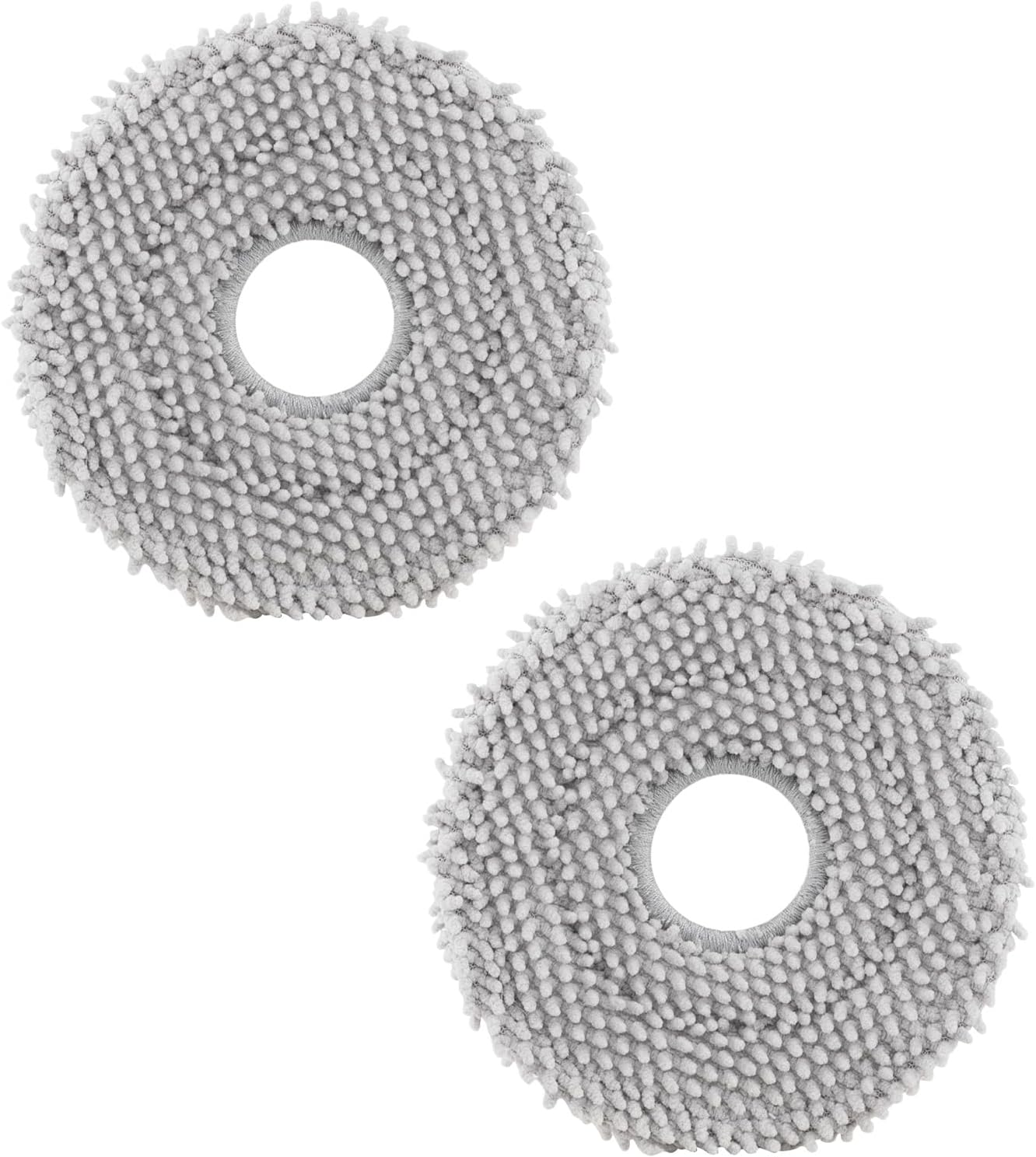
roborock 4 Pack Microfiber Mop Cloths for Q Revo, Qrevo M...

roborock 4 Pack Microfiber Mop Cloths for QV 35A/QV 35S/Q...
As an Amazon Associate we earn from qualifying purchases.
Official Manufacturer Manual
Roborock provides official product documentation through their online manual rather than downloadable PDF. Access setup guides, troubleshooting steps, and product specifications for your Roborock Robot Vacuum.
Source: support.roborock.com
Need More Help? Roborock Support
Note: The contact information below connects you directly to Roborock's official customer support team, not Trunetto. They can help with warranty claims, device replacements, and advanced technical issues.
How Does Roborock Compare?
Before replacing your Roborock device, see how it stacks up against alternatives in our full comparison guides.
Accessories owners commonly pair with Roborock Robot Vacuum.

Amazon Basics 20-Pack AA Alkaline High-Performance Batter...

Amazon Basics CR2032 3V Lithium Coin Cell Batteries for K...

Duracell Coppertop Double AA Batteries with Power Boost I...
As an Amazon Associate we earn from qualifying purchases.
Guide Improvements
- Updated June 18, 2026
Expanded from 5 generic steps to 7 detailed steps with specific clearance measurements, auto-empty dock alignment details, IR signal troubleshooting, and dark flooring workarounds
Source: SEO content depth improvement


