

Why Does My Roborock Map Keep Getting Deleted After Firmware Updates?
- Firmware update resetting the map storage area
- Corrupt map data cleared during the update
- Cloud sync failing before or after the update
Problem Description
Every time your Roborock gets a firmware update your saved map disappears. You have to let the robot remap your entire house again then recreate all your room divisions, no-go zones, and furniture labels. This keeps happening with every update. Losing the map means losing hours of customization work.
Why This Happens in Real Homes
Losing a carefully-customized map - room divisions, no-go zones, furniture labels, multiple floors - after a firmware update is genuinely frustrating, and while some early cases were firmware bugs, the durable protection is making sure your maps are backed up to the cloud rather than living only on the robot. When maps are stored in your Roborock cloud account and sync properly, an update shouldn't wipe them; the losses tend to happen when the map is local-only, the account isn't syncing, or an update is applied before the latest map has finished uploading. So the key preventive steps are keeping the robot signed into your account with cloud map backup enabled, and giving the map time to sync (up to about 24 hours) before and after updating.
To minimize risk on future updates, disable automatic firmware updates and update manually only after confirming your map is backed up - that way you're never surprised mid-customization. If a specific firmware version is known to affect maps, that's worth checking with Roborock support before applying it. Realistically, keep a mental note of your room divisions and no-go zones so that if a map is ever lost you can rebuild it quickly, and let the robot do a fresh full mapping run with all doors open to recreate a clean map. The best insurance remains cloud backup plus manual, confirmed-safe updates.
Symptoms
- Map completely gone after a firmware update
- Room divisions and names reset
- No-go zones and virtual walls deleted
- Have to remap the whole house from scratch
- Map shows but room assignments are wrong
- Multiple floors lost, only one remaining
- Customizations gone after updating
- Recurs with every update
Recognize these? Here's what usually causes it.
Common Causes
- Firmware update resetting the map storage area
- Corrupt map data cleared during the update
- Cloud sync failing before or after the update
- Locally-stored map cleared during the update
- Account sync issue losing cloud-stored maps
- Bug in a specific firmware version affecting maps
- Update applied before the map finished syncing
- Multi-map data not backed up
Most fixes happen in the first 3 steps.
Remapping may result in different room assignments. Your schedules may run in wrong rooms until you verify room names match.
Step-by-Step Solution
Enable Map Cloud Backup
Open the Roborock app and go to your robot settings. Find Map Management or Map Settings. Enable Save Map to Cloud or similar option. This backs up your map to Roborock servers. After firmware update the map should restore from cloud. Check that your account is logged in and syncing.
Verify Cloud Sync Status
Before accepting any firmware update open the app and check that your maps show synced status. Look for sync icons or last sync time. If sync is failing your maps are only stored locally on the robot and will be lost during updates. Fix sync issues before updating.
Disable Automatic Updates
In the app find firmware update settings and disable automatic updates. This lets you choose when to update. Before manually starting an update verify your map is backed up to cloud. After update check that map restored before making any changes.
Document Your Customizations
Since map loss may happen regardless take screenshots of your room divisions, no-go zones, and furniture labels. If map is lost you can recreate customizations faster by referencing your screenshots. This takes 5 minutes but saves hours of trial and error.
Report to Roborock Support
If maps are lost after every update this may be a bug affecting your model. Contact Roborock support through the app. Report which firmware versions caused map loss. They may have a fix or can flag your account for extra attention. Repeated map loss after updates is not normal behavior.
Quick Solutions
Still having issues? This is usually the deeper cause below.
If the device became unresponsive after a firmware update, a factory reset usually clears the corrupted state — the update itself is rarely the root cause.
Some Roborock models save maps to cloud automatically. Others require manually enabling this. Check your model documentation.
Firmware updates that wipe settings are more common than brands admit — many devices silently reset to factory defaults on an OTA push with no warning.
- Firmware update resetting the map storage area
- Corrupt map data cleared during the update
- Cloud sync failing before or after the update
- Locally-stored map cleared during the update
- Account sync issue losing cloud-stored maps
Before you go — try one of these (they fix most cases).
Most popular upgrades chosen by Roborock Robot Vacuum owners.

roborock 2 Pack Microfiber Mop Cloths for Q7 M5, Q7 M5+, ...
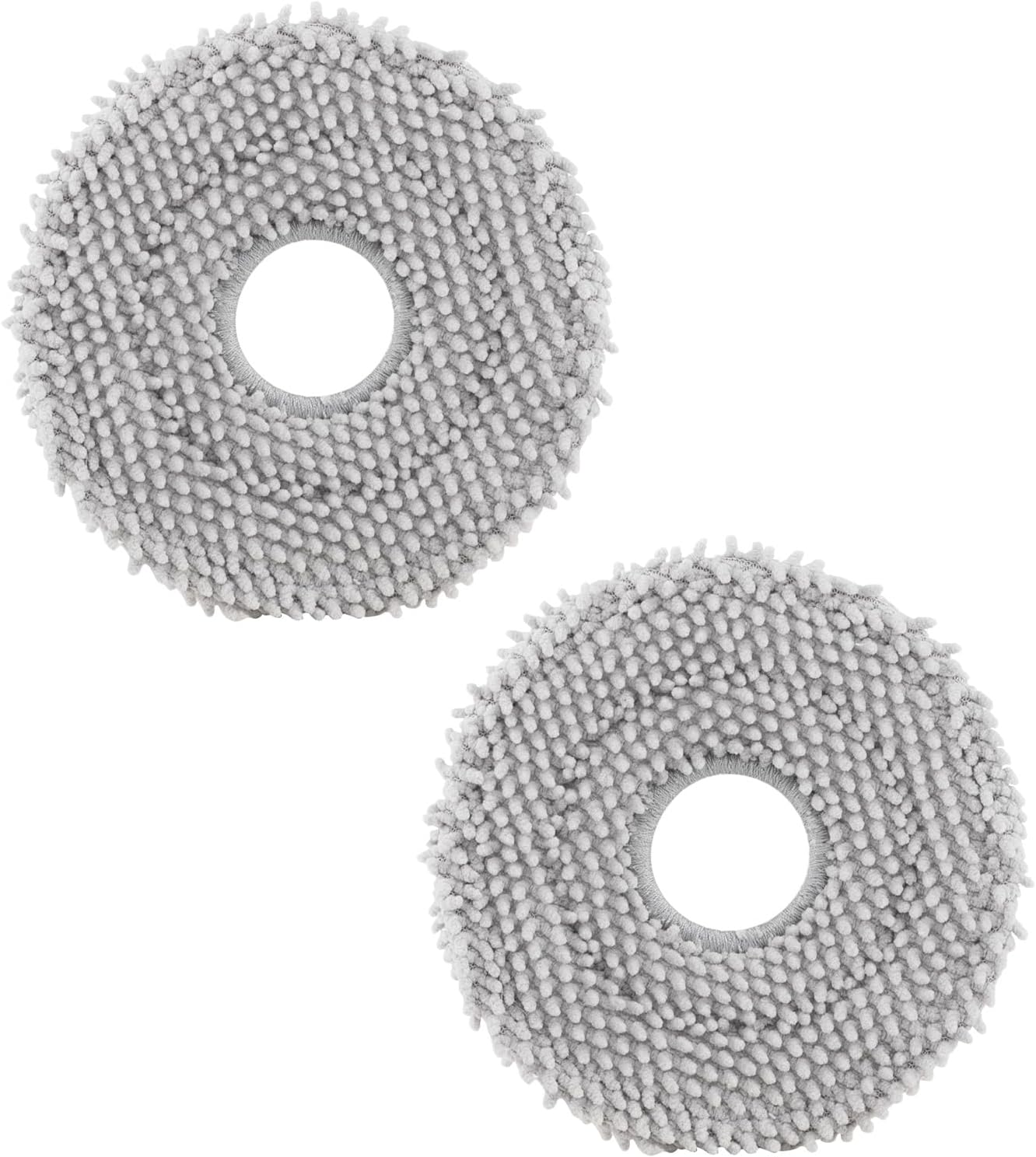
roborock 4 Pack Microfiber Mop Cloths for Q Revo, Qrevo M...

roborock 4 Pack Microfiber Mop Cloths for QV 35A/QV 35S/Q...
As an Amazon Associate we earn from qualifying purchases.
Official Manufacturer Manual
Roborock provides official product documentation through their online manual rather than downloadable PDF. Access setup guides, troubleshooting steps, and product specifications for your Roborock Robot Vacuum.
Source: support.roborock.com
Need More Help? Roborock Support
Note: The contact information below connects you directly to Roborock's official customer support team, not Trunetto. They can help with warranty claims, device replacements, and advanced technical issues.
How Does Roborock Compare?
Before replacing your Roborock device, see how it stacks up against alternatives in our full comparison guides.
Accessories owners commonly pair with Roborock Robot Vacuum.

Amazon Basics 20-Pack AA Alkaline High-Performance Batter...

Amazon Basics CR2032 3V Lithium Coin Cell Batteries for K...

Duracell Coppertop Double AA Batteries with Power Boost I...
As an Amazon Associate we earn from qualifying purchases.


