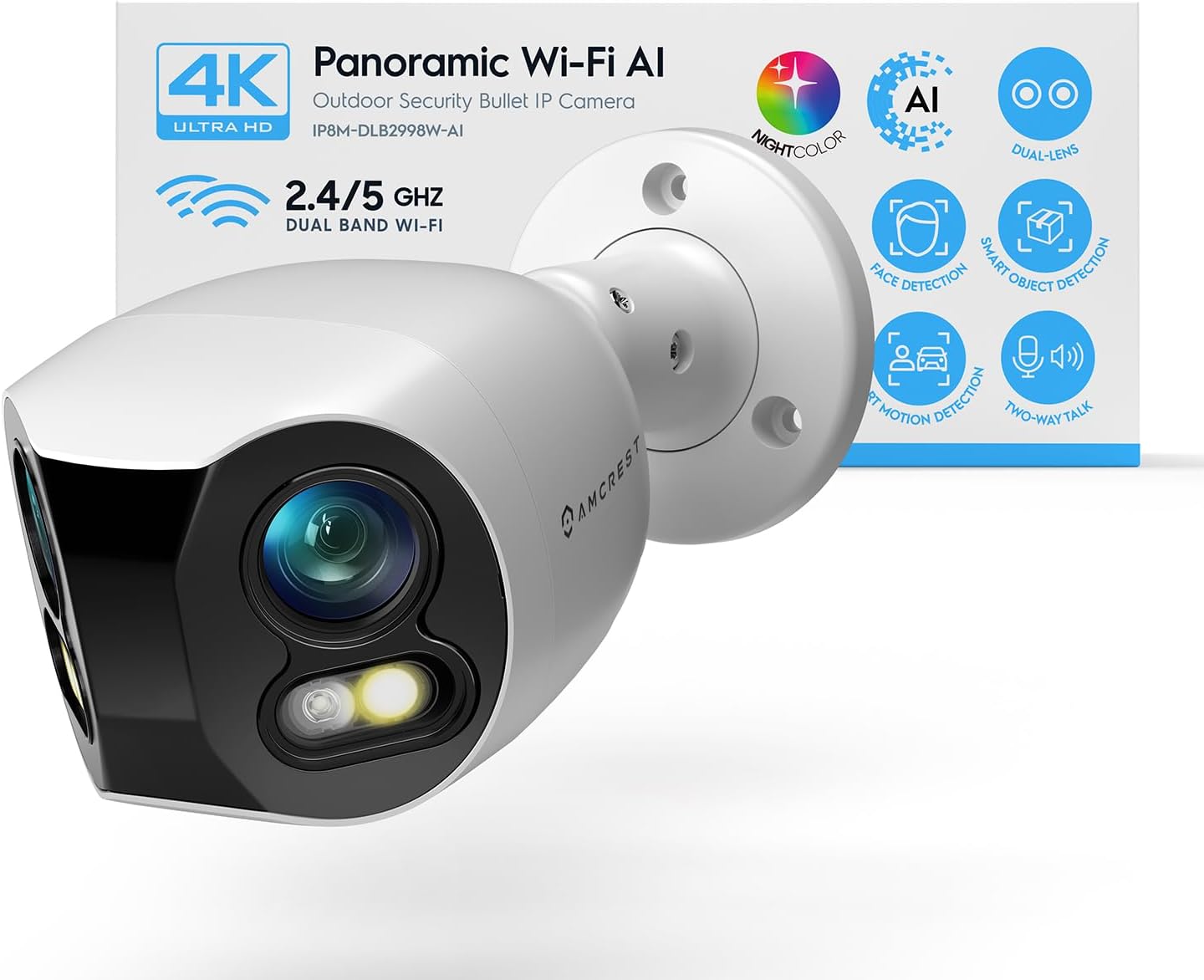
How to Install Amcrest Security Camera
- Choose a Mounting Location and Run Ethernet or WiFi
- Mount the Camera and Route the Cable
- Connect Power and Confirm Camera Boots
- Add the Camera to Amcrest View or NVR
- Configure Motion Detection and Recording
Most users complete this in under 60 minutes
Overview
Amcrest Amcrest Security Camera setup takes under 15 minutes for most users — if you're stuck, the steps below target the specific points where installs stall.
This guide covers the installation and setup of an Amcrest security camera, including mounting, power connection via PoE or DC adapter, and remote access configuration through the Amcrest View Pro app or web interface. Amcrest cameras support recording to local NAS, NVR, or microSD and optionally to Amcrest Cloud for off-site backup.
Why This Happens in Real Homes
Installing an Amcrest camera comes in two flavors: PoE cameras get power and data over one Ethernet run to a PoE switch or NVR, while WiFi cameras join your 2.4GHz network and are powered by an adapter. Either way, you add the camera to the Amcrest View Pro app — usually by P2P, scanning the QR code or entering the serial number — which is what enables remote viewing.
For a PoE camera, run a good Ethernet cable to a PoE (or PoE+ for 4K models) source and check the port; for a WiFi camera, put it in setup mode and connect it to a 2.4GHz network (not 5GHz) with strong signal at the mount. Add it in the app via P2P by scanning the QR/SN, install any firmware, and set it up for recording and motion. Mount it with a clear view, out of direct sun and away from surfaces that would reflect IR at night.
What's Included
- Installing an Amcrest camera
- Mounting/wiring questions
- Won't connect to WiFi/PoE
- App can't find the camera
- Adding to the app (P2P/QR)
- No power/PoE
- Offline after install
- Setup unclear
Got your materials ready? Here's what to check first.
Before You Start
- PoE power inadequate / wrong adapter
- Connecting a WiFi cam to 5GHz not 2.4GHz
- Camera not in pairing/setup mode
- Weak signal/coverage at the mount
- QR/SN not scanned correctly
- Wrong app or account
- Firmware update pending
- Cable/port fault (PoE)
Don't skip this step — it breaks everything if you do
Ensure secure mounting to prevent camera theft. Use strong passwords for camera access. Check local laws regarding surveillance camera placement.
Tools & Requirements
These tools will help you complete this fix.

Drill optional
DEWALT 20V MAX Cordless Drill and Impact Driver, Pow...

Level
9 Inch Torpedo Level Magnetic, Shock-Proof Small Lev...

Screwdriver
STREBITO 155 in 1 Electric Screwdriver Set, Small El...
As an Amazon Associate we earn from qualifying purchases.
Installation Steps
Choose a Mounting Location and Run Ethernet or WiFi
Amcrest cameras support both wired PoE and wireless WiFi connections. For outdoor cameras, wired PoE provides the most reliable connection and eliminates battery concerns. Run a Cat5e or Cat6 Ethernet cable from your PoE switch or NVR to the camera mounting location. For indoor cameras, WiFi installation is acceptable. Position the camera at a height of 7 to 10 feet for best field of view and minimal tampering risk.
Mount the Camera and Route the Cable
Use the included mounting template to mark drill holes at your chosen location. Drill holes and insert wall anchors if needed. Feed the Ethernet or power cable through the wall or along the surface in a cable conduit for a clean installation. Attach the camera mount to the wall with the included screws, route the cable through the mount, and click or screw the camera body onto the mount. For outdoor installations, seal around the cable entry point with weatherproof silicone caulk.
Needed for this step
DEWALT 20V MAX Cordless Drill and Impact Driver...
This helps complete the fix you are currently reading.
$139.00Connect Power and Confirm Camera Boots
If using PoE, connect the Ethernet cable to your PoE switch or NVR port and confirm the camera powers on — indicated by the IR LEDs briefly lighting at night or the status LED illuminating. If using a DC power adapter, connect the included 12V adapter and confirm startup. Allow 60 seconds for the camera to fully boot before attempting to access it from the app or NVR.
Add the Camera to Amcrest View or NVR
For NVR recording, the camera should appear automatically in the NVR's device list if on the same network segment — select it and confirm video. For mobile access, open the Amcrest View Pro app, tap the plus icon, and select the Add IPC option. The app will search your network for the camera. Select it from the list, enter the camera's admin password (default is usually printed on the label), and confirm the live view loads correctly.
Configure Motion Detection and Recording
In the camera settings, go to Motion Detection and draw a detection zone covering the area you want monitored. Set sensitivity to Medium as a starting point and adjust based on false alert frequency. Configure the recording schedule — continuous recording if using a large NVR or motion-triggered recording to microSD for standalone installations. Set up email or push notification alerts in the app for immediate motion event notification.
Installation Tips
Still stuck? This is usually the deeper cause below.
Test Wi-Fi signal strength at mounting location before final installation. Use weatherproof connections for outdoor installations.
Before you go — these Amcrest guides fix most remaining issues.
Most popular upgrades chosen by Amcrest Security Camera owners.

Amcrest 2-Pack 1080p WiFi Camera Indoor, 2MP Pan/Tilt Hom...

Amcrest 1080P WiFi Security Camera 2MP Indoor Pan/Tilt Wi...
As an Amazon Associate we earn from qualifying purchases.
Official Manufacturer Manual
Amcrest provides official product documentation through their online manual rather than downloadable PDF. Access setup guides, troubleshooting steps, and product specifications for your Amcrest Security Camera.
Source: support.amcrest.com
Need More Help? Amcrest Support
Note: The contact information below connects you directly to Amcrest's official customer support team, not Trunetto. They can help with warranty claims, device replacements, and advanced technical issues.