How Do I Set Up the Moen U Smart Shower Multi-Outlet?
- Outlets not assigned to controller buttons
- Valve plumbed to outlets differently than configured
- Presets/temperatures not set in the app
Problem Description
You are setting up the Moen U Smart Shower system with multiple outlets (showerhead, handshower, body sprays). The system uses a digital thermostatic valve controlled by a WiFi-enabled controller. This guide covers understanding the components, installing the valve, and configuring outlet presets and temperature settings in the U by Moen app.
Why This Happens in Real Homes
Setting up a Moen U Smart Shower with multiple outlets is about mapping the physical plumbing to the digital controller. The system centers on a digital thermostatic valve (available in 2-outlet and 4-outlet versions) fed to your outlets — rainhead, handshower, body sprays — and a WiFi controller that switches among them. The key step people miss is assigning each outlet to a controller button in the U by Moen app so the buttons actually match what's plumbed where.
Start by confirming your valve's outlet count and how each outlet is plumbed, then in the app assign each one to a button and set its presets and temperatures — a favorite warm-up temperature, or a preset that runs the rainhead at one temp and the handshower at another. Make sure the controller is synced with the valve and online during setup, and update the firmware and app if any step won't complete. Once each physical outlet is correctly mapped and given its presets, the controller and voice commands drive the right outlet at the right temperature every time.
Symptoms
- Setting up multiple outlets
- Assigning showerhead/handshower/body sprays
- Outlets not switching correctly
- Presets/temperatures setup
- Which outlet maps to which button
- Multi-outlet config questions
- Valve/controller component questions
- Outlet control not working
Recognize these? Here's what usually causes it.
Common Causes
- Outlets not assigned to controller buttons
- Valve plumbed to outlets differently than configured
- Presets/temperatures not set in the app
- Wrong number of outlets for the valve model
- Controller not synced with the valve
- Setup step skipped in the app
- Firmware/app out of date
- Controller offline during setup
Most fixes happen in the first 3 steps.
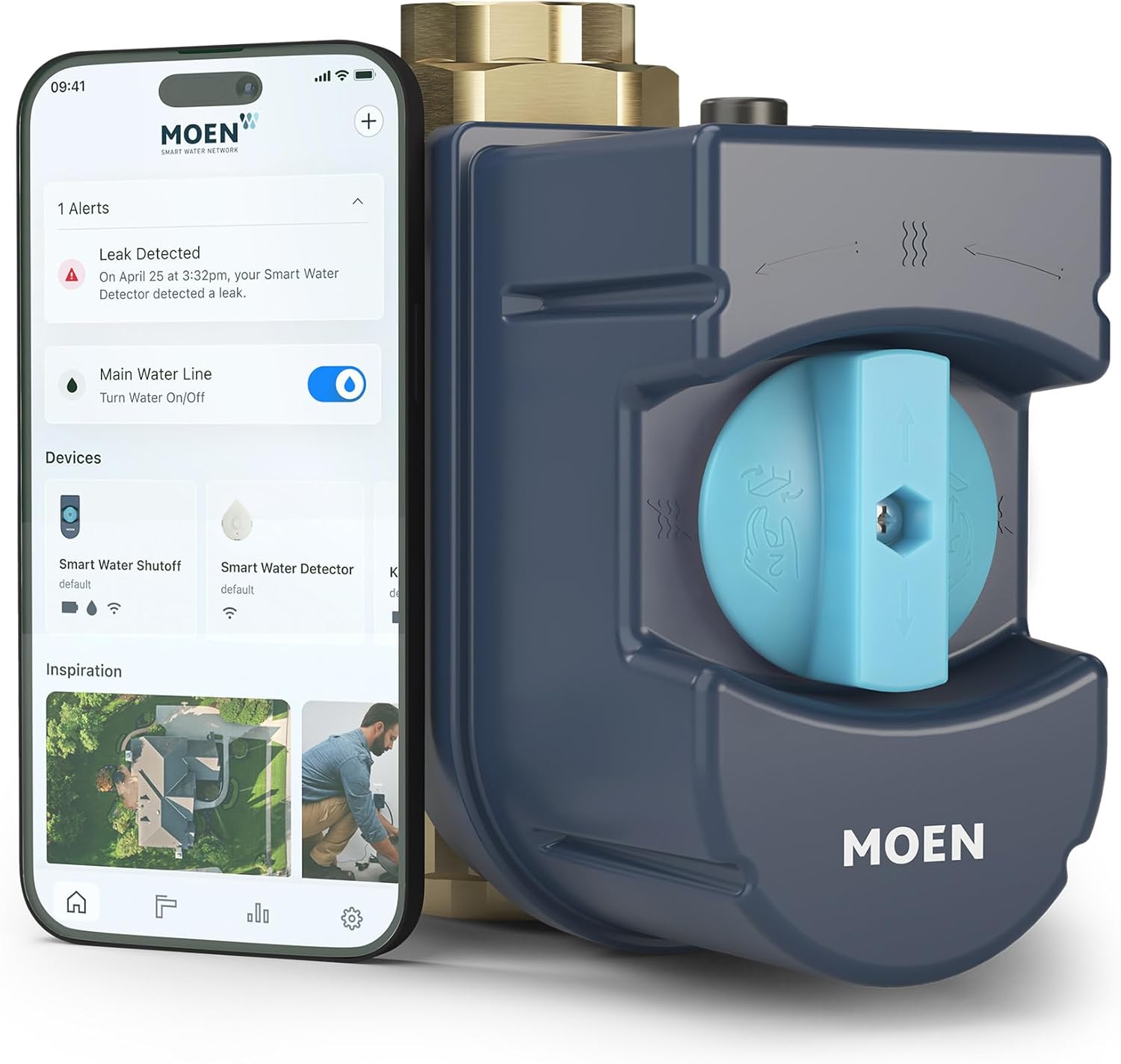
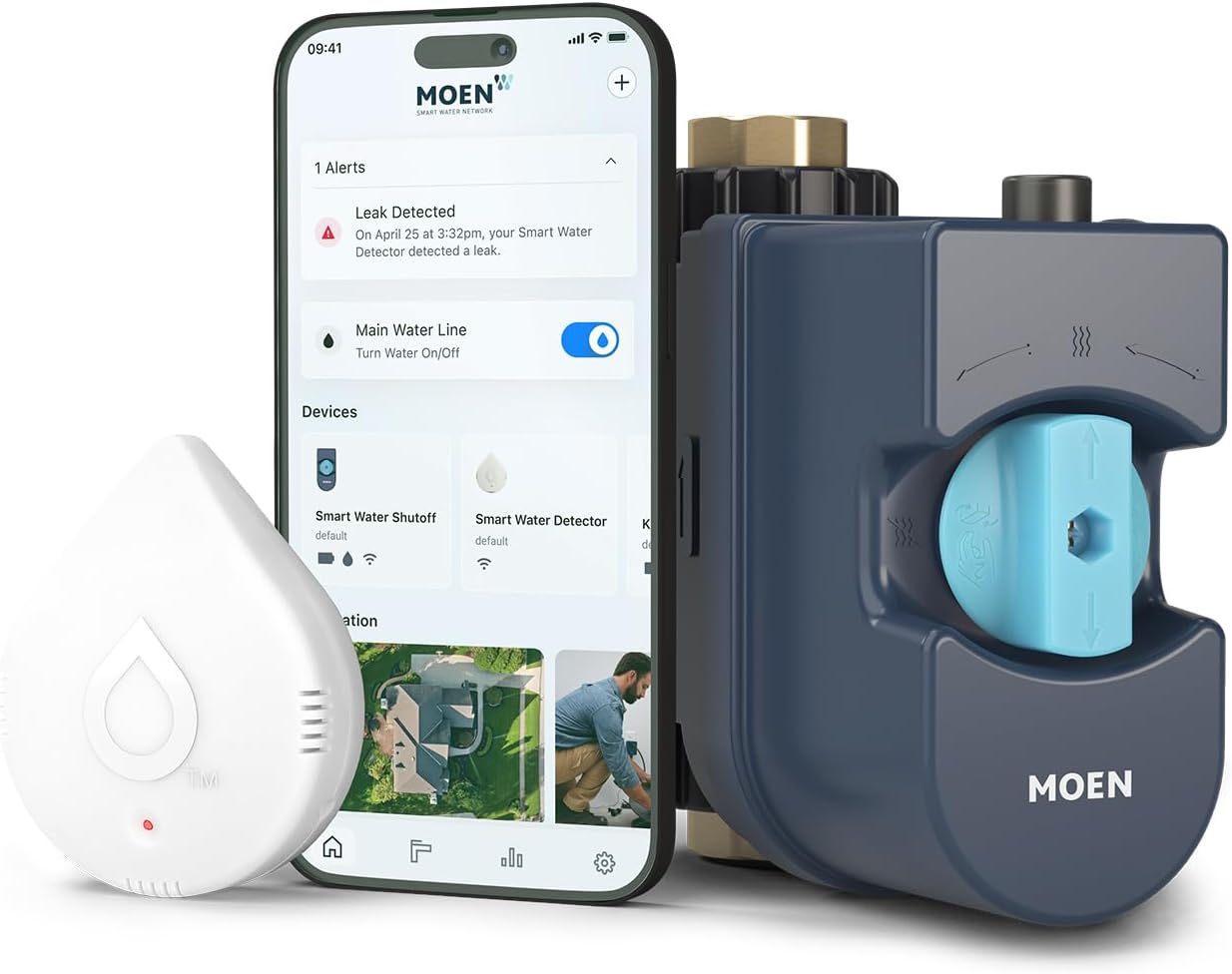
Smart water sensors are early warning devices but cannot prevent all water damage. Know the location of your main water shutoff valve and how to operate it manually in an emergency. If you detect a major leak, shut off water manually first then troubleshoot. Never ignore a leak alert even if it might be a false alarm.
Tools & Requirements
Step-by-Step Solution
Understand the Moen U controller components
The Moen U by Moen Smart Shower system has a digital controller, a digital valve (installed in the wall), and connects to up to 4 shower outlets (showerhead, hand shower, body sprays, tub spout). The controller mounts on the shower wall and connects to the valve via a cable. The valve replaces your existing shower valve. Professional installation by a plumber is recommended due to the plumbing and electrical work involved.
Connect the digital valve to outlets
The Moen U digital valve has ports for up to 4 water outlets. Each outlet is independently controllable — you can run the showerhead and hand shower simultaneously at different temperatures or flow rates. During installation, connect each shower outlet pipe to the corresponding valve port. Label which outlet connects to which port for configuration in the app later.
Set up in the Moen Smart Water app
After installation, connect the Moen U controller to your 2.4GHz WiFi through the Moen Smart Water app. Follow the setup wizard to identify each connected outlet (showerhead, hand shower, body spray 1, body spray 2, tub spout). Name each outlet in the app. The controller also supports Alexa and Google Home for voice-activated shower control.
Create shower presets
In the Moen app, create presets for each household member. A preset stores: which outlets are active, the temperature for each outlet, and the flow rate. Example: 'Morning Shower' activates the showerhead at 102°F. 'Spa Mode' activates all body sprays at 104°F and the rain showerhead at 100°F. Start the shower from the app or by voice — the system warms the water to the preset temperature before signaling you to step in.
Use the warm-up notification feature
The Moen U system monitors the water temperature at the valve. When you start a shower preset, the controller diverts water through the system until it reaches the preset temperature. The app sends a notification (or the controller beeps) when the shower is ready. This eliminates wasting water and guessing when the temperature is right. The system pauses water flow until you step in, saving water during the warm-up period.
Quick Solutions
Still having issues? This is usually the deeper cause below.
If this comes back after following these steps, check whether a recent app or firmware update reset a default setting — the fix works, but the setting gets reverted silently.
["Up to 4 outlets per controller", "Precise temperature control", "Warm up notification available"]
This issue almost always looks more complex than it is — the majority of cases trace back to a single setting, a stale credential, or a default that shipped wrong.
- Outlets not assigned to controller buttons
- Valve plumbed to outlets differently than configured
- Presets/temperatures not set in the app
- Wrong number of outlets for the valve model
- Controller not synced with the valve
Before you go — try one of these (they fix most cases).
Most popular upgrades chosen by Moen U owners.

Moen 7864EVBG Sleek Smart Faucet Touchless Pull Down Spra...

Moen Belfield Chrome Smart Faucet Touchless Pull Down Spr...

Moen Align Chrome Smart Faucet Touchless Kitchen Faucet w...
As an Amazon Associate we earn from qualifying purchases.
Official Manufacturer Manual
Moen provides official product documentation through their online manual rather than downloadable PDF. Access setup guides, troubleshooting steps, and product specifications for your Moen U.
Source: solutions.moen.com
Need More Help? Moen Support
Note: The contact information below connects you directly to Moen's official customer support team, not Trunetto. They can help with warranty claims, device replacements, and advanced technical issues.