

What Does Roku Error 014.50 Mean and How Do I Fix Software Update Blocks
- Weak/unstable WiFi during the update
- Connection dropping mid-update
- Roku update servers busy
Problem Description
Roku Error 014.50 appears when the device cannot complete software update communication over your local network. Setup or update flow may fail repeatedly and keep the device outdated. This is often linked to unstable WiFi, incorrect credentials, router filtering, or interrupted update sessions during initial onboarding.
Why This Happens in Real Homes
Roku Error 014.50 is specifically an update failure over WiFi — the device connected but couldn't complete the software update because the connection was too weak or unstable to finish the download, or the servers were busy. Updates need a steady connection, so a marginal signal that's fine for browsing can still fail an update.
Strengthen the WiFi by moving the Roku closer to the router (or using Ethernet on supported models) and keep the connection steady, then retry. Reduce 2.4GHz interference, restart the router and Roku, and set a reliable DNS if downloads stall. If it keeps failing, wait and try again later, since heavy server load during major releases also triggers 014.50.
Symptoms
- Error 014.50 during a software update
- Can't complete the update over WiFi
- Update fails at the network step
- Stuck updating
- 014.50 in setup
- Update won't download
- Repeated update failures
- Setup blocked by the update
Recognize these? Here's what usually causes it.
Common Causes
- Weak/unstable WiFi during the update
- Connection dropping mid-update
- Roku update servers busy
- Slow connection timing out
- Router blocking the update
- DNS issue
- Interference on 2.4GHz
- Temporary Roku outage
Most fixes happen in the first 3 steps.
Do not interrupt power repeatedly during update attempts. Forced restarts mid-download can prolong recovery and trigger repeated update-state errors.
Step-by-Step Solution
Reset Network Credentials in Roku
Remove the saved WiFi network and reconnect using fresh credentials, even if the password seems unchanged. Error 014.50 frequently appears after router updates or SSID migrations where old auth tokens persist. Starting with a clean network profile eliminates hidden authentication mismatch states.
Stabilize Update Path Before Retrying
Restart router and wait for full internet readiness before powering Roku back on. Then keep Roku idle for a minute before launching update checks. Stable routing and DNS are essential during the update handshake, and immediate retries during network churn can repeatedly trigger 014.50 failures.
Improve Signal Reliability for Update
Temporarily place Roku closer to the router or use a stronger band for the update process. Software downloads are less tolerant of intermittent link quality than basic menu navigation. A signal that appears usable for browsing can still fail update integrity checks and cause recurring error prompts.
Temporarily Adjust Router Policies
Pause advanced filtering features such as strict parental controls, heavy ad blocking DNS, or uncommon access restrictions during updates. These can block endpoints required for Roku software retrieval. Once update succeeds, re-enable protections and confirm Roku remains connected with the needed domains allowed.
Confirm Update Completion and Recovery
After update success, reboot Roku once and verify normal app launch, playback, and account sync. Run one additional manual update check to make sure no residual 014.50 state remains. If the error returns immediately, test on an alternate network to isolate whether router policy is still the primary blocker.
Quick Solutions
Still having issues? This is usually the deeper cause below.
If the keypad rejects valid codes, a lockout timer may be running — five failed entries locks most keypads silently for 5–10 minutes.
During first-time setup, keep Roku near the router until software updates finish. After that, move it back to the TV location and retest stability.
Most smart lock failures people label as hardware issues turn out to be a code wiped during a sync, or a setting reset nobody remembers triggering.
- Weak/unstable WiFi during the update
- Connection dropping mid-update
- Roku update servers busy
- Slow connection timing out
- Router blocking the update
Before you go — try one of these (they fix most cases).
Most popular upgrades chosen by Roku Streaming Device owners.
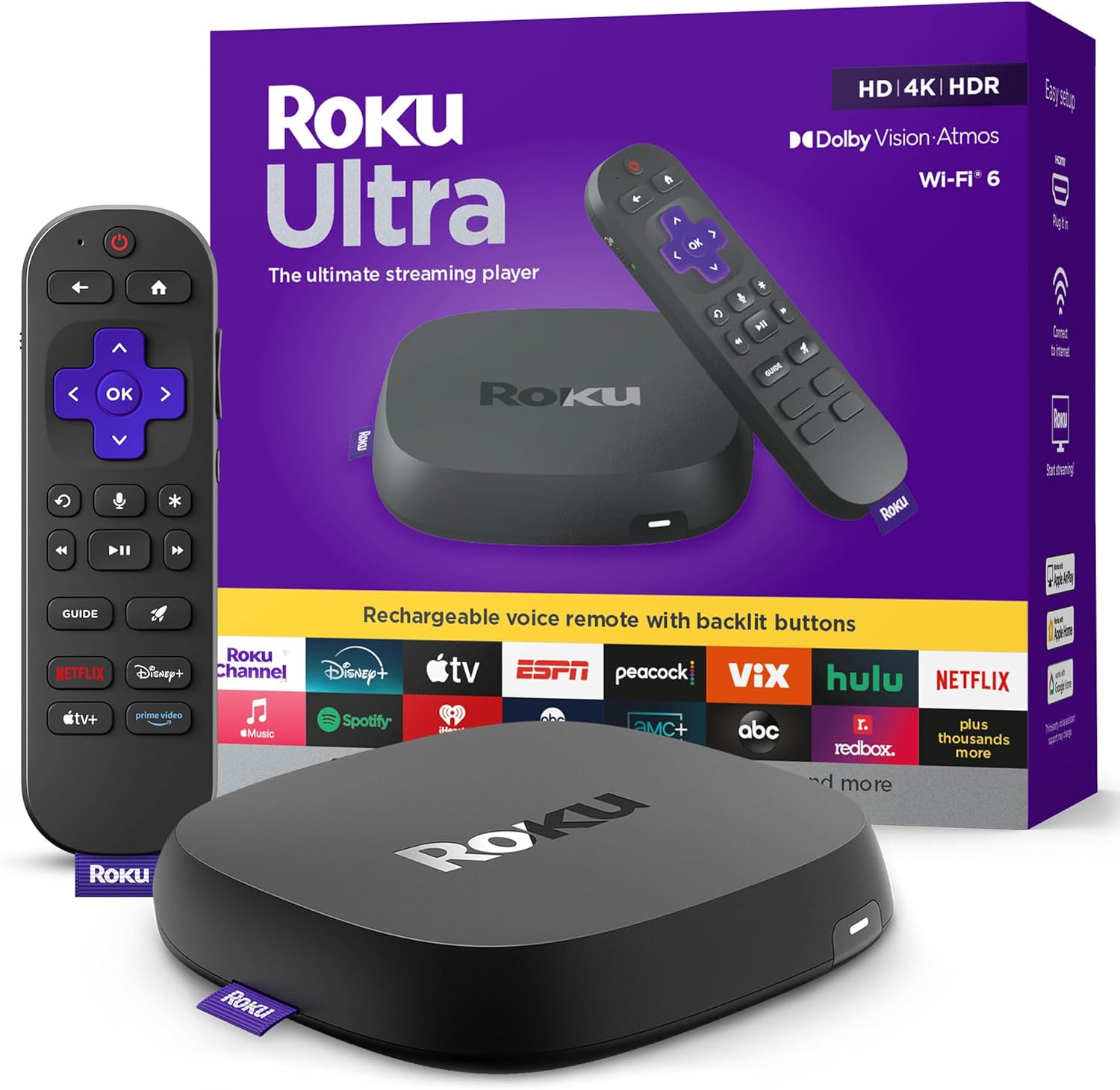
Roku Ultra - Ultimate Streaming Player - 4K Streaming Dev...

Roku Streaming Stick 4K - HDR & D. Vision Roku Streaming ...
As an Amazon Associate we earn from qualifying purchases.
Official Manufacturer Manual
Roku provides official product documentation through their online manual rather than downloadable PDF. Access setup guides, troubleshooting steps, and product specifications for your Roku Streaming Device.
Source: roku.com
Need More Help? Roku Support
Note: The contact information below connects you directly to Roku's official customer support team, not Trunetto. They can help with warranty claims, device replacements, and advanced technical issues.
Accessories owners commonly pair with Roku Streaming Device.

SANDISK 64GB Extreme microSDXC UHS-I Memory Card with Ada...

SANDISK 32GB (Pack of 2) Ultra microSDHC UHS-I Memory Car...

SANDISK 128GB Ultra microSDXC UHS-I Memory Card with Adap...
As an Amazon Associate we earn from qualifying purchases.


