What Does Roku Error 020 Mean and How Do I Fix HDCP Error Detected?
- HDMI cable not fully seated/faulty
- Non-HDCP-compliant cable or port
- HDMI switch/splitter breaking HDCP
Problem Description
Roku Error 020 and HDCP Error Detected indicate the HDMI copy-protection handshake failed. You may see a purple screen or blocked playback, especially on 4K or HDR content. This is usually an HDMI chain compatibility or cable path problem, not account or internet failure.
Why This Happens in Real Homes
Roku Error 020 (HDCP Error Detected) is a copy-protection handshake failure — the Roku and your TV couldn't agree on the HDCP encryption that protected content requires, so you get a purple/pink or black screen. It's almost always the HDMI connection: a loose or non-compliant cable, or a switch/splitter/receiver in the chain that breaks HDCP.
Reseat the HDMI cable firmly at both ends, and replace it with a certified high-speed HDMI cable if it's old or uncertified. Remove any HDMI switches or splitters and connect the Roku directly to the TV, using a port that supports HDCP 2.2 for 4K content. Power-cycle both the TV and Roku by unplugging them. If an AV receiver is in the path, make sure it's HDCP 2.2 compliant too.
Symptoms
- Error 020 / HDCP Error Detected
- Purple/pink screen
- No picture on certain content
- Black screen on protected content
- HDCP handshake fails
- Blinks then error
- Works on some apps not others
- Screen flickers on 4K HDR
Recognize these? Here's what usually causes it.
Common Causes
- HDMI cable not fully seated/faulty
- Non-HDCP-compliant cable or port
- HDMI switch/splitter breaking HDCP
- TV input doesn't support HDCP 2.2 (for 4K)
- Loose or damaged HDMI connection
- TV/Roku need a power-cycle
- Wrong/older HDMI cable for 4K HDR
- AV receiver in the chain not HDCP-compliant
Most fixes happen in the first 3 steps.
Do not assume every HDMI switch supports HDCP 2.2 because many older switches pass power but fail protected 4K playback handshakes.
Tools & Requirements
Step-by-Step Solution
Confirm when HDCP 020 occurs
Check whether the error appears only on 4K or HDR content or on all playback. If it is content-specific, focus on HDCP 2.2 path compatibility across TV, AVR, and switch. This avoids chasing unrelated internet or app authentication issues.
Rebuild HDMI handshake cleanly
Unplug HDMI on both ends, power off TV and AVR if present, disconnect Roku power, then reconnect everything firmly and power back on. This forces a new HDCP handshake and often clears transient authorization failures that trigger Error 020.
Isolate the signal path step by step
Try a different HDMI input first, then test a known-good short cable, then connect Roku directly to TV bypassing AVR or switch. Isolation quickly reveals which component in the chain cannot maintain a stable HDCP negotiation.
Match display settings to hardware support
On Roku, adjust Display type to a mode your TV chain fully supports. If HDCP 2.2 is missing on one component, forcing high-end modes can keep playback blocked. Use stable compatibility first, then re-enable advanced formats once confirmed.
Validate with mixed content playback
Test standard HD content first, then 4K or HDR titles. If only advanced formats fail, the HDCP capability chain is still mismatched. Keep the direct-TV path as reference while resolving AVR, switch, or cable compatibility issues.
Quick Solutions
Still having issues? This is usually the deeper cause below.
If the sensor still misses events after repositioning, check whether a scheduled 'home' or 'away' mode is overriding the sensitivity setting silently.
For Error 020, test the Roku direct to TV path before replacing the player because HDMI chain issues are the usual root cause.
This issue almost always looks more complex than it is — the majority of cases trace back to a single setting, a stale credential, or a default that shipped wrong.
- HDMI cable not fully seated/faulty
- Non-HDCP-compliant cable or port
- HDMI switch/splitter breaking HDCP
- TV input doesn't support HDCP 2.2 (for 4K)
- Loose or damaged HDMI connection
Before you go — try one of these (they fix most cases).
Most popular upgrades chosen by Roku HDMI HDCP Playback owners.
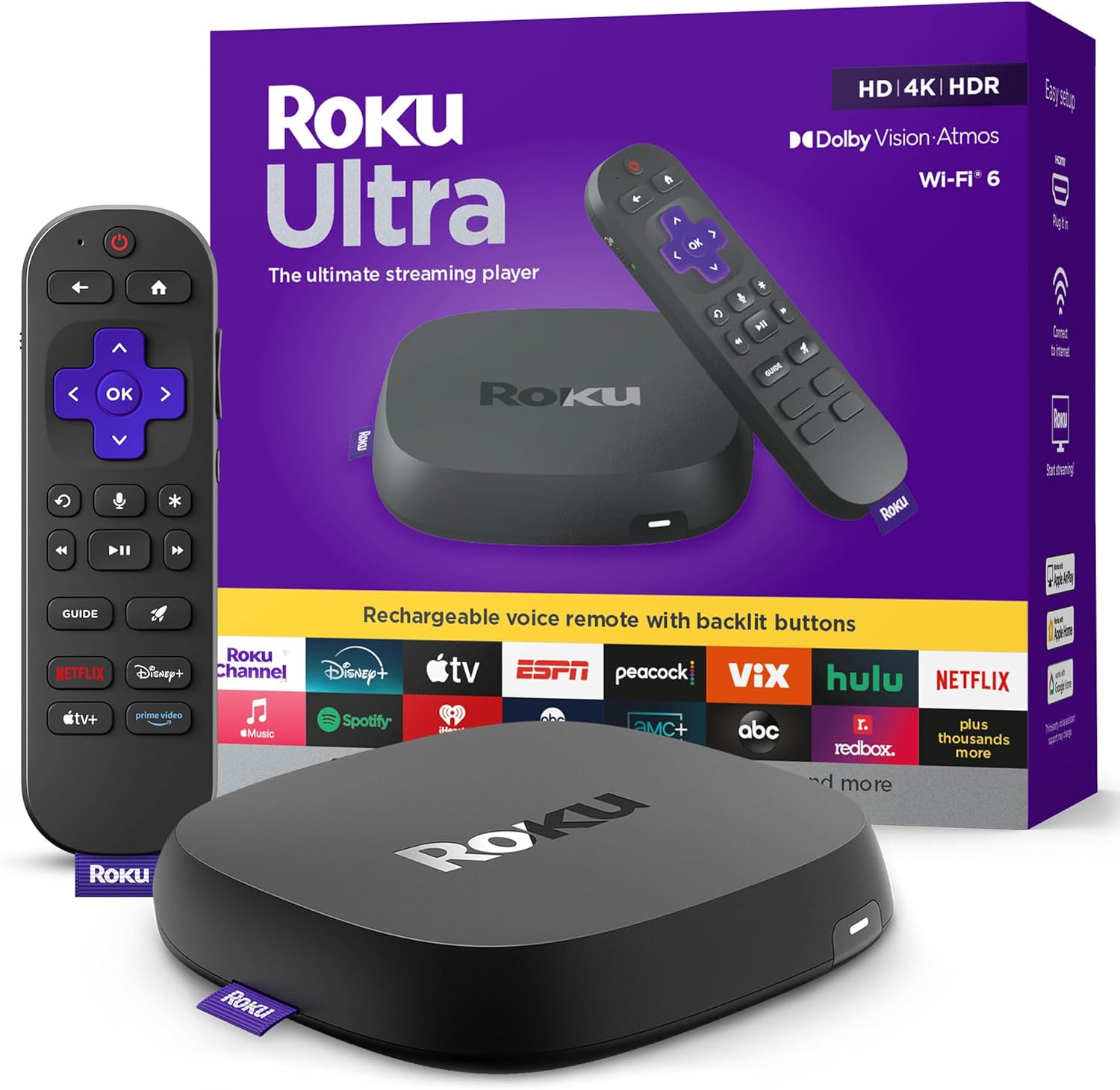
Roku Ultra - Ultimate Streaming Player - 4K Streaming Dev...

Roku Streaming Stick 4K - HDR & D. Vision Roku Streaming ...
As an Amazon Associate we earn from qualifying purchases.
Official Manufacturer Manual
Roku provides official product documentation through their online manual rather than downloadable PDF. Access setup guides, troubleshooting steps, and product specifications for your Roku HDMI HDCP Playback.
Source: support.roku.com
Need More Help? Roku Support
Note: The contact information below connects you directly to Roku's official customer support team, not Trunetto. They can help with warranty claims, device replacements, and advanced technical issues.