

Why Does My Roku Keep Showing a Low Power Warning with a Wall Adapter
- Using a non-Roku or weak adapter
- Damaged/thin USB cable can't carry current
- Adapter plugged into a weak source
Problem Description
Your Roku keeps showing a low power warning even when connected to a wall adapter, causing buffering, restarts, or unstable playback. This often appears during 4K streaming when power demand peaks. Common causes include underpowered adapters, poor USB cable quality, overloaded TV USB ports, or overheating that increases voltage drop.
Why This Happens in Real Homes
A Roku showing a low-power warning even with an adapter connected usually isn't getting the current it needs — a non-Roku or underpowered adapter, a thin or damaged USB cable, or being plugged into a weak source (a USB hub or TV port) rather than a wall outlet. The device is powered but not adequately.
Use the official Roku power adapter and its cable plugged directly into a wall outlet, and replace any thin or damaged cable that can't carry enough current. Try a known-good adapter to rule out a faulty one, and make sure the connection is firm. Update the software in case a power-management fix applies. If the warning persists with a proper Roku adapter and cable, contact Roku about a possible hardware fault.
Symptoms
- Low power warning despite the adapter
- Warning with the wall adapter plugged in
- Recurring low-power message
- Warning on startup
- Won't clear with power connected
- Reboots with the warning
- Warning during use
- Persistent low-power alert
Recognize these? Here's what usually causes it.
Common Causes
- Using a non-Roku or weak adapter
- Damaged/thin USB cable can't carry current
- Adapter plugged into a weak source
- Faulty power adapter
- Device drawing more power (OS update)
- Loose power connection
- Powered from TV USB, not wall
- Hardware/power-port fault
Most fixes happen in the first 3 steps.
Do not keep running a low-power Roku in unstable mode. Repeated brownout restarts can corrupt app data and increase long-term device instability.
Step-by-Step Solution
Confirm Adapter Specifications
Check your adapter label and verify current output meets or exceeds Roku requirements for your model. Many generic adapters provide insufficient stable current under peak video decoding load. Use a known-good adapter with adequate output and avoid unknown chargers originally intended for low-power accessories.
Swap to a Better Power Cable
Replace long or thin USB cables with a short, high-quality cable to reduce voltage drop. Cable resistance is a frequent cause of low-power warnings that appear only under heavy streaming demand. Test with a direct cable path and avoid unnecessary inline connectors, splitters, or extensions while diagnosing.
Use a Direct Wall Connection
Connect the adapter directly to a wall outlet instead of a crowded power strip. Shared strips can introduce unstable voltage under fluctuating loads from other devices. Once direct wall power is confirmed, run a high-bitrate app for at least ten minutes to validate that warnings no longer appear.
Address Thermal Conditions
Make sure the Roku stick has airflow and is not pressed tightly behind a hot TV panel. Heat can increase internal power draw and trigger warnings sooner. Use a short HDMI extender if needed to move the device away from enclosed hot zones and maintain more consistent operating temperature.
Validate with Controlled Playback
Play known high-demand HDR or 4K content and monitor for warnings, restarts, or frame drops. If stable after adapter and cable changes, your issue was power delivery. If warnings continue, test a second known-good adapter and inspect the Roku power port for looseness or wear.
Quick Solutions
Still having issues? This is usually the deeper cause below.
If drain continues after replacing batteries, check the event history — a stuck-open sensor or rapid polling loop burns through batteries in days.
For streaming sticks, power stability matters more than adapter brand. Choose a reliable adapter and short cable combination that can handle sustained 4K load.
This issue almost always looks more complex than it is — the majority of cases trace back to a single setting, a stale credential, or a default that shipped wrong.
- Using a non-Roku or weak adapter
- Damaged/thin USB cable can't carry current
- Adapter plugged into a weak source
- Faulty power adapter
- Device drawing more power (OS update)
Before you go — try one of these (they fix most cases).
Most popular upgrades chosen by Roku Streaming Device owners.
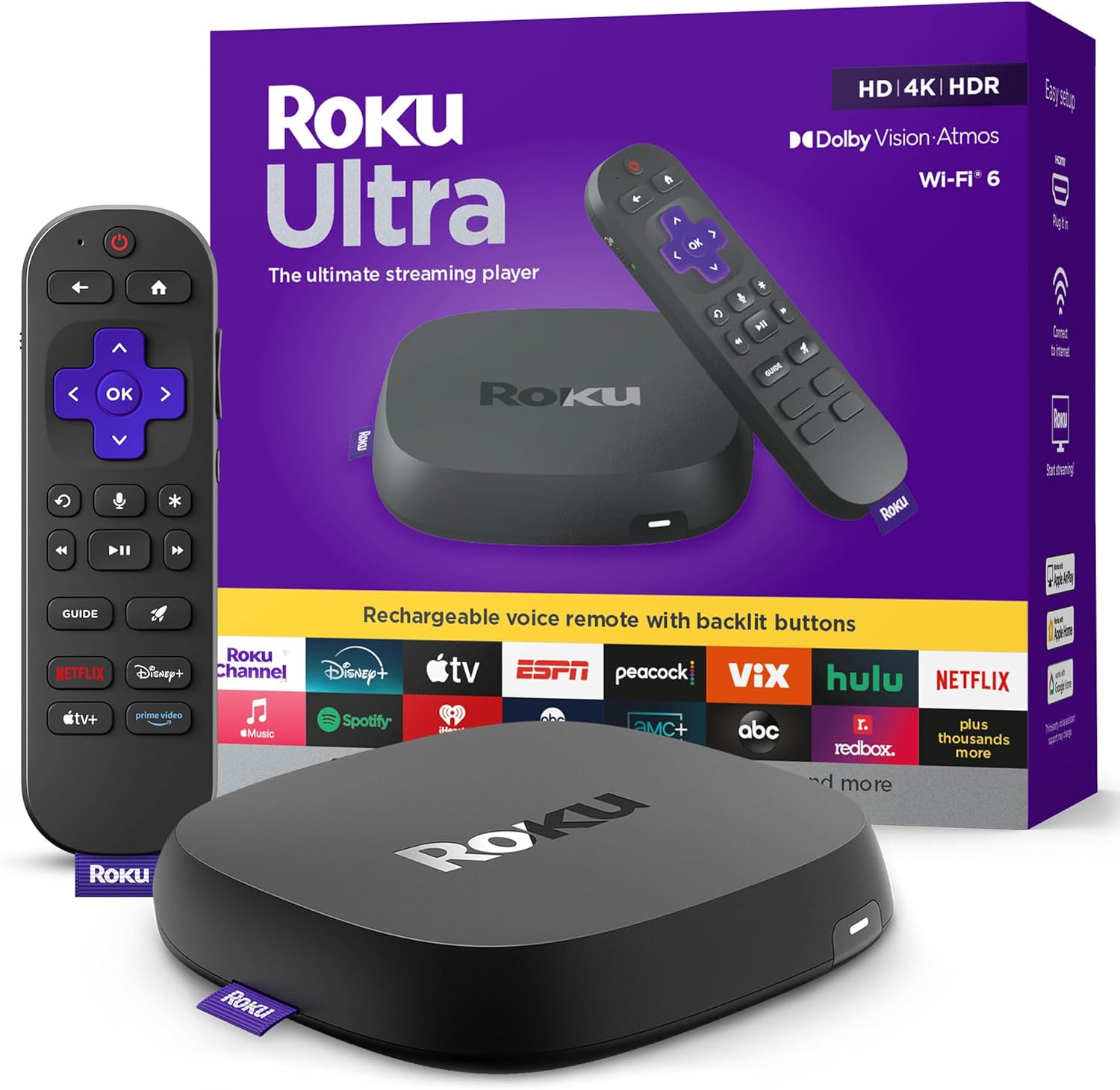
Roku Ultra - Ultimate Streaming Player - 4K Streaming Dev...

Roku Streaming Stick 4K - HDR & D. Vision Roku Streaming ...
As an Amazon Associate we earn from qualifying purchases.
Official Manufacturer Manual
Roku provides official product documentation through their online manual rather than downloadable PDF. Access setup guides, troubleshooting steps, and product specifications for your Roku Streaming Device.
Source: roku.com
Need More Help? Roku Support
Note: The contact information below connects you directly to Roku's official customer support team, not Trunetto. They can help with warranty claims, device replacements, and advanced technical issues.


