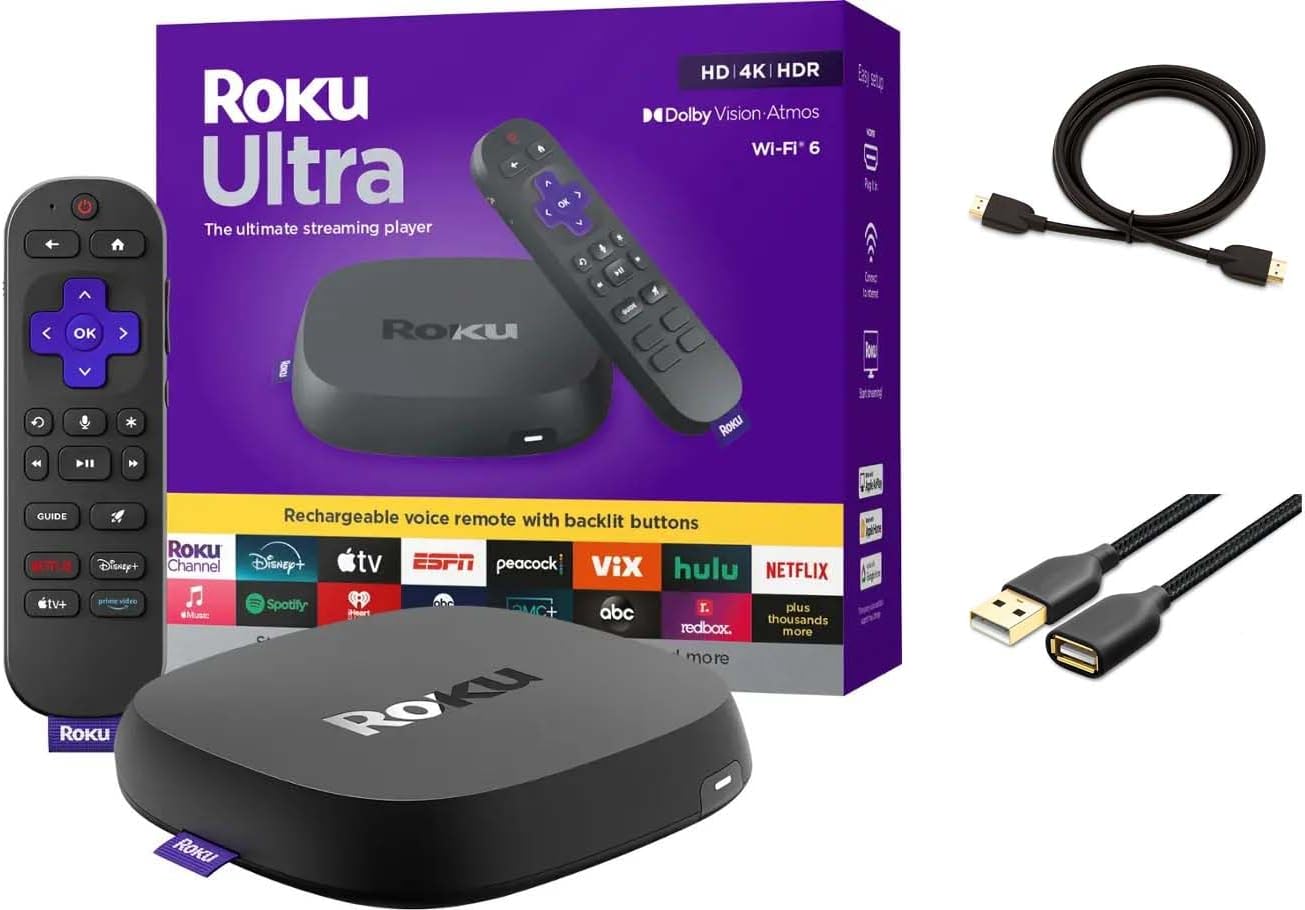
Roku Ultra Freezing on Home Screen After Startup
- Software glitch needing a restart
- Corrupted cache/data
- Too many channels / low resources
Problem Description
Your Roku Ultra freezes on the home screen, shows a black screen during startup, or becomes unresponsive shortly after powering on. The device may briefly show the Roku logo then freeze, or the channel grid appears but no navigation input responds. Startup freezes on Roku Ultra are caused by insufficient power from an unsupported USB power source, corrupted cached channel data from a failed update, or overheating from inadequate ventilation.
Why This Happens in Real Homes
A Roku Ultra freezing on the home screen or at startup is typically a software hang or resource issue rather than dead hardware — a glitchy boot, a corrupted cache, or too many channels straining the device. It usually responds to a restart, escalating to a reset only if it keeps happening.
Restart it first (Settings > System > Power > Restart, or unplug for ten seconds), which clears most one-off freezes. If it recurs, remove unused channels to free resources, update the software, and make sure it's ventilated. A network that's stalling at startup can also hang the UI. Persistent freezing points to a factory reset, and hardware that still freezes afterward should go to Roku support.
Symptoms
- Ultra freezes on the home screen
- Freezes at startup
- Stuck on the Roku logo
- Unresponsive on boot
- Locks up after powering on
- Slow startup then freezes
- Frozen home screen
- Reboots then freezes
Recognize these? Here's what usually causes it.
Common Causes
- Software glitch needing a restart
- Corrupted cache/data
- Too many channels / low resources
- Firmware issue
- Network hang at startup
- Overheating
- Storage/hardware issue
- Update left it in a bad state
Most fixes happen in the first 3 steps.
Factory reset removes all channels and settings. Write down your channel list before resetting to make reinstallation easier.
Step-by-Step Solution
Restart and Clear System Cache
Unplug Roku Ultra from power for 30 seconds then plug back in. As soon as home screen appears press Home button 5 times Up once Rewind twice Fast Forward twice to clear cache and restart.
Free Up Storage Space
Go to Settings > System > About and check available storage. If less than 100MB free remove unused channels and clear channel data. Low storage causes system freezes during startup operations.
Update Roku OS to Latest Version
Go to Settings > System > System update > Check now. Install any available updates as recent versions fix memory management issues causing home screen freezes after startup.
Check for Overheating Issues
Make sure Roku Ultra has adequate ventilation and is not enclosed in cabinet. Feel device after freezing occurs - if very hot improve airflow or relocate to cooler position away from other electronics.
Factory Reset as Last Resort
If freezing continues go to Settings > System > Advanced system settings > Factory reset. This clears all data and apps but resolves corrupted system files causing startup freezes. Reinstall channels after reset.
Quick Solutions
Still having issues? This is usually the deeper cause below.
If this comes back after following these steps, check whether a recent app or firmware update reset a default setting — the fix works, but the setting gets reverted silently.
Roku Ultra freezing issues often relate to memory management problems that worsen with more channels installed. Keep only frequently used channels.
This issue almost always looks more complex than it is — the majority of cases trace back to a single setting, a stale credential, or a default that shipped wrong.
- Software glitch needing a restart
- Corrupted cache/data
- Too many channels / low resources
- Firmware issue
- Network hang at startup
Before you go — try one of these (they fix most cases).
Most popular upgrades chosen by Roku Ultra owners.
Roku Ultra - Ultimate Streaming Player - 4K Streaming Dev...

Roku Ultra 2024 (Renewed) – 4K Streaming Device with HDR1...
As an Amazon Associate we earn from qualifying purchases.
Official Manufacturer Manual
Roku provides official product documentation through their online manual rather than downloadable PDF. Access setup guides, troubleshooting steps, and product specifications for your Roku Ultra.
Source: support.roku.com
Need More Help? Roku Support
Note: The contact information below connects you directly to Roku's official customer support team, not Trunetto. They can help with warranty claims, device replacements, and advanced technical issues.