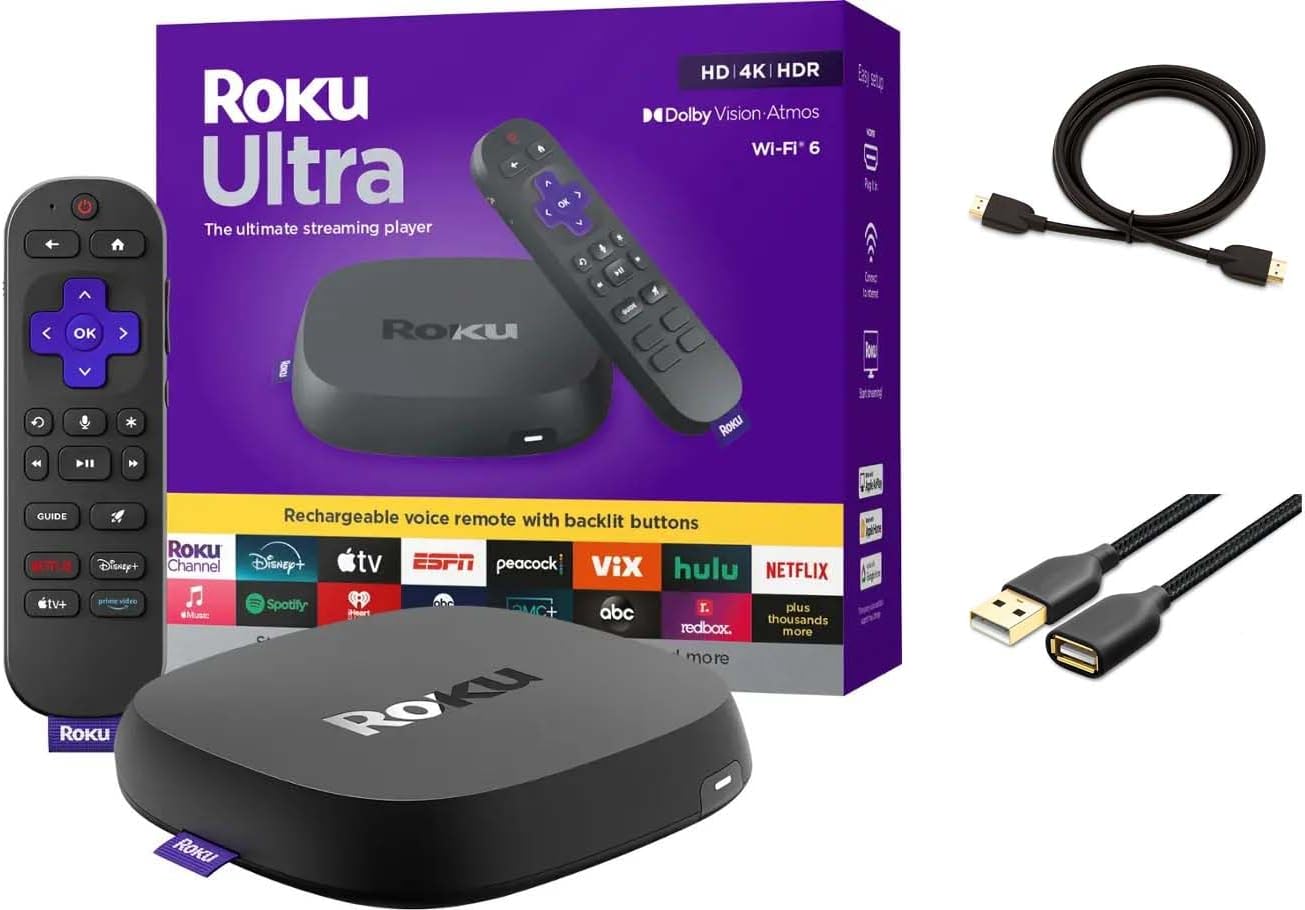
Why Does My Roku Ultra HDR Look Too Dark
- TV picture mode too dark
- HDR tone mapping off
- Roku display type incorrect
Problem Description
HDR can look too dark if the TV picture mode or HDR settings are incorrect. This guide adjusts display settings and restores balanced brightness.
Why This Happens in Real Homes
HDR can look too dark if the TV picture mode or HDR settings are incorrect. This guide adjusts display settings and restores balanced brightness. In day-to-day use, this usually looks like HDR content looks dim; Regular content looks fine; TV in HDR mode.
Most cases trace back to TV picture mode too dark; HDR tone mapping off; Roku display type incorrect. The fix works best when you go step by step instead of changing multiple settings at once.
A practical order for this issue is: Check TV Picture Mode -> Verify HDMI Port -> Set Roku Display -> Disable Contrast Enhancers. After each step, test the exact behavior that was failing so you can confirm what actually solved it.
Symptoms
- HDR content looks dim
- Regular content looks fine
- TV in HDR mode
- Streaming apps affected
- Brightness high in TV menu
- Recent TV update
Recognize these? Here's what usually causes it.
Common Causes
- TV picture mode too dark
- HDR tone mapping off
- Roku display type incorrect
- HDMI port not HDR
- Dynamic contrast enabled
- HDMI cable limitation
Most fixes happen in the first 3 steps.
Calibrate HDR settings with a known reference title for best results.
Tools & Requirements
These tools will help you complete this fix.

hdmi cable
Certified HDMI 2.1 Cable 6FT, 8K HDMI eARC Cord for ...

tv remote
3FT USB C to USB C Cable 2-Pack, Fast Charging and D...
As an Amazon Associate we earn from qualifying purchases.
Step-by-Step Solution
Switch TV HDR Picture Mode
When HDR content plays, most TVs automatically switch to an HDR picture mode. Some default HDR modes (like HDR Cinema Dark or HDR Game) are calibrated for dark rooms and appear too dim in normal lighting. Go to your TV's Picture Settings while HDR content is playing and switch to HDR Standard, HDR Vivid, or HDR Bright depending on your TV brand. This adjusts the peak brightness mapping.
Use the Correct HDMI Port
Not all HDMI ports on your TV support HDR. On most TVs, only HDMI 1 and HDMI 2 support 4K HDR (the ports are usually labeled). If the Roku Ultra is connected to an HDMI port that does not support HDR, the TV receives the HDR signal but cannot process it correctly, resulting in dim or washed-out picture. Check your TV manual for which ports support HDMI 2.0 or 2.1 with HDR.
Needed for this step
Certified HDMI 2.1 Cable 6FT, 8K HDMI eARC Cord...
This helps complete the fix you are currently reading.
$9.90Set Roku Display Type
On the Roku home screen, go to Settings > Display Type. Select Auto Detect to let the Roku negotiate the best resolution and HDR format with your TV. If Auto Detect causes issues, manually select 4K HDR 10 or 4K Dolby Vision (depending on your TV's capabilities). You can also go to Settings > Display Type > HDR Settings to check if HDR10 and/or Dolby Vision are detected.
Disable Energy Saving and Dynamic Contrast
Many TVs have an Eco Mode, Energy Saving mode, or Ambient Light Sensor that dims the backlight. These modes are not HDR-aware and reduce peak brightness, making HDR content appear dark. Go to TV Settings > General or System > Eco Solution and turn off all energy saving features. Also disable Dynamic Contrast or Contrast Enhancer — these clip HDR highlights and crush dark detail.
Test with Known HDR Content
Open Netflix or Disney+ on the Roku Ultra and play a title that displays an HDR or Dolby Vision badge. A properly configured HDR setup shows noticeably brighter highlights (like sunlight, fire, or reflections) compared to SDR content. If the picture is still dim, your TV's peak brightness may be too low for HDR — budget TVs under 400 nits struggle with HDR content. In that case, switching to SDR may actually look better.
Quick Solutions
Still having issues? This is usually the deeper cause below.
If this comes back after following these steps, check whether a recent app or firmware update reset a default setting — the fix works, but the setting gets reverted silently.
Keep the Roku on a certified high-speed HDMI cable for HDR bandwidth.
This issue almost always looks more complex than it is — the majority of cases trace back to a single setting, a stale credential, or a default that shipped wrong.
- TV picture mode too dark
- HDR tone mapping off
- Roku display type incorrect
- HDMI port not HDR
- Dynamic contrast enabled
Before you go — try one of these (they fix most cases).
Most popular upgrades chosen by Roku Ultra owners.
Roku Ultra - Ultimate Streaming Player - 4K Streaming Dev...

Roku Ultra 2024 (Renewed) – 4K Streaming Device with HDR1...
As an Amazon Associate we earn from qualifying purchases.
Official Manufacturer Manual
Roku provides official product documentation through their online manual rather than downloadable PDF. Access setup guides, troubleshooting steps, and product specifications for your Roku Ultra.
Source: support.roku.com
Need More Help? Roku Support
Note: The contact information below connects you directly to Roku's official customer support team, not Trunetto. They can help with warranty claims, device replacements, and advanced technical issues.