

Why Is My Dreame L20 Ultra Auto Empty Station Not Emptying the Dustbin
- Dustbin not properly seated in robot
- Debris blocking dustbin outlet
- Base station suction port clogged
Problem Description
Your Dreame L20 Ultra returns to the base station after cleaning but the auto empty function does not activate. The dustbin remains full and you have to manually empty it. The station makes no emptying sound and the dust bag in the station stays empty while the robot dustbin overflows.
Symptoms
- Robot docks but no emptying sound heard
- Dustbin still full after docking
- Base station dust bag remains empty
- Auto empty worked before but stopped
- Manual empty button on station also fails
- App shows successful dock but no empty
Recognize these? Here's what usually causes it.
Common Causes
- Dustbin not properly seated in robot
- Debris blocking dustbin outlet
- Base station suction port clogged
- Dust bag in station is full
- Auto empty disabled in app settings
- Poor alignment between robot and station
Most fixes happen in the first 3 steps.
Do not attempt to clean inside the base station motor or suction mechanism. There are no user-serviceable parts inside. If the station suction has failed, contact Dreame support for repair or replacement.
Tools & Requirements
These tools will help you complete this fix.
As an Amazon Associate we earn from qualifying purchases.
Step-by-Step Solution
Check Dustbin Seating
Remove the dustbin from the L20 Ultra completely. Inspect the rubber gasket around the outlet for debris or damage. Clean any dust from the gasket. Reinstall the dustbin firmly until you hear or feel it click into place. An improperly seated dustbin will not align with the station suction port.
Clean the Dustbin Outlet
The dustbin has an outlet flap that opens when docked. Debris can jam this flap shut. Remove the dustbin and manually open the flap. Clear any tangled hair, large debris, or compressed dust blocking the opening. Test that the flap opens and closes freely.
Inspect Base Station Suction Port
Flip up or open the cover where the robot docks. Locate the suction inlet that connects to the dustbin. Clear any debris, dust clumps, or obstructions. A clogged port cannot create the suction needed for emptying. Use a dry cloth to clean the area.

Needed for this step
WHOOSH! Pro 16.9 fl oz Refillable TV Screen Cle...
This helps complete the fix you are currently reading.
$19.99Replace Station Dust Bag
Open the base station lid and check the dust bag. If the bag is full, the station cannot empty the robot. Even if the bag looks partially full, try a new bag. Old bags can become clogged with fine dust and lose suction capacity. Replace with a genuine Dreame dust bag.
Verify App Settings
Open the Dreamehome app and go to your L20 Ultra settings. Find Auto Empty settings and make sure it is enabled. Check if any schedule restrictions prevent emptying at certain times. Some modes disable auto empty to reduce noise during certain hours.
Quick Solutions
Still having issues? This is usually the deeper cause below.
If this comes back after following these steps, check whether a recent app or firmware update reset a default setting — the fix works, but the setting gets reverted silently.
The auto empty function activates only after cleaning sessions complete, not when the robot simply returns to charge. If you manually stop a session early, auto empty may not trigger.
This issue almost always looks more complex than it is — the majority of cases trace back to a single setting, a stale credential, or a default that shipped wrong.
- Dustbin not properly seated in robot
- Debris blocking dustbin outlet
- Base station suction port clogged
- Dust bag in station is full
- Auto empty disabled in app settings
Before you go — try one of these (they fix most cases).
Most popular upgrades chosen by Dreame L20 Ultra owners.

DREAME C20 Plus Robot Vacuum and Mop Combo, 90 Days Self-...

DREAME Aqua10 Ultra Roller Robot Vacuum and Mop & 30,000P...
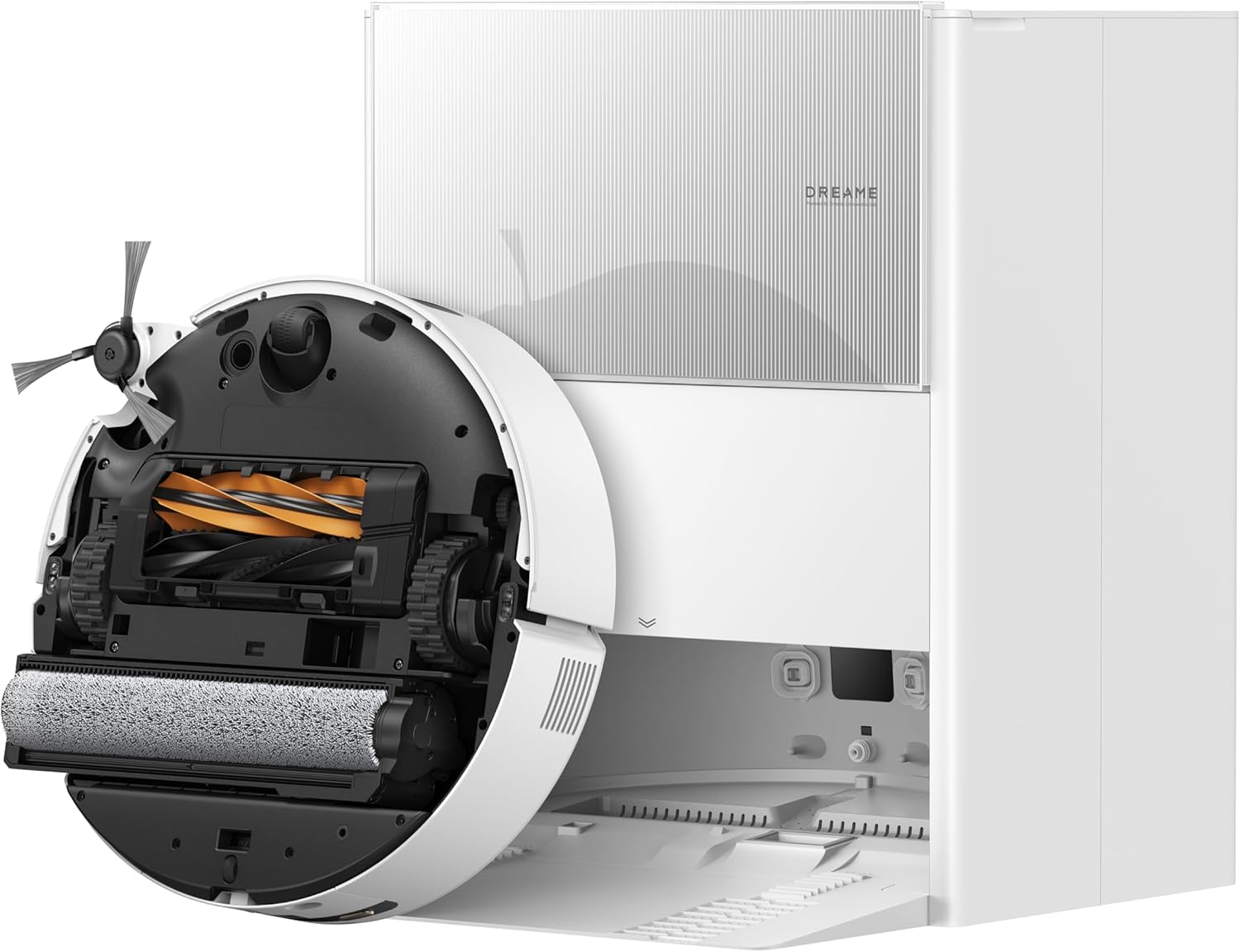
DREAME Aqua10 Ultra Roller Robot Vacuum and Mop & 30,000P...
As an Amazon Associate we earn from qualifying purchases.
Official Manufacturer Manual
Dreame provides official product documentation through their online manual rather than downloadable PDF. Access setup guides, troubleshooting steps, and product specifications for your Dreame L20 Ultra.
Source: dreametech.com
Need More Help? Dreame Support
Note: The contact information below connects you directly to Dreame's official customer support team, not Trunetto. They can help with warranty claims, device replacements, and advanced technical issues.


