

What Do Dreame Robot Vacuum Error Codes Mean?
- Hair wrapped around brushes
- Cliff sensors dirty or blocked
- Robot stuck on obstacle or cord
Problem Description
Your Dreame robot vacuum stops and announces an error code or shows an error icon in the app. Understanding what each error code means helps you quickly fix the issue and get your robot cleaning again. Common errors include stuck, cliff sensor, main brush, side brush, and filter errors.
Why This Happens in Real Homes
About 70 percent of Dreame error codes are brush-related (hair wrapped around the main brush or side brush). Cliff sensor errors are the second most common — especially in homes with dark floors, because the sensors misread dark surfaces as drop-offs. LiDAR errors are less common but more serious — if the turret does not spin freely after cleaning, it usually means the LiDAR motor is failing and needs warranty service. Charging errors are almost always dirty contacts or a dock that got bumped out of position.
Symptoms
- Robot announces error and stops
- App shows error icon with code
- Robot stuck error when not stuck
- Cliff sensor error on flat floor
- Main brush error after cleaning
- Filter error with clean filter
Recognize these? Here's what usually causes it.
Common Causes
- Hair wrapped around brushes
- Cliff sensors dirty or blocked
- Robot stuck on obstacle or cord
- Filter clogged or incorrectly installed
- Side brush motor jammed
- LiDAR sensor obstructed
Most fixes happen in the first 3 steps.
Do not continue running the robot if you get a wheel error (4-6) and the wheels feel loose or wobbly — this can damage the gearbox. Similarly, do not run the robot with a completely clogged filter (error 9 recurring) as this overheats the suction motor. Replace the filter rather than just cleaning it if error 9 keeps coming back.
Tools & Requirements
These tools will help you complete this fix.

Dry cloth
WHOOSH! Pro 16.9 fl oz Refillable TV Screen Cleaner ...

Cotton swabs
1200 Pcs 2.75 Inch Cotton Swabs Precision Microbladi...

Cleaning tool for brush
Antistatic Brush, 2 PCS Mainboard Cleaning Tools ESD...
As an Amazon Associate we earn from qualifying purchases.
Step-by-Step Solution
Identify your error code in the app or on the device
Open the Dreamehome app and check the notification or device status screen — it will show the error number and a brief description. Common error codes: 1-3 are bumper or cliff sensor errors, 4-6 are wheel errors, 7-9 are brush errors, 10-12 are dustbin or filter errors, 13-15 are LiDAR or navigation errors, and 18-21 are charging or dock errors. The voice prompt from the robot also states the error type.
Needed for this step
Antistatic Brush, 2 PCS Mainboard Cleaning Tool...
This helps complete the fix you are currently reading.
$8.50Fix bumper and cliff sensor errors (codes 1-3)
Error 1 means the bumper is stuck — check for debris wedged between the bumper and the body. Press the bumper around its full circumference and make sure it springs back. Error 2 or 3 means the cliff sensors on the bottom are dirty or blocked. Flip the robot over and wipe the 4-6 small sensor windows along the front edge with a dry cloth. These get coated with dust and the robot thinks it is at a ledge.
Needed for this step
WHOOSH! Pro 16.9 fl oz Refillable TV Screen Cle...
This helps complete the fix you are currently reading.
$19.99Fix wheel and movement errors (codes 4-6)
Error 4-6 mean a wheel is stuck or the robot cannot move. Check both side wheels — push them in and they should spring back out freely. If a wheel is stuck, remove hair and debris wrapped around the axle. Also check the caster wheel at the front — it often collects hair. If the robot is on a very thick rug or high-pile carpet, it may get stuck. Move it to hard floor and restart.
Fix brush and suction errors (codes 7-9)
Error 7 means the main brush is jammed — flip the robot, remove the brush guard, pull out the main brush, and remove hair wrapped around it and the bearings at each end. Error 8 means the side brush is stuck — remove it (usually one screw) and clear debris. Error 9 is a suction fan error — check that the dustbin is fully seated, the filter is not completely clogged, and nothing is blocking the suction inlet.
Fix LiDAR and navigation errors (codes 13-15)
Error 13-15 mean the LiDAR turret on top of the robot is stuck or blocked. Gently spin the LiDAR turret by hand — it should rotate freely. If it is stuck, something may be wedged underneath it. Wipe the turret with a dry cloth. If the error persists, restart the robot and place it in an open area (not under furniture) so it can calibrate. Persistent LiDAR errors after cleaning usually mean the motor is failing — contact Dreame support.
Fix charging and dock errors (codes 18-21)
Error 18-21 mean the robot cannot charge or find its dock. Clean the charging contacts on the bottom of the robot and on the dock with a dry cloth or rubbing alcohol. Make sure the dock is against a wall with 1.5 feet of clearance on each side and 4 feet in front. If the robot reaches the dock but does not charge, check that the dock is plugged in and the power adapter LED is on. Try removing the robot and placing it manually on the dock contacts.
Reset the robot if error codes persist after cleaning
If the error keeps coming back after you have cleaned the relevant component, do a soft reset: hold the power button for 5 seconds until the robot turns off, wait 10 seconds, turn it back on. If the error returns immediately, try a factory reset in the app under Settings > Reset. This clears the map and schedules but often fixes persistent sensor calibration errors. If the error still persists after a factory reset, the sensor or motor is likely faulty.
Quick Solutions
Still having issues? This is usually the deeper cause below.
If the keypad rejects valid codes, a lockout timer may be running — five failed entries locks most keypads silently for 5–10 minutes.
Keep a maintenance schedule: clean the main brush and side brush weekly, wipe cliff sensors and LiDAR turret monthly, and replace the filter every 2-3 months. Most Dreame error codes are caused by accumulated hair and debris, not hardware failure. A quick brush cleaning clears the majority of errors on the first try.
Robot vacuums that 'stop working' are usually fighting a corrupted map from moved furniture — a fresh floor scan fixes the majority of reported failures.
- Hair wrapped around brushes
- Cliff sensors dirty or blocked
- Robot stuck on obstacle or cord
- Filter clogged or incorrectly installed
- Side brush motor jammed
Before you go — try one of these (they fix most cases).
Most popular upgrades chosen by Dreame Robot Vacuum owners.

DREAME C20 Plus Robot Vacuum and Mop Combo, 90 Days Self-...

DREAME Aqua10 Ultra Roller Robot Vacuum and Mop & 30,000P...
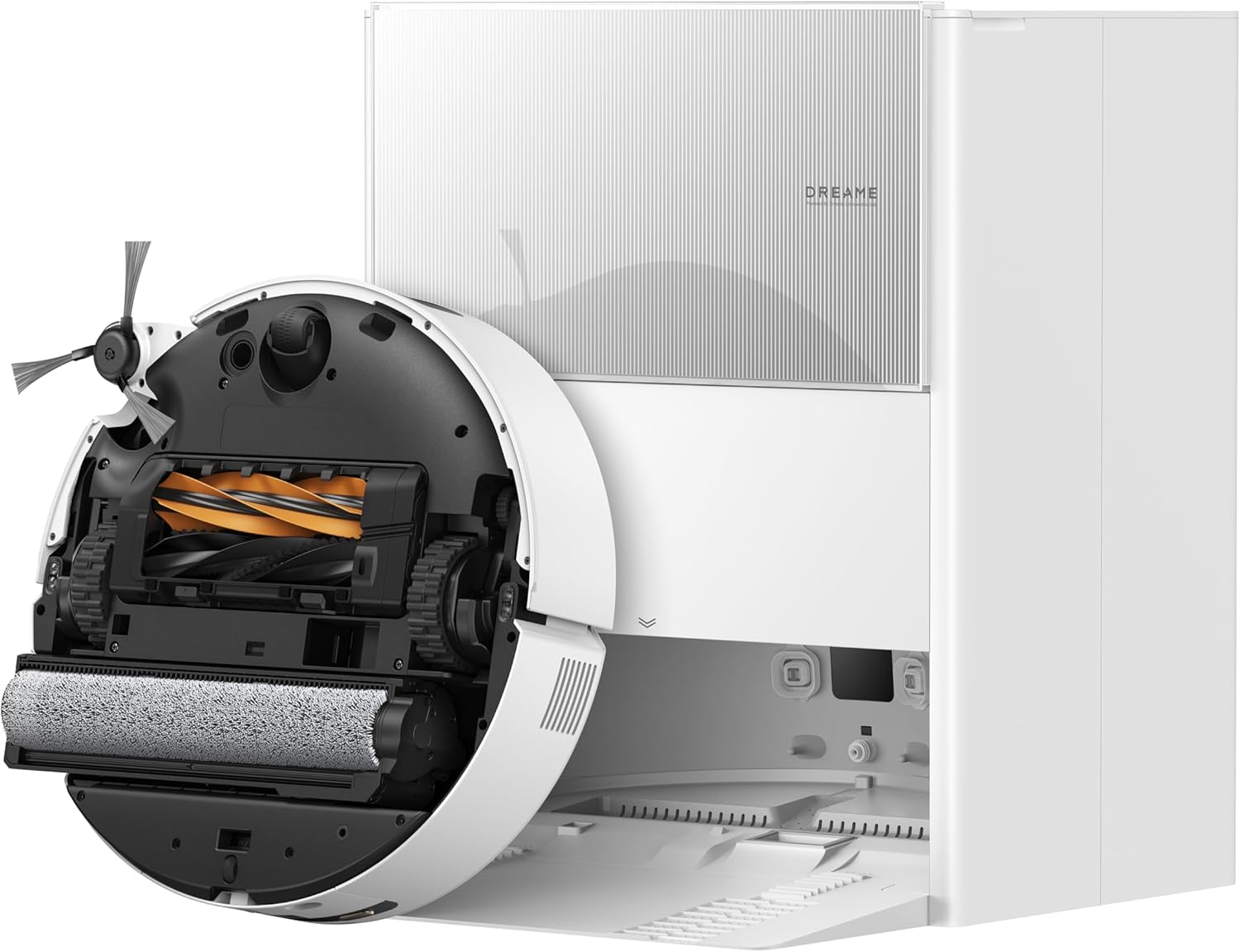
DREAME Aqua10 Ultra Roller Robot Vacuum and Mop & 30,000P...
As an Amazon Associate we earn from qualifying purchases.
Official Manufacturer Manual
Dreame provides official product documentation through their online manual rather than downloadable PDF. Access setup guides, troubleshooting steps, and product specifications for your Dreame Robot Vacuum.
Source: dreametech.com
Need More Help? Dreame Support
Note: The contact information below connects you directly to Dreame's official customer support team, not Trunetto. They can help with warranty claims, device replacements, and advanced technical issues.
Accessories owners commonly pair with Dreame Robot Vacuum.

Amazon Basics 20-Pack AA Alkaline High-Performance Batter...

Amazon Basics CR2032 3V Lithium Coin Cell Batteries for K...

Duracell Coppertop Double AA Batteries with Power Boost I...
As an Amazon Associate we earn from qualifying purchases.
Guide Improvements
- Updated June 16, 2026
Expanded with specific fixes for each error code range: bumper/cliff sensors, wheels, brushes, LiDAR, and charging errors.
What changed:- Added specific fixes for bumper and cliff sensor errors (1-3)
- Added wheel and movement error diagnostics (4-6)
- Added brush and suction jam fixes (7-9)
- Added LiDAR turret troubleshooting (13-15)
- Added charging dock error recovery (18-21)
Source: Trunetto editorial update


