

Why Won't My Dreame Robot Vacuum Connect to WiFi?
- Router only broadcasting 5GHz and robot requires 2.4GHz
- Dreamehome app missing Bluetooth or location permissions
- WiFi password has special characters that fail during setup
Problem Description
Your Dreame robot vacuum will not connect to your WiFi network during initial setup or has lost its connection and shows offline in the Dreamehome app. Without WiFi connectivity you lose access to scheduling remote control map management and all smart cleaning features. The robot can still clean from the physical button but operates without intelligence or customization. This is most commonly caused by WiFi band incompatibility or app permission issues during setup.
Why This Happens in Real Homes
This usually shows up after a router replacement, SSID merge, or security-mode change where 2.4 GHz setup behavior shifts. The robot can still clean from its button, but cloud pairing fails, so app control and schedules appear broken.
Start with a dedicated 2.4 GHz onboarding pass near the router and re-run pairing after rebooting phone and router. In most homes, that clears onboarding failures without a factory reset.
Symptoms
- Dreamehome app cannot discover robot during setup
- Robot shows offline in app despite being powered on and docked
- WiFi setup fails at the connecting to network step
- Robot connected previously but went offline after router change
- App shows connected but robot does not respond to commands
- WiFi indicator light on robot blinks instead of staying solid
Recognize these? Here's what usually causes it.
Common Causes
- Router only broadcasting 5GHz and robot requires 2.4GHz
- Dreamehome app missing Bluetooth or location permissions
- WiFi password has special characters that fail during setup
- Robot too far from router for reliable 2.4GHz connection
- Router has reached maximum connected device limit
- IoT device isolation enabled on router blocking app communication
Most fixes happen in the first 3 steps.
A WiFi reset on the Dreame robot clears the stored network credentials but does not erase maps cleaning history or schedules. Those are stored in the cloud and will sync back after reconnecting to WiFi.
Tools & Requirements
Step-by-Step Solution
Check your WiFi band — Dreame only works on 2.4GHz
Every Dreame robot — D10, D10 Plus, D10s Pro, L10, L20 Ultra, and X-series — connects exclusively on the 2.4GHz WiFi band. The Dreamehome app will fail silently if your phone is on 5GHz during setup. On your router, check if you have a combined SSID (one network name for both bands). If so, temporarily disable the 5GHz band in your router admin panel during setup. On most TP-Link, Netgear, and ASUS routers, this is under Wireless > Band Steering. Create a separate 2.4GHz-only SSID if your router supports it. Also check that your WiFi security is set to WPA2 Personal — the D10 series does not support WPA3-only networks.
Reset WiFi on the robot before retrying setup
On the Dreame D10 and D10 Plus, press and hold the power button and the dock/home button together for about 3 seconds until you hear a voice prompt saying waiting for network configuration. On the D10s Pro and L-series, the reset combination is the power button plus the spot clean button. This clears the stored WiFi credentials but keeps your maps, cleaning history, and schedules — those are stored in the Dreame cloud and sync back after reconnecting. After the WiFi reset, the robot enters pairing mode and the WiFi indicator light blinks rapidly. You have about 10 minutes to complete setup before the robot exits pairing mode.
Run setup with the robot near your router
Place the robot and its charging dock within 10 feet of your WiFi router for initial setup. Weak signal during the authentication handshake is the single most common cause of Dreame setup failures — the robot and cloud do a three-way handshake (robot to router to Dreame cloud to app) that times out if any link is slow. Open the Dreamehome app, tap the + icon, select your robot model, and scan the QR code on the robot. When prompted, connect your phone to the robot temporary hotspot (named DreameXXXX). Stay in the app and do not switch to other apps or let your phone screen lock during this step — the credential transfer fails if the app loses focus.
Fix the app timeout error during WiFi transfer
If the app shows connection failed or timed out after entering your WiFi password, check these specific issues. First, your WiFi password: special characters like quotes, backslashes, and ampersands can break the credential string. If your password has these, temporarily change it to a simple alphanumeric password, complete setup, then change it back. Second, your router may have too many connected devices — some consumer routers cap at 32 WiFi clients. Temporarily disconnect a few devices. Third, AP isolation (also called Client Isolation or Guest Mode) prevents the robot from communicating once connected — disable it in your router settings under Wireless > Advanced.
Move the dock to a stronger WiFi location after setup
After the initial connection succeeds, you can move the dock and robot to their permanent location. The D10 and D10 Plus have a WiFi range of about 30 feet through one wall. If the permanent dock location is far from the router, check signal strength in the Dreamehome app under Device > Network Info. Signal below -70 dBm causes intermittent disconnects. Add a WiFi extender or mesh node near the dock if needed. The robot maintains its WiFi connection while cleaning — if it enters a dead zone during a cleaning run, it continues cleaning using its onboard map but cannot send real-time updates to the app until it moves back into range.
Factory reset if the robot still will not connect
If WiFi setup fails repeatedly after trying all the above, do a full factory reset. On the D10 and D10 Plus, press and hold the power button for 8 seconds until the robot powers off, then press the reset pinhole on the bottom of the robot with a paperclip for 3 seconds. The robot reboots and enters factory default state. This erases maps, cleaning history, schedules, and all settings — you are starting fresh. Open the Dreamehome app, delete the old device entry if it still shows, and add the robot as a new device. If the factory-reset robot still cannot connect, try setting up on a different phone — some older Android versions have Bluetooth handoff issues with the Dreamehome app that prevent WiFi credential transfer.
Quick Solutions
Reset Wi-Fi pairing mode
- Open the top cover.
- Press and hold Spot Clean + Dock until the voice prompt says it is ready for network configuration.
- Wait for the Wi-Fi light to flash, then add the device in the app.
2.4GHz only
- Connect your phone to a 2.4GHz network.
- Use a separate 2.4GHz SSID if your router combines bands.
- Retry setup after switching to 2.4GHz.
Router security or isolation blocking
- Use WPA2 security instead of WPA3.
- Disable AP/client isolation on the router.
- Reboot the router and retry setup.
Mesh or band steering issues
- Move the robot close to the nearest access point.
- Temporarily disable band steering or fast roaming.
- Retry the pairing process.
Robot goes offline after setup
- Update the robot firmware in the app.
- Keep the SSID and password unchanged.
- Restart the router and power-cycle the robot.
App cannot find the device
- Make sure your phone stays on the same 2.4GHz Wi-Fi.
- Close and reopen the app and try again.
- Reset Wi-Fi on the robot and repeat setup.
Still having issues? This is usually the deeper cause below.
This usually happens right after a router reboot or ISP change — the device rejoins the network but drops its cloud session silently.
Once the robot connects successfully you can move the dock to its permanent location, but keep the Wi-Fi name and password unchanged.
Most WiFi drop-offs happen right after a router reboot or ISP swap — the device reconnects to the network but silently loses its cloud registration.
- Router only broadcasting 5GHz and robot requires 2.4GHz
- Dreamehome app missing Bluetooth or location permissions
- WiFi password has special characters that fail during setup
- Robot too far from router for reliable 2.4GHz connection
- Router has reached maximum connected device limit
Before you go — try one of these (they fix most cases).
Most popular upgrades chosen by Dreame Robot Vacuum owners.

DREAME C20 Plus Robot Vacuum and Mop Combo, 90 Days Self-...

DREAME Aqua10 Ultra Roller Robot Vacuum and Mop & 30,000P...
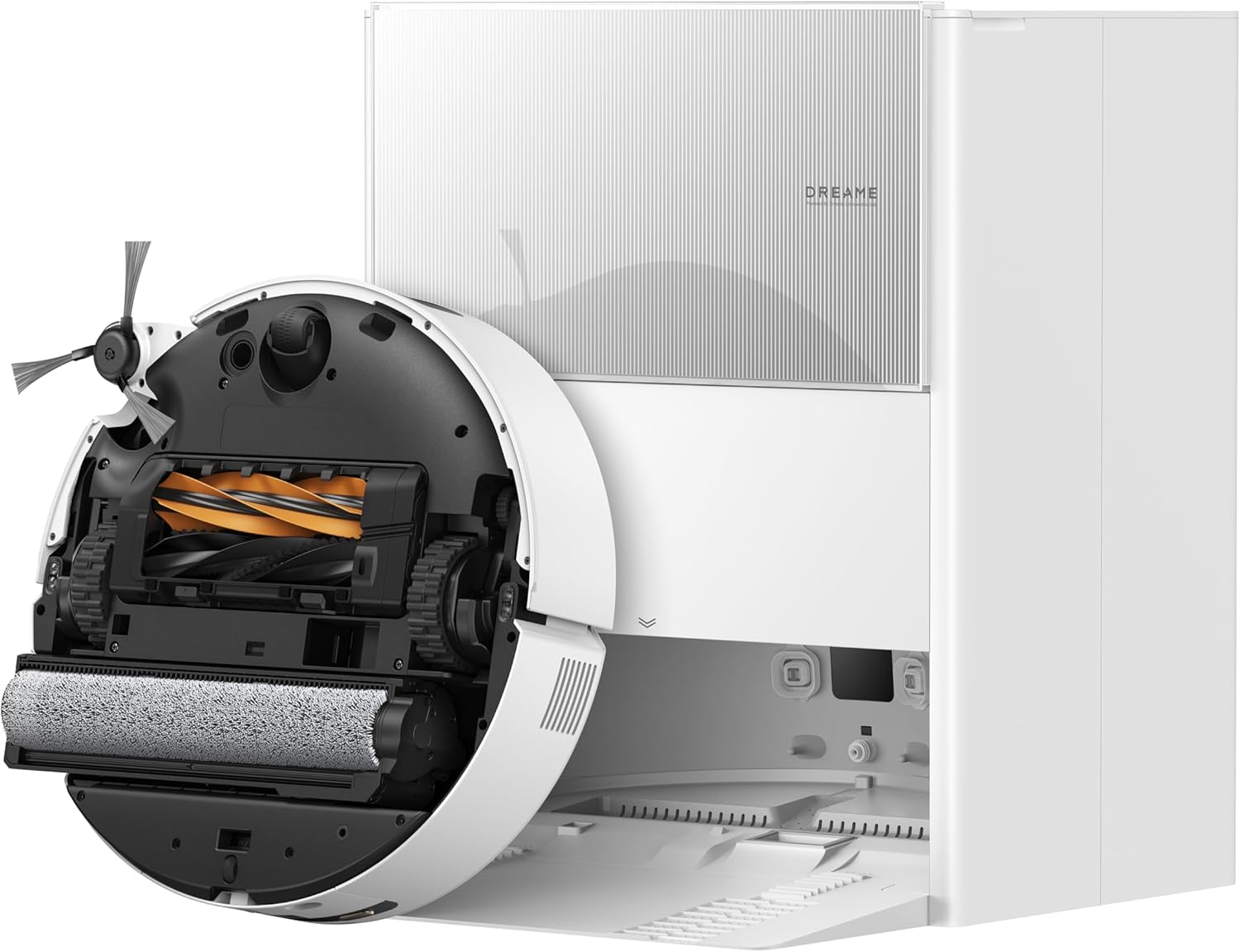
DREAME Aqua10 Ultra Roller Robot Vacuum and Mop & 30,000P...
As an Amazon Associate we earn from qualifying purchases.
Official Manufacturer Manual
Dreame provides official product documentation through their online manual rather than downloadable PDF. Access setup guides, troubleshooting steps, and product specifications for your Dreame Robot Vacuum.
Source: dreametech.com
Need More Help? Dreame Support
Note: The contact information below connects you directly to Dreame's official customer support team, not Trunetto. They can help with warranty claims, device replacements, and advanced technical issues.


