

Why Won't My Dreame Robot Vacuum Return to the Dock?
- Dock placed in corner or enclosed space
- IR sensors on robot or dock are dirty
- Objects blocking the path to the dock
Problem Description
Your Dreame robot vacuum cannot find or return to its charging dock after cleaning. The robot wanders around looking for the dock then stops in the middle of the room with a docking error. Or it approaches the dock but fails to align and make contact with the charging pins. Without successful docking the robot cannot recharge empty its dustbin or refill its water tank on auto-empty models. This is typically caused by dock placement issues IR sensor obstruction or map corruption.
Why This Happens in Real Homes
This usually shows up when dock line-of-sight is compromised or the stored dock position no longer matches the room after furniture or dock movement. The robot can navigate generally, but final approach math fails and docking repeatedly misses.
Start by restoring clear dock approach space and running one clean return test from nearby. In most homes, a quick local remap around the dock resolves repeat misses.
Symptoms
- Robot wanders after cleaning but cannot find dock
- Robot approaches dock but fails to connect for charging
- Robot stops in middle of room with dock not found error
- Charging indicator does not turn on after docking
- Robot finds dock sometimes but fails other times
- Robot bumps into dock repeatedly without connecting
Recognize these? Here's what usually causes it.
Common Causes
- Dock placed in corner or enclosed space
- IR sensors on robot or dock are dirty
- Objects blocking the path to the dock
- Robot map has become corrupted or outdated
- Dock moved after initial mapping was completed
- Charging contacts on robot or dock are dirty
Most fixes happen in the first 3 steps.
Do not move the charging dock while the robot is cleaning. The robot remembers the dock location from when it left. Moving the dock mid-clean guarantees the robot will not find it. If you must move the dock send the robot home first or manually place it on the dock.
Tools & Requirements
These tools will help you complete this fix.
As an Amazon Associate we earn from qualifying purchases.
Step-by-Step Solution
Verify dock power and placement
Confirm the dock has power and sits against a stable wall on level flooring. A dock that shifts or browns out can disappear from localization.
Clear approach space around the dock
Keep the required side and front clearance free of boxes, cords, and chair legs. Docking fails most often in the final approach when clearance is tight.
Start runs from the dock
Launch cleaning with the robot docked so it anchors navigation from a known home point. Starting from random locations reduces return accuracy after long runs.
Clean charging contacts and front sensors
Wipe robot and dock contacts plus front-facing sensors with a dry cloth. Oxidized contacts or dirty optics can cause repeated near-dock retries.

Needed for this step
MR.SIGA Microfiber Cleaning Cloth,Pack of 12,Si...
This helps complete the fix you are currently reading.
$13.99Validate map dock position
Open the map and confirm the dock icon matches its physical location. If the dock was moved, create a fresh map and then retest return-to-base behavior.
Quick Solutions
Power issues
- Confirm the base station is plugged in.
- Return it to its original location if it was moved.
Obstacles near the base
- Clear objects blocking the approach path.
- Make sure the base sits on a flat surface.
Robot stuck during cleaning
- If the robot stops or alarms, place it back on the base manually.
- Restart the clean from the base station.
Uneven surface
- Move the base to a level surface.
- Keep the floor around the base clear.
System malfunction
- Place the robot 1 meter in front of the base and press Return.
- If it still fails, reboot and try again.
Still having issues? This is usually the deeper cause below.
If the robot returns to the dock mid-clean, moved furniture may have invalidated its map — a fresh floor scan resolves the majority of navigation failures.
Keep the base station in the same spot and avoid moving it between cleans.
Robot vacuums that 'stop working' are usually fighting a corrupted map from moved furniture — a fresh floor scan fixes the majority of reported failures.
- Dock placed in corner or enclosed space
- IR sensors on robot or dock are dirty
- Objects blocking the path to the dock
- Robot map has become corrupted or outdated
- Dock moved after initial mapping was completed
Before you go — try one of these (they fix most cases).
Most popular upgrades chosen by Dreame Robot Vacuum owners.

DREAME C20 Plus Robot Vacuum and Mop Combo, 90 Days Self-...

DREAME Aqua10 Ultra Roller Robot Vacuum and Mop & 30,000P...
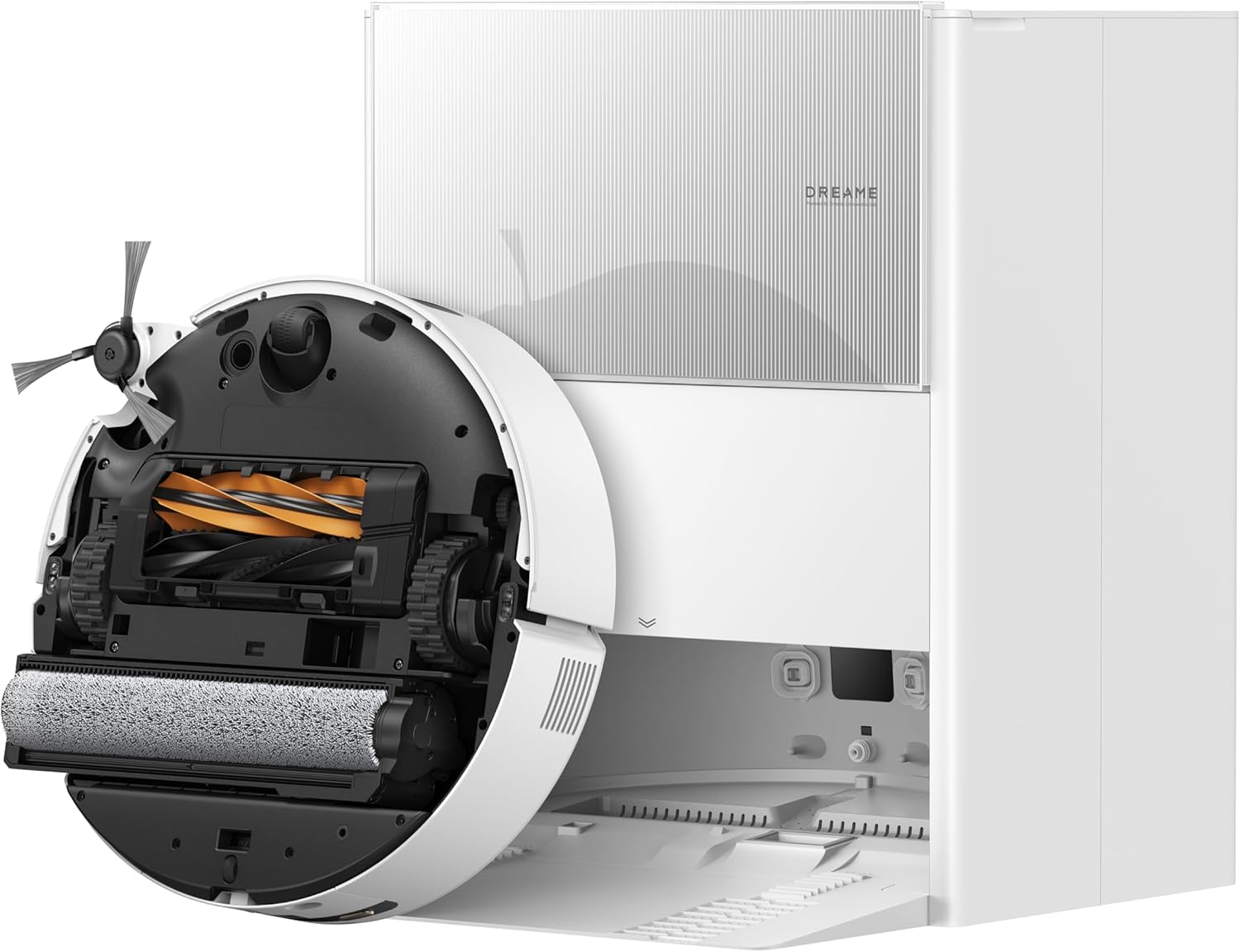
DREAME Aqua10 Ultra Roller Robot Vacuum and Mop & 30,000P...
As an Amazon Associate we earn from qualifying purchases.
Official Manufacturer Manual
Dreame provides official product documentation through their online manual rather than downloadable PDF. Access setup guides, troubleshooting steps, and product specifications for your Dreame Robot Vacuum.
Source: dreametech.com
Need More Help? Dreame Support
Note: The contact information below connects you directly to Dreame's official customer support team, not Trunetto. They can help with warranty claims, device replacements, and advanced technical issues.


