

Why Is My Dreame Robot Vacuum Map Gone or Not Saving
- Firmware update reset map storage
- Power lost mid-clean corrupting map
- Map storage full
Problem Description
Your Dreame robot vacuum lost its saved map — room dividers, no-go zones, virtual walls, and scheduled cleans are all gone. The robot now builds a new map from scratch on every run, erasing any zones you had set up. Map loss has three main causes: a firmware update that reset stored map data without warning, a power interruption mid-clean that corrupted the active map file, or the robot reaching its storage limit of 3 to 5 maps, which prevents new maps from saving. Dreame does not sync maps to the cloud automatically, so once a local map is lost, it cannot be recovered — only rebuilt. The fix is to clear space, rebuild the map, and set up your zones again.
Why This Happens in Real Homes
This usually shows up right after a firmware update, a mid-clean power loss, or when the robot has already hit its saved-map limit. In those cases the robot can still drive and clean, but it can’t reliably load the prior floor file, so your rooms and no-go zones vanish.
Start by deleting old duplicate maps, rebooting the robot and dock, and rebuilding one clean map run without interruptions. In most homes, that restores stable map retention faster than repeated factory resets.
Symptoms
- Saved map disappeared from app
- Creates new map every session
- Room names and dividers gone
- No-go zones deleted
- Starts mapping from scratch mid-clean
- Map shows briefly then disappears
Recognize these? Here's what usually causes it.
Common Causes
- Firmware update reset map storage
- Power lost mid-clean corrupting map
- Map storage full
- Robot moved during cleaning
- LiDAR sensor obstructed
- App cache corrupted
Most fixes happen in the first 3 steps.
If firmware erased your map do not roll back. Rebuild on new firmware. Dreame fixes map bugs in subsequent patches.
Step-by-Step Solution
Start from the dock
Always begin jobs from the dock, and keep the dock in the same physical position. Dreame uses the dock as a fixed reference point, so moving it often causes map drift or map replacement.
Let the robot complete a full cycle
Avoid pausing, carrying, or force-ending the run before docking. The map is finalized after the robot completes navigation and returns to charge.
Rebuild one clean base map
If the map is already corrupted, delete it in the app and run a full mapping pass with lights on and interior doors open. This gives the robot stable landmarks and complete room boundaries.
Keep the environment consistent
Do not make major furniture changes while the robot is relearning. Frequent layout changes, blocked paths, or closed rooms can trigger partial remaps and lost zones.
Update firmware and reset only if needed
Install the latest firmware before further testing. If maps still disappear after a full remap, back up your settings and perform a factory reset as the final step.
Quick Solutions
Relocation failed
- Power-cycle the robot and retry.
- Keep the dock in the same location.
- Clear obstacles near the dock so it can relocate.
Map not saved after first run
- Start the mapping run from the dock.
- Do not interrupt or move the robot.
- Let it return to the dock to save the map.
Map lost after moving the dock
- Return the dock to its original location.
- Delete the old map and remap from the dock.
- Keep the dock fixed for future cleans.
Map storage full
- Delete unused maps in Map Management.
- Free a slot and run a full clean to rebuild.
App shows the wrong map
- Clear the app cache or reinstall.
- Refresh the map list and select the correct map.
Firmware improvements
- Check for firmware updates in the app.
- Install updates and reboot the robot.
Still having issues? This is usually the deeper cause below.
If the robot returns to the dock mid-clean, moved furniture may have invalidated its map — a fresh floor scan resolves the majority of navigation failures.
Always start from the dock and let the robot return to save the map. Avoid picking up the robot during a clean.
Robot vacuums that 'stop working' are usually fighting a corrupted map from moved furniture — a fresh floor scan fixes the majority of reported failures.
- Firmware update reset map storage
- Power lost mid-clean corrupting map
- Map storage full
- Robot moved during cleaning
- LiDAR sensor obstructed
Before you go — try one of these (they fix most cases).
Most popular upgrades chosen by Dreame Robot Vacuum owners.

DREAME C20 Plus Robot Vacuum and Mop Combo, 90 Days Self-...

DREAME Aqua10 Ultra Roller Robot Vacuum and Mop & 30,000P...
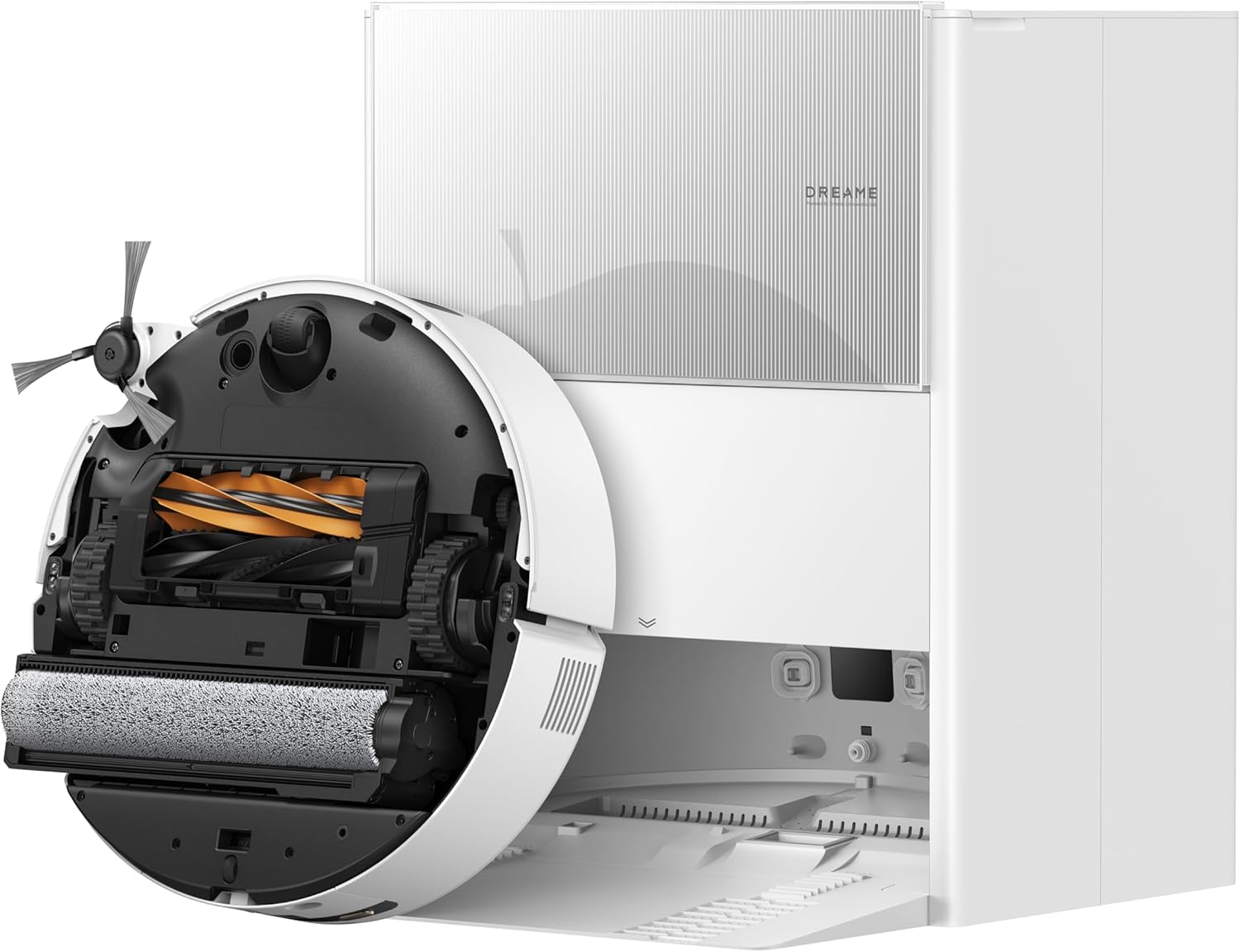
DREAME Aqua10 Ultra Roller Robot Vacuum and Mop & 30,000P...
As an Amazon Associate we earn from qualifying purchases.
Official Manufacturer Manual
Dreame provides official product documentation through their online manual rather than downloadable PDF. Access setup guides, troubleshooting steps, and product specifications for your Dreame Robot Vacuum.
Source: dreametech.com
Need More Help? Dreame Support
Note: The contact information below connects you directly to Dreame's official customer support team, not Trunetto. They can help with warranty claims, device replacements, and advanced technical issues.


