

How Do I Set Up the Roborock S8 Pro Ultra Dock Station?
- Dock not on a flat surface against a wall
- Insufficient clearance (needs ~0.5m sides, 1.5m front)
- Clean/dirty water tanks not filled/seated correctly
Problem Description
You are setting up the Roborock S8 Pro Ultra dock station for the first time. The dock handles auto-emptying, mop washing, and mop drying. It needs a flat surface against a wall with at least 0.5m clearance on each side and 1.5m in front. This guide covers positioning, water tank setup, and running the initial calibration.
Why This Happens in Real Homes
The Roborock S8 Pro Ultra dock is a multifunction station - it auto-empties the dustbin, washes the mop pads, and dries them with warm air - so its placement matters more than a simple charging dock. Put it on flat, hard flooring flush against a wall (not on carpet or an uneven surface), and give it room to work: roughly 0.5m of clearance on each side and about 1.5m in front, so the robot can approach, dock, and the wash/dry cycles have airflow. A dock crammed into a tight corner is the most common reason docking, alignment, or drying underperforms.
Setup then follows a clear order: connect power, fill and correctly seat both water tanks (clean water in, dirty water out), and run the initial calibration. Starting the robot from the dock helps it learn the dock's exact position so it returns reliably. Keep the dock's vents and wash tray clear so auto-empty suction and mop drying work properly. Update the firmware during setup, and remember the dock's advanced functions - washing and hot-air drying - depend on the tanks being filled and seated and the station having clearance; get those right and the S8 Pro Ultra runs hands-off for days. Connectivity is a separate concern: dock functions are mechanical, while app control needs the robot on 2.4GHz WiFi.
Symptoms
- Positioning the dock for the first time
- Robot won't dock or align properly
- Water tanks not set up / not dispensing
- Auto-empty, wash, or dry not running after setup
- Dock too close to walls/furniture
- Initial calibration won't complete
- Robot can't find the dock
- Mop wash/dry underperforming after install
Recognize these? Here's what usually causes it.
Common Causes
- Dock not on a flat surface against a wall
- Insufficient clearance (needs ~0.5m sides, 1.5m front)
- Clean/dirty water tanks not filled/seated correctly
- Dock on carpet or an uneven floor
- Power not connected or outlet issue
- Robot started far from the dock during setup
- Firmware out of date
- Dock vents/tray obstructed
Most fixes happen in the first 3 steps.
Keep small objects, loose cables, and thin rugs with fringe off the floor before running the vacuum. These can tangle in the brush roll and damage the motor. Do not use the vacuum to pick up liquids, sharp objects, or fine construction dust as this can permanently damage internal components.
Tools & Requirements
These tools will help you complete this fix.
As an Amazon Associate we earn from qualifying purchases.
Step-by-Step Solution
Position the dock station
The Roborock S8 Pro Ultra dock station is large (approximately 18x16x17 inches). Place it against a flat wall on a hard floor surface. Leave at least 20 inches of clearance on each side and 60 inches in front for the robot to navigate in and out. The dock needs access to a power outlet and a water source (for auto-fill models). Place the dock away from direct sunlight and heat sources.

Needed for this step
PATIKIL Brass 5mm Compression Sleeves Ferrules,...
This helps complete the fix you are currently reading.
$7.09Fill the clean water tank
The dock has a clean water tank for mop washing and a dirty water tank for used water. Fill the clean water tank with room-temperature water to the max line. Do not add cleaning solution unless the manual specifically states it is safe for the dock's washing system. Close the tank lid securely. The dock uses this water to wash the mop pads after each cleaning session.
Set up auto mop washing and drying
In the Roborock app, configure the dock: mop wash frequency (every 10, 15, or 25 minutes during cleaning), mop wash water temperature (if supported — hot water cleans better), and drying duration (2-4 hours of hot air drying after cleaning). The dock automatically washes the mop pads when the robot returns and dries them to prevent mold. More frequent washing keeps the mop cleaner but extends total cleaning time.
Configure auto-empty dustbin
The S8 Pro Ultra dock auto-empties the robot's dustbin into a sealed bag in the dock. In the app, set the auto-empty behavior: after every cleaning session, or only when the bin is full. The dock's dust bag holds approximately 7 weeks of dust (for average homes). When the bag is full, the app notifies you. Replace with an official Roborock dust bag — twist the bag closure to seal before discarding.
Maintain the dock station
Weekly: empty the dirty water tank (it develops odor if left). Rinse the tank. Monthly: clean the mop washing tray — remove it from the dock and rinse under running water. Check the filter in the dock (some models have a small filter in the water path). Every 2-3 months: replace the mop pads. Check the dock's rubber seals for wear. Keeping the dock clean ensures the mop pads are actually cleaned effectively, not just rinsed with dirty water.
Quick Solutions
Still having issues? This is usually the deeper cause below.
If this comes back after following these steps, check whether a recent app or firmware update reset a default setting — the fix works, but the setting gets reverted silently.
["Use flat surface for dock", "Fill clean tank with water only", "Empty dirty tank after each use"]
Robot vacuums that 'stop working' are usually fighting a corrupted map from moved furniture — a fresh floor scan fixes the majority of reported failures.
- Dock not on a flat surface against a wall
- Insufficient clearance (needs ~0.5m sides, 1.5m front)
- Clean/dirty water tanks not filled/seated correctly
- Dock on carpet or an uneven floor
- Power not connected or outlet issue
Before you go — try one of these (they fix most cases).
Most popular upgrades chosen by Roborock S8 Pro Ultra owners.

roborock 2 Pack Microfiber Mop Cloths for Q7 M5, Q7 M5+, ...
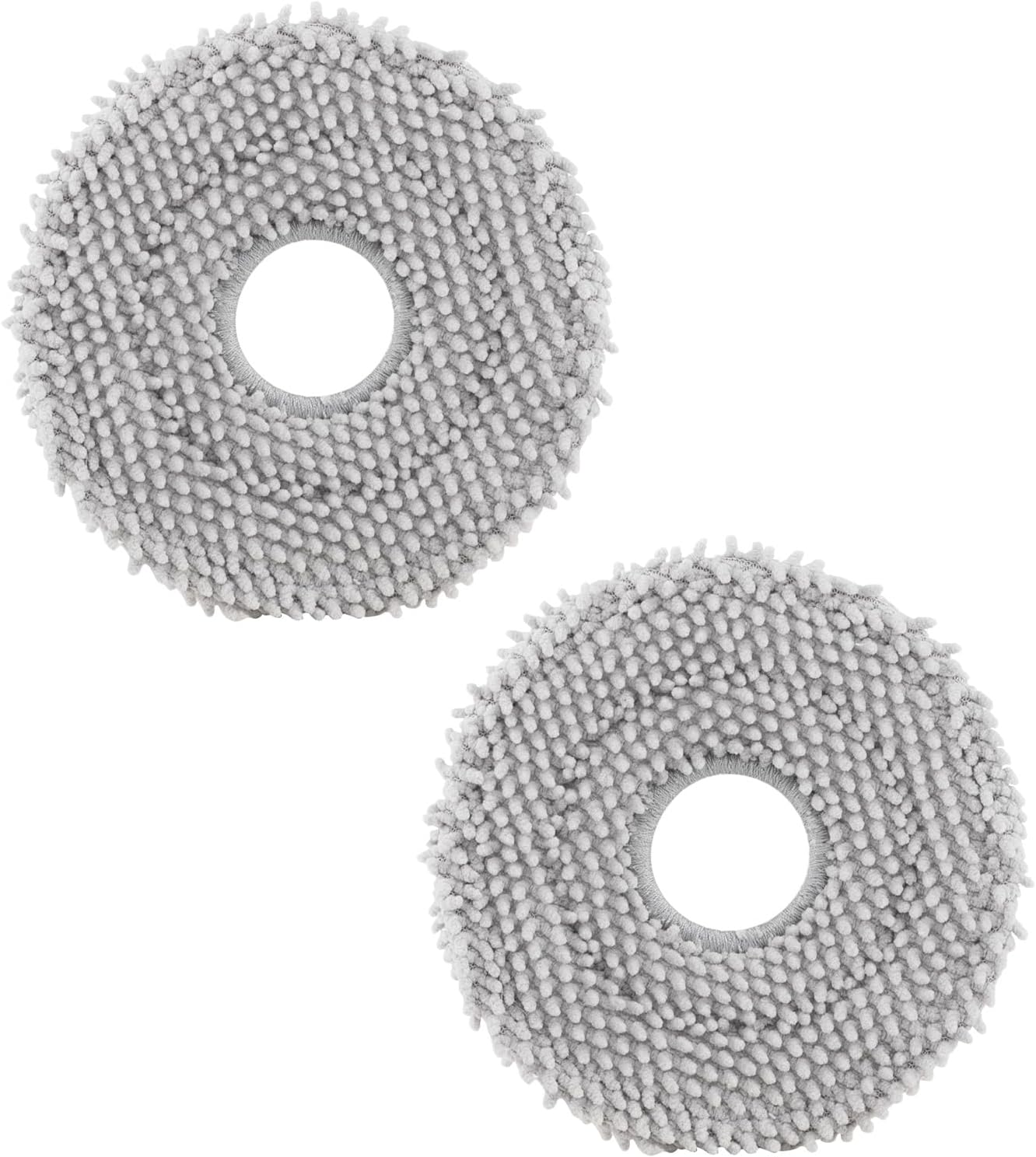
roborock 4 Pack Microfiber Mop Cloths for Q Revo, Qrevo M...

roborock 4 Pack Microfiber Mop Cloths for QV 35A/QV 35S/Q...
As an Amazon Associate we earn from qualifying purchases.
Official Manufacturer Manual
Roborock provides official product documentation through their online manual rather than downloadable PDF. Access setup guides, troubleshooting steps, and product specifications for your Roborock S8 Pro Ultra.
Source: roborock.com
Need More Help? Roborock Support
Note: The contact information below connects you directly to Roborock's official customer support team, not Trunetto. They can help with warranty claims, device replacements, and advanced technical issues.
How Does Roborock Compare?
Before replacing your Roborock device, see how it stacks up against alternatives in our full comparison guides.
Accessories owners commonly pair with Roborock S8 Pro Ultra.

Amazon Basics 20-Pack AA Alkaline High-Performance Batter...

Amazon Basics CR2032 3V Lithium Coin Cell Batteries for K...

Duracell Coppertop Double AA Batteries with Power Boost I...
As an Amazon Associate we earn from qualifying purchases.


