

Why Won't My Roborock S8 Pro Ultra Dock Empty the Dustbin?
- Using a standard dustbin instead of the auto-empty-compatible one
- Air-inlet protective cover plate not removed from a new dustbin
- Main brush cover not seated, blocking the airflow path
Problem Description
Your Roborock returns to the dock after cleaning but the auto-empty feature does not activate leaving the dustbin full. The dock should vacuum the dustbin contents into the dock bag automatically but no suction sound occurs and the dustbin remains full.
Why This Happens in Real Homes
When the S8 Pro Ultra returns to the dock but the dustbin doesn't auto-empty - no suction sound, bin stays full - the cause is usually a setup or airflow issue rather than a broken dock. Two setup mistakes are the most common. First, the wrong dustbin: auto-empty requires the auto-empty-compatible dustbin, and using a standard bin (or one from another purpose) means the dock has no path to suck the debris out. Second, on a new dustbin, there's a protective cover plate over the air inlet that must be removed - people miss it, and it completely blocks the transfer. Check both of these first.
If the dustbin is correct and unblocked, the problem is elsewhere in the airflow path. The main brush cover has to be seated properly, because it's part of the sealed path the dock's suction pulls through - a cover that's off or loose breaks the vacuum. In the dock tower, a full or clogged dust bag stops the transfer, and hair or large debris clogging the dock's suction inlet does the same, so empty/replace the bag and clear the inlet. Finally, confirm auto-empty is actually enabled in the app - it can be turned off. With the right bin (cover plate removed), a seated brush cover, a clear bag and inlet, and the feature enabled, the emptying cycle runs reliably.
Symptoms
- Dock not emptying the dustbin after the robot returns
- Auto-empty suction sound doesn't start after docking
- Dustbin-full warning despite an empty dock dust bag
- Robot docks normally but skips the emptying cycle
- Emptying starts but stops quickly without finishing
- App shows emptying complete but the dustbin still has debris
- No suction from the dock tower
- Debris left in the bin after every run
Recognize these? Here's what usually causes it.
Common Causes
- Using a standard dustbin instead of the auto-empty-compatible one
- Air-inlet protective cover plate not removed from a new dustbin
- Main brush cover not seated, blocking the airflow path
- Dock dust bag full or clogged
- Dock suction inlet blocked by large debris or hair
- Auto-empty feature disabled in the app
- Dustbin or dock seals not seated
- Airflow path leaking, reducing suction
Most fixes happen in the first 3 steps.
Third-party dust bags may not fit properly in Roborock docks causing suction loss. Use official Roborock dust bags for reliable auto-empty function.
Tools & Requirements
These tools will help you complete this fix.
As an Amazon Associate we earn from qualifying purchases.
Step-by-Step Solution
Verify Correct Dustbin Installed
S8 Pro Ultra includes two dustbins standard and auto-empty compatible. The auto-empty dustbin has a flap that opens for suction. Check which dustbin is currently installed in the robot. The auto-empty dustbin has an air inlet port on one end. If using standard dustbin swap to the auto-empty version. The standard dustbin will never trigger auto-empty function.

Needed for this step
DREAME D30 Ultra Robot Vacuum and Mop, 25,000Pa...
This helps complete the fix you are currently reading.
$539.99Remove Air Inlet Protective Cover
New auto-empty dustbins have a protective plate on the air inlet. This thin plastic cover must be removed before first use. Look for a removable tab or film near the suction port. Peel it off completely. If left in place the cover blocks all airflow for emptying. This is a common oversight with new units.
Check Main Brush Cover Installation
Remove the main brush cover from the bottom of the robot. Clear any hair or debris wrapped around the brush or edges. Reinstall the cover and press until it clicks securely. The cover must be fully seated for auto-empty airflow path. A loose cover breaks the vacuum seal preventing suction. Test auto-empty after reinstalling cover properly.
Enable Auto-Empty in App
Open Roborock app and select your robot. Tap the settings gear icon. Find Empty Dock or Auto-Empty settings. Make sure auto-empty is set to On or Smart mode. Smart mode empties when dustbin is full. After Cleaning mode empties after every job. If set to Off the dock will never auto-empty.
Quick Solutions
Still having issues? This is usually the deeper cause below.
If this comes back after following these steps, check whether a recent app or firmware update reset a default setting — the fix works, but the setting gets reverted silently.
Auto-empty only activates when the robot returns from a cleaning job on its own. Manually placing the robot on the dock does not trigger the emptying cycle.
Robot vacuums that 'stop working' are usually fighting a corrupted map from moved furniture — a fresh floor scan fixes the majority of reported failures.
- Using a standard dustbin instead of the auto-empty-compatible one
- Air-inlet protective cover plate not removed from a new
- Main brush cover not seated, blocking the airflow path
- Dock dust bag full or clogged
- Dock suction inlet blocked by large debris or hair
Before you go — try one of these (they fix most cases).
Most popular upgrades chosen by Roborock S8 Pro Ultra owners.

roborock 2 Pack Microfiber Mop Cloths for Q7 M5, Q7 M5+, ...
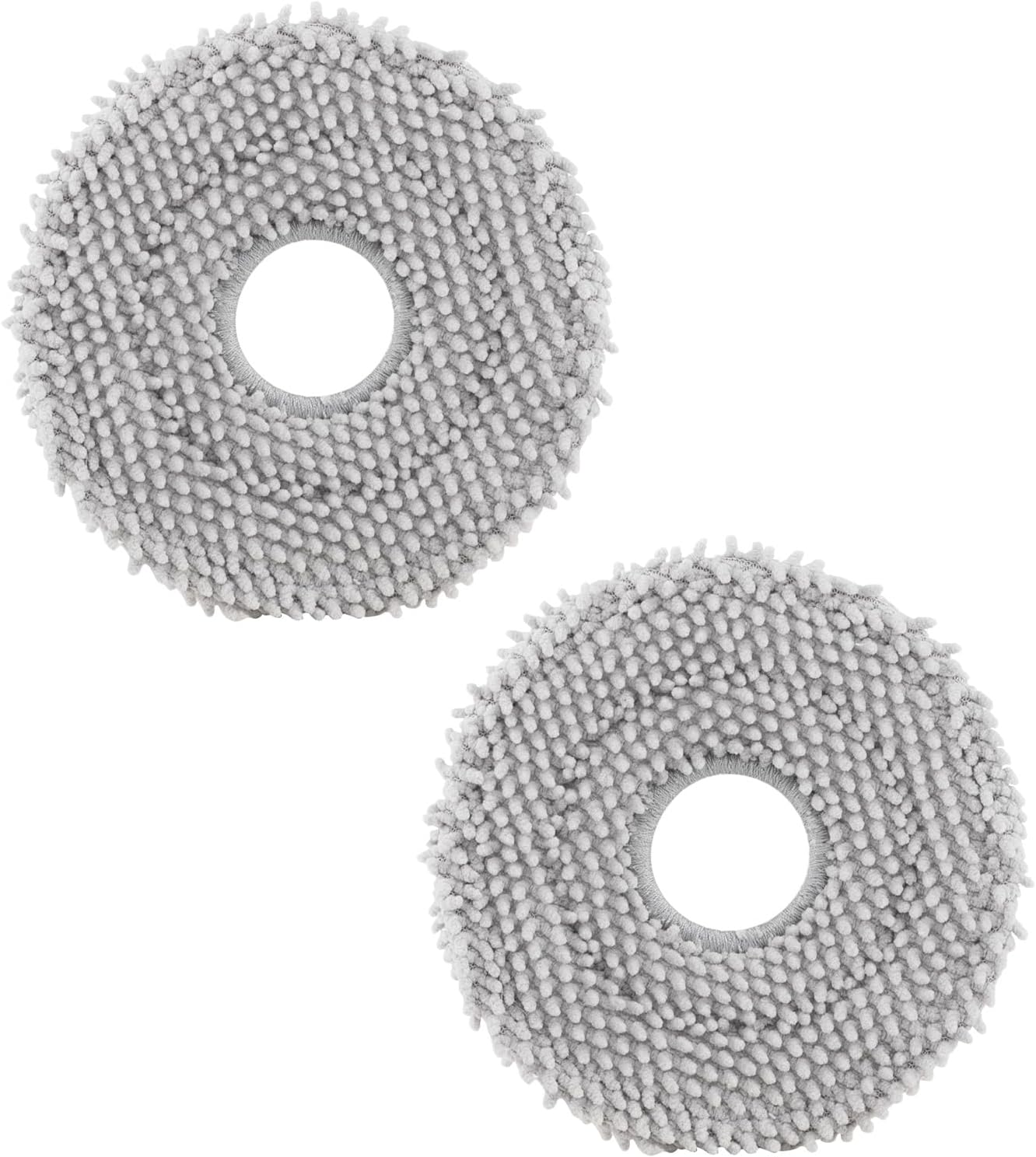
roborock 4 Pack Microfiber Mop Cloths for Q Revo, Qrevo M...

roborock 4 Pack Microfiber Mop Cloths for QV 35A/QV 35S/Q...
As an Amazon Associate we earn from qualifying purchases.
Official Manufacturer Manual
Roborock provides official product documentation through their online manual rather than downloadable PDF. Access setup guides, troubleshooting steps, and product specifications for your Roborock S8 Pro Ultra.
Source: roborock.com
Need More Help? Roborock Support
Note: The contact information below connects you directly to Roborock's official customer support team, not Trunetto. They can help with warranty claims, device replacements, and advanced technical issues.
How Does Roborock Compare?
Before replacing your Roborock device, see how it stacks up against alternatives in our full comparison guides.
Accessories owners commonly pair with Roborock S8 Pro Ultra.

Amazon Basics 20-Pack AA Alkaline High-Performance Batter...

Amazon Basics CR2032 3V Lithium Coin Cell Batteries for K...

Duracell Coppertop Double AA Batteries with Power Boost I...
As an Amazon Associate we earn from qualifying purchases.


