

Why Won't My Roborock S7 MaxV VibraRise Lift the Mop?
- Carpet detection sensor dirty or blocked
- Carpet detection/mop-lift disabled in app settings
- Carpet too thin or low-pile to be detected
Problem Description
Your Roborock S7 MaxV's VibraRise mop system is not lifting when the robot reaches carpet. The VibraRise feature uses an ultrasonic sensor to detect carpet and automatically raises the mop plate. If the sensor is dirty or carpet detection is disabled in the app settings, the mop will drag across carpet instead of lifting.
Why This Happens in Real Homes
The Roborock S7 MaxV's VibraRise system is supposed to detect carpet and automatically raise the mop plate so it doesn't drag a wet pad across your rugs. It relies on an ultrasonic sensor to sense the carpet, so when it fails to lift, the two leading causes are a dirty or blocked detection sensor and the carpet simply being too thin or low-pile for the sensor to register. Cleaning the sensor and, for stubborn low-pile rugs, manually marking carpet zones on the map (or setting them as no-mop zones) gives reliable lifting where auto-detection struggles.
The rest are settings and mechanics. Confirm mop-lift and carpet detection are actually enabled in the app - they can be off or misconfigured - and adjust the carpet-detection sensitivity if it's missing certain carpets. If VibraRise works when you trigger it manually but not automatically, that points to detection (sensor or sensitivity) rather than the lift mechanism. If it won't lift even manually, the mop plate may be mechanically jammed or the module not fully seated, so clear any debris around the lift and reseat the module. Keep firmware current, since carpet-detection behavior has been improved through updates. Note this is separate from network issues - a mop that won't lift is a sensor/mechanical matter, not a WiFi one.
Symptoms
- Mop drags across carpet instead of lifting
- VibraRise enabled but doesn't activate on carpet
- Carpet getting wet from the mop
- Lifts on some carpets but not others
- Used to lift, now stopped
- Mop lift works when manually triggered
- Thin/low-pile carpet not detected
- Mop stays down over rugs
Recognize these? Here's what usually causes it.
Common Causes
- Carpet detection sensor dirty or blocked
- Carpet detection/mop-lift disabled in app settings
- Carpet too thin or low-pile to be detected
- Mop plate mechanically jammed in the down position
- Firmware issue affecting carpet detection
- Carpet zones not marked on the map
- Mop module not fully seated
- Water/debris around the lift mechanism
Most fixes happen in the first 3 steps.
Keep small objects, loose cables, and thin rugs with fringe off the floor before running the vacuum. These can tangle in the brush roll and damage the motor. Do not use the vacuum to pick up liquids, sharp objects, or fine construction dust as this can permanently damage internal components.
Tools & Requirements
These tools will help you complete this fix.
As an Amazon Associate we earn from qualifying purchases.
Step-by-Step Solution
Check that carpet detection is enabled
The Roborock S7 MaxV has VibraRise mop lifting — the mop pad physically lifts when carpet is detected. In the Roborock app, go to the robot settings > Mop Settings > Carpet Detection. Make sure it is turned on. When enabled, the robot's ultrasonic carpet sensor detects carpet pile and raises the mop pad approximately 5mm to avoid wetting the carpet.
Clean the ultrasonic carpet sensor
The carpet detection sensor is on the underside of the robot. Dust, debris, or water residue on the sensor can prevent accurate detection. Flip the robot over and locate the small sensor window (usually near the mop module). Wipe it clean with a dry cloth. If the sensor is dirty, the robot cannot distinguish between hard floor and carpet, and the mop stays down on all surfaces.

Needed for this step
WHOOSH! Pro 16.9 fl oz Refillable TV Screen Cle...
This helps complete the fix you are currently reading.
$19.99Check carpet pile height
The VibraRise system detects carpet by its pile height and texture. Very low-pile carpets (like commercial-grade or flat-woven rugs) may not trigger the sensor because they feel similar to hard floor. Dark-colored rugs can also affect detection. If a specific rug is not detected: create a no-mop zone over that rug in the Roborock app map editor. This manually prevents mopping on that area.
Verify the mop module is properly attached
The VibraRise mop module must be firmly clicked into place on the robot. If loosely attached, the lifting mechanism may not engage. Remove the mop module and reattach it — press down until it clicks. Check that the mop pad is properly attached to the module (velcro or clip, depending on model). A bunched or misaligned mop pad can interfere with the lifting mechanism.
Update the robot firmware
Carpet detection algorithms improve with firmware updates. In the Roborock app, go to Settings > Firmware Update. If an update is available, install it (the robot must be on the dock with above 20% battery). Updates can improve the sensitivity and accuracy of the ultrasonic carpet sensor, especially for edge cases like low-pile rugs and transitional surfaces.
Quick Solutions
Still having issues? This is usually the deeper cause below.
If the robot returns to the dock mid-clean, moved furniture may have invalidated its map — a fresh floor scan resolves the majority of navigation failures.
["VibraRise lifts mop 5mm", "Works with most low-pile carpet", "May need No-Mop Zones for thick carpet"]
Over-saturation complaints spike in humid conditions — ambient humidity causes the mop pad to hold more water, compounding the pump output on the same flow setting.
- Carpet detection sensor dirty or blocked
- Carpet detection/mop-lift disabled in app settings
- Carpet too thin or low-pile to be detected
- Mop plate mechanically jammed in the down position
- Firmware issue affecting carpet detection
Before you go — try one of these (they fix most cases).
Most popular upgrades chosen by Roborock S7 MaxV owners.

roborock 2 Pack Microfiber Mop Cloths for Q7 M5, Q7 M5+, ...
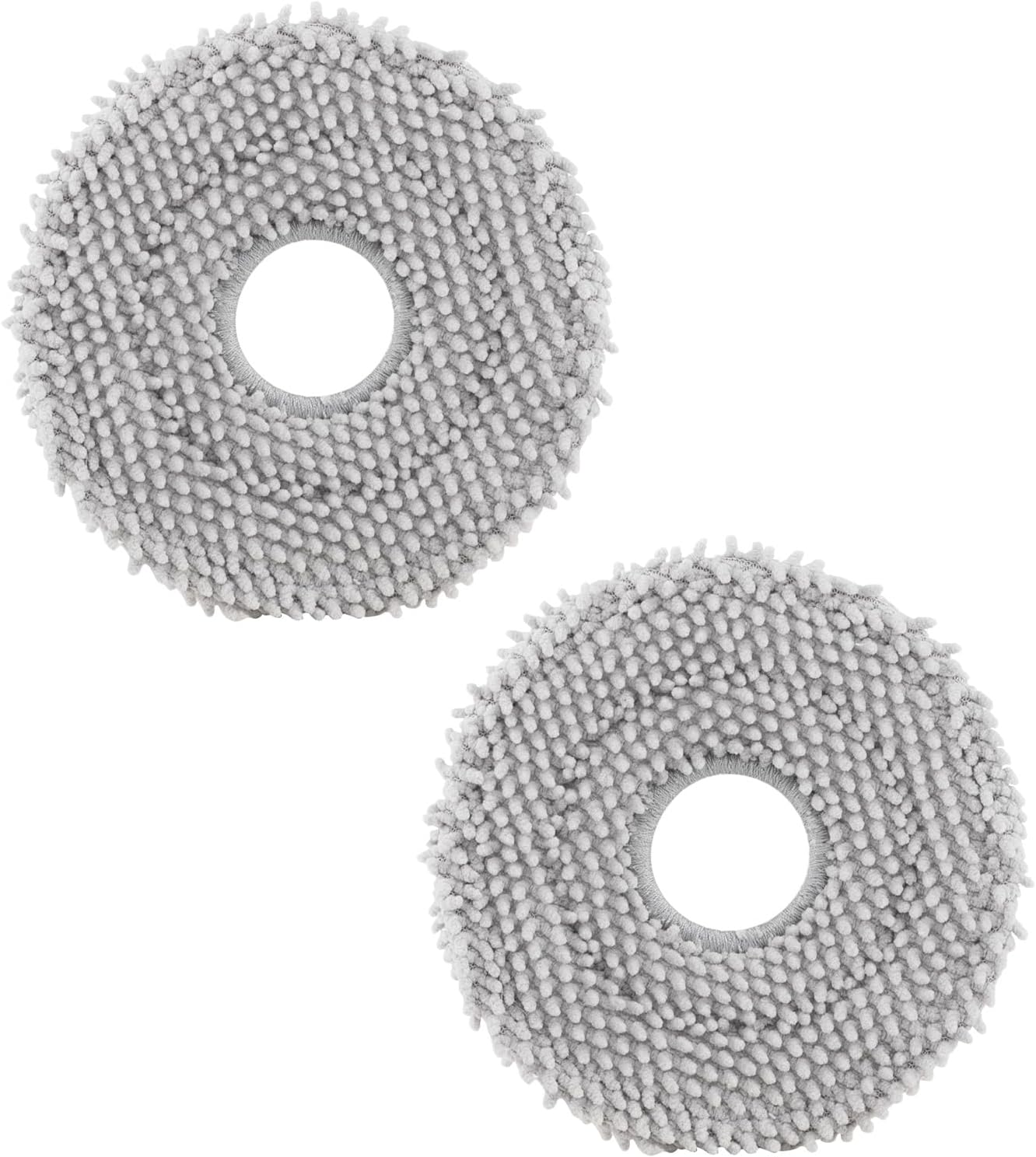
roborock 4 Pack Microfiber Mop Cloths for Q Revo, Qrevo M...

roborock 4 Pack Microfiber Mop Cloths for QV 35A/QV 35S/Q...
As an Amazon Associate we earn from qualifying purchases.
Official Manufacturer Manual
Roborock provides official product documentation through their online manual rather than downloadable PDF. Access setup guides, troubleshooting steps, and product specifications for your Roborock S7 MaxV.
Source: support.roborock.com
Need More Help? Roborock Support
Note: The contact information below connects you directly to Roborock's official customer support team, not Trunetto. They can help with warranty claims, device replacements, and advanced technical issues.
How Does Roborock Compare?
Before replacing your Roborock device, see how it stacks up against alternatives in our full comparison guides.
Accessories owners commonly pair with Roborock S7 MaxV.

Amazon Basics 20-Pack AA Alkaline High-Performance Batter...

Amazon Basics CR2032 3V Lithium Coin Cell Batteries for K...

Duracell Coppertop Double AA Batteries with Power Boost I...
As an Amazon Associate we earn from qualifying purchases.


