

Why Does My Roborock S8 MaxV Ultra Keep Running Into Obstacles?
- Obstacle-avoidance sensitivity set too low
- Camera/sensor lenses dirty, blocking AI vision
- Lighting too dim for camera-based detection
Problem Description
Your Roborock S8 MaxV Ultra has advanced obstacle avoidance with cameras and AI but it keeps running into objects and pushing things around. Cables get tangled, pet bowls get pushed, and toys get run over. The reactive AI is supposed to see and avoid these obstacles but it fails constantly. This expensive vacuum should do better.
Why This Happens in Real Homes
The S8 MaxV Ultra uses cameras and AI (Roborock's reactive obstacle avoidance) to see and dodge objects, so when it keeps hitting things the first suspects are the 'eyes' and their conditions. Dirty camera and sensor lenses are the number-one cause of degraded avoidance - a film of dust builds up over weeks and blinds the AI, which is why avoidance that 'worked at first' slowly gets worse. Cleaning the lenses weekly restores it. Because the detection is camera-based, it also needs adequate light: in a dim room the AI can't see obstacles well, and dark or thin objects (black cables, dark bowls) are inherently harder for it to detect even in good light.
Settings and expectations handle the rest. Turn obstacle-avoidance sensitivity up and enable all the object-recognition categories in the app so it actively avoids more object types, and keep firmware current since Roborock improves detection through updates. That said, no robot's AI is perfect - very small or low-lying items like socks, cords, and small toys are near the limit of what it can reliably detect, so the practical move is a quick tidy before a run and no-go zones around known trouble spots (pet feeding stations, cable nests). Clean lenses, good light, max sensitivity, and a little prep get the most out of the avoidance.
Symptoms
- Vacuum pushes pet food/water bowls
- Cords and cables tangle in the brushes
- Small toys and socks get run over
- Bumps into furniture legs repeatedly
- Dark-colored objects not detected and hit
- AI avoidance worked at first, degraded over time
- Runs over things it should avoid
- Obstacle photos in app but still collides
Recognize these? Here's what usually causes it.
Common Causes
- Obstacle-avoidance sensitivity set too low
- Camera/sensor lenses dirty, blocking AI vision
- Lighting too dim for camera-based detection
- Object recognition categories turned off
- Firmware behind on detection improvements
- Objects too small/low for the AI to detect
- Dark or thin objects hard for the sensor to see
- No-go zones not set for known problem spots
Most fixes happen in the first 3 steps.
No obstacle avoidance is perfect. Keep valuable fragile items off the floor regardless of AI capabilities.
Tools & Requirements
These tools will help you complete this fix.
As an Amazon Associate we earn from qualifying purchases.
Step-by-Step Solution
Maximize Obstacle Avoidance Sensitivity
Open the Roborock app and go to your S8 MaxV Ultra settings. Find Obstacle Avoidance and set sensitivity to maximum. Lower settings allow the vacuum to clean closer to objects but increase collisions. Maximum sensitivity keeps the vacuum further from detected obstacles even if it means missing some edge cleaning.

Needed for this step
WHOOSH! Pro 16.9 fl oz Refillable TV Screen Cle...
This helps complete the fix you are currently reading.
$19.99Clean Camera Lenses
The S8 MaxV Ultra uses front and side cameras for obstacle detection. Dust on lenses severely degrades detection. Use a soft dry microfiber cloth to clean all camera lenses on the front of the vacuum. Do this weekly or more often if you have pets. Dirty lenses are the most common cause of detection failures.
Check Room Lighting
Camera-based obstacle avoidance requires adequate lighting. In dark rooms the cameras cannot see obstacles clearly. If your vacuum runs at night or in dim rooms it will hit more objects. Schedule cleaning during daylight or turn on lights before cleaning starts. The vacuum works best in normally lit rooms.
Enable All Object Categories
In the app go to Obstacle Avoidance settings and make sure all object types are enabled for detection. Categories include cables, shoes, pet waste, fabric, and more. If any category is disabled the vacuum will not avoid those objects. Enable everything for maximum protection.
Create No-Go Zones
Some obstacles are too challenging for any AI. Pet bowls with reflective water surfaces and thin black cables are difficult to detect. In the app tap your map and create no-go zones around these permanent obstacles. The vacuum will never enter these zones eliminating the problem entirely.
Quick Solutions
Still having issues? This is usually the deeper cause below.
If this comes back after following these steps, check whether a recent app or firmware update reset a default setting — the fix works, but the setting gets reverted silently.
The AI learns over time. When it hits something it should not have take a photo in the app to help train the recognition model.
This issue almost always looks more complex than it is — the majority of cases trace back to a single setting, a stale credential, or a default that shipped wrong.
- Obstacle-avoidance sensitivity set too low
- Camera/sensor lenses dirty, blocking AI vision
- Lighting too dim for camera-based detection
- Object recognition categories turned off
- Firmware behind on detection improvements
Before you go — try one of these (they fix most cases).
Most popular upgrades chosen by Roborock S8 MaxV Ultra owners.

roborock 2 Pack Microfiber Mop Cloths for Q7 M5, Q7 M5+, ...
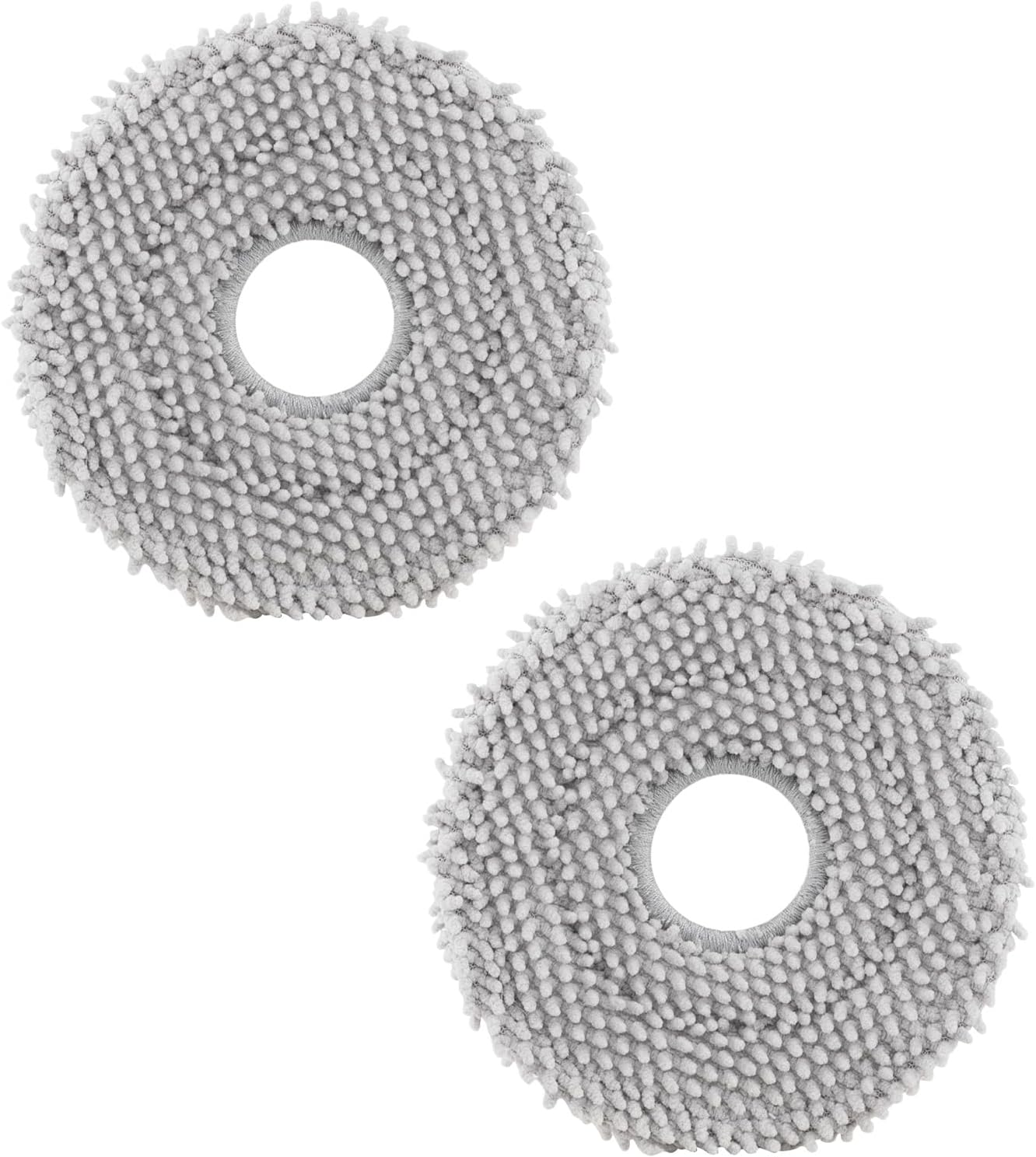
roborock 4 Pack Microfiber Mop Cloths for Q Revo, Qrevo M...

roborock 4 Pack Microfiber Mop Cloths for QV 35A/QV 35S/Q...
As an Amazon Associate we earn from qualifying purchases.
Official Manufacturer Manual
Roborock provides official product documentation through their online manual rather than downloadable PDF. Access setup guides, troubleshooting steps, and product specifications for your Roborock S8 MaxV Ultra.
Source: roborock.com
Need More Help? Roborock Support
Note: The contact information below connects you directly to Roborock's official customer support team, not Trunetto. They can help with warranty claims, device replacements, and advanced technical issues.
How Does Roborock Compare?
Before replacing your Roborock device, see how it stacks up against alternatives in our full comparison guides.


