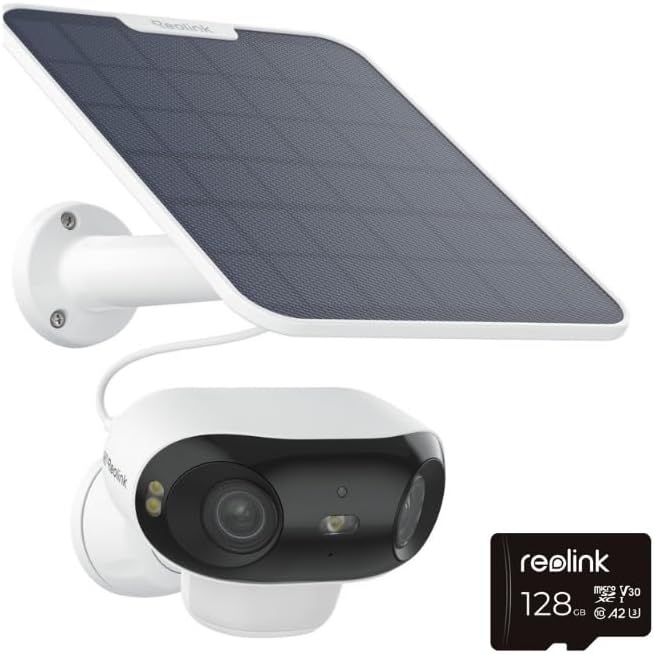
How to Set Up Reolink Argus 4 Pro With Color Night Vision
- Charge Camera
- Pair in Reolink App
- Mount and Aim
- Enable Color Night
- Verify at Night
Most users complete this in under 45 minutes
Overview
The Argus 4 Pro delivers 4K with color night vision using a spotlight or low-light sensor. This guide powers up the camera, onboards it to Reolink app, and tunes color night vision for clean footage.
Why This Happens in Real Homes
The Argus 4 Pro delivers 4K with color night vision using a spotlight or low-light sensor. This guide powers up the camera, onboards it to Reolink app, and tunes color night vision for clean footage. In day-to-day use, this usually looks like Argus 4 Pro in hand; Reolink app installed; 2.4GHz WiFi available.
Most cases trace back to Spotlight bright washes scene; Color night disabled by default; Battery not fully charged. The fix works best when you go step by step instead of changing multiple settings at once.
A practical order for this issue is: Charge Camera -> Pair in Reolink App -> Mount and Aim -> Enable Color Night. After each step, test the exact behavior that was failing so you can confirm what actually solved it.
What's Included
- Argus 4 Pro in hand
- Reolink app installed
- 2.4GHz WiFi available
- Outdoor mount location chosen
- MicroSD card optional
- Mild weather install day
Got your materials ready? Here's what to check first.
Before You Start
- Spotlight bright washes scene
- Color night disabled by default
- Battery not fully charged
- WiFi weak at mount point
- Motion zones too wide
- App region mismatch
Don't skip this step — it breaks everything if you do
Do not aim the camera across reflective surfaces. Reflected spotlight causes strobing during color night recording.
Tools & Requirements
These tools will help you complete this fix.

Drill
DEWALT 20V MAX Cordless Drill and Impact Driver, Pow...

Phillips screwdriver
Klein Tools 85076 Screwdriver Set, Made in USA, Slot...

microsd card optional
SANDISK 128GB Ultra microSDXC UHS-I Memory Card with...
As an Amazon Associate we earn from qualifying purchases.
Installation Steps
Charge Camera
Charge the Argus 4 Pro battery to 100 percent before mounting. A full battery gives smoother firmware updates and setup without cutoffs.
Pair in Reolink App
Open the Reolink app, add device, and scan the QR on the camera. Join your 2.4GHz WiFi. Allow any firmware update to complete before mounting.
Mount and Aim
Mount the camera using the supplied bracket. Aim the lens at your target. Walk the scene to confirm motion zones and triggers align with real traffic.
Enable Color Night
Open camera settings and set night vision to Color. Adjust spotlight brightness to mid range. Too bright washes detail; too dim reverts to grayscale.
Verify at Night
Wait for dusk and review live view. Confirm color night captures faces and plates without glare. Fine tune spotlight brightness over a few nights.
Installation Tips
Still stuck? This is usually the deeper cause below.
Add a microSD card for local clips. Local storage survives brief internet outages and speeds playback.
Before you go — these Reolink guides fix most remaining issues.
Most popular upgrades chosen by Reolink Argus 4 Pro owners.

REOLINK 4K Dual-Lens 180° Outdoor Wireless Security Camer...

REOLINK Argus 4 Pro 4K Solar Security Cameras Wireless Ou...

REOLINK Argus 4 Pro Black, 4K Dual-Lens 180° Solar Securi...
As an Amazon Associate we earn from qualifying purchases.
Official Manufacturer Manual
Reolink provides official product documentation through their online manual rather than downloadable PDF. Access setup guides, troubleshooting steps, and product specifications for your Reolink Argus 4 Pro.
Source: reolink.com
Need More Help? Reolink Support
Note: The contact information below connects you directly to Reolink's official customer support team, not Trunetto. They can help with warranty claims, device replacements, and advanced technical issues.