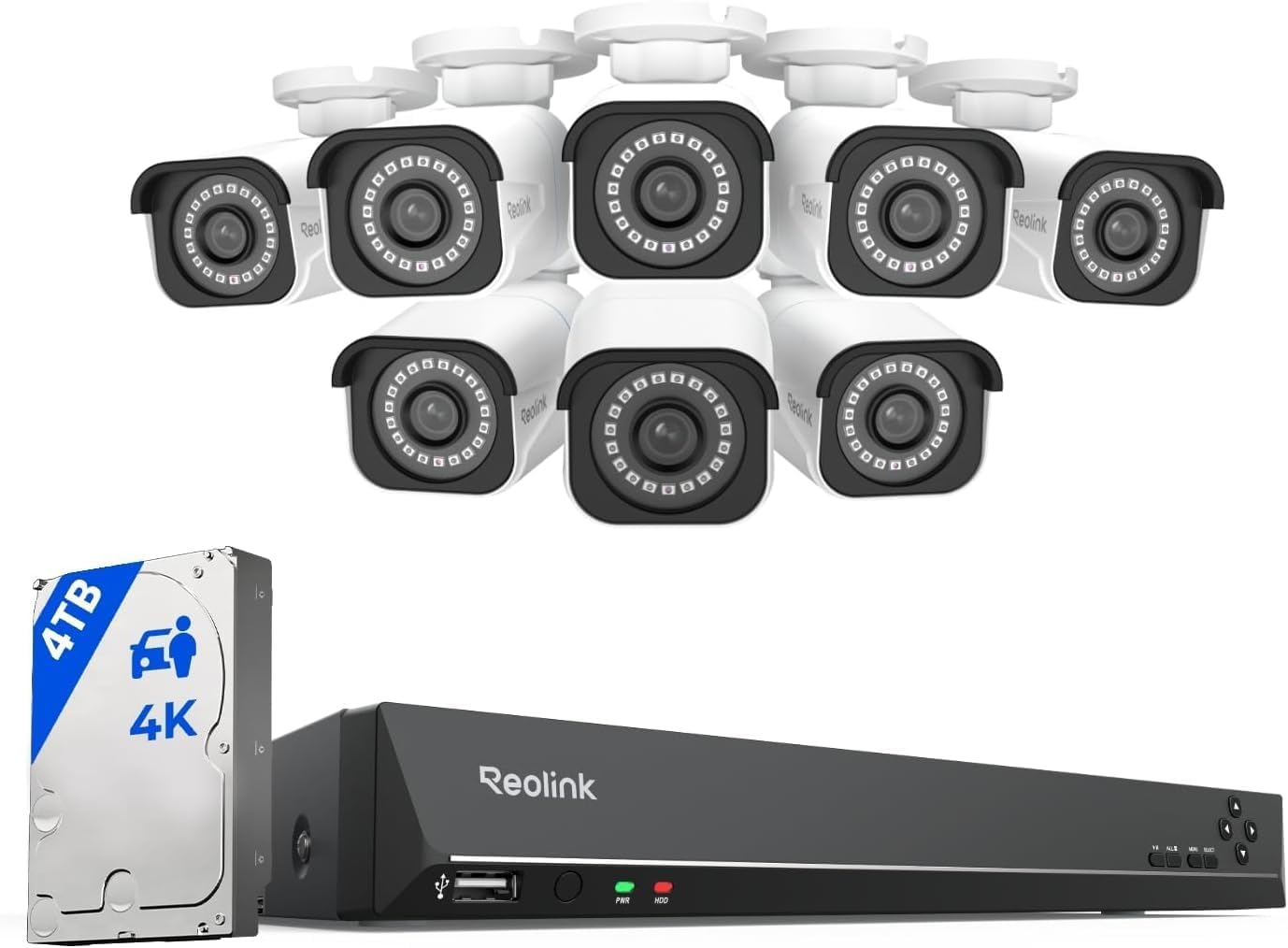
Why Won't My Reolink PoE Camera Show Up on the NVR?
- Ethernet cable damaged or not wired correctly for PoE
- Ethernet cable too long exceeding 100 meter PoE limit
- NVR PoE port damaged or not providing sufficient power
Problem Description
Your Reolink PoE camera is connected to the NVR via Ethernet but the NVR does not detect or display the camera. The channel shows No Video or black screen. PoE detection failures are typically caused by cable issues incompatible firmware or insufficient power from the NVR PoE ports.
Symptoms
- NVR channel shows No Video for connected camera
- PoE port LED on NVR does not light up when camera plugged in
- Camera appears briefly then disappears from NVR
- NVR detects camera but shows wrong resolution or error
- Camera works on one NVR port but not another
- Camera worked previously but stopped after firmware update
Recognize these? Here's what usually causes it.
Common Causes
- Ethernet cable damaged or not wired correctly for PoE
- Ethernet cable too long exceeding 100 meter PoE limit
- NVR PoE port damaged or not providing sufficient power
- Camera firmware incompatible with NVR firmware version
- Camera previously configured with different NVR password
- NVR has reached maximum camera capacity
Most fixes happen in the first 3 steps.
Never use flat Ethernet cables for PoE installations. Flat cables have thinner conductors that cannot reliably carry PoE power over 30 feet causing dropouts and potential overheating.
Tools & Requirements
These tools will help you complete this fix.
As an Amazon Associate we earn from qualifying purchases.
Step-by-Step Solution
Check Physical Connection
Verify Ethernet cable is firmly plugged into both camera and NVR port. Check the NVR PoE LED. If off try a different port. Inspect connectors for bent or broken pins. PoE requires all 8 wires so a cable that works for networking may still fail for PoE.

Needed for this step
Jadaol Cat 6 Ethernet Cable 25 ft, 10Gbps Suppo...
This helps complete the fix you are currently reading.
$9.99Test with Different Cable
Replace with a known-good Cat5e or Cat6 cable. Cable quality is the top cause of PoE detection failures. Store-bought cables are more reliable than hand-crimped ones. For runs over 100 meters use a PoE extender midway.
Reset Camera to Factory Defaults
Press and hold the camera reset button for 15 seconds. After reset the camera returns to factory default credentials matching the NVR default password. The NVR should detect and add the camera within 60 seconds.
Update Firmware on Both Devices
Firmware mismatches cause detection failures. Check both NVR and camera firmware versions and update to latest from Reolink support site. After updating reboot both and allow 2 minutes for detection.
Verify NVR Capacity
Check your NVR model max camera count. An 8-channel NVR only manages 8 cameras. Delete any removed cameras from the channel list to free slots for new cameras.
Quick Solutions
Still having issues? This is usually the deeper cause below.
Camera issues that start suddenly almost always trace back to an upload bandwidth drop — run a speed test before assuming hardware failure.
Label each Ethernet cable at both ends with camera name and NVR port number during installation. This saves enormous troubleshooting time when a camera goes offline months later.
Live view problems that start suddenly usually trace back to an upload speed drop — the camera itself is fine, the bandwidth path to the cloud isn't.
- Ethernet cable damaged or not wired correctly for PoE
- Ethernet cable too long exceeding 100 meter PoE limit
- NVR PoE port damaged or not providing sufficient power
- Camera firmware incompatible with NVR firmware version
- Camera previously configured with different NVR password
Before you go — try one of these (they fix most cases).
Most popular upgrades chosen by Reolink PoE Camera and NVR owners.

REOLINK Home Hub Pro with 2X TrackMix WiFi Bundle, 4K PTZ...

REOLINK 4K Dual-Lens Solar Security Cameras Wireless Outd...
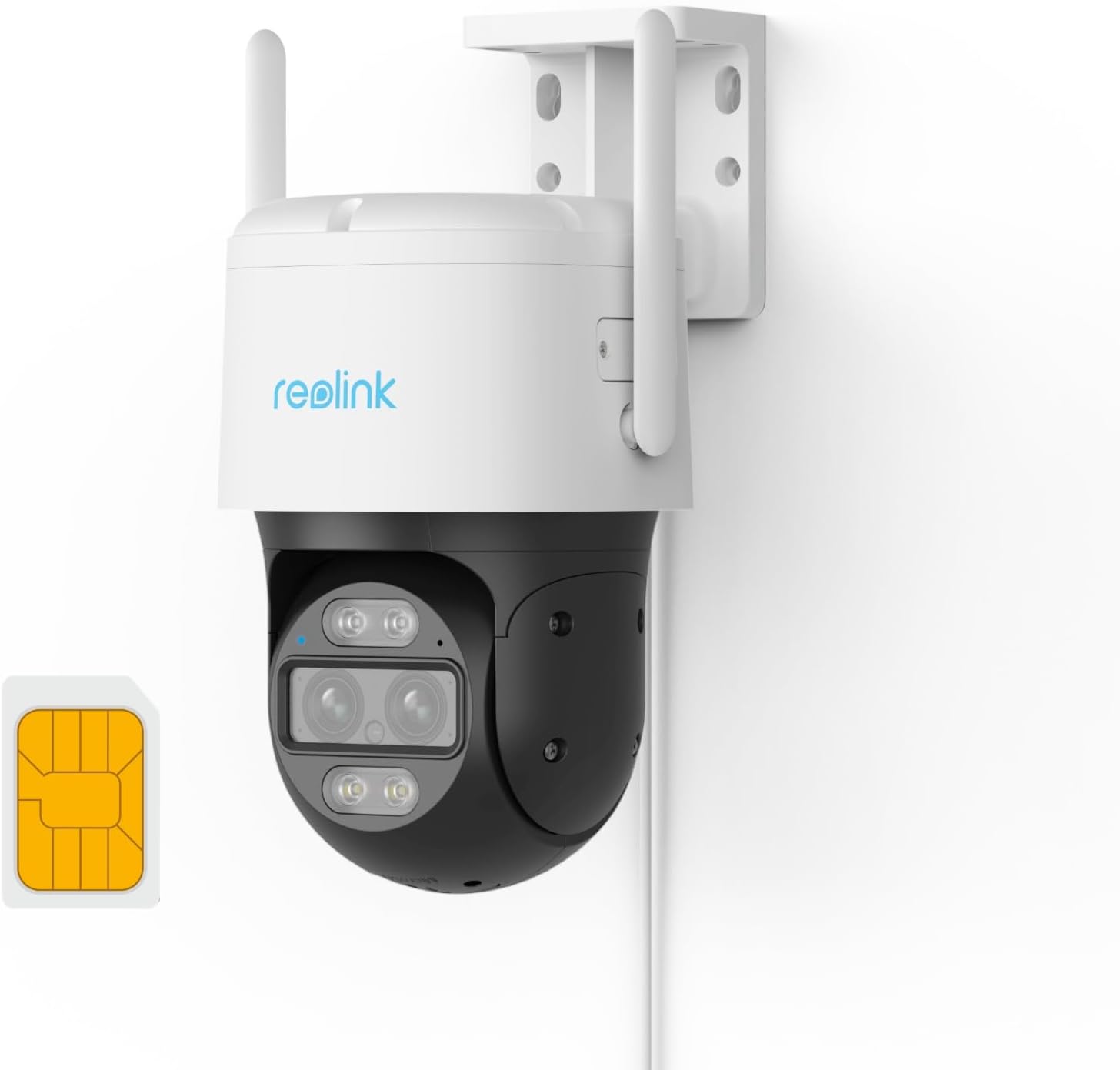
REOLINK Wired 4G LTE Cellular Security Camera Outdoor, PT...
As an Amazon Associate we earn from qualifying purchases.
Official Manufacturer Manual
Reolink provides official product documentation through their online manual rather than downloadable PDF. Access setup guides, troubleshooting steps, and product specifications for your Reolink PoE Camera and NVR.
Source: reolink.com
Need More Help? Reolink Support
Note: The contact information below connects you directly to Reolink's official customer support team, not Trunetto. They can help with warranty claims, device replacements, and advanced technical issues.