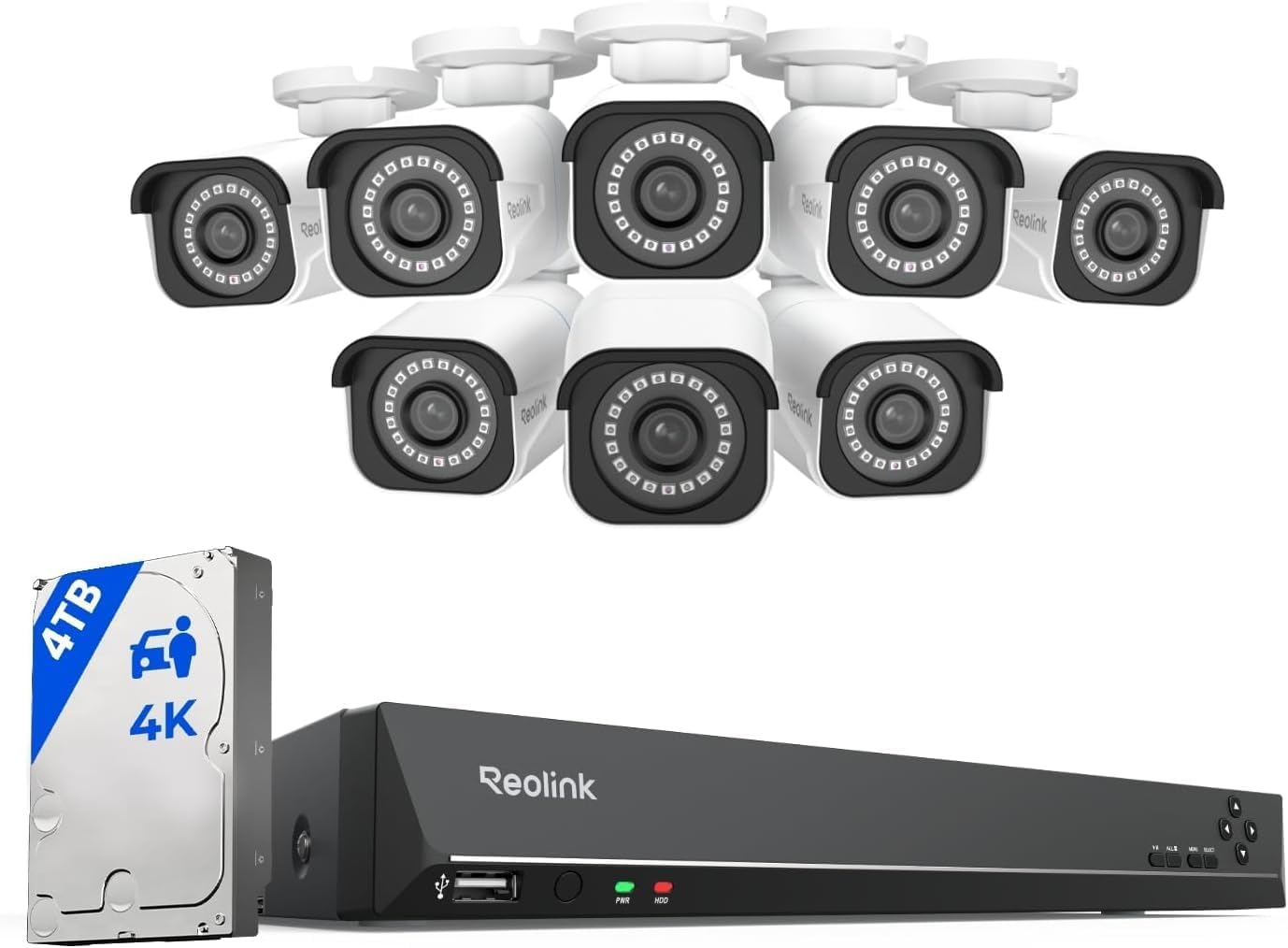
Why Are My Reolink Camera Recordings Missing or Have Gaps
- SD card full and not set to overwrite oldest files
- SD card failing or corrupted causing write errors
- NVR recording schedule not set to 24/7 continuous
Problem Description
Your Reolink camera has gaps in its recordings where hours or even days of footage are missing. You check the playback timeline and find empty stretches where there should be continuous recording. This defeats the purpose of having a security camera because the missing footage could contain the exact event you need. The cause depends on whether you are recording to an NVR local SD card or Reolink cloud and each has a different fix.
Why This Happens in Real Homes
Your Reolink camera has gaps in its recordings where hours or even days of footage are missing. You check the playback timeline and find empty stretches where there should be continuous recording. This defeats the purpose of having a security camera because th.. In real usage this appears as Playback timeline shows empty gaps with no recordings, Continuous recording has random hours missing each day, and Motion events recorded but continuous recording stops
The pattern in this case points to SD card full and not set to overwrite oldest files, SD card failing or corrupted causing write errors, and NVR recording schedule not set to 24/7 continuous. The repair usually holds when done in order: Check Recording Mode, then Check SD Card Health, then Enable Loop Recording. After applying the fix, validate behavior with repeated command tests and at least one full automation cycle to confirm stability.
Symptoms
- Playback timeline shows empty gaps with no recordings
- Continuous recording has random hours missing each day
- Motion events recorded but continuous recording stops
- Camera is online but nothing is being recorded
- SD card shows much less footage than expected
- NVR shows camera connected but no recording icon
Recognize these? Here's what usually causes it.
Common Causes
- SD card full and not set to overwrite oldest files
- SD card failing or corrupted causing write errors
- NVR recording schedule not set to 24/7 continuous
- Camera motion detection set instead of continuous record
- Network bandwidth insufficient for NVR recording
- Camera firmware bug causing recording to silently stop
Most fixes happen in the first 3 steps.
Formatting the SD card or enabling overwrite erases all existing recordings permanently. Download any important clips before formatting. For NVR recordings back up critical footage to a USB drive before making changes to the recording schedule.
Tools & Requirements
These tools will help you complete this fix.

As an Amazon Associate we earn from qualifying purchases.
Step-by-Step Solution
Confirm recording mode and schedule coverage
Review whether the camera is set to continuous, motion-only, or scheduled recording, because schedule windows and event filters often explain apparent timeline gaps.
Check storage health and overwrite behavior
Inspect SD/NVR capacity, file system status, and overwrite settings, since full or unstable storage media can silently drop segments without clear front-end errors.
Audit network stability during missing intervals
Correlate missing timestamps with WiFi/Ethernet interruptions and upstream outages, because packet loss during upload or stream write can create timeline holes.
Review motion zones and sensitivity thresholds
If using event recording, adjust zones and sensitivity to avoid under-triggering, because narrow zones and conservative thresholds frequently miss real activity.
Retest with controlled movement across zone boundaries
Run a timed walk test and compare expected event windows against saved clips, so you can verify whether gaps come from trigger logic, storage, or network path.
Quick Solutions
Still having issues? This is usually the deeper cause below.
Camera issues that start suddenly almost always trace back to an upload bandwidth drop — run a speed test before assuming hardware failure.
Set up email alerts in the Reolink app for storage errors and camera disconnections. This way you learn about recording issues immediately rather than discovering missing footage days or weeks later when you actually need it.
Live view problems that start suddenly usually trace back to an upload speed drop — the camera itself is fine, the bandwidth path to the cloud isn't.
- SD card full and not set to overwrite oldest
- SD card failing or corrupted causing write errors
- NVR recording schedule not set to 24/7 continuous
- Camera motion detection set instead of continuous record
- Network bandwidth insufficient for NVR recording
Before you go — try one of these (they fix most cases).
Most popular upgrades chosen by Reolink Security Camera owners.

REOLINK 4K Dual-Lens Solar Security Cameras Wireless Outd...
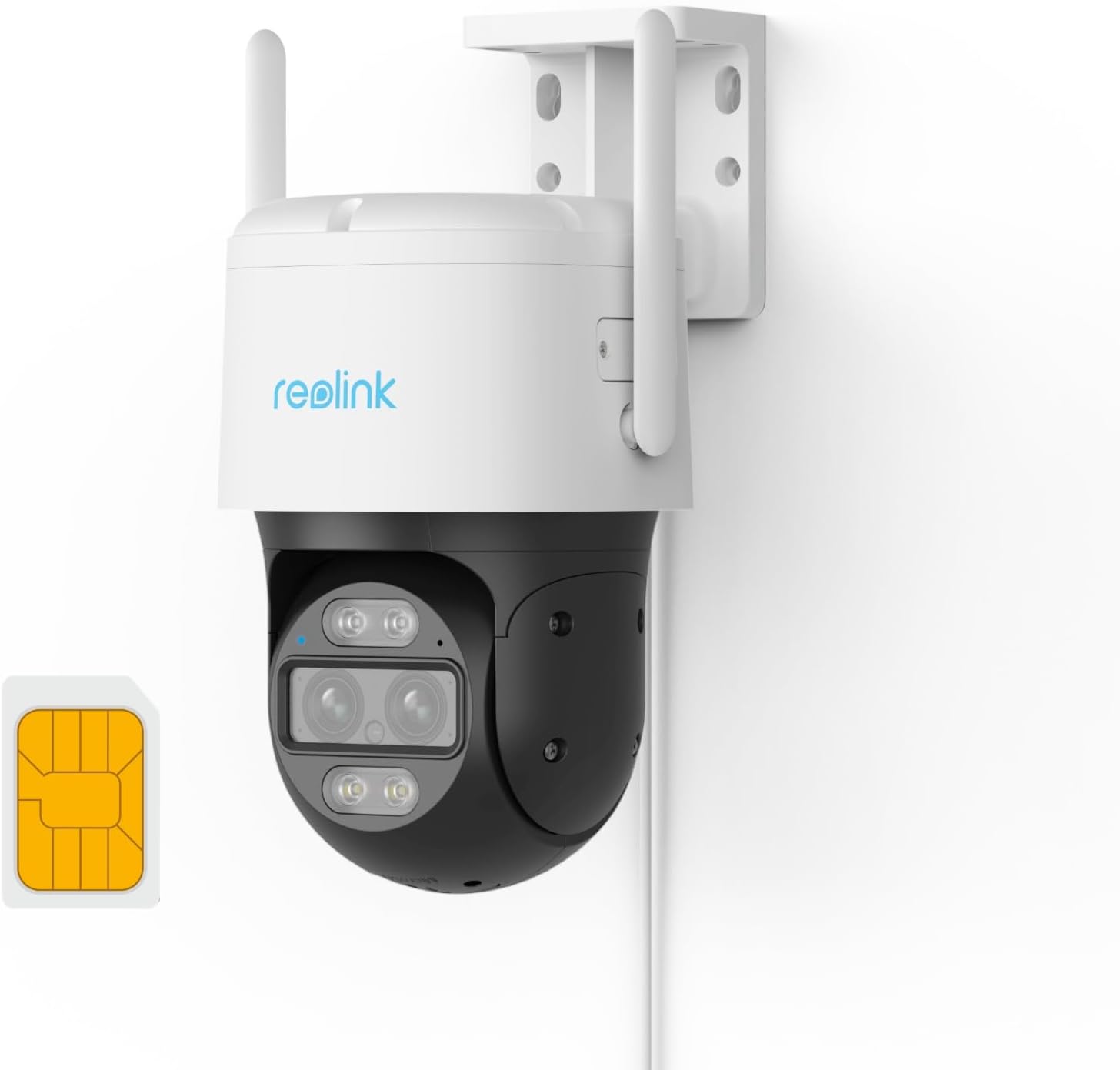
REOLINK Wired 4G LTE Cellular Security Camera Outdoor, PT...

REOLINK Solar Floodlight Cam, 2K 150° Security Cameras Wi...
As an Amazon Associate we earn from qualifying purchases.
Official Manufacturer Manual
Reolink provides official product documentation through their online manual rather than downloadable PDF. Access setup guides, troubleshooting steps, and product specifications for your Reolink Security Camera.
Source: reolink.com
Need More Help? Reolink Support
Note: The contact information below connects you directly to Reolink's official customer support team, not Trunetto. They can help with warranty claims, device replacements, and advanced technical issues.
Accessories owners commonly pair with Reolink Security Camera.

SANDISK 64GB Extreme microSDXC UHS-I Memory Card with Ada...

SANDISK 128GB Ultra microSDXC UHS-I Memory Card with Adap...

SANDISK 64GB Ultra microSDXC UHS-I Memory Card with Adapt...
As an Amazon Associate we earn from qualifying purchases.