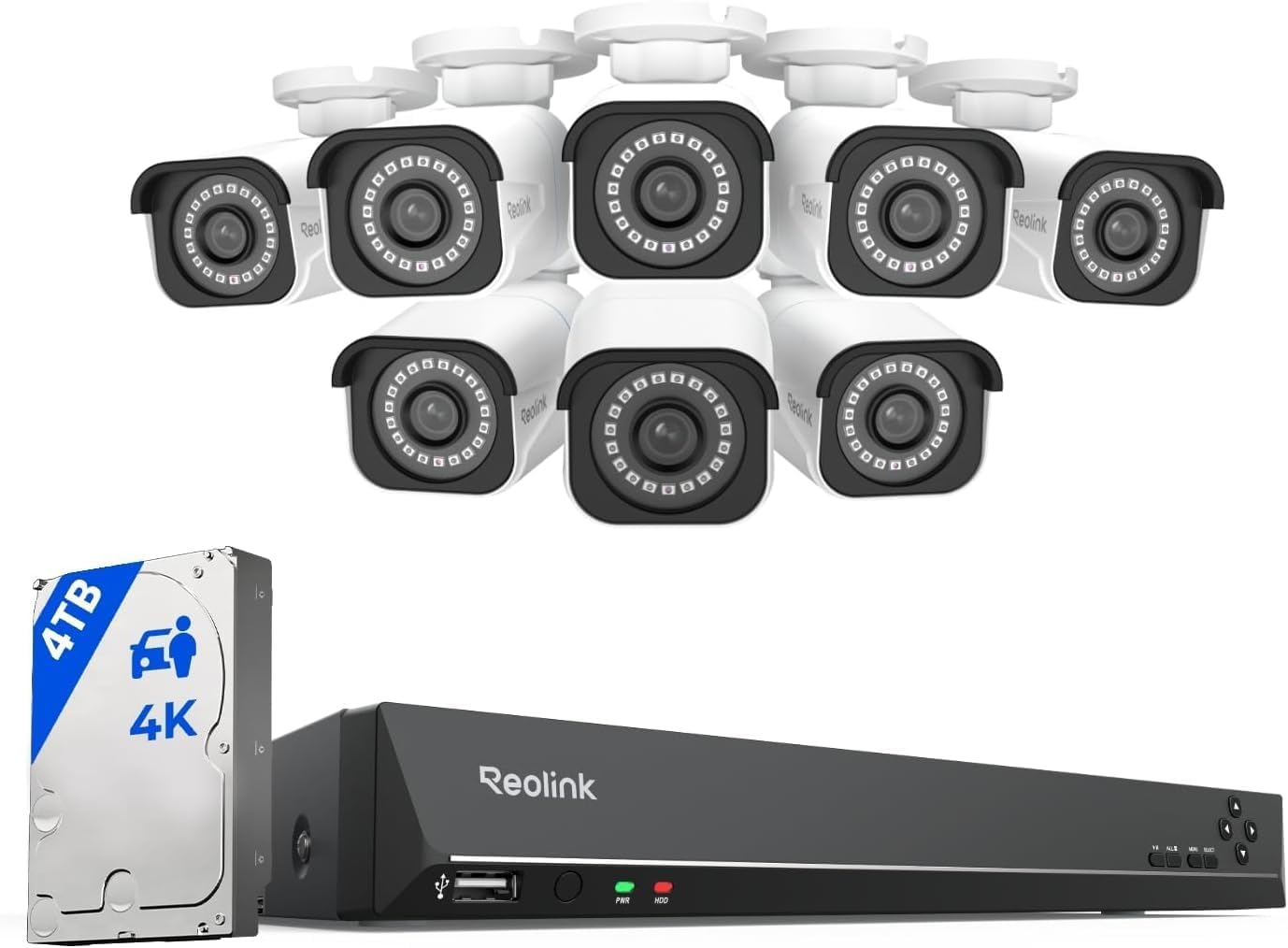
Why Does My Reolink Camera Keep Going Offline Every Night
- Evening WiFi congestion from streaming and gaming
- Night vision IR LEDs increasing power draw on battery
- Router auto-channel switching during low usage hours
Problem Description
Your Reolink camera goes offline every evening or night and comes back in the morning. The pattern repeats daily. WiFi cameras are most affected. The camera works fine during the day but disconnects around the same time each night. This is usually caused by WiFi congestion during peak evening hours or the camera switching to night vision mode which draws more power and causes WiFi instability.
Symptoms
- Camera goes offline every evening around same time
- Morning recordings missing from overnight hours
- Camera reconnects by morning automatically
- Live view fails at night but works during day
- Motion alerts stop coming at night
- WiFi cameras affected but PoE cameras fine
Recognize these? Here's what usually causes it.
Common Causes
- Evening WiFi congestion from streaming and gaming
- Night vision IR LEDs increasing power draw on battery
- Router auto-channel switching during low usage hours
- ISP bandwidth throttling at peak hours
- Camera power supply insufficient for night mode
- 2.4GHz interference from neighbor networks at night
Most fixes happen in the first 3 steps.
Do not place WiFi extenders in the garage or outdoors where temperatures fluctuate. Extreme heat and cold degrade WiFi extender performance and lifespan.
Tools & Requirements
Step-by-Step Solution
Check WiFi Congestion
Use a WiFi analyzer app on your phone to scan 2.4GHz channels at the time the camera drops. Evening hours bring heavy WiFi usage from neighbors. If your channel is congested switch to the least used channel in router settings. Channels 1 6 and 11 are the only non-overlapping 2.4GHz channels.
Set Fixed Channel
If your router is set to auto-channel it may switch channels at night when traffic patterns change. The camera loses connection during the switch. Set 2.4GHz to a fixed channel and 5GHz to a fixed channel. This prevents the camera from disconnecting during channel changes.
Check Power Supply
Battery cameras draw more power at night with IR LEDs on. If battery is below 20 percent the camera may shut down WiFi to conserve power. Charge fully or add a Reolink solar panel. For wired cameras check that the power adapter outputs the correct voltage for your model.
Move Camera or Add Extender
WiFi signal may be marginal and tips over the edge during evening congestion. Move the camera closer to the router or add a WiFi extender midway. In the Reolink app check WiFi signal strength under device settings. Below 50 percent signal is unreliable.
Switch to Wired
If your Reolink model supports PoE running an ethernet cable eliminates WiFi issues entirely. PoE provides both power and data over one cable. This is the most reliable solution for cameras that go offline due to WiFi problems. Reolink NVR systems with PoE are rock solid.
Quick Solutions
Still having issues? This is usually the deeper cause below.
This usually happens right after a router reboot or ISP change — the device rejoins the network but drops its cloud session silently.
If switching to PoE is not possible consider a powerline ethernet adapter. Plug one into an outlet near your router and one near the camera. Run a short ethernet cable from the adapter to the camera. This provides a wired connection without running cables through walls.
Most WiFi drop-offs happen right after a router reboot or ISP swap — the device reconnects to the network but silently loses its cloud registration.
- Evening WiFi congestion from streaming and gaming
- Night vision IR LEDs increasing power draw on battery
- Router auto-channel switching during low usage hours
- ISP bandwidth throttling at peak hours
- Camera power supply insufficient for night mode
Before you go — try one of these (they fix most cases).
Most popular upgrades chosen by Reolink Security Camera owners.

REOLINK 4K Dual-Lens Solar Security Cameras Wireless Outd...
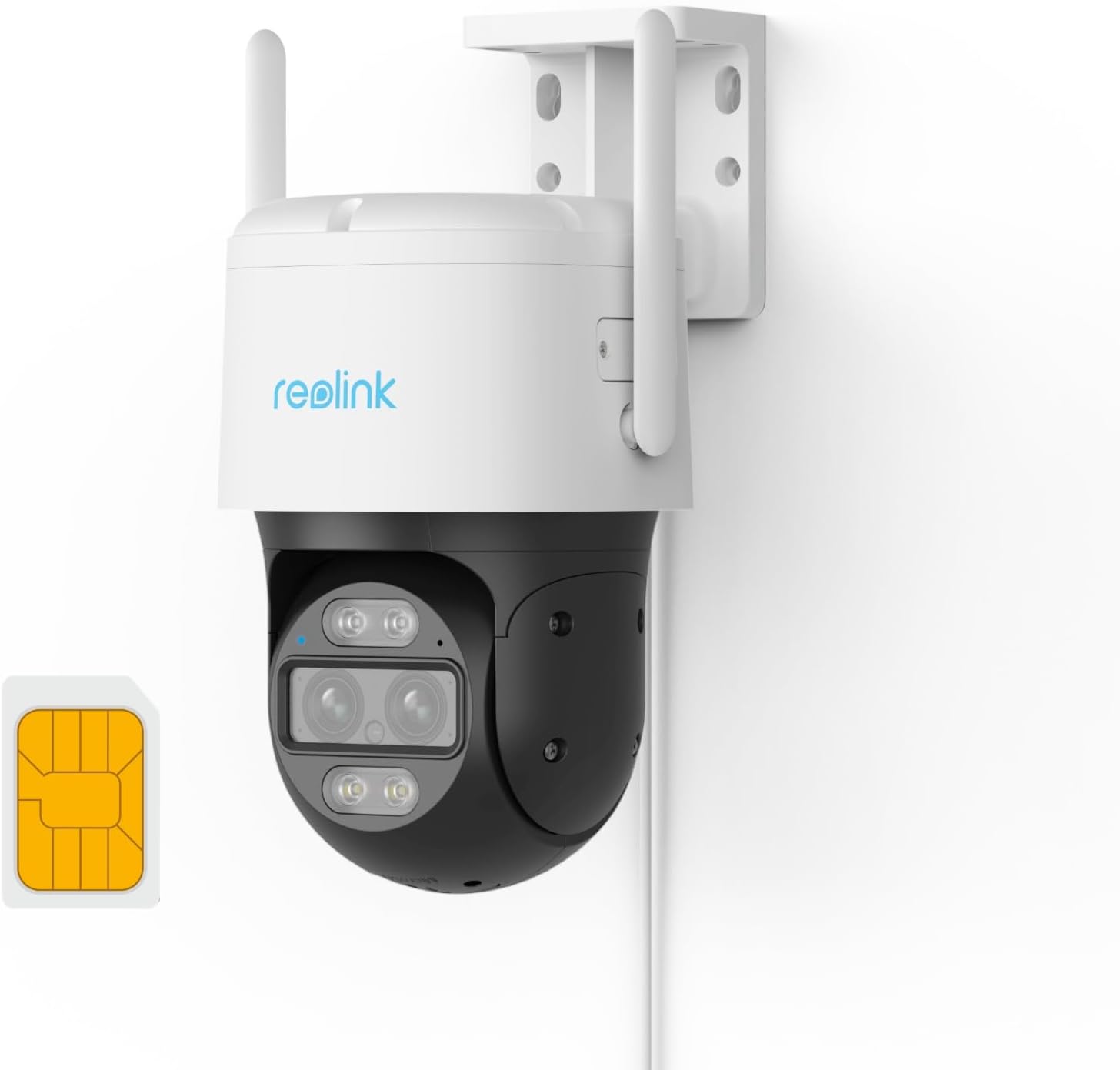
REOLINK Wired 4G LTE Cellular Security Camera Outdoor, PT...

REOLINK Solar Floodlight Cam, 2K 150° Security Cameras Wi...
As an Amazon Associate we earn from qualifying purchases.
Official Manufacturer Manual
Reolink provides official product documentation through their online manual rather than downloadable PDF. Access setup guides, troubleshooting steps, and product specifications for your Reolink Security Camera.
Source: reolink.com
Need More Help? Reolink Support
Note: The contact information below connects you directly to Reolink's official customer support team, not Trunetto. They can help with warranty claims, device replacements, and advanced technical issues.