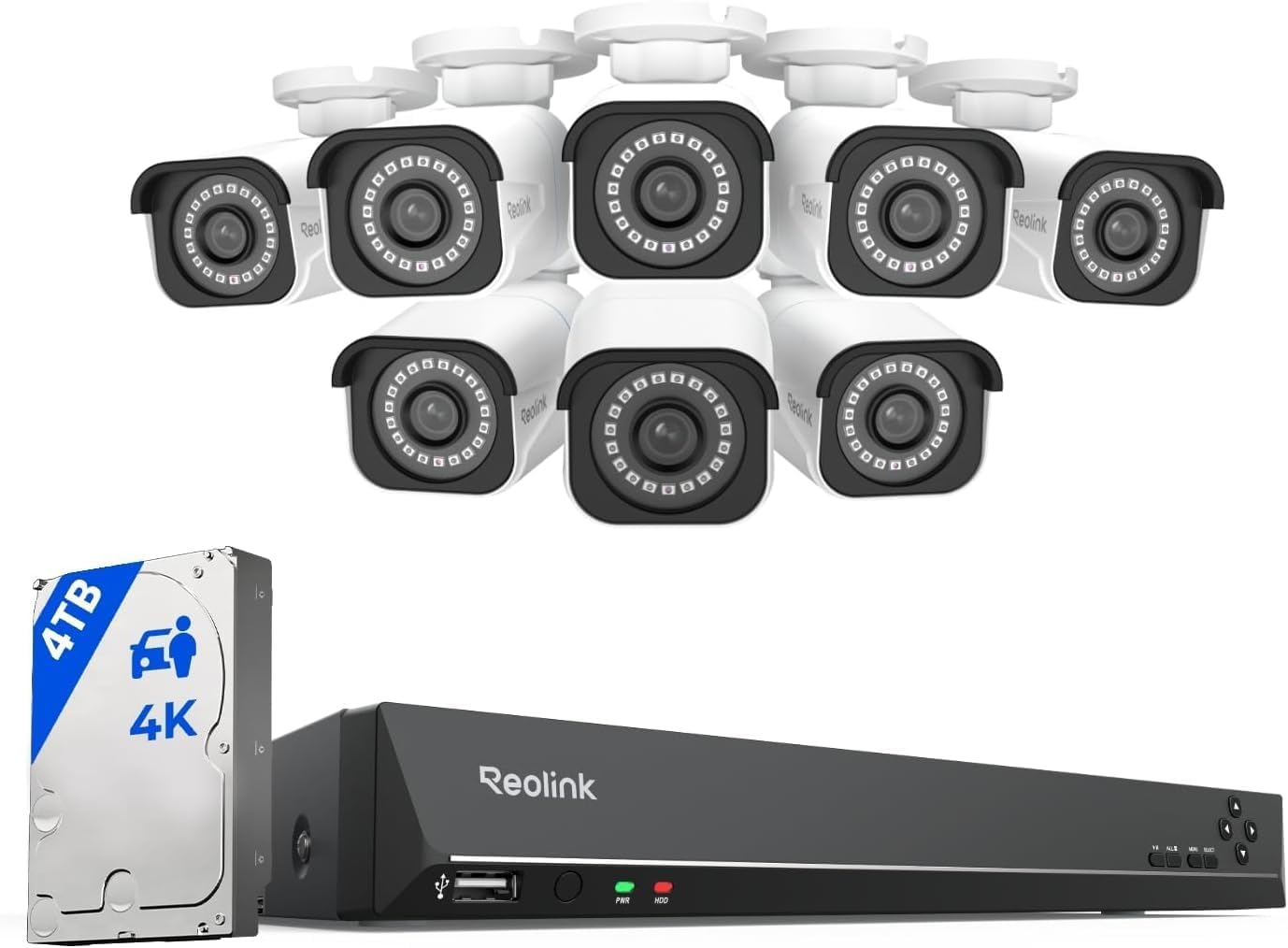
Why Won't My Reolink Camera Add to the App or Scan the QR Code?
- Camera on a 5GHz-only network during setup
- Camera not reset into pairing mode
- Phone screen brightness too low to scan the QR
Problem Description
Your Reolink camera won't add to the Reolink app - the QR code won't scan, the camera never plays its connection tone, or setup fails partway. This is usually a network-band, QR-display, or camera-state issue during pairing.
Why This Happens in Real Homes
Most Reolink add-to-app failures come down to two things: the network band and the camera state. Reolink WiFi cameras pair on 2.4GHz, so a phone sitting on a 5GHz-only network - or a router that band-steers everything onto 5GHz - fails the WiFi step every time. And a camera that isn't freshly reset simply isn't listening for a new setup, so it never scans the QR or plays its tone.
Get the phone onto a 2.4GHz network, reset the camera into pairing mode, and when the QR appears, hold the phone steady at full brightness about 8-12 inches from the lens. Enter the WiFi password carefully, do the pairing close to the router, and relocate the camera afterward. For PoE cameras, adding by Ethernet and UID sidesteps WiFi entirely.
Symptoms
- QR code on the phone won't scan
- Camera never says it's ready to connect
- Setup fails at the WiFi step
- App can't find the camera
- Stuck on connecting or scanning
- Wrong WiFi password error during pairing
- Setup works then the camera drops off
- Camera not in pairing mode
Recognize these? Here's what usually causes it.
Common Causes
- Camera on a 5GHz-only network during setup
- Camera not reset into pairing mode
- Phone screen brightness too low to scan the QR
- QR held too close or too far from the lens
- Wrong WiFi password or special characters
- Router band-steering or AP isolation on
- Camera too far from the router during setup
- Outdated app blocking the add flow
Most fixes happen in the first 3 steps.
If no method adds a freshly-reset camera on a 2.4GHz network next to the router, the camera may be faulty - contact Reolink before assuming a network problem.
Tools & Requirements
Step-by-Step Solution
Use a 2.4GHz Network
During WiFi setup, connect your phone to a 2.4GHz network, not 5GHz. Most Reolink WiFi cameras join 2.4GHz for pairing (dual-band models included), and trying to add them on a 5GHz-only network is a top reason setup fails.
Put the Camera in Pairing Mode
The camera must be ready to connect before it will scan the QR. Hold the reset button (behind the battery cover on Argus/Go, or on the pigtail/body of PoE cameras) until it announces it's ready or resets, so it re-enters pairing mode and plays its setup tone.
Fix the QR Scan
When the app shows a QR code for the camera to scan, raise your phone's screen brightness fully, hold the phone flat and steady about 8-12 inches from the lens, and give the camera a second to focus. Too close, too far, or a dim screen all stop the scan.
Enter the WiFi Password Carefully
A wrong password or an unsupported special character makes setup fail right after the QR step. Re-type the password, watch for autocorrect, and avoid characters your router uses that the camera may not accept.
Turn Off Band-Steering and AP Isolation
Routers that merge 2.4 and 5GHz under one name (band-steering) can push the camera to 5GHz and fail the join. Temporarily create a separate 2.4GHz-only SSID, and disable AP or client isolation, which blocks the phone from finding the camera.
Set Up Close to the Router
Do the initial pairing within a few feet of the router so the camera gets a strong signal to complete setup, then move it to its final spot. A weak signal during pairing causes it to connect then immediately drop.
Update or Reinstall the App
An outdated Reolink app can break the add flow. Update the app, and if the add button or QR step misbehaves, reinstall it and try again with the camera freshly reset.
Try Wired or UID Add
For PoE cameras, connect the camera to the same network by Ethernet and add it by UID instead of QR - the app finds it on the LAN. If no method adds a reset camera on a 2.4GHz network close to the router, contact Reolink.
Quick Solutions
Still having issues? This is usually the deeper cause below.
Camera issues that start suddenly almost always trace back to an upload bandwidth drop — run a speed test before assuming hardware failure.
Do the whole setup on a 2.4GHz SSID close to the router - band-steering and 5GHz-only networks are the top reasons a Reolink camera won't add.
Live view problems that start suddenly usually trace back to an upload speed drop — the camera itself is fine, the bandwidth path to the cloud isn't.
- Camera on a 5GHz-only network during setup
- Camera not reset into pairing mode
- Phone screen brightness too low to scan the QR
- QR held too close or too far from the
- Wrong WiFi password or special characters
Before you go — try one of these (they fix most cases).
Most popular upgrades chosen by Reolink Camera owners.

REOLINK Home Hub Pro with 2X TrackMix WiFi Bundle, 4K PTZ...

REOLINK 4K Dual-Lens Solar Security Cameras Wireless Outd...
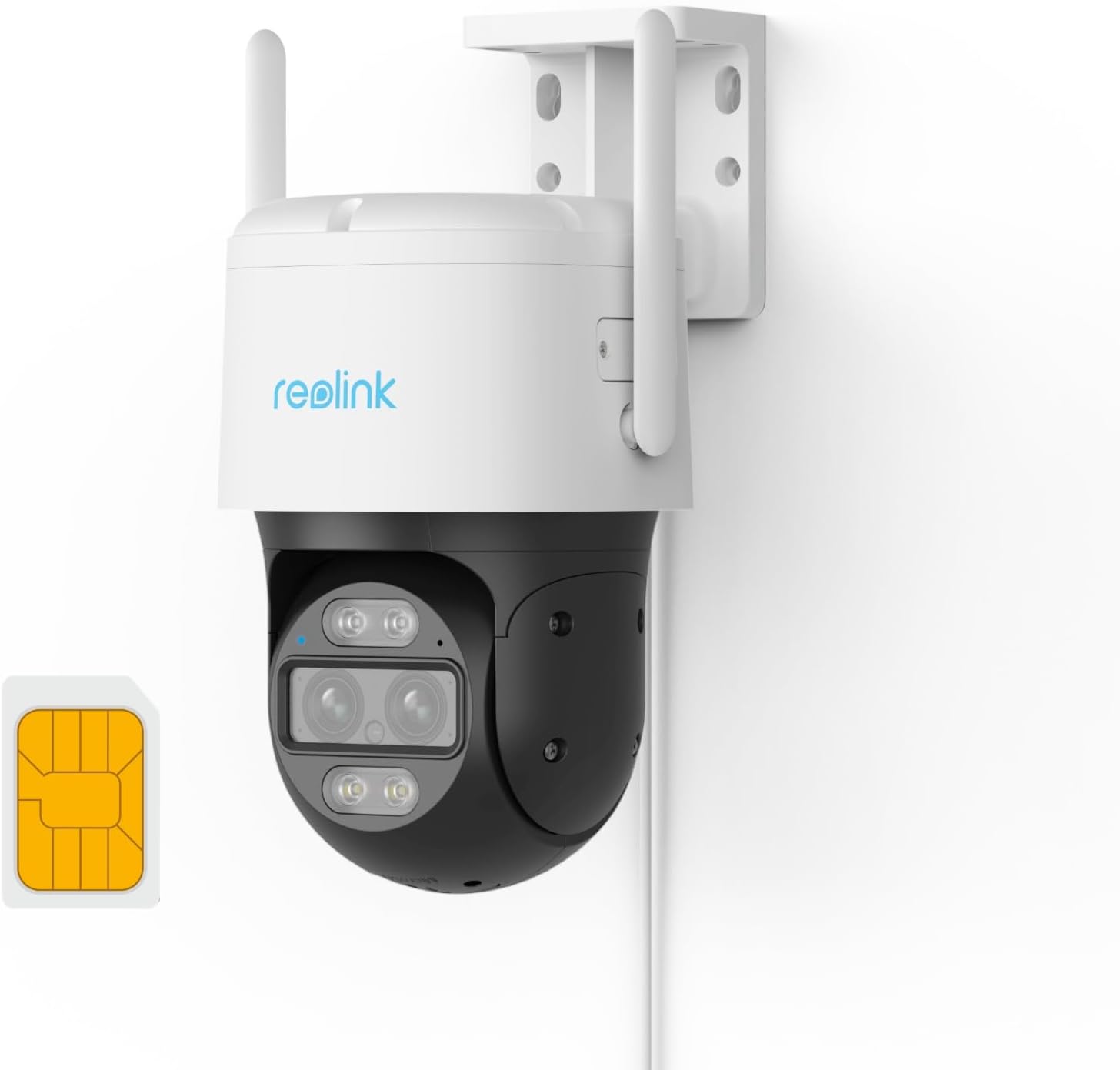
REOLINK Wired 4G LTE Cellular Security Camera Outdoor, PT...
As an Amazon Associate we earn from qualifying purchases.
Official Manufacturer Manual
Reolink provides official product documentation through their online manual rather than downloadable PDF. Access setup guides, troubleshooting steps, and product specifications for your Reolink Camera.
Source: reolink.com
Need More Help? Reolink Support
Note: The contact information below connects you directly to Reolink's official customer support team, not Trunetto. They can help with warranty claims, device replacements, and advanced technical issues.