

How Do I Factory Reset My Lutron?
- Corrupted pairing state
- Network change without re-provision
- Hub migration incomplete
Problem Description
Lutron devices or hub are stuck, unresponsive, or impossible to re-pair. This guide shows when and how to factory reset safely and rejoin your setup.
Why This Happens in Real Homes
A Lutron factory reset is for a corrupted pairing state or moving to a new network/account — it clears the device's association so you re-add it. The method differs by device (a Bridge button hold, or a tap sequence on a dimmer).
Start by knowing what you're resetting: a Smart Bridge reset wipes all device associations and settings (you rebuild the system), while resetting a single dimmer or Pico just unpairs that device. Use the device-specific sequence (e.g., hold the Bridge button about 10 seconds, or the documented tap pattern on a dimmer), then re-add it in the app.
Symptoms
- Lutron device not responding to app
- Cannot pair dimmer/switch
- Hub sees device as unavailable
- Random disconnects after firmware updates
- Scenes no longer trigger
- Device stuck in old room/config
Recognize these? Here's what usually causes it.
Common Causes
- Corrupted pairing state
- Network change without re-provision
- Hub migration incomplete
- Button sequence interrupted
- Legacy integration leftovers
- Firmware desync
Most fixes happen in the first 3 steps.
Hub-level resets can remove many scene/automation mappings. Export or document critical setup first.
Step-by-Step Solution
Confirm Whether Hub or Device Needs Reset
Reset only the failing component first. Full hub reset should be last resort.
Run Official Lutron Reset Sequence
Use exact button hold/tap sequence from Lutron docs for your model to enter reset mode.
Remove Stale Entry in Lutron App
Delete old device card before re-adding to prevent duplicate IDs and command failures.
Pair Again and Assign Room/Scenes
Re-add device, place it in correct room, and restore key scenes before testing voice assistants.
Update Firmware and Validate Stability
After re-pairing, update firmware and test local app control for at least 5 minutes.
Quick Solutions
Still having issues? This is usually the deeper cause below.
If this comes back after following these steps, check whether a recent app or firmware update reset a default setting — the fix works, but the setting gets reverted silently.
Reset only one Lutron component at a time so you can isolate root cause quickly.
This issue almost always looks more complex than it is — the majority of cases trace back to a single setting, a stale credential, or a default that shipped wrong.
- Corrupted pairing state
- Network change without re-provision
- Hub migration incomplete
- Button sequence interrupted
- Legacy integration leftovers
Before you go — try one of these (they fix most cases).
Most popular upgrades chosen by Lutron Smart Lighting owners.
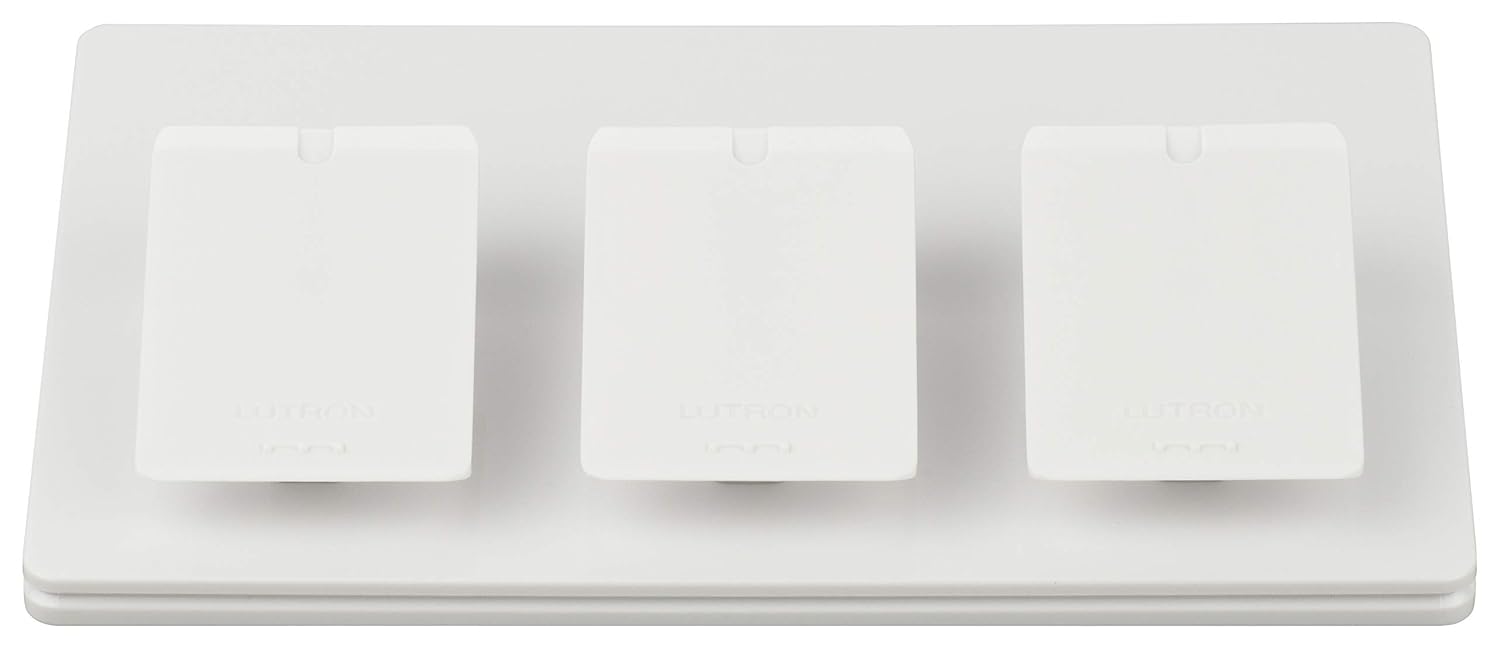
Lutron Caseta Smart Lighting Triple Pedestal for Pico Rem...

Lutron Caseta Smart Lighting Pedestal for Pico Remote, L-...

Lutron Outdoor Smart Plug for Caseta Smart Lighting, Summ...
As an Amazon Associate we earn from qualifying purchases.
Official Manufacturer Manual
Lutron provides official product documentation through their online manual rather than downloadable PDF. Access setup guides, troubleshooting steps, and product specifications for your Lutron Smart Lighting.
Source: support.lutron.com
Need More Help? Lutron Support
Note: The contact information below connects you directly to Lutron's official customer support team, not Trunetto. They can help with warranty claims, device replacements, and advanced technical issues.
Accessories owners commonly pair with Lutron Smart Lighting.

Amazon Smart Plug, Works with Alexa, Simple Setup, Endles...

Ring Rechargeable Quick Release Battery Pack

Kasa Smart Plug HS103P2, Smart Home Wi-Fi Outlet Works wi...
As an Amazon Associate we earn from qualifying purchases.


