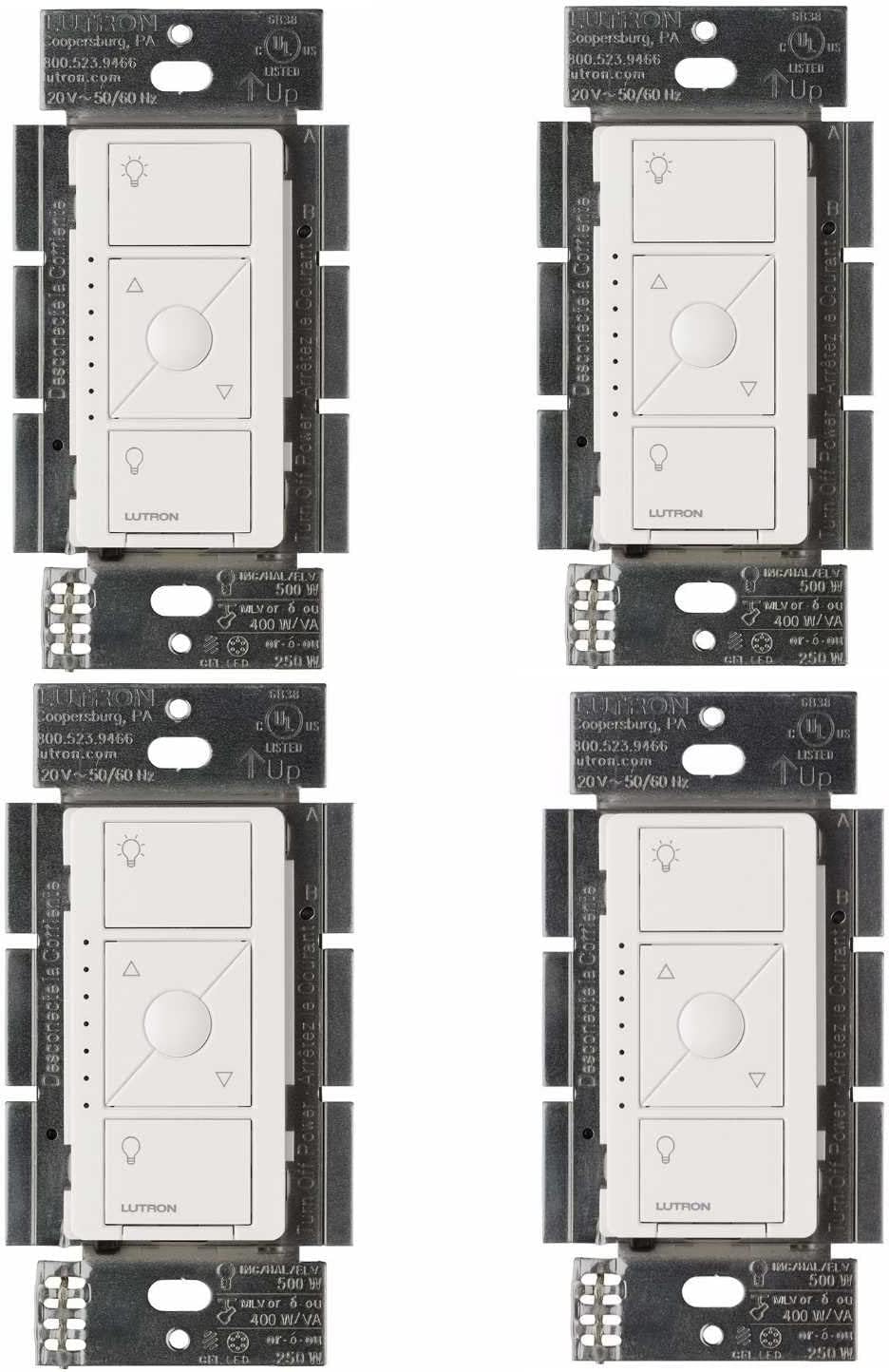
Why Is My Lutron Caseta Switch Not Responding?
- Smart Bridge offline (Ethernet/power)
- Bridge lost its router connection
- Device out of RF range of the Bridge
Problem Description
Your Lutron Caseta is not responding to commands from the app, voice assistants, or physical controls. The Caseta appears powered on but ignores inputs, which prevents you from controlling it remotely or through any smart home integration. Specifically, the issue involves switch not responding. The steps below walk you through diagnosing the root cause and applying proven fixes so your Caseta works reliably again.
Why This Happens in Real Homes
When Caseta stops responding, first isolate the layer: pressing the switch itself still works if it has power, the Pico controls it directly over Clear Connect RF, and app/voice control routes through the Smart Bridge. So app-and-voice failure points at the Bridge, while a single unresponsive device points at RF range or that device.
Start by checking the Smart Bridge is online (Ethernet connected, powered, LED normal) and power-cycling it and the router, then reserve a fixed IP. Confirm unresponsive devices are within RF range; for voice failures with the Bridge online, re-link the Alexa/Google skill.
Symptoms
- Not responding to app/voice/Pico
- Works at the switch only
- App control dead
- Voice control dead
- Intermittent response
- Whole system unresponsive
- Some devices work, some don't
- Offline in the app
Recognize these? Here's what usually causes it.
Common Causes
- Smart Bridge offline (Ethernet/power)
- Bridge lost its router connection
- Device out of RF range of the Bridge
- Router changed the Bridge's IP
- Pico battery low (local control)
- Firmware issue
- Interference
- Skill/account link lapsed (voice)
Most fixes happen in the first 3 steps.
Some LED bulbs require Lutron's ELV dimmer, not standard CL dimmer.
Step-by-Step Solution
Press the switch manually to check if it works at the wall
Go to the switch and press the ON button. If the light turns on when you press the switch directly but does not respond from the app or Pico remote, the switch hardware is fine — the problem is communication. If the switch does not respond even to physical presses and the LED bar is dark, check the circuit breaker and wiring.
Restart the Smart Bridge
The most common cause of a non-responsive Caseta switch in the app is a bridge communication issue. Unplug the Smart Bridge from power for 15 seconds, then plug it back in. Wait about 2 minutes for it to reconnect to the network and the Lutron cloud. Then try controlling the switch from the app. Most app-side responsiveness issues resolve with a bridge restart.
Check the WiFi connection to the bridge
The Smart Bridge connects to your router via ethernet, but your phone reaches it through WiFi and the Lutron cloud. If your phone WiFi is flaky or your internet connection is down, app control fails even though the bridge and switch are fine. Test by controlling the switch with a Pico remote — if the Pico works but the app does not, the issue is your phone or internet connection, not the Caseta system.
Move the bridge closer or add a range extender
Clear Connect RF range is about 30 feet through walls. In large homes or through dense building materials (brick, concrete, metal studs), the signal may not reach distant switches. Add a Caseta plug-in lamp dimmer or plug-in switch between the bridge and the unresponsive switch — the first plug-in device automatically acts as a range extender, adding another 30 feet of coverage.
Factory reset and re-pair the switch
If the switch is within range but still does not respond to the bridge, factory reset it. At the switch, press the top button three times, then press and hold the top button until the LEDs flash. The switch is now reset. In the Lutron app, remove the old switch entry, then add it as a new device. Re-pair it with the bridge and reassign it to the correct room, scenes, and schedules.
Quick Solutions
Still having issues? This is usually the deeper cause below.
If this comes back after following these steps, check whether a recent app or firmware update reset a default setting — the fix works, but the setting gets reverted silently.
Group your smart lights by room in the app and assign clear names like Kitchen Ceiling and Bedroom Lamp. This makes voice commands more reliable and lets you create scenes that control multiple lights at once with a single command. **Product Intelligence:** - Requires Caseta Smart Bridge - Clear Connect RF (not WiFi) - HomeKit/Alexa/Google compatible
Battery-related failures are almost always flagged too late — the device degrades silently for days before the app catches up to what's actually happening.
- Smart Bridge offline (Ethernet/power)
- Bridge lost its router connection
- Device out of RF range of the Bridge
- Router changed the Bridge's IP
- Pico battery low (local control)
Before you go — try one of these (they fix most cases).
Most popular upgrades chosen by Lutron Caseta owners.
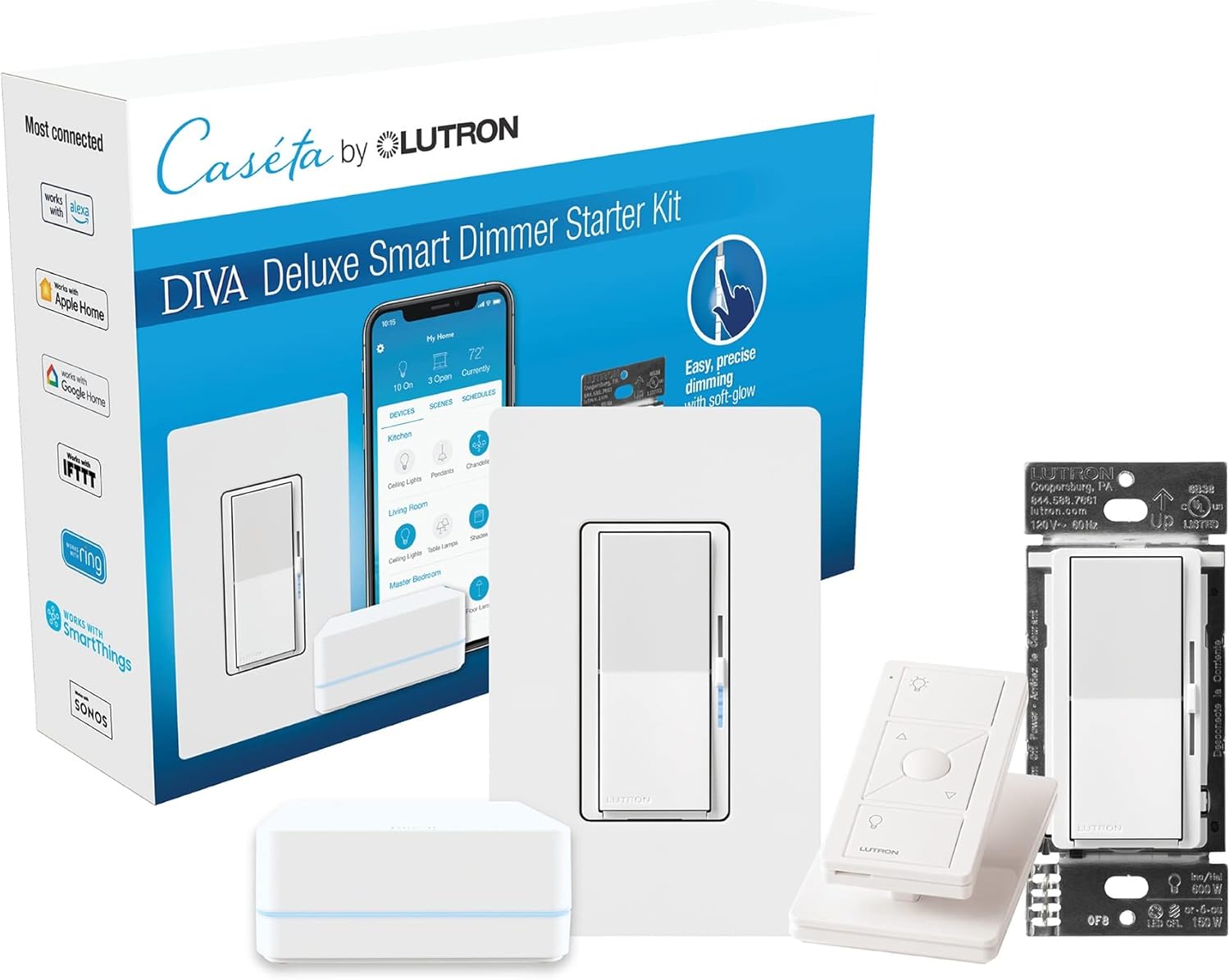
Lutron Deluxe Diva Smart Dimmer Kit for Caseta Lighting w...
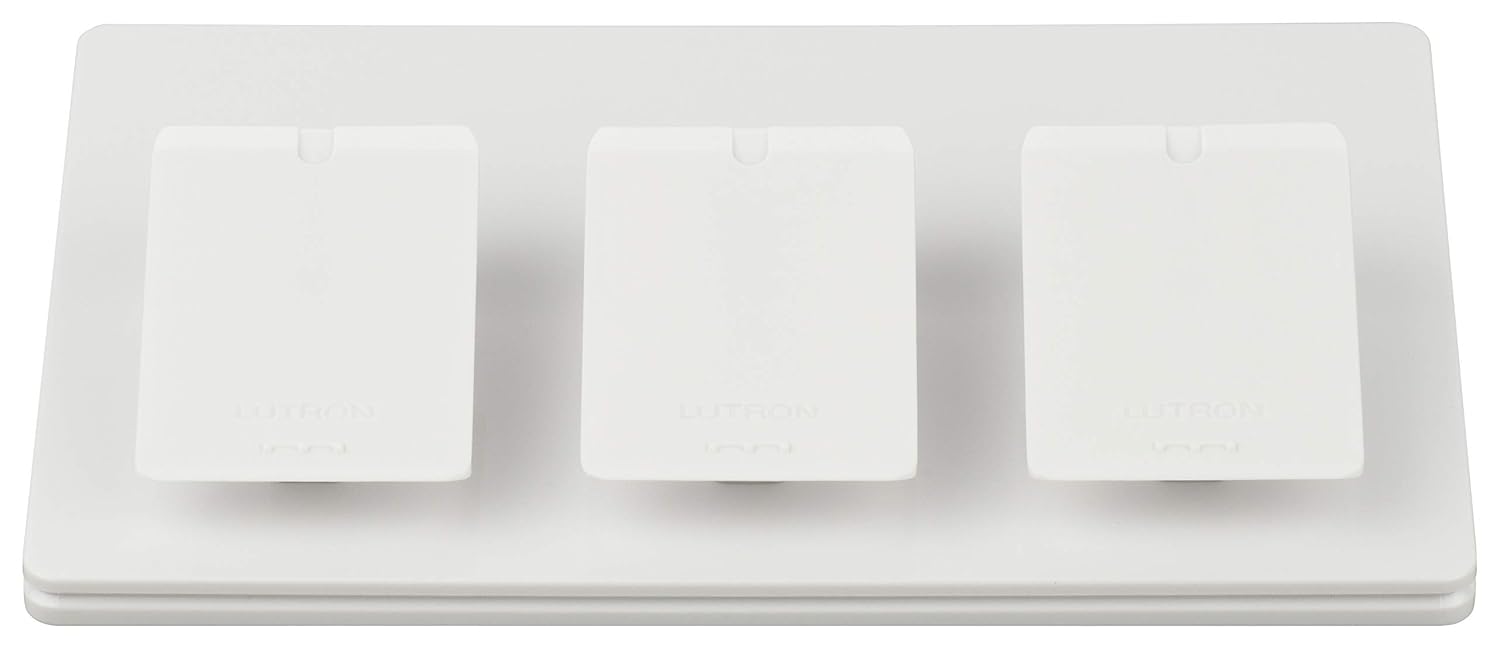
Lutron Caseta Smart Lighting Triple Pedestal for Pico Rem...

Lutron Caseta Smart Lighting Pedestal for Pico Remote, L-...
As an Amazon Associate we earn from qualifying purchases.
Official Manufacturer Manual
If you need the complete manufacturer documentation for advanced setup, wiring diagrams, or detailed specifications, you can download the official manual below. The manual includes full technical instructions directly from the manufacturer and may help if your issue requires deeper troubleshooting.
Download the Official Lutron Caseta ManualSource: lutron.com
Need More Help? Lutron Support
Note: The contact information below connects you directly to Lutron's official customer support team, not Trunetto. They can help with warranty claims, device replacements, and advanced technical issues.
Accessories owners commonly pair with Lutron Caseta.

Lutron Caseta Original Smart Dimmer Switch (Lutron Smart ...

Lutron Caseta Original Smart Dimmer Switch (Lutron Smart ...

Lutron Caseta Original Smart Dimmer Switch (Lutron Smart ...
As an Amazon Associate we earn from qualifying purchases.