

Why Won't My Lutron Bridge Pro Set Up?
- Ethernet not connected to the router
- Phone on a different network during setup
- Router blocking discovery
Problem Description
Your Lutron Caseta Smart Bridge Pro won't complete setup in the Lutron app. The bridge connects to your router via Ethernet cable (port on the back of the bridge). If the Ethernet connection isn't detected, the bridge can't join your network. The LED on the bridge indicates status. This guide covers checking the Ethernet connection, LED status, and app setup.
Why This Happens in Real Homes
The Smart Bridge Pro is the integrator's version of the Caseta hub — same Ethernet-to-router, Clear Connect-to-devices architecture, but with pro features like telnet/API for third-party control systems. Setup issues are the usual hub ones: Ethernet, network, and discovery.
Start by confirming it's cabled to a router LAN port and your phone is on the same main network (not guest), then complete setup in the Lutron app. If you're chasing an integration problem, enable the telnet/integration option; a Bridge Pro that won't be found is nearly always the Ethernet or a router blocking device discovery.
Symptoms
- Bridge Pro will not finish setup
- App cannot find it
- Will not connect to router
- Integration not working
- Setup stalls
- Devices will not add
- Telnet/API question
- Which Bridge do I have?
Recognize these? Here's what usually causes it.
Common Causes
- Ethernet not connected to the router
- Phone on a different network during setup
- Router blocking discovery
- Bridge Pro out of RF range
- Integration (telnet) not enabled
- Power not connected
- Firmware pending
- Confusing standard Bridge with Pro
Most fixes happen in the first 3 steps.
Do not attempt to open or modify the light hardware. Smart lights contain electronic components that can be damaged by moisture or physical tampering. Always power off at the wall switch before removing or repositioning a smart light.
These tools will help you complete this fix.
As an Amazon Associate we earn from qualifying purchases.
Step-by-Step Solution
Check the ethernet connection
The Lutron Smart Bridge Pro connects to your router via a wired ethernet cable — it does not use WiFi. Plug the included ethernet cable into an available LAN port on your router (not the WAN port). The connection LED on the bridge should light up. If you are plugging into a network switch instead of directly into the router, use an unmanaged switch. Managed switches with VLANs can block the bridge discovery protocol.

Needed for this step
Rollerhouse AM25MEL Smart WiFi Blinds Motor for...
This helps complete the fix you are currently reading.
$82.39Wait for the firmware update to finish
When the bridge first powers on, it checks for firmware updates. During an update, the center light bar displays a rotating carousel animation. Do not unplug the bridge during this process — interrupted firmware updates can brick the device. The update typically takes 5-10 minutes depending on your internet speed. Wait until the light bar stops rotating and shows a solid pattern.
Check the power adapter and USB connection
The Smart Bridge Pro uses a micro-USB power cable and a small wall adapter. If the light bar does not illuminate at all, try a different USB cable, a different power adapter (any 5V/1A USB adapter works), and a different outlet. The bridge draws very little power, so nearly any USB power source should work. A dead bridge means no light bar, no discovery.
Discover the bridge in the Lutron app
Open the Lutron app on your phone (make sure your phone is on the same WiFi network as the router the bridge is plugged into). The app searches for bridges on the local network. When it finds yours, it asks you to press the button on the back of the bridge to confirm ownership. Press it once. If the app does not find the bridge, force-close and reopen the app, or try deleting and reinstalling it.
Fix discovery failures
If the app repeatedly fails to find the bridge, your router may be blocking mDNS or UPnP traffic between wired and wireless clients. Check your router settings and make sure AP isolation (also called client isolation or guest mode) is disabled on the WiFi network your phone is on. Some mesh WiFi systems isolate wired and wireless devices by default. Also verify both devices are on the same subnet — the bridge should get a 192.168.x.x address from your router DHCP.
Quick Solutions
Still having issues? This is usually the deeper cause below.
If the hub reconnects then drops every few minutes, check for an IP conflict — two devices sharing the same DHCP address fight each other continuously.
Group your smart lights by room in the app and assign clear names like Kitchen Ceiling and Bedroom Lamp. This makes voice commands more reliable and lets you create scenes that control multiple lights at once with a single command.
Hub disconnections that cycle repeatedly are almost always IP conflicts — two devices fighting over the same DHCP lease after a router restart.
- Ethernet not connected to the router
- Phone on a different network during setup
- Router blocking discovery
- Bridge Pro out of RF range
- Integration (telnet) not enabled
Before you go — try one of these (they fix most cases).
Most popular upgrades chosen by Lutron Smart Bridge Pro owners.
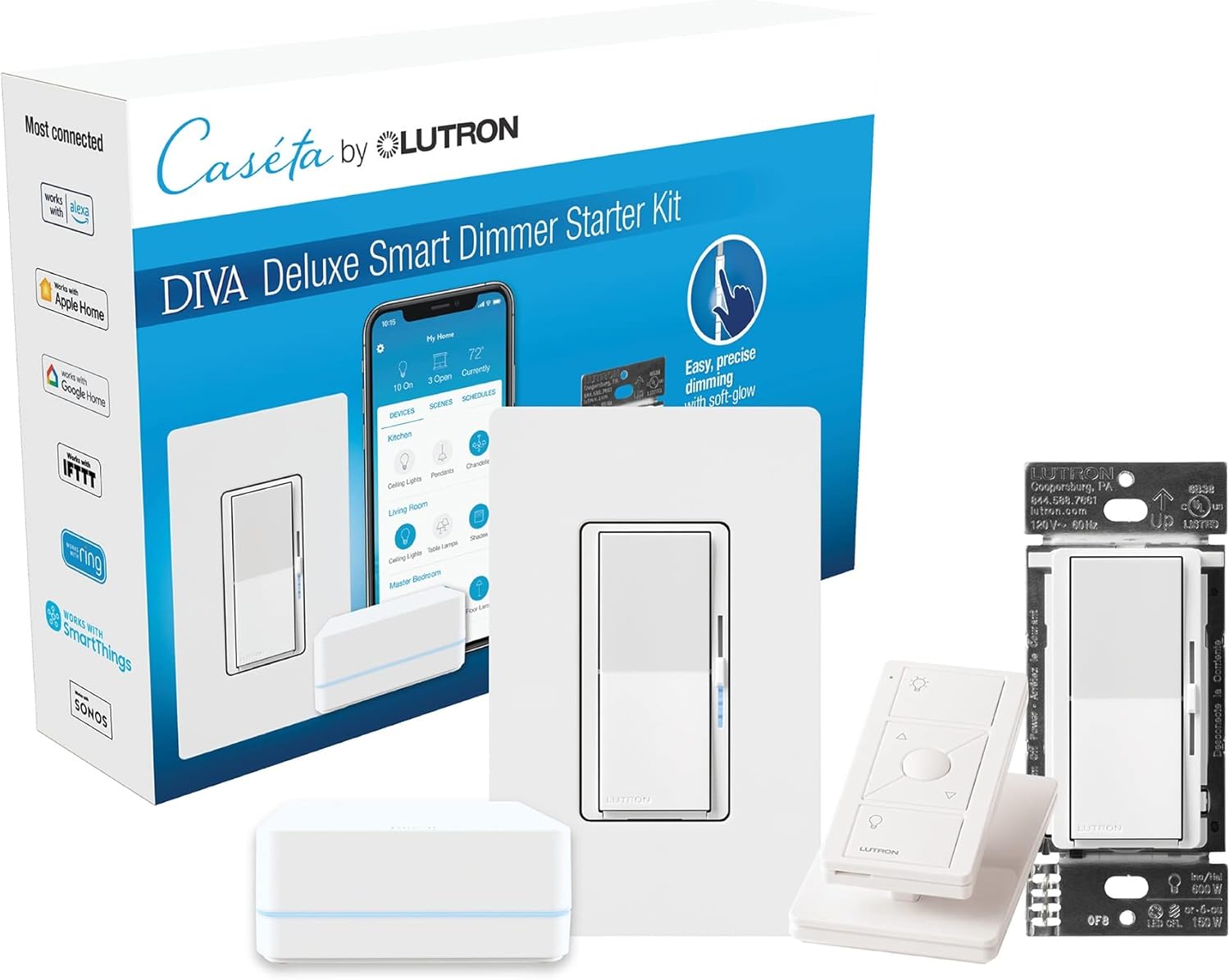
Lutron Deluxe Diva Smart Dimmer Kit for Caseta Lighting w...
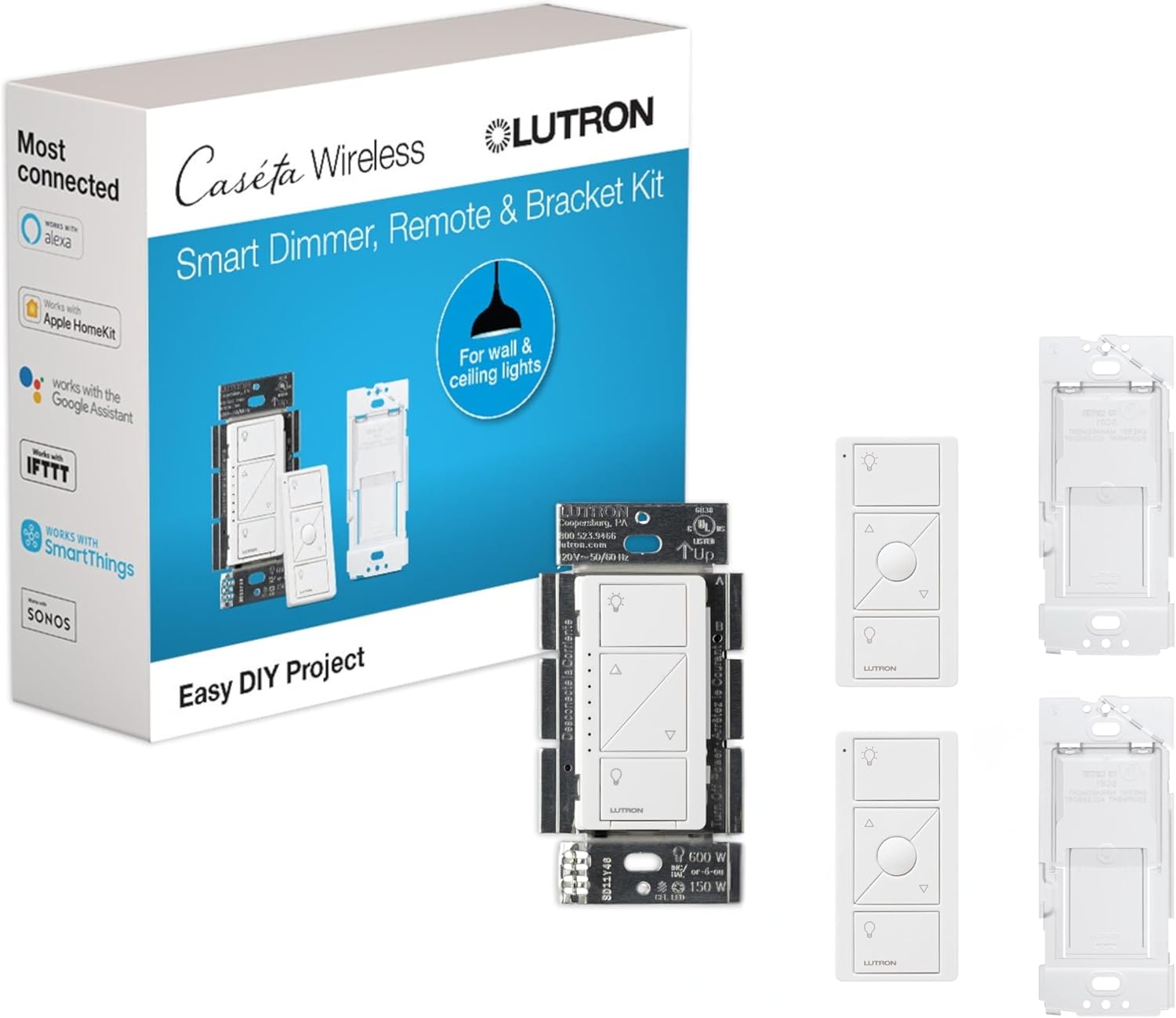
Lutron Caseta Smart Lighting Kit w/ Original Switch, 2 Pi...
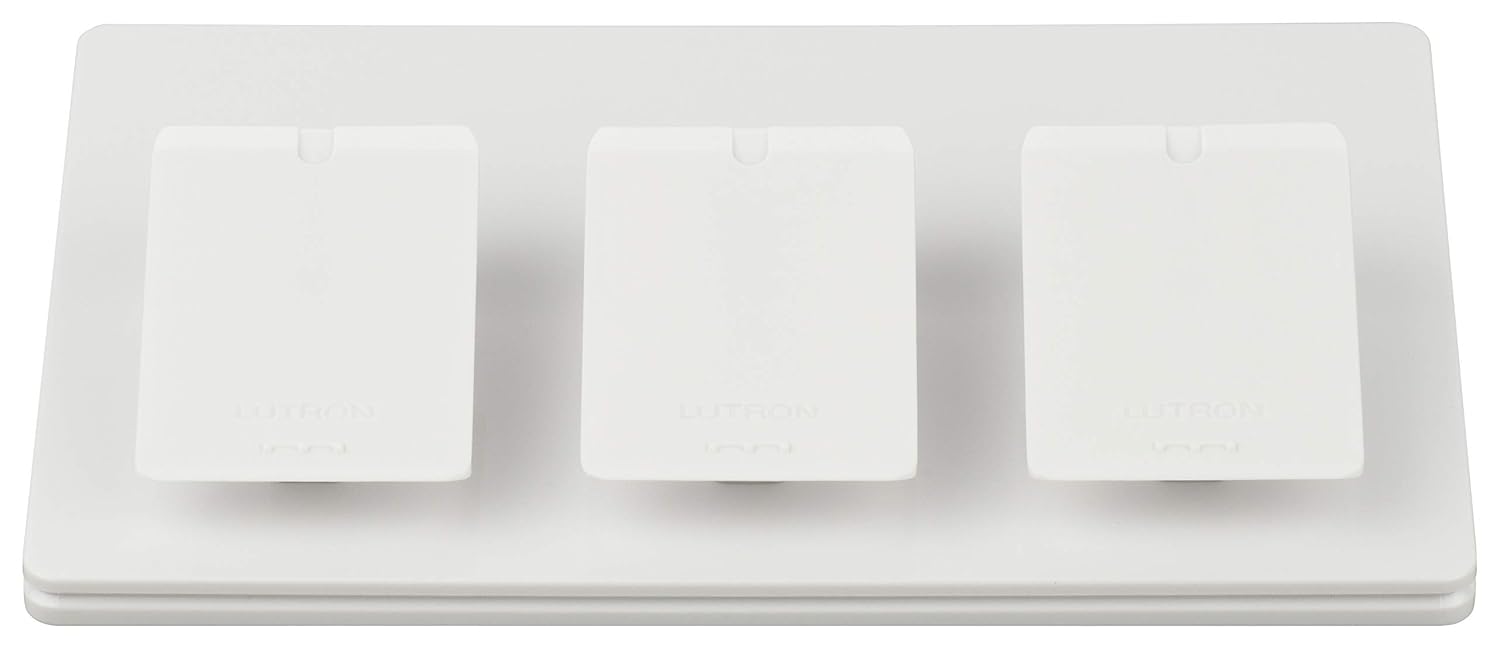
Lutron Caseta Smart Lighting Triple Pedestal for Pico Rem...
As an Amazon Associate we earn from qualifying purchases.
Official Manufacturer Manual
If you need the complete manufacturer documentation for advanced setup, wiring diagrams, or detailed specifications, you can download the official manual below. The manual includes full technical instructions directly from the manufacturer and may help if your issue requires deeper troubleshooting.
Download the Official Lutron Smart Bridge Pro ManualSource: lutron.com
Need More Help? Lutron Support
Note: The contact information below connects you directly to Lutron's official customer support team, not Trunetto. They can help with warranty claims, device replacements, and advanced technical issues.
Accessories owners commonly pair with Lutron Smart Bridge Pro.

Lutron Caseta Smart Lighting Vacancy Motion Sensor, Manua...

Lutron Caseta Smart Lighting Auto On/Off Motion Sensor, L...

Lutron Caséta Motion Sensor, Occupancy/Multi-Location, wi...
As an Amazon Associate we earn from qualifying purchases.


