

How Do I Set Up the Lutron Aurora Dimmer?
- Not paired to the Hue Bridge
- Out of Zigbee range of the Hue Bridge
- Low/dead battery
Problem Description
Your Lutron Aurora dimmer isn't controlling your smart bulbs correctly — it won't dim, won't pair, or the bulbs still get cut off. The Aurora is a battery-powered Zigbee rotary dimmer that clips over a single-pole toggle switch to keep it permanently on, pairing with the Philips Hue Bridge — so most issues are pairing, range, or switch compatibility.
Why This Happens in Real Homes
The Aurora is a Zigbee dimmer for Philips Hue — it clamps over a wall toggle to hold it ON so nobody kills power to your smart bulbs, and its knob dims them via the Hue Bridge. So "not dimming" is usually a Hue pairing or Zigbee range problem, not a Caseta/WiFi issue.
Start by confirming it's paired to the Hue Bridge (in the Hue app) and within Zigbee range, with a good battery. Make sure the wall toggle underneath is left on, and that it's fitted over a compatible single-pole toggle; assign it to the right Hue bulbs so it controls what you expect.
Symptoms
- Will not dim the bulbs
- Will not pair with Hue
- Bulbs cut off at the switch
- Rotary feels unresponsive
- Battery questions
- Only works sometimes
- Wrong bulbs controlled
- Will not fit the switch
Recognize these? Here's what usually causes it.
Common Causes
- Not paired to the Hue Bridge
- Out of Zigbee range of the Hue Bridge
- Low/dead battery
- Wall switch turned off underneath
- Not over a single-pole toggle
- Bulbs not grouped correctly in Hue
- Firmware/pairing issue
- Interference on 2.4GHz Zigbee
Most fixes happen in the first 3 steps.
Do not attempt to open or modify the light hardware. Smart lights contain electronic components that can be damaged by moisture or physical tampering. Always power off at the wall switch before removing or repositioning a smart light.
Step-by-Step Solution
Understand what the Aurora does
The Lutron Aurora is a battery-powered rotary dimmer that mounts over an existing toggle light switch. Its purpose is to prevent people from flipping the toggle off (which kills power to smart bulbs). The Aurora base locks the toggle in the on position while giving you a physical knob to dim and a button to toggle your smart bulbs. It communicates via Zigbee, not WiFi.
Check that you have a toggle switch, not a paddle or rocker
The Aurora is designed specifically for standard toggle (flip) switches. It does not fit over paddle-style Decora switches or rocker switches. If you have a Decora switch, you need a different solution like the Lutron Caseta. Look at your wall plate — a toggle switch has a narrow bat-style lever that flips up and down.
Install the mounting base over the toggle
Flip the toggle to the ON position. Slide the Aurora mounting base over the toggle from the front. The base has a slot that captures the toggle and holds it permanently in the on position. Tighten the set screw on the side of the base using the included hex key. The base sits flush against the wall plate. No wiring changes needed — the Aurora runs on a CR2032 coin cell battery.
Pair with Philips Hue or Zigbee bulbs
The Aurora pairs with up to 12 Zigbee smart bulbs directly, or connects through a Philips Hue bridge for scenes and scheduling. To pair via Hue: open the Hue app, go to Settings, Accessory Setup, Add Accessory, and select Friends of Hue Switch. The Aurora appears as an available device. Assign it to the room with the bulbs you want it to control.
Set the dimming range
Turn the Aurora knob clockwise for brighter, counterclockwise for dimmer. Press the top of the knob to toggle lights on or off. The dimming is smooth and immediate because it sends Zigbee commands directly to the bulbs rather than cutting electrical power. If the knob feels loose or unresponsive, check the battery — the CR2032 typically lasts about 3 years.
Quick Solutions
Still having issues? This is usually the deeper cause below.
If flickering only happens on dimming, the issue is almost always the dimmer's minimum-load setting, not the bulb — it's drawing less current than the dimmer expects.
Group your smart lights by room in the app and assign clear names like Kitchen Ceiling and Bedroom Lamp. This makes voice commands more reliable and lets you create scenes that control multiple lights at once with a single command.
Battery-related failures are almost always flagged too late — the device degrades silently for days before the app catches up to what's actually happening.
- Not paired to the Hue Bridge
- Out of Zigbee range of the Hue Bridge
- Low/dead battery
- Wall switch turned off underneath
- Not over a single-pole toggle
Before you go — try one of these (they fix most cases).
Most popular upgrades chosen by Lutron Aurora owners.
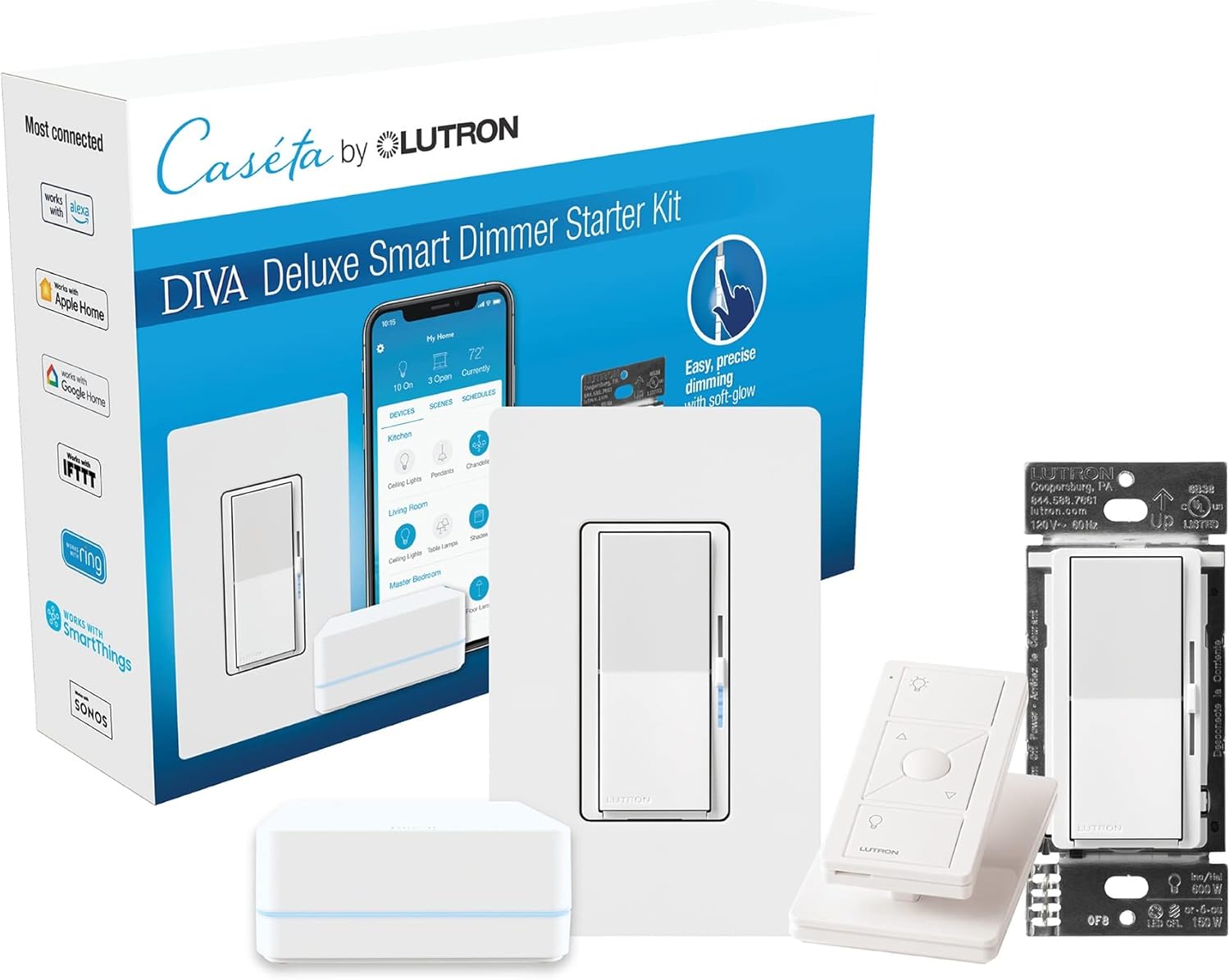
Lutron Deluxe Diva Smart Dimmer Kit for Caseta Lighting w...
Lutron Caseta Smart Lighting Triple Pedestal for Pico Rem...

Lutron Caseta Smart Lighting Pedestal for Pico Remote, L-...
As an Amazon Associate we earn from qualifying purchases.
Official Manufacturer Manual
If you need the complete manufacturer documentation for advanced setup, wiring diagrams, or detailed specifications, you can download the official manual below. The manual includes full technical instructions directly from the manufacturer and may help if your issue requires deeper troubleshooting.
Download the Official Lutron Aurora ManualSource: lutron.com
Need More Help? Lutron Support
Note: The contact information below connects you directly to Lutron's official customer support team, not Trunetto. They can help with warranty claims, device replacements, and advanced technical issues.
Accessories owners commonly pair with Lutron Aurora.

Lutron Caseta 3 Way Smart Dimmer Light Switch Kit, Includ...

Lutron Caseta Original Smart Light Switch Kit w/ Wall Pla...
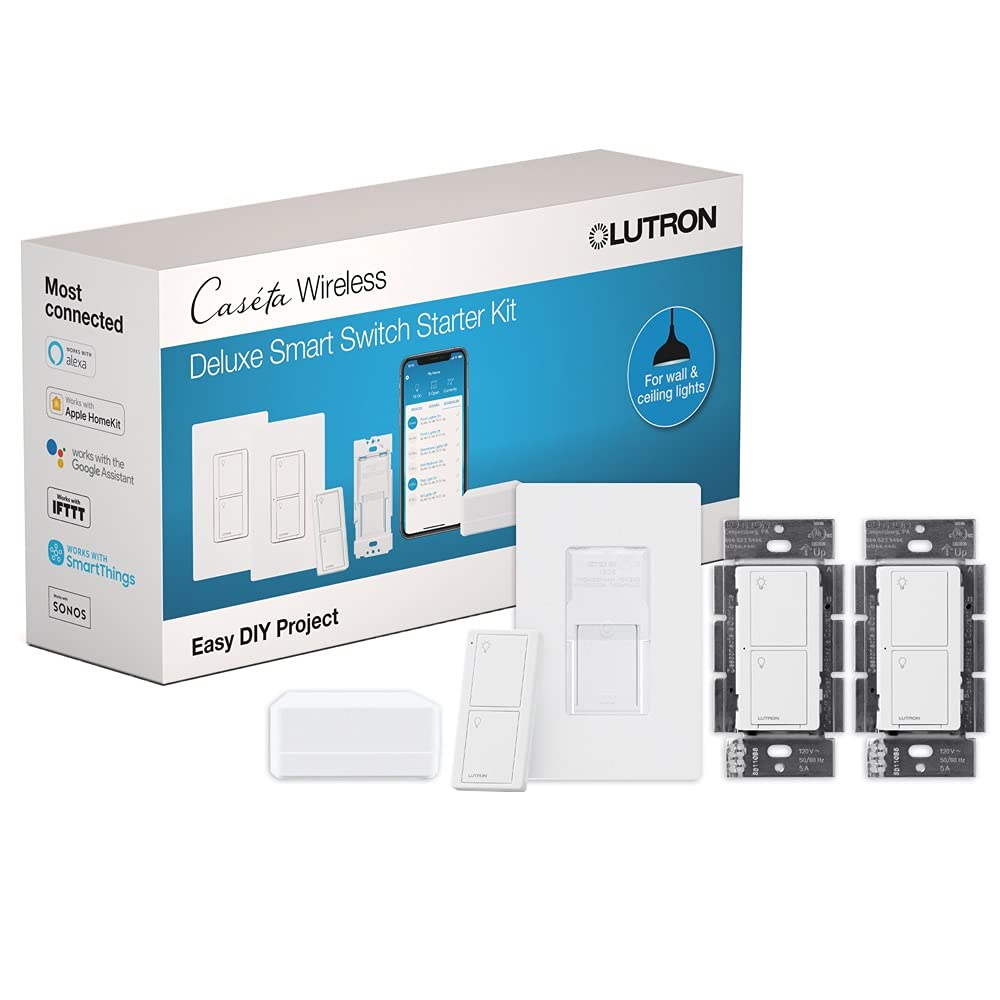
Lutron Caseta Deluxe Smart Light Switch Kit w/ Wall Plate...
As an Amazon Associate we earn from qualifying purchases.


