

Is the Lutron Aurora Dimmer Compatible with My Switch?
- Switch is paddle/Decora, not toggle
- 3-way or multi-location switch
- Bulbs aren't Philips Hue
Problem Description
You're checking whether the Lutron Aurora fits your switch and works with your bulbs. The Aurora only fits over single-pole toggle switches (not paddle/Decora or 3-way), and it works with Philips Hue smart bulbs via the Hue Bridge — so compatibility comes down to your switch type and your bulb ecosystem.
Why This Happens in Real Homes
Aurora compatibility has two hard rules: it fits only single-pole toggle switches (the classic up/down flip switch — not paddle/Decora, not 3-way), and it controls Philips Hue smart bulbs through the Hue Bridge. It's a Hue accessory, not part of Lutron's Caseta line.
So before buying, confirm your switch is a single-pole toggle and your bulbs are Hue (with a Hue Bridge). If you have paddle switches or want to control non-Hue bulbs, the Aurora isn't the right product; it's purpose-built to keep a toggle-switched Hue setup always powered and dimmable.
Symptoms
- Will not fit my switch
- Paddle/Decora switch question
- 3-way compatibility
- Which bulbs work
- Hue vs other ecosystems
- Will not clip on
- Switch too big/small
- Ecosystem question
Recognize these? Here's what usually causes it.
Common Causes
- Switch is paddle/Decora, not toggle
- 3-way or multi-location switch
- Bulbs aren't Philips Hue
- No Hue Bridge
- Non-standard/oversized toggle
- Expecting Caseta compatibility
- Bulbs not Zigbee/Hue
- Multi-gang crowding
Most fixes happen in the first 3 steps.
Do not attempt to open or modify the light hardware. Smart lights contain electronic components that can be damaged by moisture or physical tampering. Always power off at the wall switch before removing or repositioning a smart light.
Step-by-Step Solution
Confirm you have a single-pole toggle switch
The Aurora fits over single-pole toggle switches only. Single-pole means one switch controls the light. If two switches control the same light (3-way circuit), the Aurora can still work on one of them, but you need to tape the other toggle in the ON position so it does not cut power. The Aurora base physically locks the toggle it mounts on.
Check the switch type — toggle only, not Decora
The Aurora does not fit Decora (wide paddle), rocker, or slider switches. It needs the narrow bat-style toggle lever to slot into the mounting base. If you have a Decora switch and want to keep it, the Aurora is not compatible — look at the Lutron Caseta or Pico remote instead. There is no adapter to make the Aurora fit a Decora plate.
Verify your bulbs are Zigbee compatible
The Aurora controls lights via Zigbee 3.0. It works with Philips Hue, IKEA TRADFRI, and other Zigbee-certified smart bulbs. It does not control WiFi bulbs (like LIFX or TP-Link Kasa), Z-Wave bulbs, or Bluetooth-only bulbs. If you have non-Zigbee bulbs, the Aurora knob will not communicate with them regardless of the switch compatibility.
Check the wall plate depth
The Aurora adds about half an inch of depth to the switch plate. In most standard US single-gang boxes, this is fine. If your switch is in a very shallow junction box or has a decorative cover plate that is unusually thick, the Aurora may not sit flush. Test-fit the mounting base before tightening the set screw.
Confirm Hue bridge compatibility if using Hue
The Aurora works with the Hue V2 bridge (square shape) and the newer Hue Bridge V2.1. It appears in the Hue app under Friends of Hue accessories. If you are using the original round Hue V1 bridge, upgrade to V2 first — the V1 bridge does not support Friends of Hue accessories and was discontinued years ago.
Quick Solutions
Still having issues? This is usually the deeper cause below.
If flickering only happens on dimming, the issue is almost always the dimmer's minimum-load setting, not the bulb — it's drawing less current than the dimmer expects.
Group your smart lights by room in the app and assign clear names like Kitchen Ceiling and Bedroom Lamp. This makes voice commands more reliable and lets you create scenes that control multiple lights at once with a single command.
This issue almost always looks more complex than it is — the majority of cases trace back to a single setting, a stale credential, or a default that shipped wrong.
- Switch is paddle/Decora, not toggle
- 3-way or multi-location switch
- Bulbs aren't Philips Hue
- No Hue Bridge
- Non-standard/oversized toggle
Before you go — try one of these (they fix most cases).
Most popular upgrades chosen by Lutron Aurora owners.
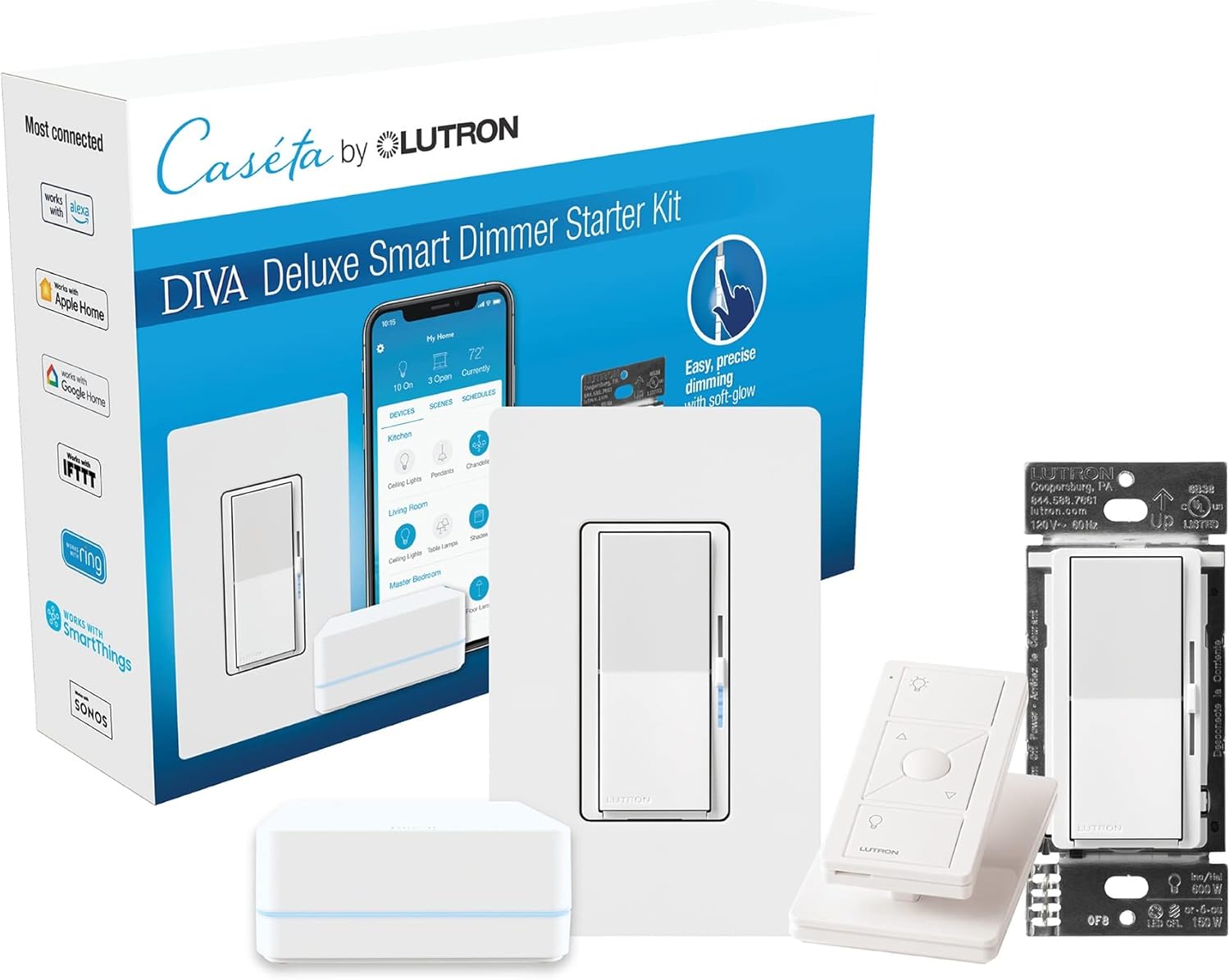
Lutron Deluxe Diva Smart Dimmer Kit for Caseta Lighting w...
Lutron Caseta Smart Lighting Triple Pedestal for Pico Rem...

Lutron Caseta Smart Lighting Pedestal for Pico Remote, L-...
As an Amazon Associate we earn from qualifying purchases.
Official Manufacturer Manual
If you need the complete manufacturer documentation for advanced setup, wiring diagrams, or detailed specifications, you can download the official manual below. The manual includes full technical instructions directly from the manufacturer and may help if your issue requires deeper troubleshooting.
Download the Official Lutron Aurora ManualSource: lutron.com
Need More Help? Lutron Support
Note: The contact information below connects you directly to Lutron's official customer support team, not Trunetto. They can help with warranty claims, device replacements, and advanced technical issues.
Accessories owners commonly pair with Lutron Aurora.

Lutron Caseta 3 Way Smart Dimmer Light Switch Kit, Includ...

Lutron Caseta Original Smart Light Switch Kit w/ Wall Pla...
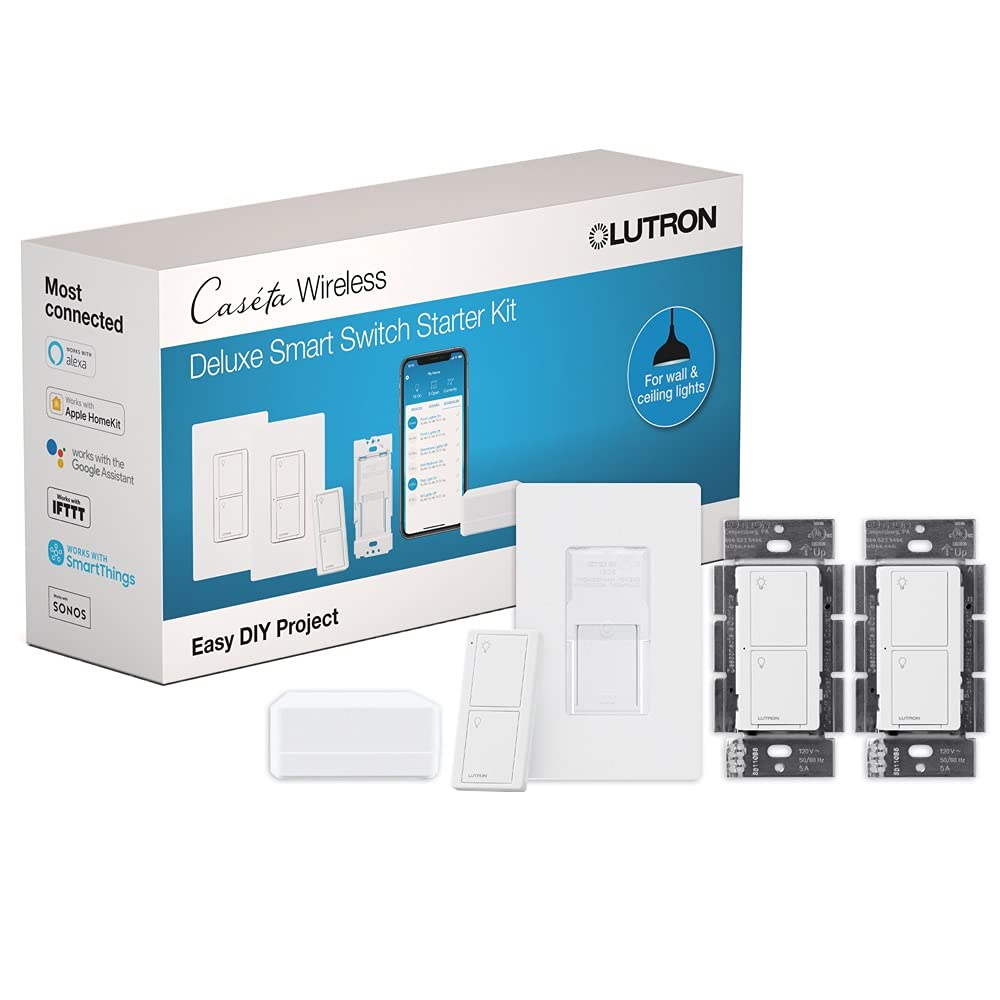
Lutron Caseta Deluxe Smart Light Switch Kit w/ Wall Plate...
As an Amazon Associate we earn from qualifying purchases.


