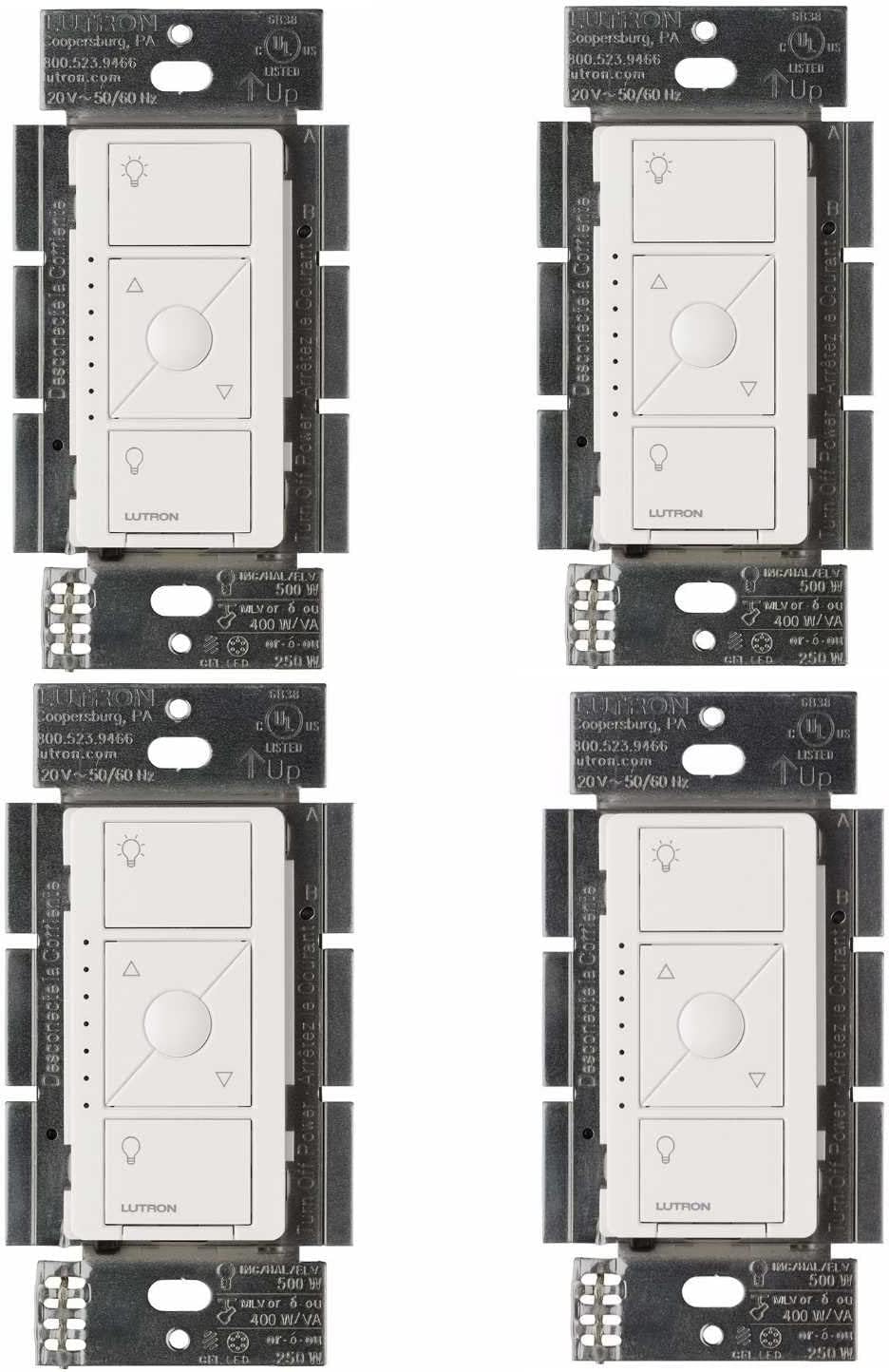
Why Do My Lights Flicker with the Lutron Caseta Dimmer?
- Connected to 5GHz WiFi instead of required 2.4GHz network
- Light not properly reset before pairing attempt
- Weak WiFi signal at the light location
Problem Description
Your lights flicker when controlled by the Lutron Caseta dimmer switch. The most common cause is non-dimmable bulbs — some LED and CFL bulbs are not designed for dimming and will flicker. Check the bulb packaging for "dimmable" labeling. This guide covers checking bulb compatibility, adjusting the dimmer's low-end trim, and using Lutron's compatible bulb list.
Why This Happens in Real Homes
Flickering is usually caused by incompatible bulbs or an incorrect low-end trim. This guide fixes dimmer compatibility and adjusts settings. In day-to-day use, this usually looks like Lights flicker at low level; Buzzing from bulbs; Only some bulbs flicker.
Most cases trace back to Non-dimmable bulbs installed; Incompatible LED driver; Minimum load not met. The fix works best when you go step by step instead of changing multiple settings at once.
A practical order for this issue is: Verify Bulb Type -> Adjust Trim -> Check Wiring -> Match Bulbs. After each step, test the exact behavior that was failing so you can confirm what actually solved it.
Symptoms
- Light shows as offline in the app
- Light does not respond to on/off commands
- Colors appear incorrect or washed out
- Brightness controls not working
- Light flickers or turns off unexpectedly
- Voice commands through Alexa or Google fail
- Scheduled automations do not trigger
Recognize these? Here's what usually causes it.
Common Causes
- Connected to 5GHz WiFi instead of required 2.4GHz network
- Light not properly reset before pairing attempt
- Weak WiFi signal at the light location
- Hub or bridge disconnected from router
- App needs updating to latest version
- Light firmware is outdated
- Too many devices on the same network causing congestion
Most fixes happen in the first 3 steps.
Pico remotes work without wiring - great for 3-way setups.
Step-by-Step Solution
Check if the bulbs are dimmable
Lutron Caseta dimmers only work properly with dimmable LED bulbs. Non-dimmable LEDs flicker, buzz, or turn off at low brightness levels. Check the bulb packaging — it must explicitly say dimmable. CFL bulbs (compact fluorescent) are especially problematic and almost always flicker with Caseta dimmers. Swap in a known dimmable LED bulb (Philips WarmGlow and GE Relax are widely compatible with Lutron) and test. If the flickering stops, the original bulbs were non-dimmable.
Check the Lutron compatibility list
Even dimmable LEDs can flicker if they are not tested with Lutron dimmers. Lutron maintains a bulb compatibility database at lutron.com/compatibility. Search for your specific bulb brand and model. The list shows minimum and maximum dimming levels and whether the bulb is rated as compatible, limited, or not recommended. If your bulb is not on the list or is rated limited, try a bulb that is rated compatible.
Adjust the low-end trim on the dimmer
Flickering at low brightness means the dimmer is sending too little power for the LED driver to operate stably. Fix this by raising the low-end trim. On the Caseta PD-6WCL dimmer, press and hold the bottom (dim) button until the light is at its lowest level. Then press the center button (the small round one between up and down). Press the top button to raise the low-end trim until flickering stops. Press center again to save. This tells the dimmer to never go below that power level. Most LED bulbs stabilize at 15-25% minimum trim.
Adjust the high-end trim if flickering happens at full brightness
If the bulb flickers or buzzes at full brightness, the dimmer may be sending too much power. Lower the high-end trim: press and hold the top (bright) button until the light is at maximum. Press the center button. Press the bottom button to lower the high end slightly. Press center to save. This is less common than low-end flickering but happens with certain LED driver designs that cannot handle full sine wave power.
Check the total wattage on the dimmer
The Caseta PD-6WCL is rated for 150W of LED load. If you have 6 LED bulbs at 10W each (60W total), you are within spec. But some LED bulbs have inrush current that exceeds their rated wattage during startup, causing momentary flickering when the dimmer turns on. If flickering only happens at switch-on and then stops, this is inrush current. Reduce the number of bulbs on the circuit or add a Lutron LUT-MLC (minimum load capacitor) — it draws a tiny constant load that stabilizes the dimmer output for low-wattage LED circuits.
Quick Solutions
Still having issues? This is usually the deeper cause below.
If flickering only happens on dimming, the issue is almost always the dimmer's minimum-load setting, not the bulb — it's drawing less current than the dimmer expects.
Group your smart lights by room in the app and assign clear names like Kitchen Ceiling and Bedroom Lamp. This makes voice commands more reliable and lets you create scenes that control multiple lights at once with a single command. **Product Intelligence:** - Requires Caseta Smart Bridge - Clear Connect RF (not WiFi) - HomeKit/Alexa/Google compatible
LED flicker with smart dimmers is the #1 unfixed complaint — most people swap the bulb when the dimmer's low-end trim is the actual problem.
- Connected to 5GHz WiFi instead of required 2.4GHz network
- Light not properly reset before pairing attempt
- Weak WiFi signal at the light location
- Hub or bridge disconnected from router
- App needs updating to latest version
Before you go — try one of these (they fix most cases).
Most popular upgrades chosen by Lutron Caseta owners.
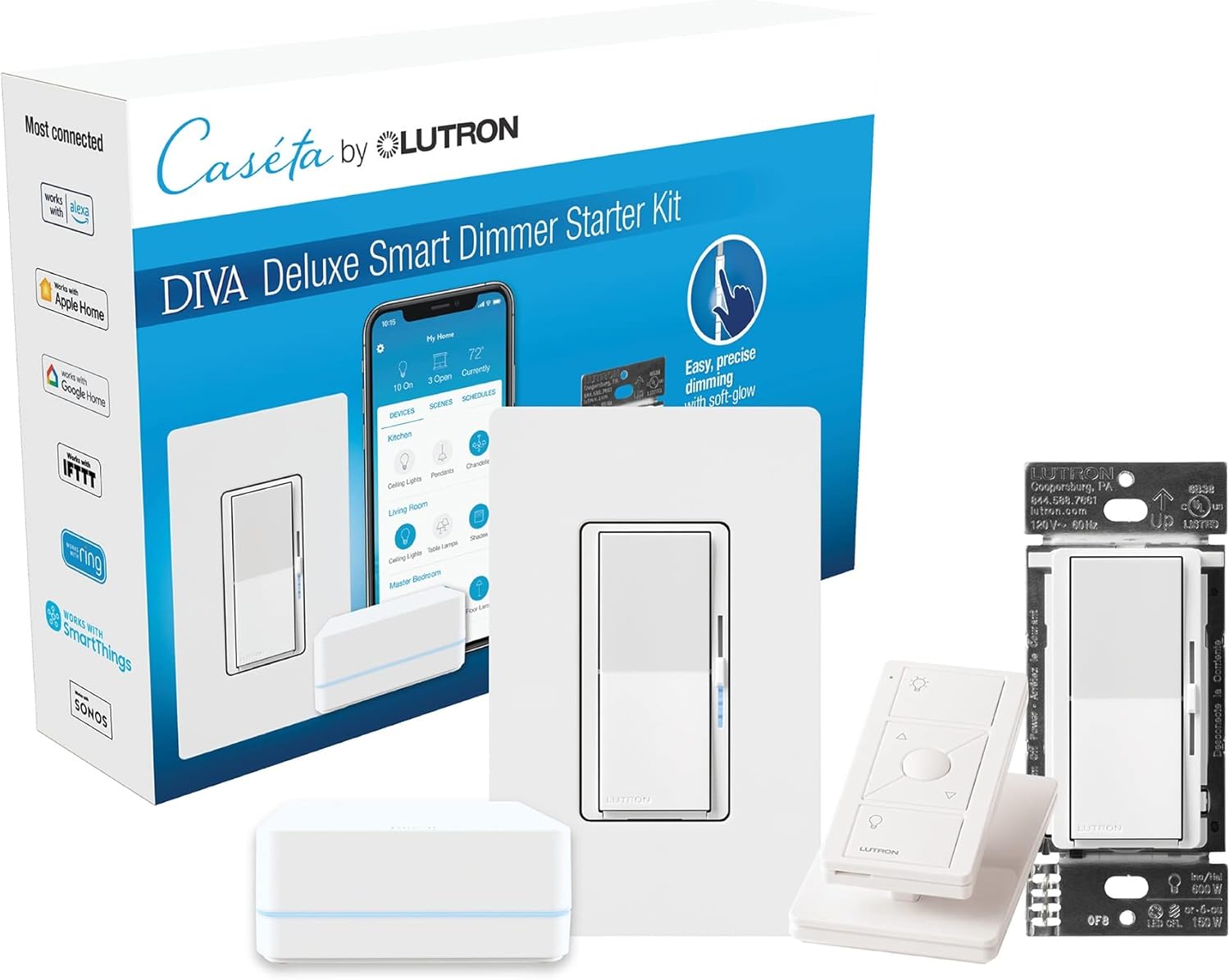
Lutron Deluxe Diva Smart Dimmer Kit for Caseta Lighting w...
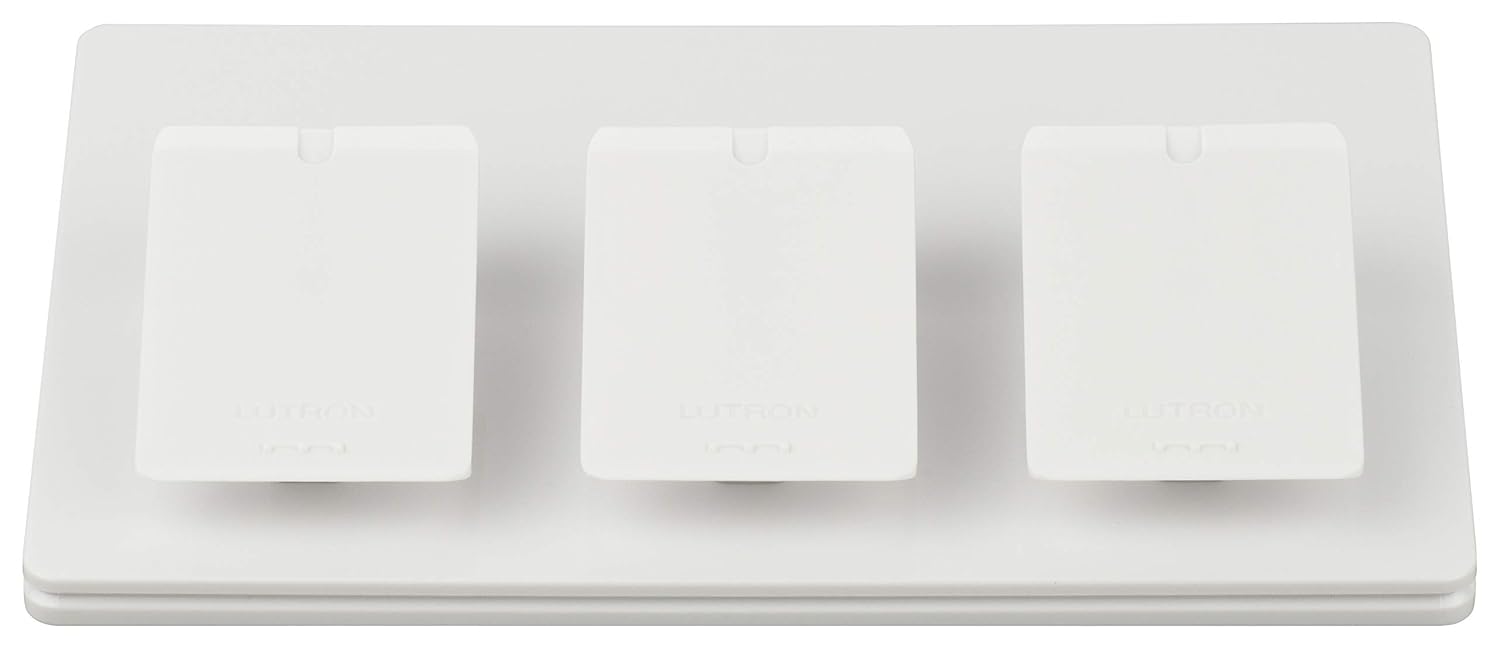
Lutron Caseta Smart Lighting Triple Pedestal for Pico Rem...

Lutron Caseta Smart Lighting Pedestal for Pico Remote, L-...
As an Amazon Associate we earn from qualifying purchases.
Official Manufacturer Manual
If you need the complete manufacturer documentation for advanced setup, wiring diagrams, or detailed specifications, you can download the official manual below. The manual includes full technical instructions directly from the manufacturer and may help if your issue requires deeper troubleshooting.
Download the Official Lutron Caseta ManualSource: lutron.com
Need More Help? Lutron Support
Note: The contact information below connects you directly to Lutron's official customer support team, not Trunetto. They can help with warranty claims, device replacements, and advanced technical issues.
Accessories owners commonly pair with Lutron Caseta.

Lutron Caseta Original Smart Dimmer Switch (Lutron Smart ...

Lutron Caseta Original Smart Dimmer Switch (Lutron Smart ...

Lutron Caseta Original Smart Dimmer Switch (Lutron Smart ...
As an Amazon Associate we earn from qualifying purchases.