How Do I Set Up Lutron Caseta Fan Control?
- DC-motor fan (PD-FSQN needs an AC motor)
- Wiring not matched (line/load)
- Fan's own pull-chain conflicting
Problem Description
You are setting up the Lutron Caseta fan speed controller for your ceiling fan. The fan control replaces your wall switch and provides 4-speed fan control through the Lutron app or Pico remote. Check that your ceiling fan has an AC motor — the Caseta fan control is not compatible with DC motor fans. This guide covers motor type, installation, and pairing.
Why This Happens in Real Homes
The Caseta fan speed control (PD-FSQN) works only with AC-motor ceiling fans — it won't properly control the DC-motor fans common in newer, efficient models, which have their own electronics. So the first compatibility check is the fan's motor type.
Wire line and load per the diagram, set the fan's own pull chain to high (so the control governs the speed), and pair it to the Smart Bridge. A fan that only runs full speed, or hums at low, is often a DC motor or a fan that doesn't accept external speed control; an AC-motor fan is what the PD-FSQN is built for.
Symptoms
- Fan will not respond
- Only some speeds work
- Fan hums at low speed
- Will not pair
- Wrong fan behavior
- DC fan not working
- Wiring questions
- Fan runs full speed only
Recognize these? Here's what usually causes it.
Common Causes
- DC-motor fan (PD-FSQN needs an AC motor)
- Wiring not matched (line/load)
- Fan's own pull-chain conflicting
- Not paired to the Smart Bridge
- Fan not rated for external speed control
- Hum from a marginal low speed
- Non-compatible fan
- Neutral requirement not met
Most fixes happen in the first 3 steps.
Do not attempt to open or modify the light hardware. Smart lights contain electronic components that can be damaged by moisture or physical tampering. Always power off at the wall switch before removing or repositioning a smart light.
Step-by-Step Solution
Check that your ceiling fan has an AC motor
The Caseta fan speed control (PD-FSQN) only works with AC motor ceiling fans. It does not work with DC motor fans, which use a different speed control method. Most standard ceiling fans with a pull chain are AC motor. If your fan came with a handheld remote that controls speed wirelessly, it is likely a DC motor fan and is not compatible with the Caseta controller.
Verify the wiring — neutral wire required
The Caseta fan control requires a neutral wire (white) in the wall box. Many older homes only have a hot wire and a ground at the switch box. Open the wall plate and look for a bundle of white wires connected together — that is the neutral. If there is no neutral wire, you cannot install the Caseta fan control. You would need to run a new wire or use a fan with a built-in smart controller instead.
Install the fan controller at the wall switch
Turn off the breaker for the fan circuit. Remove the existing fan switch. Connect the Caseta fan controller: green or bare copper to ground, white to neutral bundle, and the two black leads to the hot and fan load wires. Secure with wire nuts, tuck the wires into the box, attach the controller to the box with screws, and snap on the wall plate. Restore power.
Add the fan controller to the Caseta Smart Bridge
Open the Lutron app, go to your system, and tap Add Device. Select Fan Speed Control. Press the top button on the fan controller to put it into pairing mode. The app discovers it and adds it to your system. Assign it to the correct room. You can now control fan speed from the app, Pico remote, or voice assistants (Alexa, Google, Siri via HomeKit).
Set fan speeds and schedules
The controller offers four speeds (low, medium-low, medium, and high) plus off. The four LEDs on the controller indicate the current speed. You can set a favorite speed by pressing and holding the center button. In the Lutron app, create schedules to turn the fan on at bedtime or off in the morning. The controller remembers its last speed when power is restored after an outage.
Quick Solutions
Still having issues? This is usually the deeper cause below.
If this comes back after following these steps, check whether a recent app or firmware update reset a default setting — the fix works, but the setting gets reverted silently.
Group your smart lights by room in the app and assign clear names like Kitchen Ceiling and Bedroom Lamp. This makes voice commands more reliable and lets you create scenes that control multiple lights at once with a single command. **Product Intelligence:** - Requires Caseta Smart Bridge - Clear Connect RF (not WiFi) - HomeKit/Alexa/Google compatible
This issue almost always looks more complex than it is — the majority of cases trace back to a single setting, a stale credential, or a default that shipped wrong.
- DC-motor fan (PD-FSQN needs an AC motor)
- Wiring not matched (line/load)
- Fan's own pull-chain conflicting
- Not paired to the Smart Bridge
- Fan not rated for external speed control
Before you go — try one of these (they fix most cases).
Most popular upgrades chosen by Lutron Caseta Fan owners.
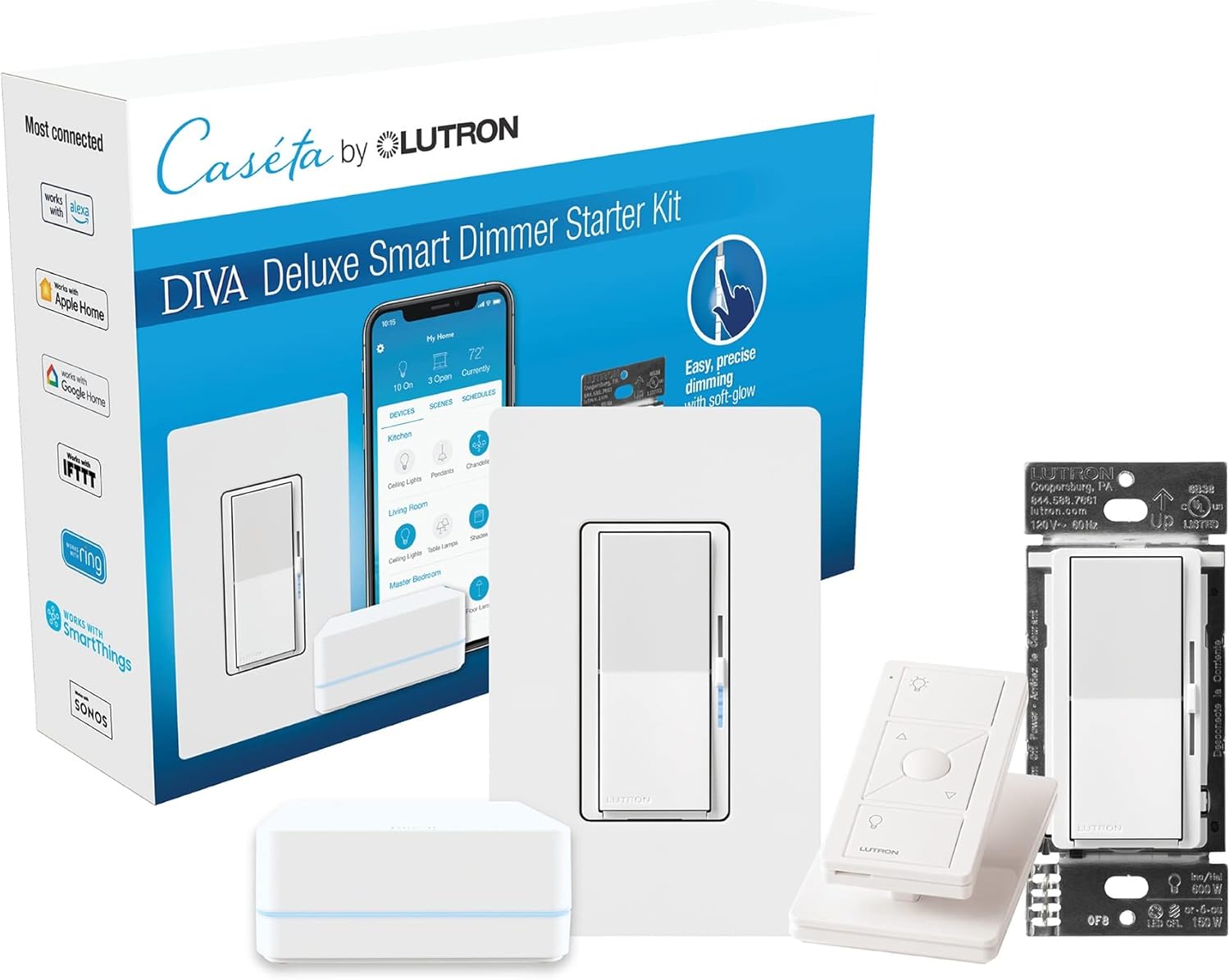
Lutron Deluxe Diva Smart Dimmer Kit for Caseta Lighting w...
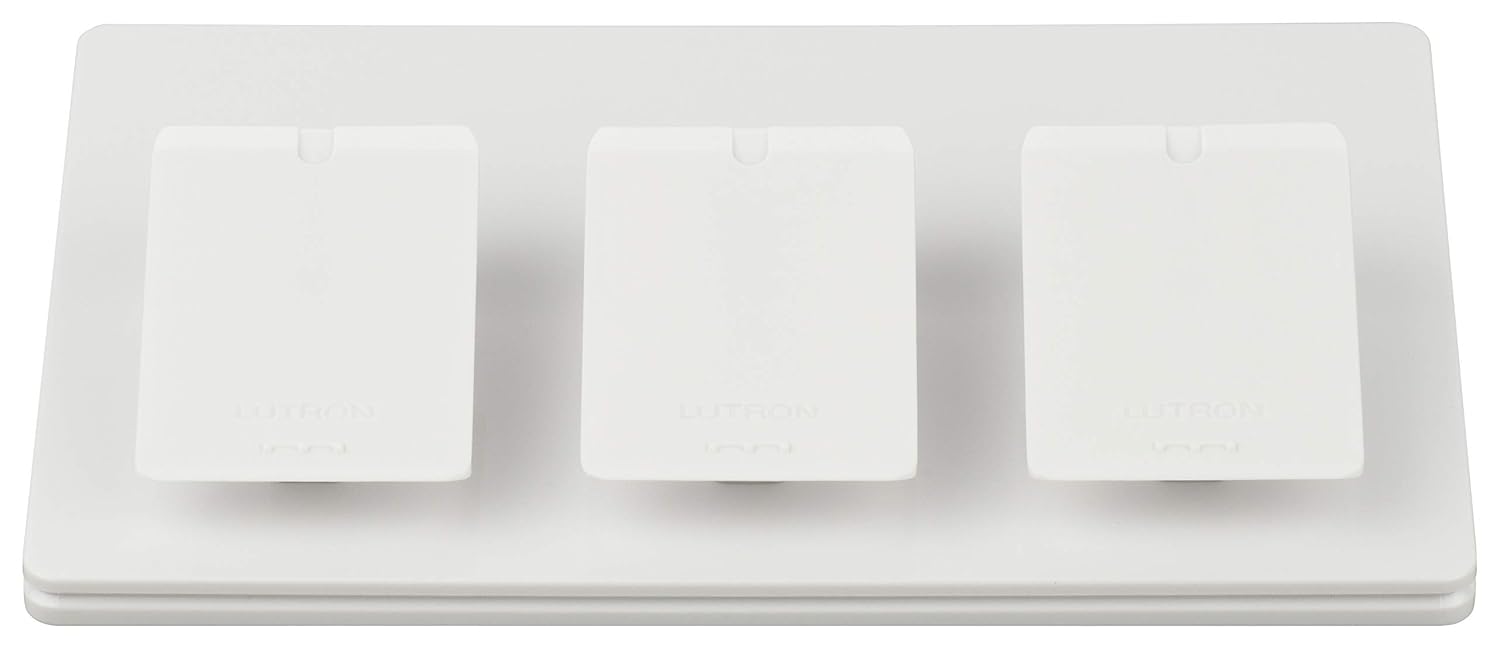
Lutron Caseta Smart Lighting Triple Pedestal for Pico Rem...

Lutron Caseta Smart Lighting Pedestal for Pico Remote, L-...
As an Amazon Associate we earn from qualifying purchases.
Official Manufacturer Manual
Lutron provides official product documentation through their online manual rather than downloadable PDF. Access setup guides, troubleshooting steps, and product specifications for your Lutron Caseta Fan.
Source: support.lutron.com
Need More Help? Lutron Support
Note: The contact information below connects you directly to Lutron's official customer support team, not Trunetto. They can help with warranty claims, device replacements, and advanced technical issues.
Accessories owners commonly pair with Lutron Caseta Fan.

Lutron Caseta 3 Way Smart Dimmer Light Switch Kit, Includ...

Lutron Caseta Original Smart Light Switch Kit w/ Wall Pla...

Lutron Caseta Smart Light Switch 3-Way Kit, with Pico Rem...
As an Amazon Associate we earn from qualifying purchases.