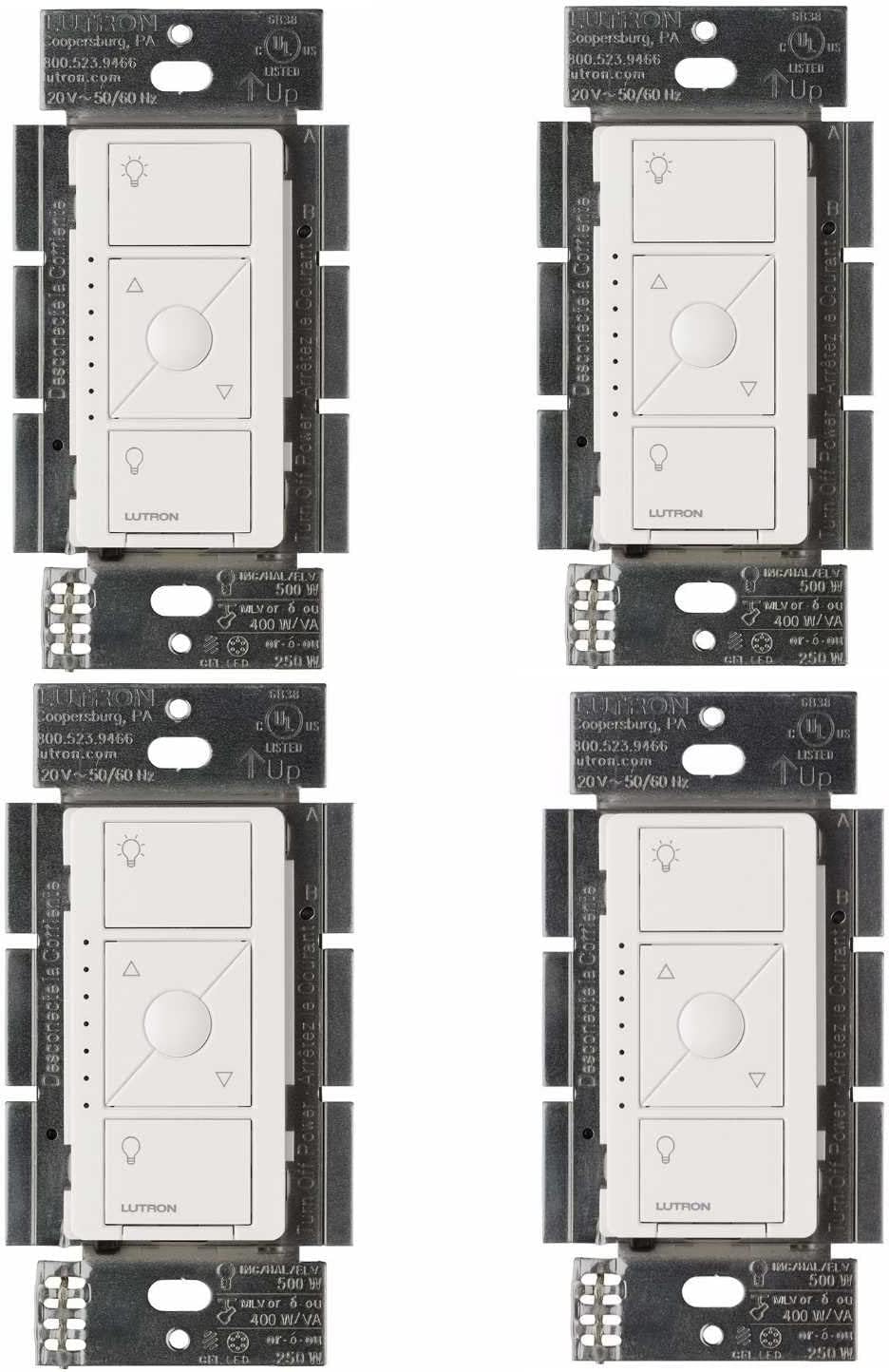
Why Is My Lutron RA2 Select Repeater Not Working?
- Repeater lost power/Ethernet
- Router changed its IP (DHCP)
- Devices out of RF range (need an aux repeater)
Problem Description
Your Lutron RA2 Select main repeater is not communicating with devices or has gone offline. Power cycle the main repeater by unplugging it for 30 seconds and plugging it back in. The main repeater is the primary controller in RA2 Select and all devices depend on it. The LED on the front indicates connectivity status.
Why This Happens in Real Homes
The RA2 Select main repeater is the hub of that system — it connects to the router (Ethernet) and coordinates devices over Clear Connect RF, with auxiliary repeaters extending range in larger homes. So "not communicating" is usually the repeater's network/power, or devices out of RF range.
Start by power-cycling the main repeater (both power and Ethernet) and reserving a fixed IP so the router doesn't lose it, then confirm any auxiliary repeaters are online for range. Devices that dropped are often out of RF reach — an aux repeater closer to them restores communication; keep firmware current.
Symptoms
- Main repeater offline
- Devices not communicating
- No app control
- Repeater LED wrong
- Devices dropped
- Will not reconnect
- Integration down
- Whole system unresponsive
Recognize these? Here's what usually causes it.
Common Causes
- Repeater lost power/Ethernet
- Router changed its IP (DHCP)
- Devices out of RF range (need an aux repeater)
- Repeater firmware issue
- Network/router blocking
- Auxiliary repeater offline
- Interference
- Config/association lost
Most fixes happen in the first 3 steps.
Main repeater handles up to 100 devices depending on type.
Step-by-Step Solution
Power cycle the main repeater
Unplug the RA2 Select main repeater from both power and ethernet. Wait 30 seconds. Plug the ethernet cable back in first, then the power. The repeater takes about 2 minutes to fully boot, check for firmware updates, and reconnect to all paired devices. The light ring on the repeater shows a carousel animation during firmware updates — do not interrupt this process.
Check the ethernet connection
The RA2 Select main repeater requires a wired ethernet connection to your router. If the ethernet cable is loose, damaged, or plugged into the wrong port, the repeater cannot communicate with the Lutron app or cloud services. Try a different ethernet cable and a different LAN port on your router. The repeater does not use WiFi — there is no wireless setup option.
Verify devices are within RF range
The RA2 Select uses Clear Connect RF with a range of about 30 feet from the main repeater through standard walls. In larger homes, you may need auxiliary repeaters (sold separately) to extend coverage. If a specific device stopped responding, it may have been moved or a new obstruction (large metal furniture, appliance) may be blocking the signal path.
Re-pair unresponsive devices
If a dimmer or switch stopped communicating with the repeater, factory reset the device: triple-tap the top button, holding on the third tap until the LED flashes. Then triple-tap again and release. The device returns to factory state. Remove it from the Lutron app and re-add it. This forces a fresh RF link between the device and the repeater.
Replace the repeater if the light ring stays off
If the RA2 Select main repeater shows no light ring activity even after trying multiple power adapters and outlets, the unit may have failed. The repeater contains the entire system database — all device pairings, scenes, and schedules. Lutron support can help you transfer your configuration to a replacement repeater so you do not have to re-pair every device from scratch.
Quick Solutions
Still having issues? This is usually the deeper cause below.
If this comes back after following these steps, check whether a recent app or firmware update reset a default setting — the fix works, but the setting gets reverted silently.
Group your smart lights by room in the app and assign clear names like Kitchen Ceiling and Bedroom Lamp. This makes voice commands more reliable and lets you create scenes that control multiple lights at once with a single command.
Battery-related failures are almost always flagged too late — the device degrades silently for days before the app catches up to what's actually happening.
- Repeater lost power/Ethernet
- Router changed its IP (DHCP)
- Devices out of RF range (need an aux repeater)
- Repeater firmware issue
- Network/router blocking
Before you go — try one of these (they fix most cases).
Most popular upgrades chosen by Lutron RA2 Select owners.
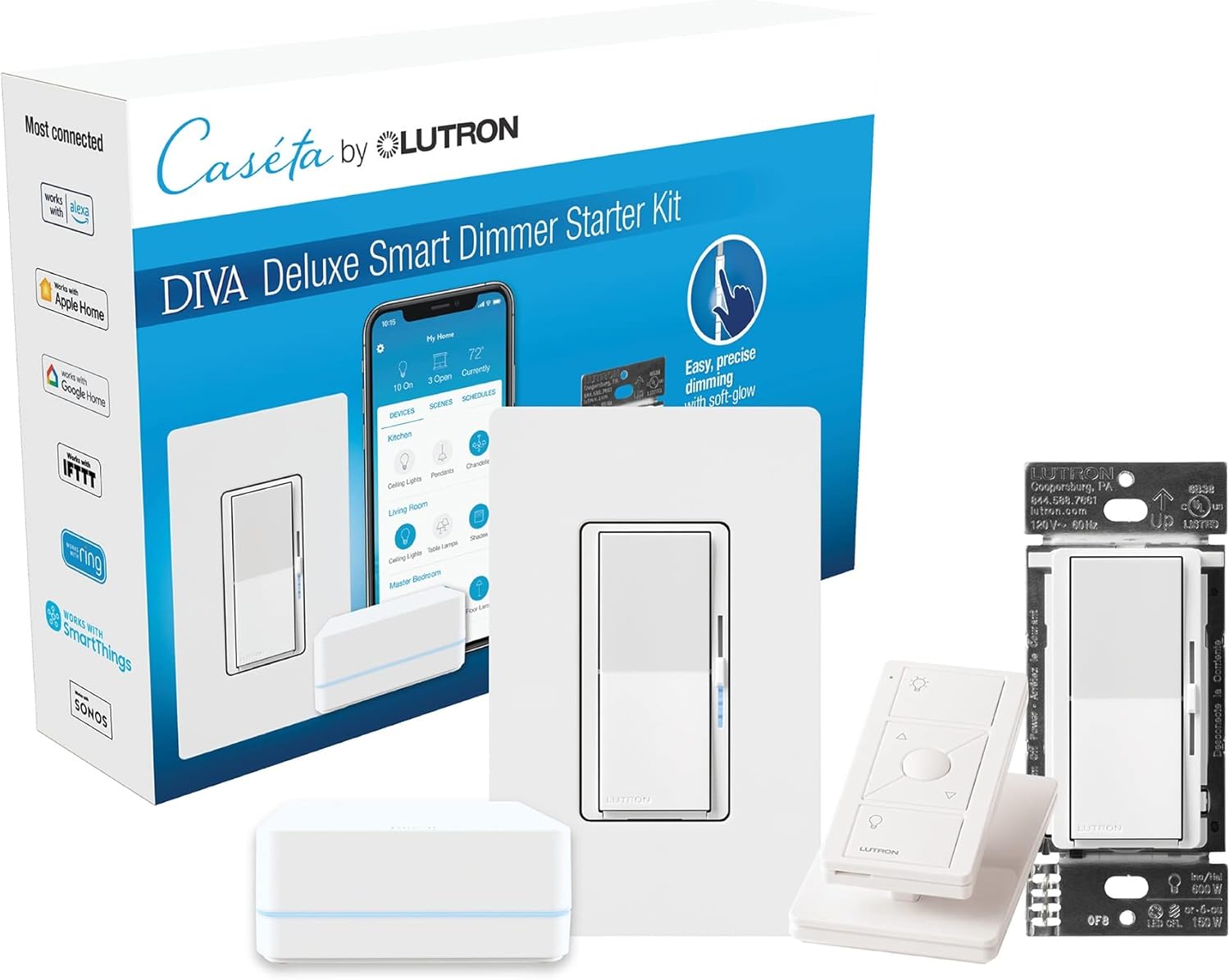
Lutron Deluxe Diva Smart Dimmer Kit for Caseta Lighting w...
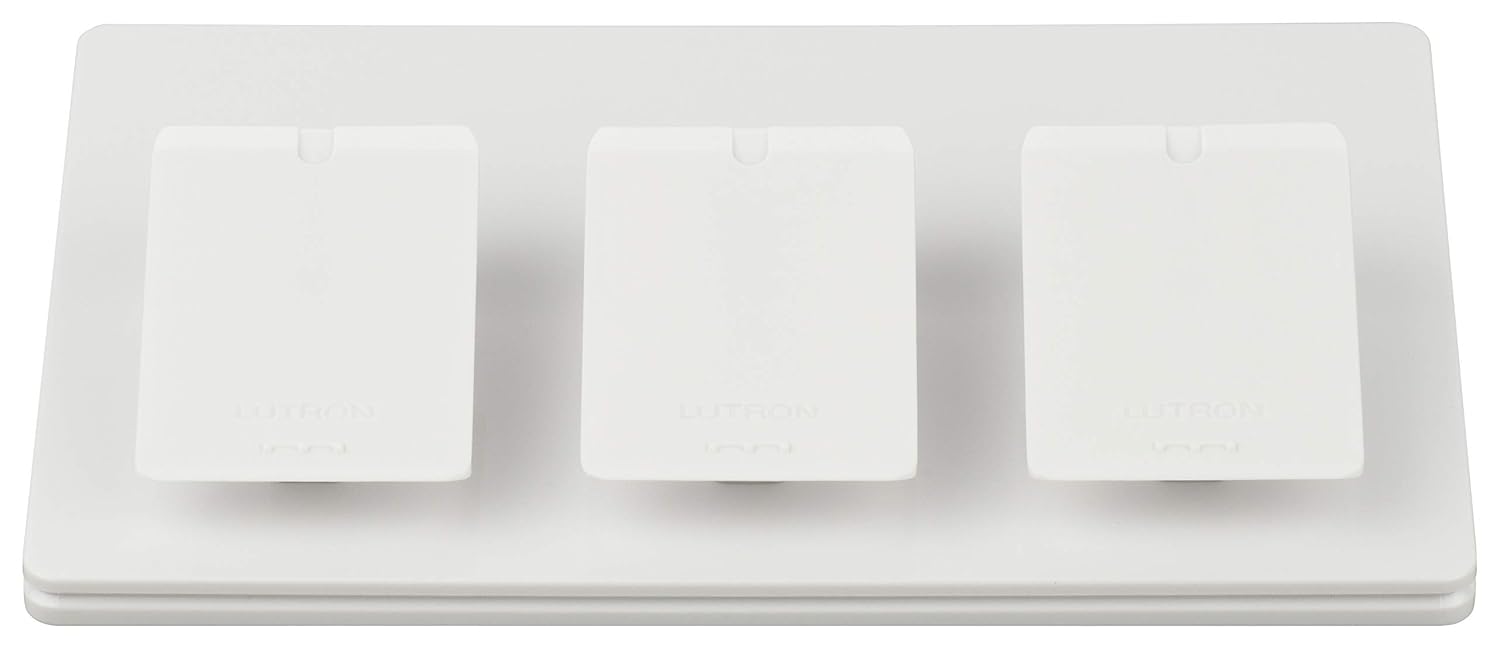
Lutron Caseta Smart Lighting Triple Pedestal for Pico Rem...

Lutron Caseta Smart Lighting Pedestal for Pico Remote, L-...
As an Amazon Associate we earn from qualifying purchases.
Official Manufacturer Manual
Lutron provides official product documentation through their online manual rather than downloadable PDF. Access setup guides, troubleshooting steps, and product specifications for your Lutron RA2 Select.
Source: support.lutron.com
Need More Help? Lutron Support
Note: The contact information below connects you directly to Lutron's official customer support team, not Trunetto. They can help with warranty claims, device replacements, and advanced technical issues.
Accessories owners commonly pair with Lutron RA2 Select.

Lutron Caseta 3 Way Smart Dimmer Light Switch Kit, Includ...

Lutron Caseta Original Smart Light Switch Kit w/ Wall Pla...

Lutron Caseta Smart Light Switch 3-Way Kit, with Pico Rem...
As an Amazon Associate we earn from qualifying purchases.