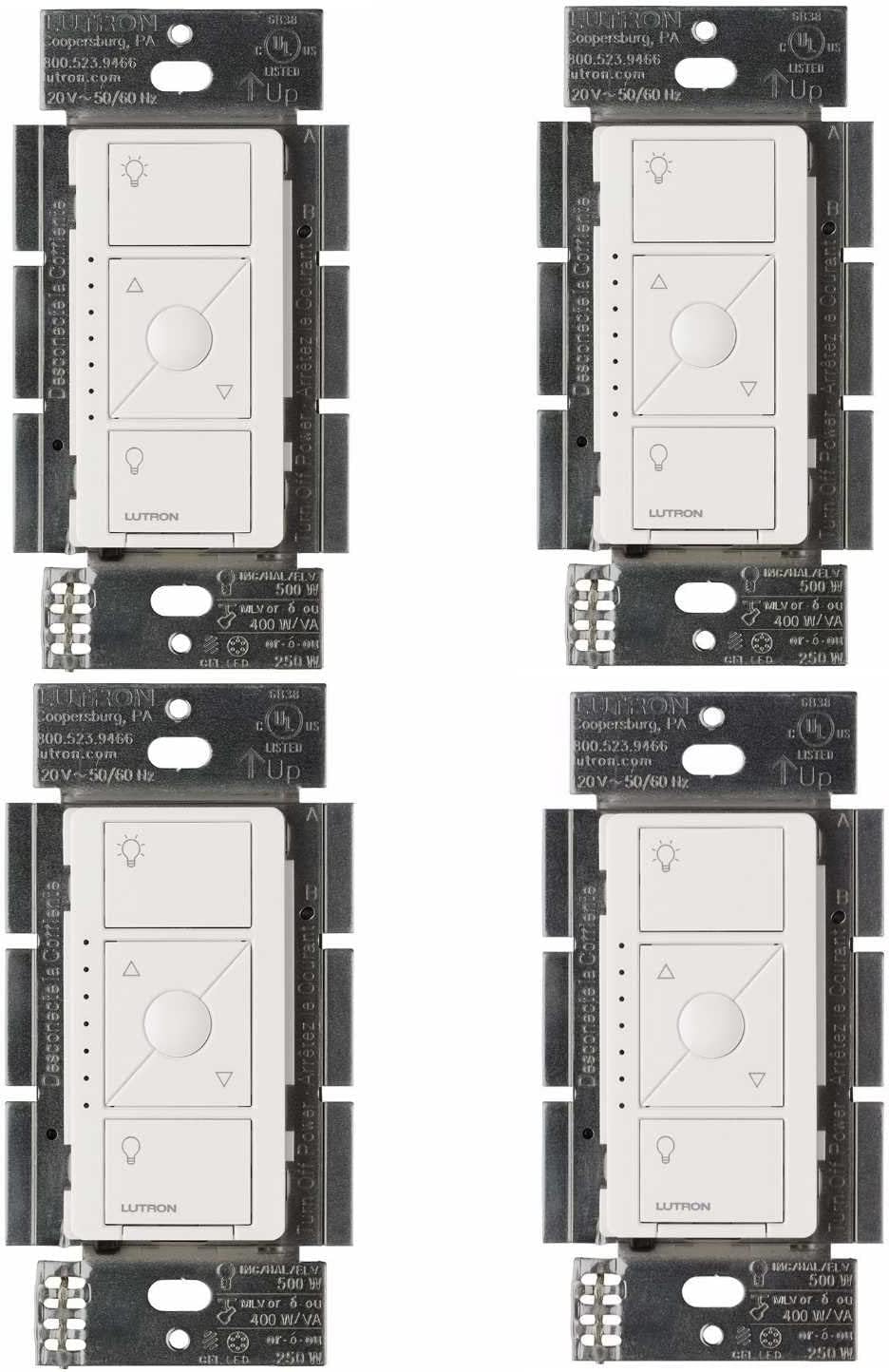
What Is the Lutron RadioRA 3 System?
- Confusing it with Caseta/RA2 Select
- Processor not set up
- Clear Connect Type X range
Problem Description
You want to understand the Lutron RadioRA 3 whole-home lighting control system. RadioRA 3 is Lutron's flagship residential system that controls lights, shades, and fans through a central processor. It uses Clear Connect RF technology and supports 200+ devices per system. It's professionally installed. This guide covers what RadioRA 3 is, components, and capabilities.
Why This Happens in Real Homes
RadioRA 3 is Lutron's professional-grade whole-home lighting control — a step above Caseta and RA2 Select, built around a processor hub and Clear Connect Type X wireless, with Sunnata and Diva keypads/dimmers and motorized shades. It's typically designed and programmed by a Lutron pro rather than a DIY app setup.
Understand what it is before troubleshooting: it's a larger, professionally-installed system, not interchangeable with Caseta gear. Coverage relies on the processor and repeaters over Clear Connect Type X; device, network, and programming issues are usually handled through the pro's software and the system processor rather than the consumer app.
Symptoms
- Understanding RadioRA 3
- How it differs from Caseta/RA2
- Processor/hub questions
- Device compatibility
- Range/coverage
- Pro install question
- Sunnata/Diva keypads
- Integration
Recognize these? Here's what usually causes it.
Common Causes
- Confusing it with Caseta/RA2 Select
- Processor not set up
- Clear Connect Type X range
- Devices not enrolled
- Pro programming required
- Network/integration not configured
- Firmware out of date
- Mixed-system confusion
Most fixes happen in the first 3 steps.
Do not attempt to open or modify the light hardware. Smart lights contain electronic components that can be damaged by moisture or physical tampering. Always power off at the wall switch before removing or repositioning a smart light.
Step-by-Step Solution
Understand what RadioRA 3 is
RadioRA 3 is Lutron professional-grade whole-home lighting control. Unlike Caseta (DIY, up to 75 devices), RadioRA 3 supports up to 200 devices per processor and up to 4 processors per system (800 devices total). It controls lights, shades, fans, and temperature. RadioRA 3 requires a professional installer for initial programming — it is not a DIY system.
Know the hardware components
The system centers on the RadioRA 3 processor (RR-PROC3), which connects to your network via PoE ethernet. It communicates with dimmers, switches, keypads, and shades over Clear Connect Type X RF. Auxiliary repeaters extend coverage in large homes — each processor supports up to 4 repeaters, and the system supports up to 8 repeaters total. The processor is typically installed in a network closet or utility room.
Use the Lutron app for daily control
After your installer programs the system using Lutron Designer software, you control everything through the Lutron app on your phone or tablet. The app shows all rooms, devices, and scenes. You can adjust individual lights, activate scenes, set schedules, and create automations. The app connects to the processor over your local network and also works remotely via the Lutron cloud.
Integrate with smart home platforms
RadioRA 3 integrates with Apple HomeKit, Amazon Alexa, Google Assistant, Sonos, and third-party home automation systems like Control4 and Crestron. The processor has a Telnet integration interface for custom programming. HomeKit integration requires linking through the Lutron app — the processor appears as a HomeKit bridge, and all the lights show up in the Apple Home app.
Know the difference from Caseta and RA2 Select
Caseta is entry-level (75 devices, DIY install, basic scenes). RA2 Select is mid-range (100 devices, similar to Caseta but with keypads). RadioRA 3 is the top tier for residences (800 devices, satin keypads, professional programming, advanced automations). RadioRA 3 devices are not backward compatible with Caseta or RA2 Select — you cannot mix systems. If you already have Caseta, upgrading to RadioRA 3 means replacing all devices.
Quick Solutions
Still having issues? This is usually the deeper cause below.
If this comes back after following these steps, check whether a recent app or firmware update reset a default setting — the fix works, but the setting gets reverted silently.
Group your smart lights by room in the app and assign clear names like Kitchen Ceiling and Bedroom Lamp. This makes voice commands more reliable and lets you create scenes that control multiple lights at once with a single command.
This issue almost always looks more complex than it is — the majority of cases trace back to a single setting, a stale credential, or a default that shipped wrong.
- Confusing it with Caseta/RA2 Select
- Processor not set up
- Clear Connect Type X range
- Devices not enrolled
- Pro programming required
Before you go — try one of these (they fix most cases).
Most popular upgrades chosen by Lutron RadioRA 3 owners.
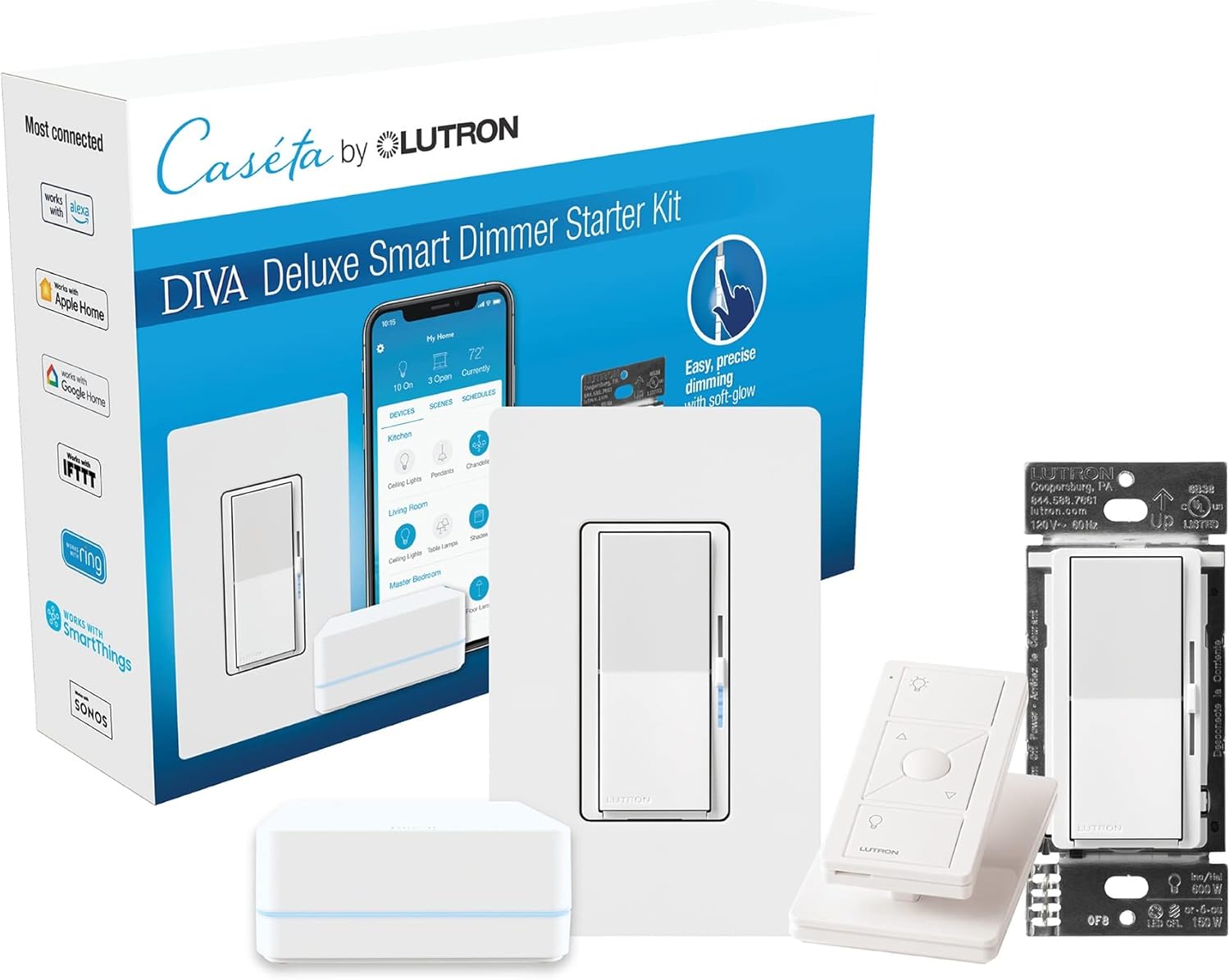
Lutron Deluxe Diva Smart Dimmer Kit for Caseta Lighting w...
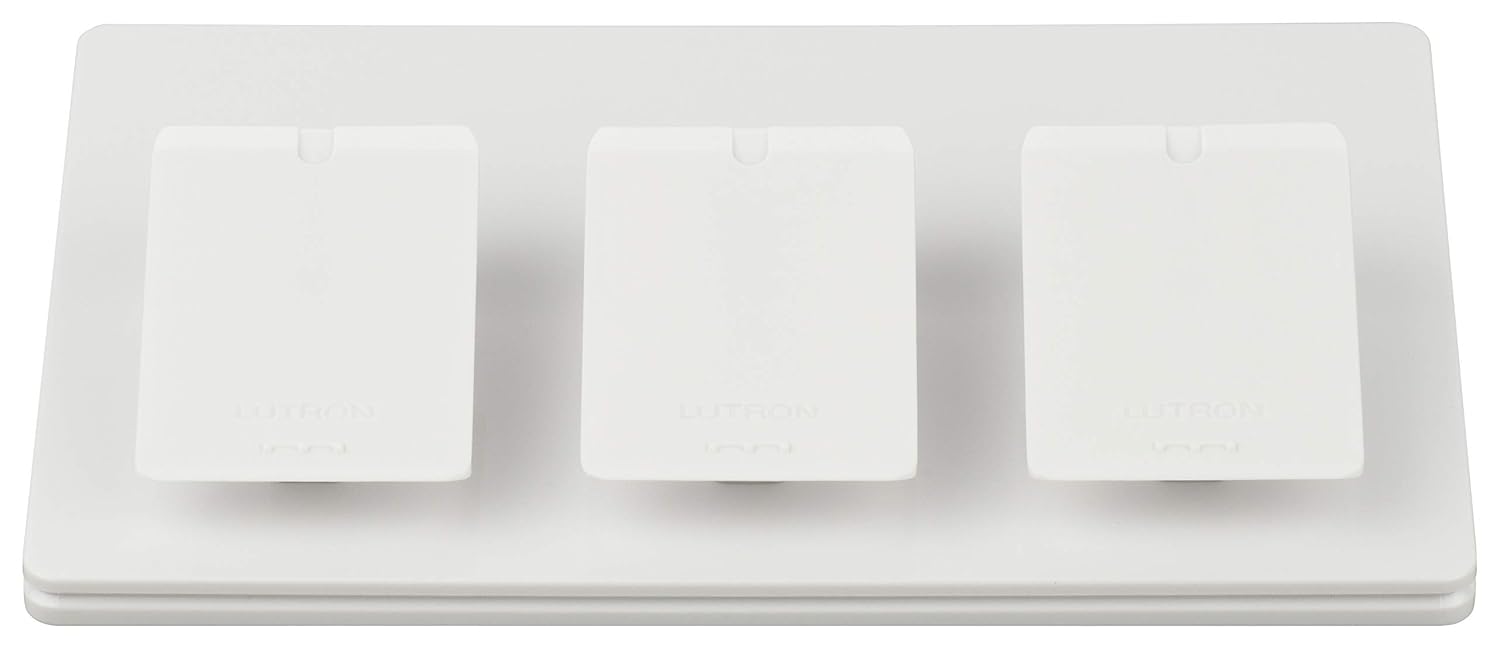
Lutron Caseta Smart Lighting Triple Pedestal for Pico Rem...

Lutron Caseta Smart Lighting Pedestal for Pico Remote, L-...
As an Amazon Associate we earn from qualifying purchases.
Official Manufacturer Manual
Lutron provides official product documentation through their online manual rather than downloadable PDF. Access setup guides, troubleshooting steps, and product specifications for your Lutron RadioRA 3.
Source: support.lutron.com
Need More Help? Lutron Support
Note: The contact information below connects you directly to Lutron's official customer support team, not Trunetto. They can help with warranty claims, device replacements, and advanced technical issues.
Accessories owners commonly pair with Lutron RadioRA 3.

Lutron Caseta 3 Way Smart Dimmer Light Switch Kit, Includ...

Lutron Caseta Original Smart Light Switch Kit w/ Wall Pla...

Lutron Caseta Smart Light Switch 3-Way Kit, with Pico Rem...
As an Amazon Associate we earn from qualifying purchases.