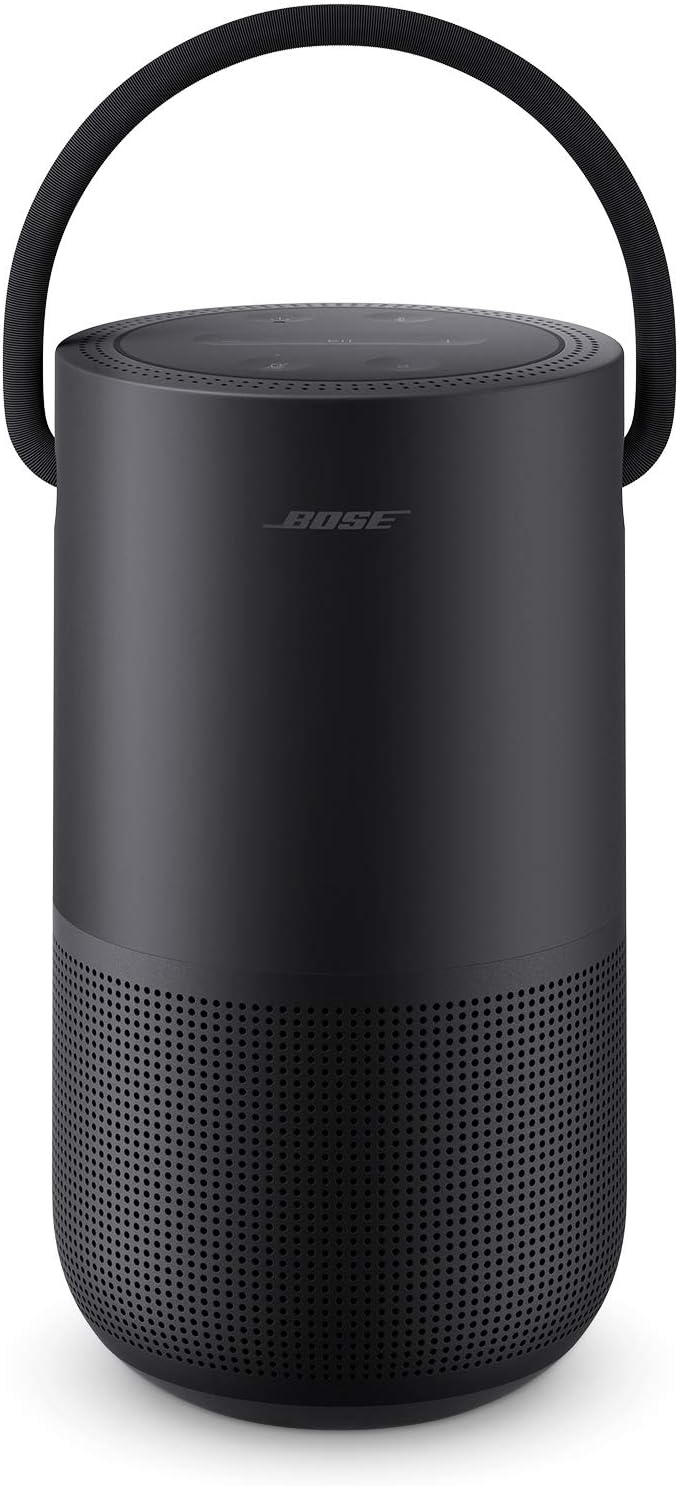
How Do I Set Up the Bose Home Speaker 500?
- Phone on a different network than intended for the speaker
- Weak WiFi signal at the speaker location
- Bose Music app not updated
Problem Description
You are setting up the Bose Home Speaker 500 for the first time. The speaker connects to your WiFi network through the Bose Music app and supports AirPlay 2, Alexa, and Google Assistant. This guide covers plugging in, connecting to WiFi, and configuring voice assistant and streaming services.
Why This Happens in Real Homes
The Bose Home Speaker 500 is a WiFi smart speaker set up entirely through the Bose Music app, and it supports AirPlay 2 plus your choice of Alexa or Google Assistant built in. Setup is app-driven: plug the speaker in, open Bose Music, and add it, making sure your phone is on the same network you want the speaker to join. Unlike many smart-home devices, Bose Music speakers are dual-band and don't force you onto 2.4GHz, but they still need a solid signal at their location, so a speaker far from the router benefits from better coverage.
The parts people miss are the account and voice steps. The speaker works as a speaker immediately, but voice control requires choosing and setting up either Alexa or Google Assistant in the app (you pick one), and streaming from services like Spotify requires linking those accounts in Bose Music. If the speaker won't be found during setup, confirm the app is updated and your phone isn't on a guest or isolated network that blocks device discovery. Once it's on WiFi, AirPlay 2 lets you stream directly from Apple devices, and the speaker can join a multi-room group with other Bose Music speakers.
Symptoms
- Speaker won't connect to WiFi during setup
- Bose Music app can't find the speaker
- Setup stalls at the WiFi step
- Voice assistant not responding after setup
- AirPlay 2 not showing the speaker
- Streaming service won't link
- Speaker offline after setup
- No sound after setup
Recognize these? Here's what usually causes it.
Common Causes
- Phone on a different network than intended for the speaker
- Weak WiFi signal at the speaker location
- Bose Music app not updated
- WiFi password entered incorrectly
- Voice assistant (Alexa/Google) not selected/set up
- Streaming account not linked in the app
- Speaker not in setup mode
- Router isolating the speaker (guest/VLAN)
Most fixes happen in the first 3 steps.
Smart speakers are always listening for the wake word when unmuted. Review and delete your voice history regularly in the app privacy settings. Never place the speaker in bathrooms or near water sources as moisture can permanently damage internal components.
Step-by-Step Solution
Set up the Bose Home Speaker 500
Unbox and plug in the speaker using the included power cable. The Bose Home Speaker 500 has an LCD display on the front that shows album art and preset information. Download the Bose Music app on your phone. Open the app and tap Add Product. The speaker appears as a nearby Bluetooth device. Follow the app prompts to connect the speaker to your WiFi network (2.4GHz and 5GHz supported). The speaker downloads the latest firmware during initial setup.
Set up voice assistant (Alexa or Google)
The Home Speaker 500 has built-in microphones for voice assistants. In the Bose Music app, go to your speaker > Settings > Voice Assistant. Choose Amazon Alexa or Google Assistant (you can only use one at a time). Sign in with your Amazon or Google account. After setup, you can use wake words (Alexa or Hey Google) to control music, ask questions, and control smart home devices. The 8-microphone array picks up voice commands well even while music is playing.
Play music via Bluetooth, WiFi, or AUX
For Bluetooth: press the Bluetooth button on top. The speaker enters pairing mode. Connect from your phone Bluetooth settings. For WiFi streaming: use Spotify Connect (select the speaker in Spotify), Apple AirPlay 2 (select as an AirPlay output), or the Bose Music app to play from streaming services. For wired audio: connect a 3.5mm cable to the AUX input on the back. WiFi streaming provides better audio quality than Bluetooth — use WiFi when available.
Set up presets for one-touch music
The Home Speaker 500 has 6 preset buttons on top. Long press any preset button to save the currently playing music source and station to that button. Example: preset 1 = favorite Spotify playlist, preset 2 = NPR radio on TuneIn, preset 3 = a specific AirPlay source. After saving, a single press on the button starts playing that music immediately. Presets also display on the front LCD screen.
Use in a multi-room setup with other Bose speakers
In the Bose Music app, you can group the Home Speaker 500 with other Bose speakers (Soundbar 700, Portable Home Speaker, Home Speaker 300). Tap your speaker and select the Group icon to add other speakers. Grouped speakers play the same audio in sync — useful for whole-home music. You can also use Apple AirPlay 2 to group the Bose speaker with non-Bose AirPlay 2 speakers.
Quick Solutions
Still having issues? This is usually the deeper cause below.
If this comes back after following these steps, check whether a recent app or firmware update reset a default setting — the fix works, but the setting gets reverted silently.
Place your speaker in a central location at ear height for best voice pickup. Avoid corners and bookshelves which muffle the microphones. If you have multiple speakers, set up multi-room audio groups so music plays in sync across rooms.
This issue almost always looks more complex than it is — the majority of cases trace back to a single setting, a stale credential, or a default that shipped wrong.
- Phone on a different network than intended for the
- Weak WiFi signal at the speaker location
- Bose Music app not updated
- WiFi password entered incorrectly
- Voice assistant (Alexa/Google) not selected/set up
Before you go — try one of these (they fix most cases).
Most popular upgrades chosen by Bose Home Speaker 500 owners.

Bose Portable Smart Speaker — Wireless Bluetooth Speaker ...
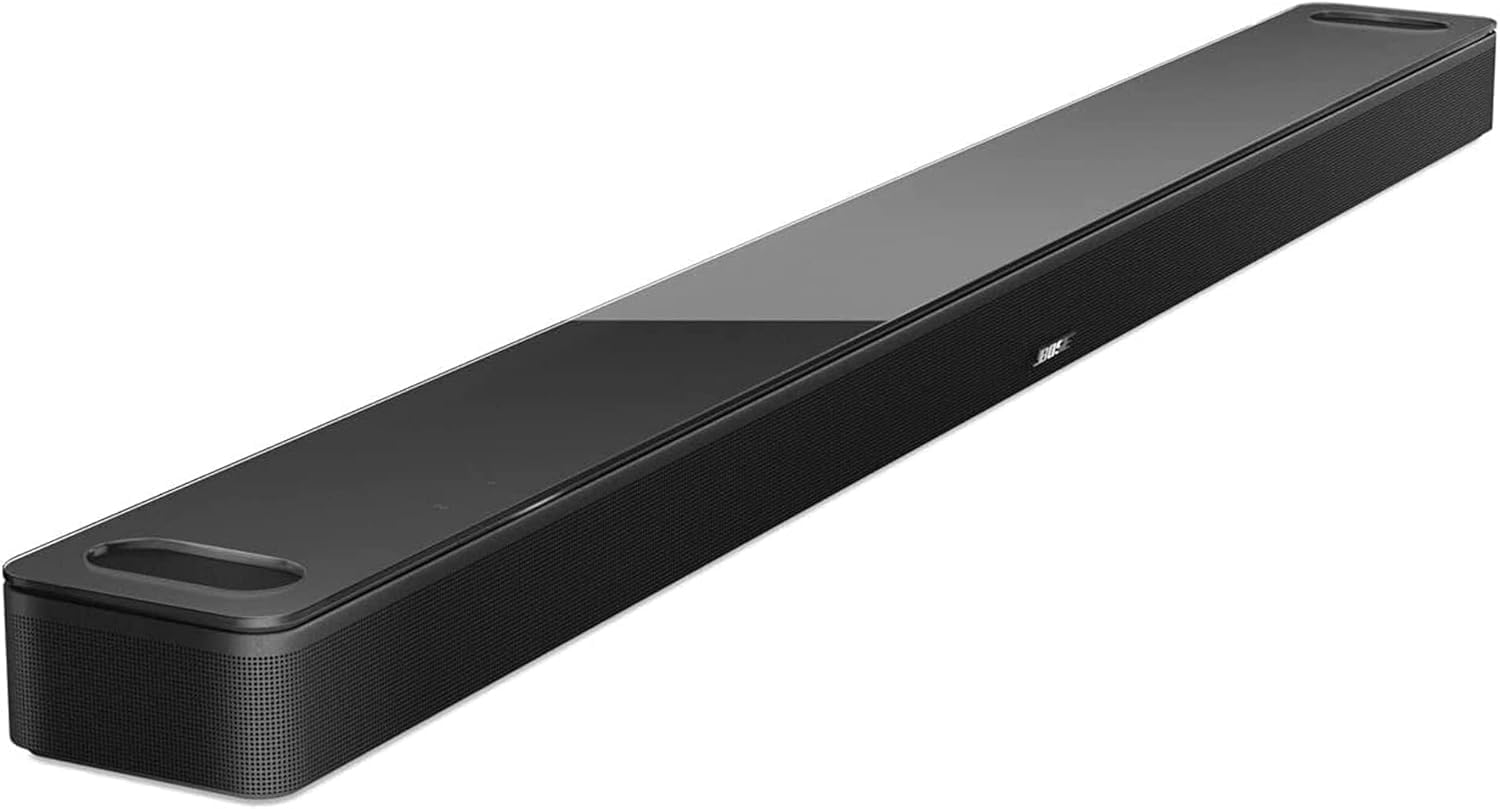
Bose Smart Soundbar 900 Dolby Atmos with Alexa Built-In, ...

Bose Portable Smart Speaker — Wireless Bluetooth Speaker ...
As an Amazon Associate we earn from qualifying purchases.
Official Manufacturer Manual
Bose provides official product documentation through their online manual rather than downloadable PDF. Access setup guides, troubleshooting steps, and product specifications for your Bose Home Speaker 500.
Source: support.bose.com
Need More Help? Bose Support
Note: The contact information below connects you directly to Bose's official customer support team, not Trunetto. They can help with warranty claims, device replacements, and advanced technical issues.