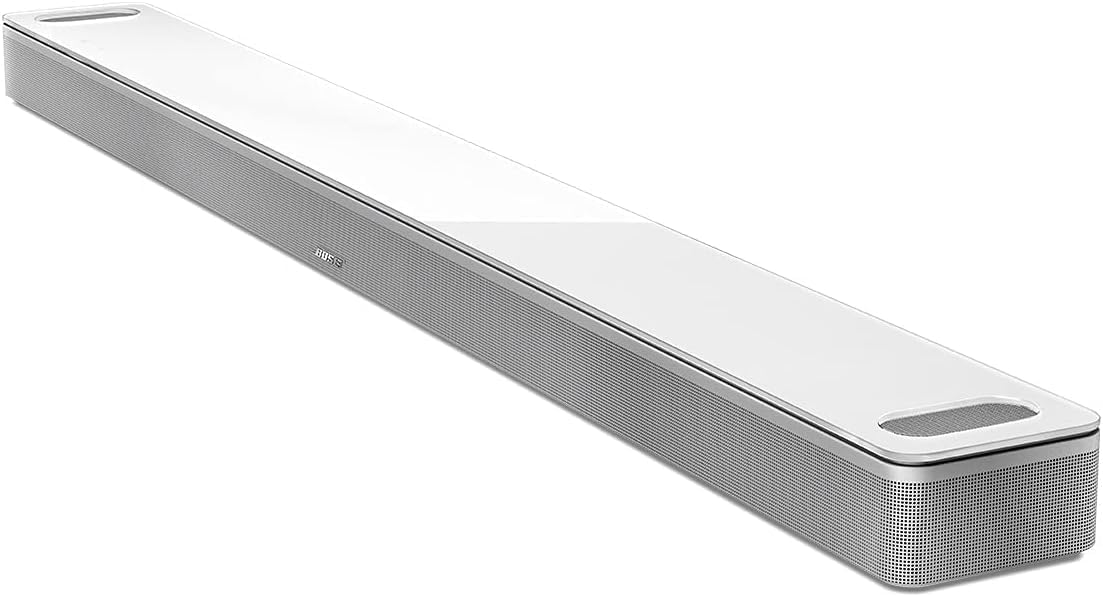
How Do I Calibrate My Bose Soundbar with ADAPTiQ?
- ADAPTiQ not run for the current room/placement
- Too much background noise during measurement
- ADAPTiQ headset not connected or worn incorrectly
Problem Description
You want to run (or re-run) ADAPTiQ audio calibration on your Bose soundbar so it sounds its best in your room, or the calibration is failing. ADAPTiQ uses the included headset with a built-in microphone to measure your room's acoustics from several listening positions and tunes the soundbar to match. This guide covers running ADAPTiQ correctly and fixing calibration errors.
Why This Happens in Real Homes
ADAPTiQ is Bose's automatic room-calibration system, and it makes a real difference because a soundbar's ideal tuning depends on the room's size, shape, and furnishings. It works with the included ADAPTiQ headset, which has a small microphone built in: you wear it and the soundbar plays a series of test tones, measuring the acoustics from several listening positions (typically five) to build a tuned sound profile for your space. Run it after initial setup, and re-run it any time you move the soundbar, rearrange furniture, or change the room significantly.
The overwhelming cause of ADAPTiQ failing is background noise. Because it's literally measuring sound in the room, any competing noise - HVAC, fans, an air conditioner, conversation, traffic - throws off the measurement and triggers the 'too much noise' error. Make the room as quiet as you can, turn off climate systems for the few minutes it takes, and follow the position prompts exactly, moving to each seat it asks for. Connect and wear the headset correctly with its mic unobstructed. If calibration completes but sounds worse, re-running it with a quieter room and accurate positions usually corrects it, and updating firmware first avoids known calibration bugs.
Symptoms
- Soundbar sounds off/unbalanced in the room
- Want to run or re-run ADAPTiQ calibration
- ADAPTiQ fails or errors partway
- Calibration prompts you to reduce noise
- Headset/mic not detected
- Results sound worse after calibration
- ADAPTiQ won't start
- Sound differs after moving the soundbar
Recognize these? Here's what usually causes it.
Common Causes
- ADAPTiQ not run for the current room/placement
- Too much background noise during measurement
- ADAPTiQ headset not connected or worn incorrectly
- Measurements taken from too few or wrong positions
- Room changed (furniture/soundbar moved) since last run
- Headset microphone obstructed
- AC/fans/HVAC running during calibration
- Firmware out of date
Most fixes happen in the first 3 steps.
Smart speakers are always listening for the wake word when unmuted. Review and delete your voice history regularly in the app privacy settings. Never place the speaker in bathrooms or near water sources as moisture can permanently damage internal components.
Step-by-Step Solution
Understand what ADAPTiQ does
ADAPTiQ is Bose proprietary room calibration system. It uses a special headset with built-in microphones to measure how sound bounces around your room. The soundbar plays test tones at different frequencies. The microphones in the headset capture the reflections, delays, and frequency response at your seating positions. The soundbar then creates a custom EQ profile that compensates for your room acoustics — boosting frequencies absorbed by soft furniture and reducing frequencies amplified by hard walls.
Prepare for the ADAPTiQ calibration
Find the ADAPTiQ headset that came with your soundbar (white over-ear headset with a Bose logo — included in the box). Make the room as quiet as possible: turn off fans, close windows, silence phones. No one else should be in the room during calibration. The process takes about 10 minutes and requires you to sit in 5 different positions.
Run ADAPTiQ through the Bose Music app
Open the Bose Music app. Tap your soundbar > Settings > ADAPTiQ > Start. Put on the ADAPTiQ headset and sit in your primary listening position (center of the sofa, where you usually sit). The soundbar plays test tones — they sound like sweeping beeps and clicks. After 30 seconds, the app prompts you to move to position 2 (one seat to the left). Continue through all 5 positions. The app tells you where to sit each time.
Re-run ADAPTiQ when the room changes
If you rearranged furniture, added a rug, changed curtains, or moved the soundbar, re-run ADAPTiQ. Room acoustics change significantly with these modifications. Also re-run after adding surround speakers or a bass module — the calibration optimizes the entire system together. Go to the Bose Music app > Settings > ADAPTiQ > Re-run.
Disable ADAPTiQ if you prefer manual EQ
If ADAPTiQ makes the sound worse for your preference (some users prefer a brighter or warmer sound than the calibrated profile), you can turn it off. Go to the Bose Music app > Settings > ADAPTiQ > Off. The soundbar reverts to its factory EQ curve. You can then manually adjust Bass, Treble, and Center levels in the EQ settings. You can always re-enable ADAPTiQ later — the calibration data is saved until you run it again.
Quick Solutions
Still having issues? This is usually the deeper cause below.
If this comes back after following these steps, check whether a recent app or firmware update reset a default setting — the fix works, but the setting gets reverted silently.
Place your speaker in a central location at ear height for best voice pickup. Avoid corners and bookshelves which muffle the microphones. If you have multiple speakers, set up multi-room audio groups so music plays in sync across rooms.
This issue almost always looks more complex than it is — the majority of cases trace back to a single setting, a stale credential, or a default that shipped wrong.
- ADAPTiQ not run for the current room/placement
- Too much background noise during measurement
- ADAPTiQ headset not connected or worn incorrectly
- Measurements taken from too few or wrong positions
- Room changed (furniture/soundbar moved) since last run
Before you go — try one of these (they fix most cases).
Most popular upgrades chosen by Bose Smart Soundbar owners.
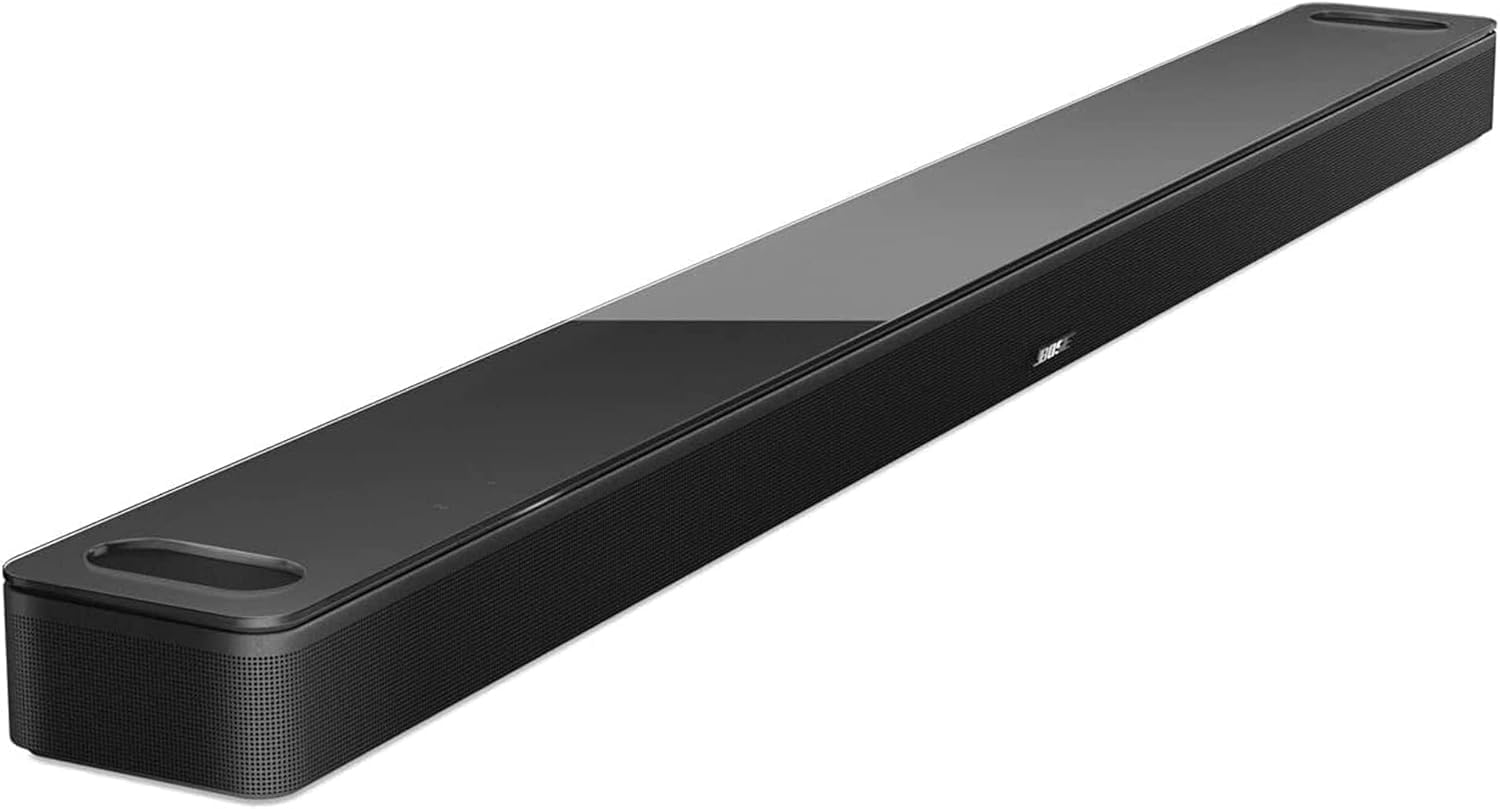
As an Amazon Associate we earn from qualifying purchases.
Official Manufacturer Manual
Bose provides official product documentation through their online manual rather than downloadable PDF. Access setup guides, troubleshooting steps, and product specifications for your Bose Smart Soundbar.
Source: support.bose.com
Need More Help? Bose Support
Note: The contact information below connects you directly to Bose's official customer support team, not Trunetto. They can help with warranty claims, device replacements, and advanced technical issues.