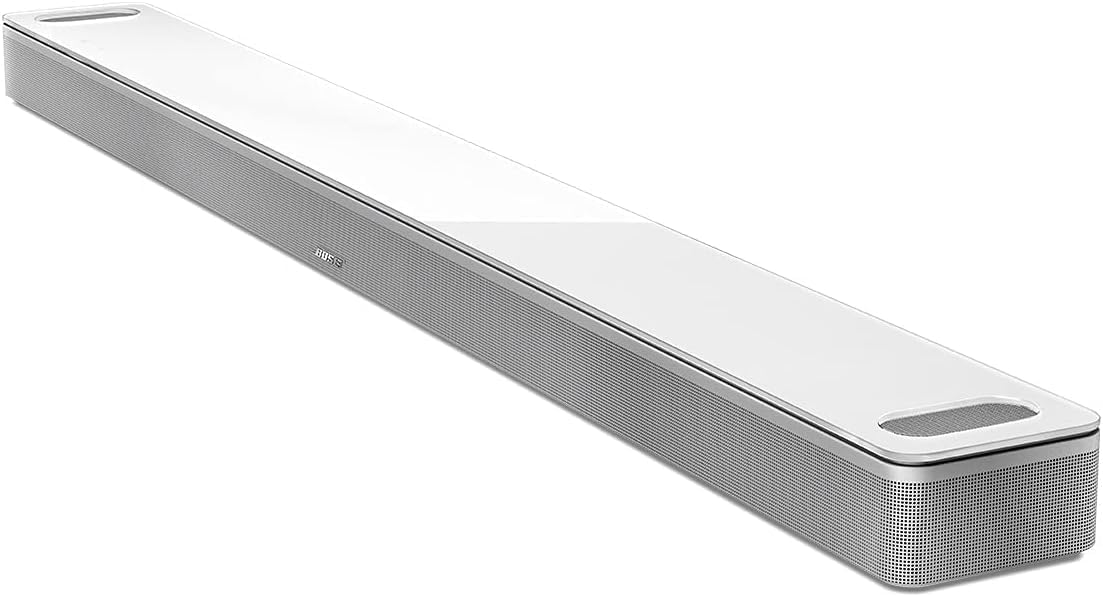
How Do I Enable Dialogue Enhancement on My Bose Soundbar?
- Dialogue Mode not enabled in the app
- Dialogue level set too low to notice
- Bass/EQ high enough to mask the boost
Problem Description
You want to enable and tune Dialogue Mode (dialogue enhancement) on your Bose Smart Soundbar so speech is clearer. Bose soundbars include a Dialogue Mode that boosts the center-channel frequencies where voices sit, with an adjustable level in the Bose Music app. This guide covers turning it on, setting the dialogue level, and combining it with EQ and calibration for the clearest speech.
Why This Happens in Real Homes
Dialogue enhancement on a Bose Smart Soundbar is delivered through Dialogue Mode, which you enable and adjust in the Bose Music app. It works by boosting the center-channel frequencies where human speech lives, so voices come forward without you raising the overall volume. The key is that it's adjustable - it's not just on/off, there's a dialogue level you dial up until speech is clearly intelligible over the music and effects. Many people turn it on and stop there without raising the level enough to actually notice the difference.
To get the most out of it, treat it as part of a balance. If bass or a boosted EQ is heavy, it can mask the dialogue boost, so easing those lets the enhancement do its job. If you have a bass module or surrounds, keep their levels from overpowering the center channel. Running ADAPTiQ calibrates the soundbar to your room so the vocal range reproduces accurately, which improves clarity across the board. Some content is simply mixed with quiet dialogue, so you may want more enhancement for movies than for music. Keep the TV audio format compatible and the firmware current so the setting behaves consistently.
Symptoms
- Can't find where to enable dialogue enhancement
- Dialogue Mode on but speech still unclear
- Not sure how much to raise the dialogue level
- Speech clearer but sound now thin
- Setting doesn't seem to change anything
- Effect varies by content
- Dialogue enhancement resets after updates
- Unclear how it interacts with EQ/bass
Recognize these? Here's what usually causes it.
Common Causes
- Dialogue Mode not enabled in the app
- Dialogue level set too low to notice
- Bass/EQ high enough to mask the boost
- Content mixed with very quiet dialogue
- Room not calibrated (ADAPTiQ)
- Surround/bass levels overpowering the center
- TV audio format not ideal
- Firmware out of date
Most fixes happen in the first 3 steps.
Smart speakers are always listening for the wake word when unmuted. Review and delete your voice history regularly in the app privacy settings. Never place the speaker in bathrooms or near water sources as moisture can permanently damage internal components.
Tools & Requirements
Step-by-Step Solution
Enable Dialogue Mode on the soundbar
Bose soundbars (300, 600, 700, 900) have a Dialogue Mode that boosts the center channel frequencies where speech sits. On the Soundbar 700/900, press the microphone button twice quickly on the remote or use the touch controls. Or open the Bose Music app > your soundbar > Settings > Dialogue Mode > On. The soundbar EQ shifts to prioritize the 1kHz-4kHz range where human voice clarity lives — dialogue becomes more prominent against background music and effects.
Adjust the center channel level
In the Bose Music app, go to your soundbar > EQ Settings. Adjust the Center level (if available on your model). Increasing the center channel by +2 to +4 makes dialogue louder relative to effects and music. The Soundbar 900 with surround speakers has a separate center channel mode that distributes dialogue more precisely. If your soundbar does not have a dedicated center control, use the Treble slider — increasing treble by +2 sharpens consonant sounds that are critical for speech intelligibility.
Check TV audio output settings
The TV audio format affects dialogue clarity. Go to your TV audio settings and set the output to PCM or Auto. Avoid setting it to Bitstream passthrough if dialogue is unclear — some Bitstream formats encode dialogue at a lower level. On Samsung TVs, check for a Digital Audio Out Format setting. On LG TVs, check Sound > HDMI ARC > Digital Sound Out. PCM is the most compatible format and does not compress dialogue.
Re-run ADAPTiQ calibration
If dialogue was clear when you first set up the soundbar but degraded over time, your room may have changed (new furniture, rearranged seating). Re-run ADAPTiQ in the Bose Music app > Settings > ADAPTiQ. Sit in your primary listening position during the first calibration spot. ADAPTiQ adjusts the soundbar EQ to account for room reflections that can smear dialogue. This single step often fixes muddled speech that no amount of manual EQ adjustment can.
Reduce bass if dialogue sounds muddy
Excessive bass can mask dialogue frequencies. In the Bose Music app, reduce the Bass level by -2 to -4. If you have a Bose Bass Module connected, lower its level as well. Bass energy from explosions, music, and low-frequency effects bleeds into the midrange where dialogue lives, making speech sound muffled. Find a balance where bass adds impact but does not overwhelm speech clarity.
Quick Solutions
Still having issues? This is usually the deeper cause below.
If this comes back after following these steps, check whether a recent app or firmware update reset a default setting — the fix works, but the setting gets reverted silently.
Place your speaker in a central location at ear height for best voice pickup. Avoid corners and bookshelves which muffle the microphones. If you have multiple speakers, set up multi-room audio groups so music plays in sync across rooms.
This issue almost always looks more complex than it is — the majority of cases trace back to a single setting, a stale credential, or a default that shipped wrong.
- Dialogue Mode not enabled in the app
- Dialogue level set too low to notice
- Bass/EQ high enough to mask the boost
- Content mixed with very quiet dialogue
- Room not calibrated (ADAPTiQ)
Before you go — try one of these (they fix most cases).
Most popular upgrades chosen by Bose Smart Soundbar owners.
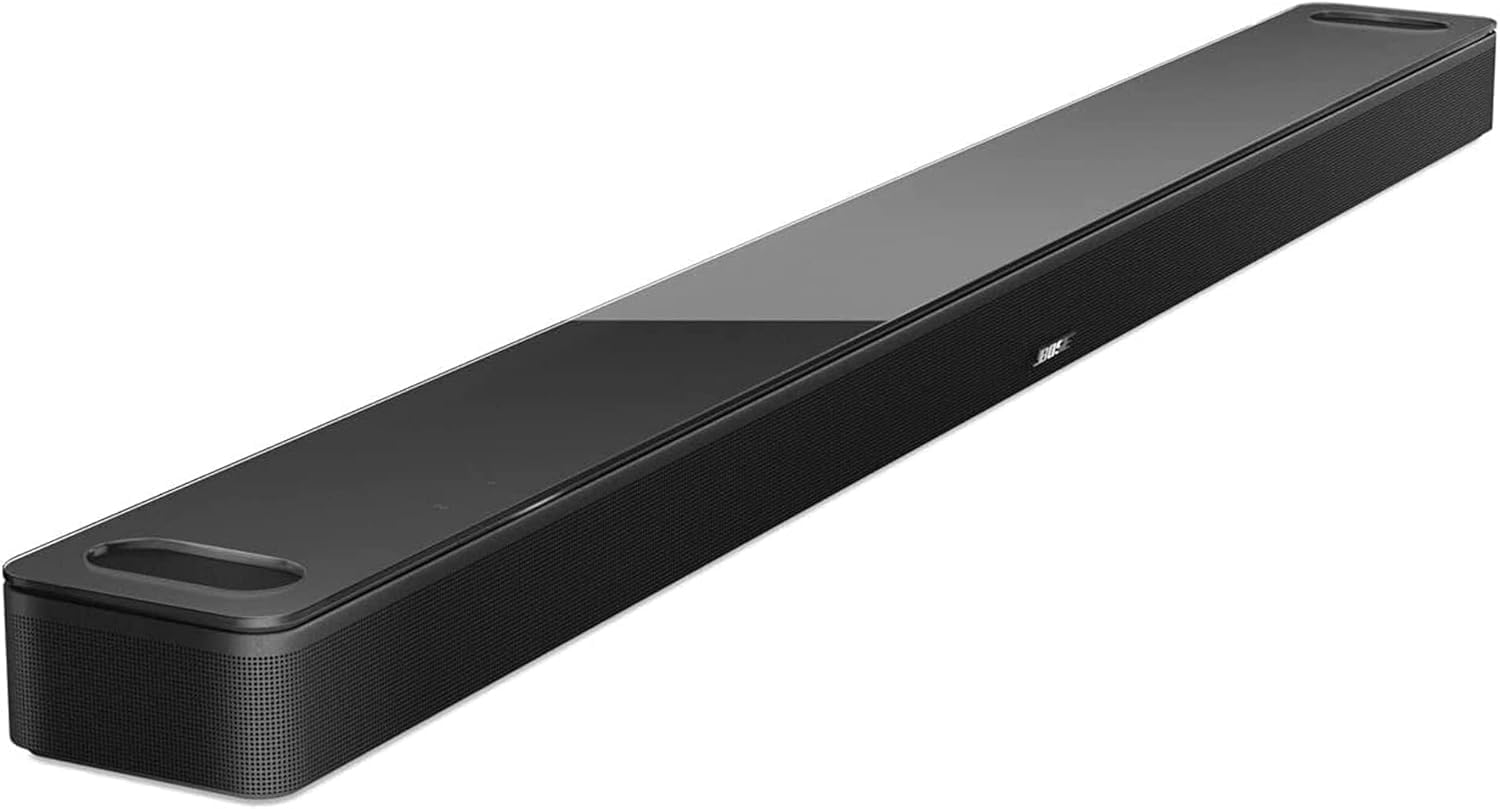
As an Amazon Associate we earn from qualifying purchases.
Official Manufacturer Manual
Bose provides official product documentation through their online manual rather than downloadable PDF. Access setup guides, troubleshooting steps, and product specifications for your Bose Smart Soundbar.
Source: support.bose.com
Need More Help? Bose Support
Note: The contact information below connects you directly to Bose's official customer support team, not Trunetto. They can help with warranty claims, device replacements, and advanced technical issues.